✨ Character creation
👤 For: Everyone · 💳 Plan: All plans · 🔄 Updated 2026-10-17
Building a character turns "I want to play a half-elf bard" into a real, SRD-backed sheet your player can roll dice with. There are two ways in: the player builds their own through an onboarding invite, or you (the GM) add one by hand from the Players section.
What it does
- Players open a link and go species → class → spells (if the class casts at level 1) → abilities → background → skills → Magic Initiate spells (if the background grants them) → optional portrait (not shown when the GM has hidden the AI features) → equipment, name the hero (required), and the sheet is created. No rules knowledge required — every step explains itself.
- GMs open a single form (one screen) and type a character in directly — handy when you sit with a player or pre-build a pre-gen.
- Both paths write the same player-character sheet that shows up in your Players list, ready for the table.
When to use it
- A new player is joining and you want them table-ready before session 1 → send an onboarding invite and let them run the player flow on their phone.
- You need to add a character on the spot, import a pre-gen, or fill a no-show's slot → use the GM Add Character form.
💡 Tip: The player invite is almost always the better choice. Players who build their own hero arrive invested, and session 1 starts at minute zero instead of with a stat block.
Players: the guided ("I'm new") wizard
When a player opens their invite link, the guided wizard starts right away. A bar at the top of the page holds ⚙️ Expert: Classic Mode on the left — it switches to the classic path, and the device remembers the choice — and the language menu on the right (see Player onboarding invites). A player who joins a live session without a character gets two buttons instead:
- ✨ I’m new — step by step — the guided beginner wizard (recommended for first-timers).
- 🎭 Create Character — the classic path with more shortcuts (manual, D&D Beyond import, or a suggestion from Tantu).
The guided wizard, step by step
- Welcome! — a short intro of what's coming (species, class, abilities, background).
- Choose your species — a card grid of the 11 species (see SRD coverage), each showing speed and whether it has Darkvision.
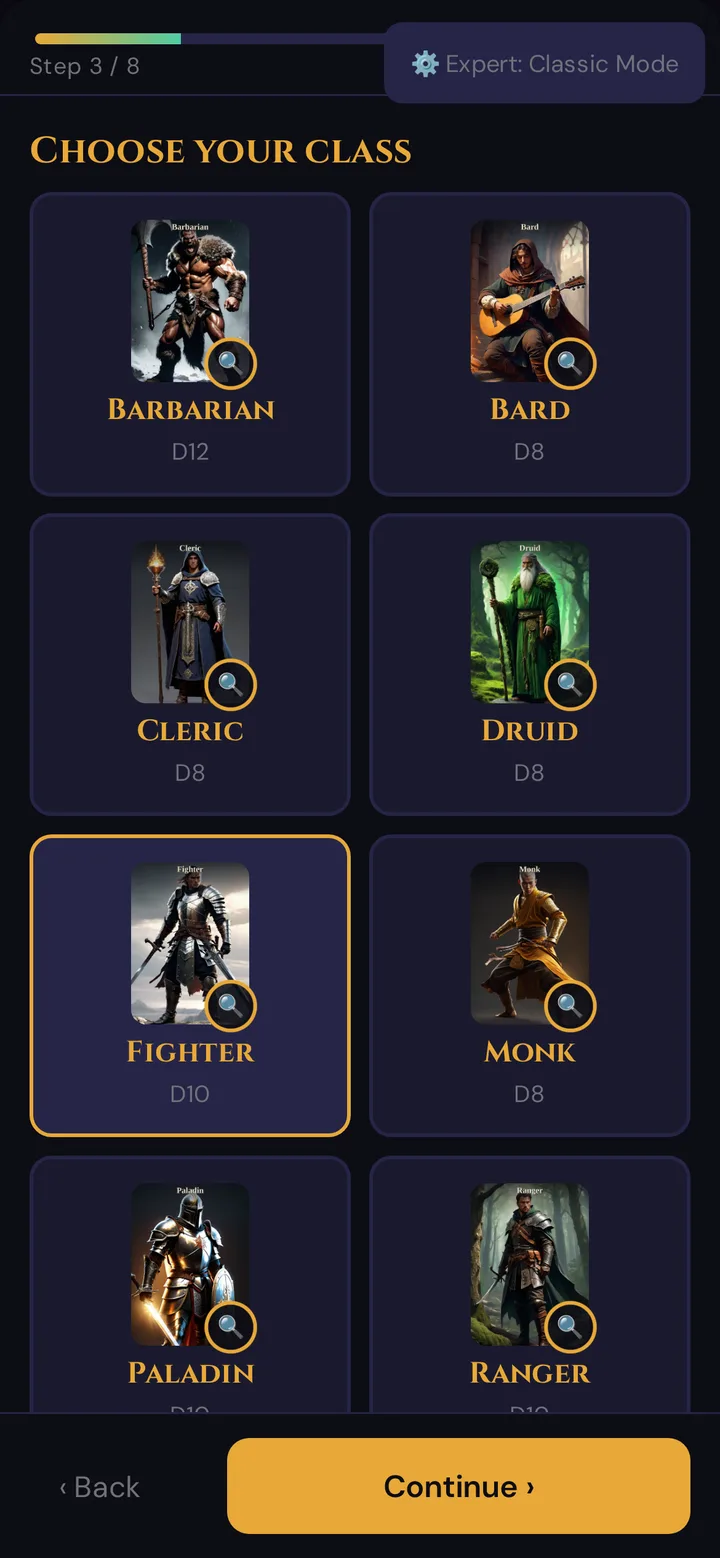
- Choose your class — a card grid of the 12 classes, each showing its hit die.
- Choose your spells (only for classes that cast spells at level 1) — pick the cantrips and spells your class gets at level 1, from the spells of SRD 5.2.1. Tap a spell to read what it does — the name, the description, the casting time and the range follow your language.
- Your abilities — assign the standard array (15, 14, 13, 12, 10, 8) across the six abilities. The modifier (the bonus you add when rolling) is calculated live. The ✨ Recommendation for {class} button arranges the array sensibly for the chosen class; players can still swap freely.
- Your background — pick one of the four SRD 5.2.1 backgrounds: Acolyte, Criminal, Sage or Soldier. Each card shows a short story, which classes it fits, its two skills, its tool, its origin feat (see Origin feats below) and its equipment. After picking:
- Raise your abilities — the background raises three abilities: one by +2 and another by +1, or all three by +1 (no score above 20). The wizard suggests the best fit.
- Your gaming set (Soldier only) — choose one kind; the character is proficient with it.
- Starting equipment — (A) the background's package of gear, or (B) 50 GP to buy your own gear later.
- Your skills — the two background skills are already ticked; below, choose the number of skills your class allows. Each skill shows the bonus you roll with (ability modifier + 2 for training). A good fit is preselected.
- Your Magic Initiate spells (only for Acolyte and Sage, whose origin feat is Magic Initiate) — choose the spellcasting ability, 2 cantrips and 1 level 1 spell from the Cleric (Acolyte) or Wizard (Sage) list.
- Portrait (optional) — tick Create portrait right away (AI) and optionally type a short appearance note. If ticked, the hero gets a portrait suggestion right after creation. If the GM has hidden the AI features, this step is left out and no portrait is created.
- Equipment — the wizard shows the class's standard starting equipment plus the line From your background: …. Both are added to the inventory automatically when the hero is created, once per sheet.
- Almost done! — name the hero (required, up to 60 characters; without a name you see Please give your hero a name.), check the summary, then hit ⚔️ Create hero! The character is saved and the sheet appears immediately. The name can be changed later with ✏️ in the sheet (see Changing your character's name).
The background's skills, tool, origin feat and ability increase go straight onto the sheet, and the background is noted in the backstory. Hit points and Armor Class are calculated automatically from the class's hit die, the Constitution modifier and the starting armour — nobody has to type them in.
💡 Tip: Progress is saved after every step. A player can close the page, come back later, and the wizard resumes exactly where they left off.
What the player sees (abilities step)
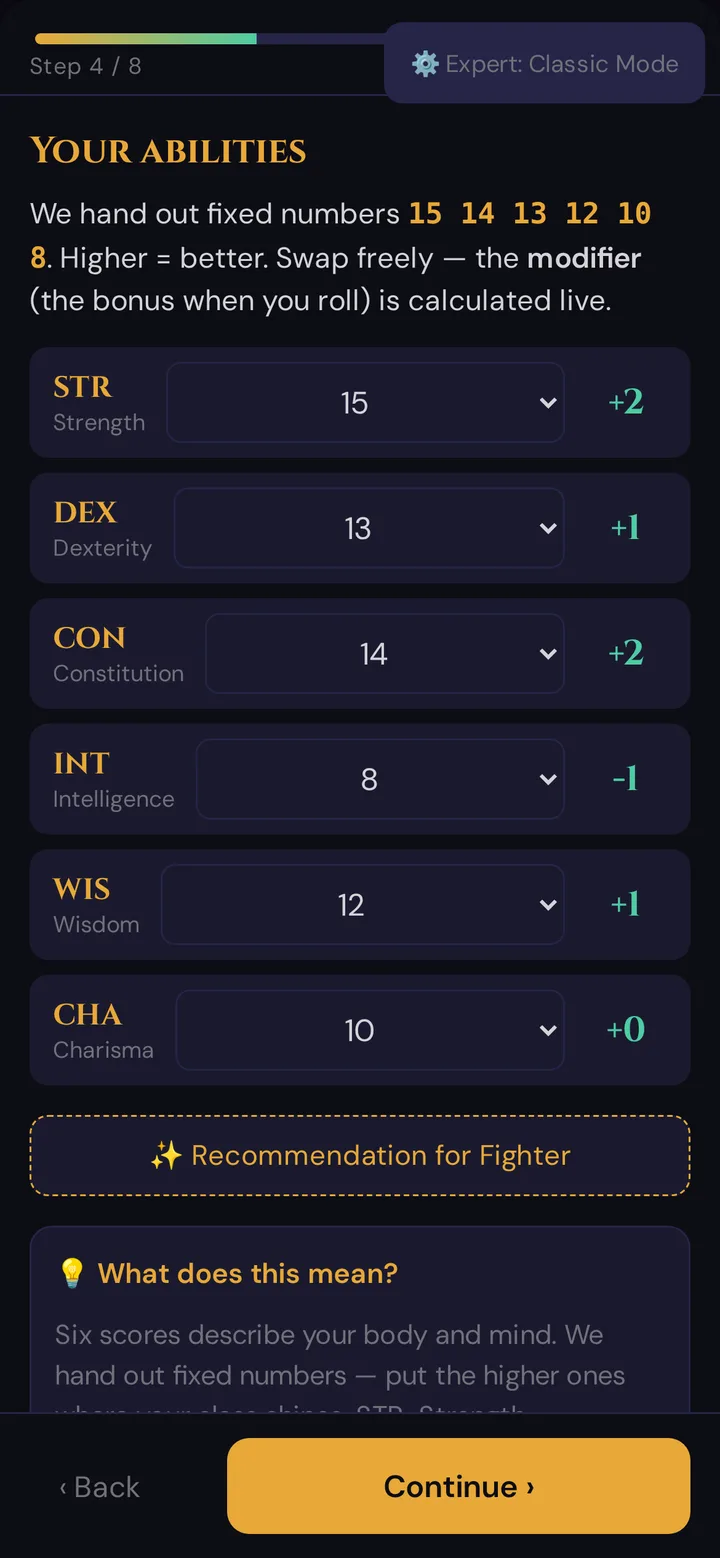
The step count depends on the choices: a Fighter with the Soldier background has 8 steps, a Wizard with the Sage background gets the two spell steps on top.
Origin feats: what works automatically
In the guided wizard, every background brings one origin feat. The player sees it on the background card as Origin feat: … with a short explanation. There is no separate feat choice:
| Background | Origin feat |
|---|---|
| Acolyte | Magic Initiate (Cleric) |
| Criminal | Alert |
| Sage | Magic Initiate (Wizard) |
| Soldier | Savage Attacker |
The feat is saved on the sheet (player HUD → 🌟 Features tab). Wovenkeep applies two of them for you:
Alert
- The Initiative on the sheet includes the proficiency bonus (+2 at level 1).
- When you start a combat, the initiative roll request on the player's phone already carries this bonus, and so does the roll Wovenkeep makes if the player doesn't roll in time.
- Swapping initiative with a willing ally (also part of the feat) is not automated; handle it at the table.
Magic Initiate
- The player picks Acolyte (Cleric spell list) or Sage (Wizard spell list) as background.
- After the skills step, the step Your Magic Initiate spells appears.
- Under Spellcasting ability, the player picks Intelligence, Wisdom or Charisma; Wovenkeep suggests the highest of the three.
- The player picks 2 cantrips and 1 level 1 spell. Spells the character already has from their class are not listed.
- On finish, the spells land on the sheet (✨ Spells tab) with the source Magic Initiate (Cleric) or (Wizard). The level 1 spell is always prepared and carries the note "1× per long rest without a spell slot, spellcasting ability: …".
- On the 🌟 Features tab, the feat has a 1/1 use counter that resets on Long Rest.
- If the class has no spellcasting of its own (for example Fighter), the chosen ability becomes the sheet's spellcasting ability, so the save DC and spell attack show up.
- Wovenkeep checks the choice when the character is created: right spell list, exactly 2 cantrips and 1 level 1 spell, no spell twice.
Savage Attacker is saved on the sheet with its description; Wovenkeep doesn't roll the second damage roll for you.
Origin feats come from the guided wizard only. The GM Add Character form has no feat field.
The classic path
The 🎭 Create Character button in the player view offers four ways to start (the invite page has its own classic mode — see Player onboarding invites):
| Option | What it does |
|---|---|
| 📋 Choose Manually | Pick species and class from the lists yourself, then name the character. |
| 🤖 AI-Guided | Answer 3 questions (where you grew up, what drives you, how you solve problems) and Tantu suggests a fitting species + class with a one-line reason (with the help of AI). Accept it, or switch to manual. |
| 📄 D&D Beyond PDF | Upload an official character-sheet PDF — abilities, race, class and more are read in. |
| 🔗 D&D Beyond Link / JSON | Paste a D&D Beyond character URL or upload the JSON export. |
Tantu's suggestion only picks a species and class from your answers — it does not write a backstory. If Tantu can't be reached, a built-in keyword matcher still returns a sensible suggestion, so the button always works.
GMs: the Add Character form
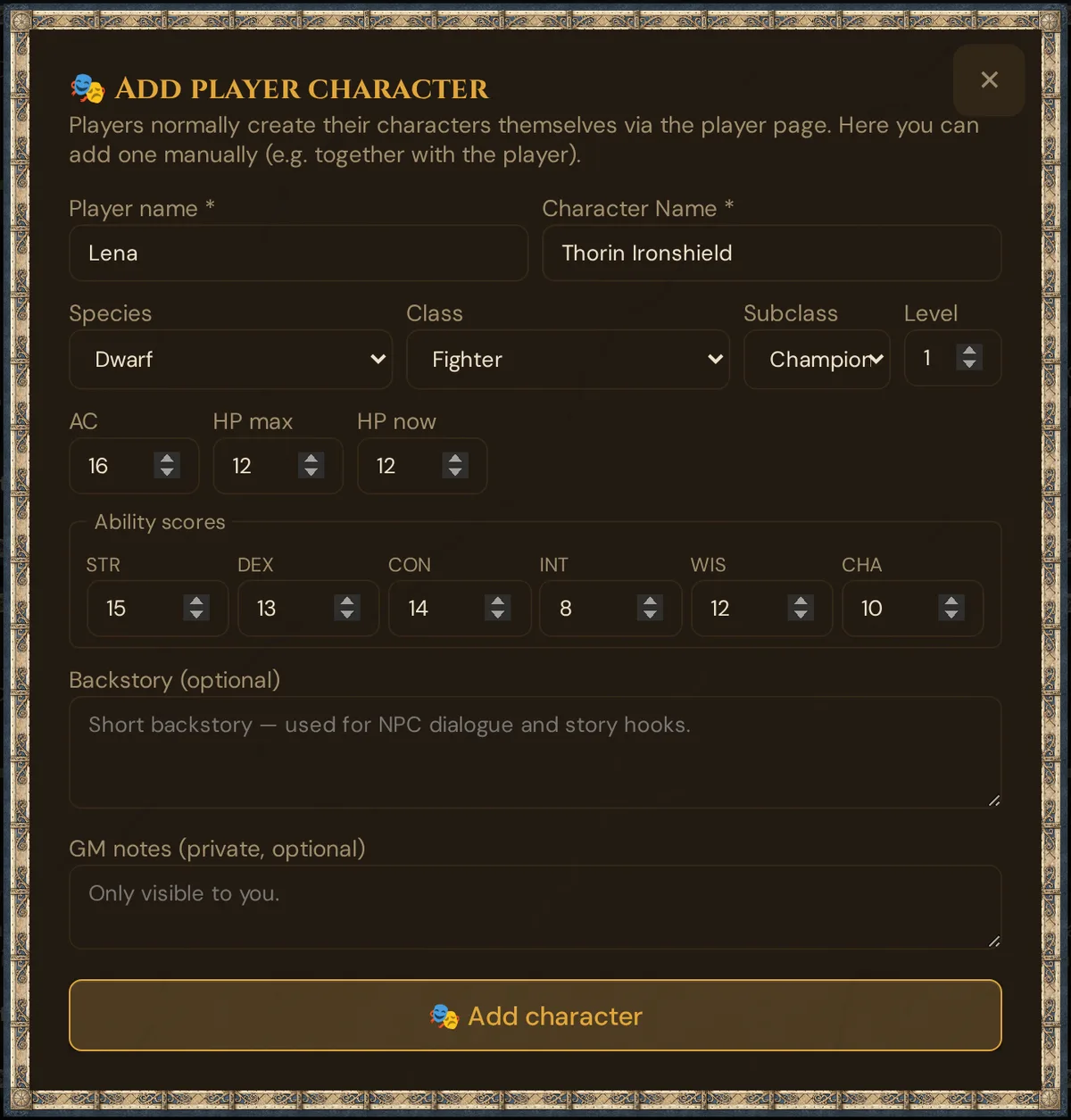
In the GM tool, go to Players in the sidebar and click + Player. This is a single-screen form, not a wizard:
- Enter Player name and Character Name (both required).
- Pick Species, Class, and (if the class has one) Subclass — the subclass list updates to match the chosen class. Set the Level.
- Set AC, HP max and HP now (defaults are 10 — adjust to taste).
- Type the six Ability scores directly (any value 1–30, for rolled stats or homebrew).
- Optionally fill Backstory (your material for story hooks; Tantu also uses it as context) and GM notes (private — only you see these).
- Click 🎭 Add character. The PC appears in your Players list.
💡 Tip: The Species vs Race label follows your ruleset — the 2024 SRD (the default) says "Species", the 2014 SRD says "Race". The character data is identical either way.
🎁 A character added here doesn't get starting equipment automatically. Use the 🎁 Starting equipment button on the PC card afterwards: Player characters → Starting equipment.
What the GM sees
Portraits
A player can upload a portrait or get one suggested (AI, 5 Threads). To upload, they paste an image URL or upload their own file (uploads need GM approval before they show up). Suggested images are then yours to push to player phones for free.
For the full portrait window and options, see NPCs → Portraits — the player and NPC portrait flows share the same engine.
By default, players cannot spend your Threads. To let players get their own portrait suggestions on your balance, open ⚙️ Tantu Settings in the sidebar and enable "Players may use paid Tantu functions (charged to my Thread credit)" in the 🎮 Player Tantu access section. A bring-your-own AI key doesn't change this — image generation always costs Threads (only AI text actions become free with your own key).
SRD coverage
Character creation offers a part of the SRD loaded in your Realm:
- Species: 11 — the nine species of SRD 5.2.1 (Dragonborn, Dwarf, Elf, Gnome, Goliath, Halfling, Human, Orc, Tiefling) plus Half-Elf and Half-Orc from SRD 5.1.
- Classes: the 12 SRD classes. Backgrounds in the guided wizard: Acolyte, Criminal, Sage and Soldier.
- Spells: only the spells of SRD 5.2.1 — in the guided wizard and in the classic path.
- Subclasses: the guided wizard has no subclass step. The GM form and the invite page's classic mode offer only the subclasses of SRD 5.2.1 — one per class, named in your language. A character that already has another subclass keeps it in the GM form.
Non-SRD content (e.g. the Hexblade warlock, Tasha's options) is not bundled — it isn't openly licensed. You can add homebrew species/classes/subclasses yourself in the Rulebook.
Legal note: Wovenkeep's bundled rules are SRD / CC-BY-4.0 / CC0 content only. We don't ship copyrighted non-SRD material. See SRD Rulebook → Licensing.
Plan limits
Character creation itself is free on every plan — building the sheet, picking species/class, spells, abilities, background, skills and equipment costs nothing.
Only the optional suggestions touch your balance, above all the portrait suggestion (AI):
| Action | Cost |
|---|---|
| Build the character (species, class, spells, abilities, background, skills, equipment) | Free |
| Suggestion via 🤖 AI-Guided (3 questions → species + class) | 1 Thread (short text), on all plans; free with your own AI key |
| Portrait suggestion (AI) | 5 Threads per image, on all plans — also with your own AI key (only text actions become free) |
See Threads & costs for how Threads work and Pricing for plan bundles.
Troubleshooting
| Symptom | Cause | Fix |
|---|---|---|
| Wizard restarts from the beginning | Progress is per device + invite; opening on a different phone starts fresh | Finish on the device you started on, or re-pick the earlier steps (they're quick) |
| The species step says "Species", a guide says "Race" | The label follows the ruleset (2024 SRD = "Species", 2014 SRD = "Race") | Cosmetic only — the character is identical. Check the Realm's ruleset in the Rulebook |
| The subclass you want isn't in the list | Only the SRD 5.2.1 subclass of each class is offered | Note the subclass in the backstory or the GM notes |
| "Your balance isn't enough for an AI portrait" | Threads ran out | Top up Threads, or copy the prompt and create the image yourself |
| The wizard has no portrait step | The GM has hidden the AI features | Upload a portrait on the character sheet later |
| Player can't get a portrait suggestion | The GM hasn't enabled player paid access | In Tantu Settings → Player Tantu access, enable "Players may use paid Tantu functions", or have the player paste/upload an image instead |
| 🤖 AI-Guided gives a generic Human Fighter | The answers didn't match a keyword, or Tantu couldn't be reached | Re-answer with clearer choices, or just switch to Choose Manually |
Related articles
- 🎲 Player characters — the resulting PC sheet
- 🎟️ Player onboarding invites — how players run this flow themselves
- 🎭 NPCs — the same portrait window
- 📕 SRD Rulebook — the species/class data source + licensing
- ⚒️ Suggestions: items, monsters, images, sound — portrait and other suggestions
- 🧵 Threads & costs — what costs Threads