📜 Handouts
👤 For: Game Masters · 💳 Plan: All plans · 🔄 Updated 2026-10-17
A handout is a document that lands in a player's Documents tab on their phone. Unlike a scene (which is transient) or an inventory item (which is mechanical), a handout is a piece of in-fiction prose the player can return to throughout the session.
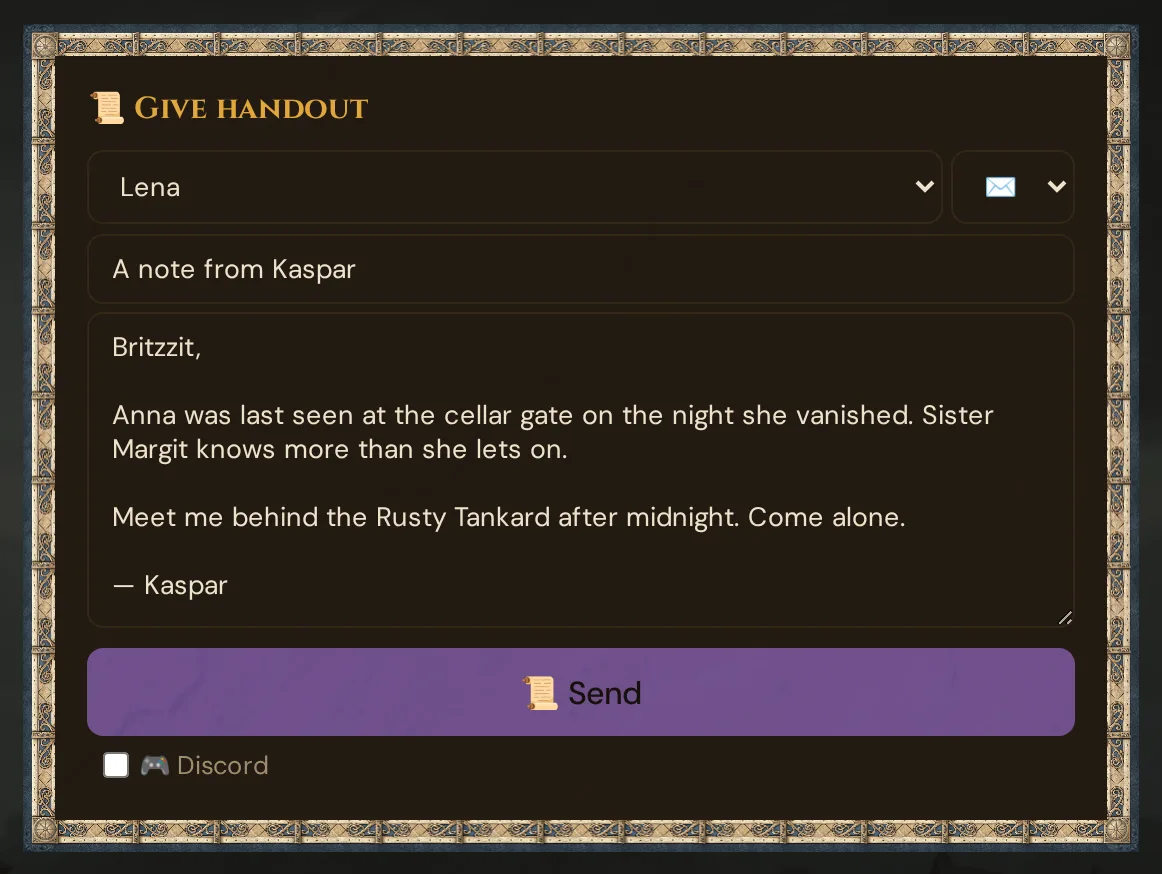
What it does
Two cards in 🎁 Items & Handouts send documents:
- 📜 Give handout — type a title, some content, pick a type, optionally add an image, and hit 📜 Send.
- 📚 From the library — send a handout you prepared in 📋 Prep → 📜 Handouts to all players or to the players you pick (see From the library).
The document appears immediately in the chosen player's Documents tab — or in every player's tab if you target All. Every handout stays there for the lifetime of the session. Players can print individual handouts or the whole stack from their phones.
When to use it
Use handouts whenever players should be able to re-read something — a letter from an NPC, a map they found, a clue inscription, a riddle carved above a door. If you'd normally say "the note says blah blah" out loud, consider typing it into a handout instead.
Common use cases:
- Letters and messages from NPCs
- Maps and floor plans
- Clue inscriptions, journal fragments, torn pages
- Riddles or puzzles the party needs to think through
- Quest summaries the players want to keep handy
- Translated text after the party deciphers it
Step by step
- Open the Live tab in the GM interface.
- Click 🎁 Items & Handouts in the left sidebar.
- Scroll to the Give Handout card.
- Fill in:
- Target — pick a player from the dropdown, or All to send to everyone at once.
- Type — choose the document flavour (see Handout types below).
- Title — the heading players see in their Documents list.
- Content — the body text. Plain text; line breaks are preserved.
- Image (optional) — an image address, or click 🗂️ Choose from media to pick or upload a picture (see Choose from media).
- Optionally tick 🎮 Discord to also post the handout to Discord (only when the target is All).
- Click 📜 Send.
The card confirms 📜 Title → Name, the handout appears immediately in the target player's Documents tab, and the title and content fields clear for the next one. If sending fails — for example because the image address isn't public — the card says ⚠️ Sending failed: … and your fields stay as they are.
💡 Tip: If you know you'll need certain handouts — the patron's contract, the dungeon map, the BBEG's calling card — write them in 📋 Prep → 📜 Handouts in advance and send them from 📚 From the library on cue.
From the library
The card 📚 From the library below 📜 Give handout lists the handouts of your handout library — icon, title, the 🎬 scene they belong to, ✓ given once you sent them, and 📤 Send.
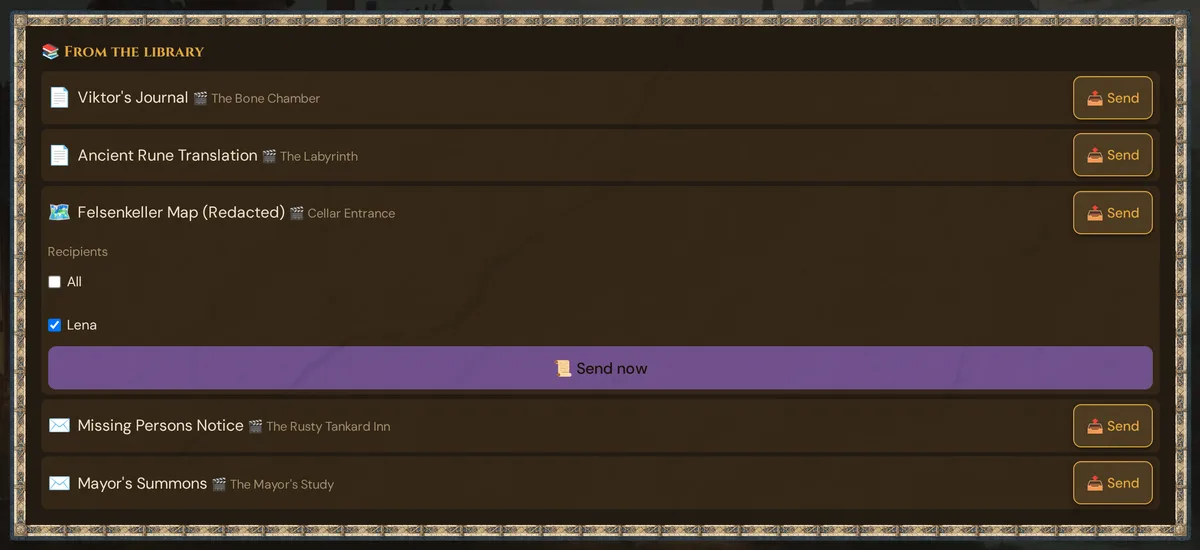
- Click 📤 Send next to the handout.
- Under Recipients, tick All or one or more players. Only players who are present are listed. All is preselected for handouts marked Meant for all players.
- Click 📜 Send now.
Title, text, image and type come from the library — you can't change them while sending; edit the handout in prep instead. Each send delivers a new copy, and the library remembers when the handout was last given. The card reports the result; without a recipient it says Choose “All” or at least one player.
Handout types
The Type picker in the Give Handout card has five options:
| Icon | Type | Best for |
|---|---|---|
| 📜 | note (default) | General documents, summaries, lore fragments |
| ✉️ | letter | Messages from NPCs, personal correspondence |
| 🗺️ | map | Floor plans, regional maps, annotated sketches |
| 🔍 | clue | Evidence, investigation findings, objects of interest |
| 🧩 | riddle | Puzzles, ciphers, inscriptions to decode |
All handout cards use a uniform amber left-border in the player UI — the type icon appears next to the title so players can tell at a glance what kind of document it is.
What the player sees
Players see four tabs in their game screen footer:
[ 🎬 Scene ] [ 📦 Inventory ] [ 📜 Documents ] [ 🔨 Crafting ]
Tapping Documents opens the handout list — newest at the top. Each handout is a card:
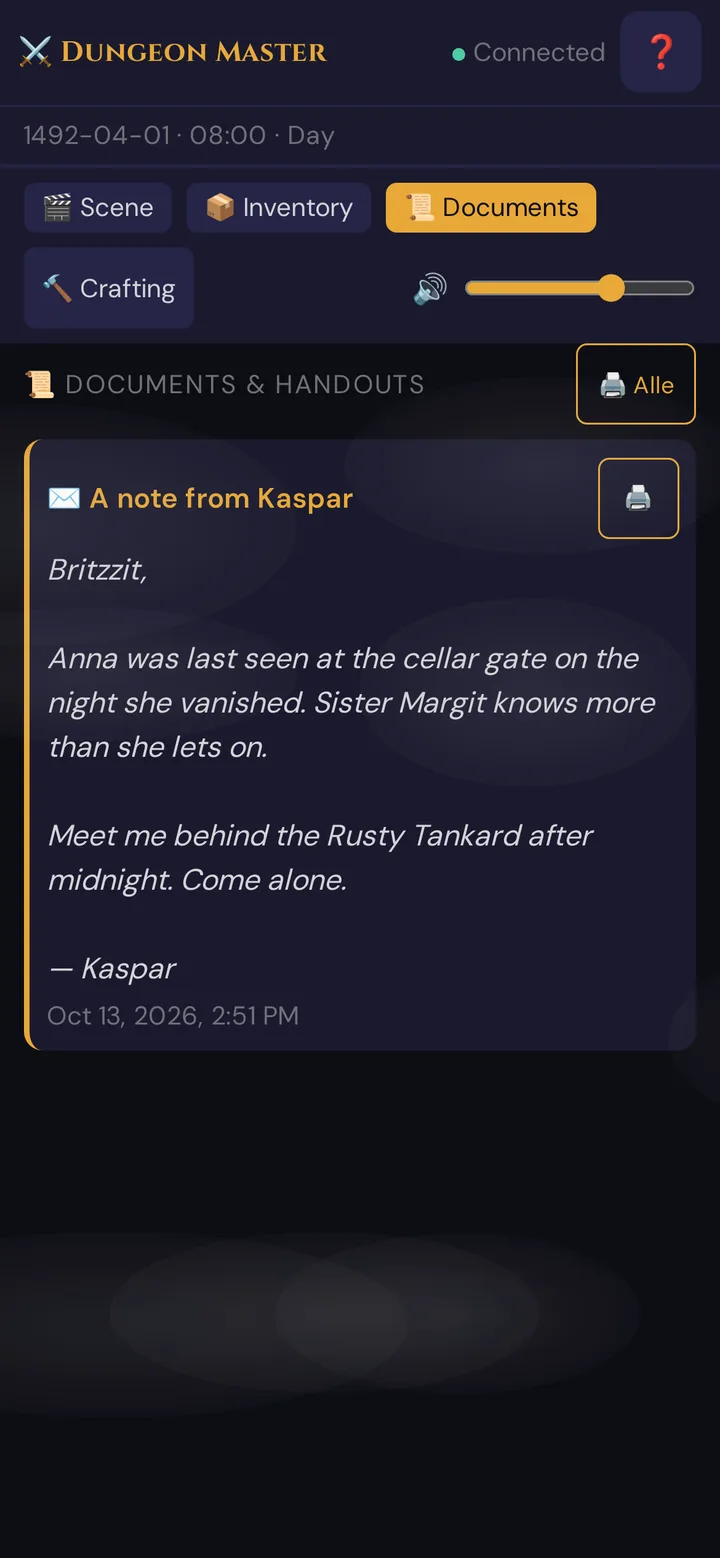
When a document arrives, the 📜 Documents button shows a counter and the scene view shows a 📜 New Document: … – tap to read hint for about 10 seconds. Long documents show only their first lines in the list — Read more ↓ (or tapping the title) opens them in a full-screen reading view.
Printing
Each handout card has a 🖨️ button. Tapping it opens the browser print dialog with only that handout formatted cleanly for paper — title, image (if any), content, and timestamp. The 🖨️ Alle button at the top of the Documents view prints all received handouts at once. Useful for physical props or session notes players want to keep.
Targeting
| Target | What happens |
|---|---|
| All | Every connected player gets a copy in their own Documents tab. Each row is stored separately so a player who joins later can still receive it — just push again. |
| Single player | Only that player's phone receives it. If they're on multiple devices, all of their devices show it. |
In 📜 Give handout there is no partial-group targeting — to send to a subset of players, push it once to each player. 📚 From the library lets you tick several players at once.
Images in handouts
📜 Give handout has an Image (optional) field: paste an image address or click 🗂️ Choose from media to pick one of your pictures or upload a new one. Pictures you uploaded to Wovenkeep always work; an external address must be a public http(s):// URL. Library handouts bring their own image.
Discord push (optional)
Handouts have a 🎮 Discord switch. It takes effect when the Scenes & NPCs slot is set up in Instance settings and the handout goes to All — handouts for a single player are never posted to Discord. When it takes effect, the handout posts to the channel as an embed:
- Title as the embed title
- Content (first 4 000 characters) as the embed body
- Image as the embed image
Useful for hybrid sessions or sharing reference material with absent players.
Persistence
- Handouts pushed during a session stay in the player's Documents tab for the lifetime of that session.
- Closing the GM browser tab does not end the session — it fires a
gm:disconnectednotice to players but the session (and all handouts in it) remain intact. The session ends only when the GM clicks End Session in the live interface. - When the session is explicitly ended, the handouts remain in the database. A player who rejoins a different session in the same campaign will not see them by default.
- If you want a document to follow a player across sessions, store it as a PC note instead (Prep → Players → PC sheet → Notes).
Session log
Every handout you send is recorded in the Session log — what, to whom, and when — so you can see the full distribution history afterward.
Patterns
The "pre-write" pattern — write 3–5 handouts during prep that you know you'll need (the patron's contract, the dungeon map, the BBEG's calling card). Push them on cue during the session.
The "improv handout" pattern — when a player asks "what's on the note?", type it into the Give Handout box right then and there. Players appreciate reading the actual prose, not just hearing "the note says blah blah".
The "translation reveal" pattern — send the handout in ciphered or foreign text first (a fantasy alphabet, wingdings, scrambled letters). Later, when the party deciphers it, push the same handout with the translated content. Both versions stay in their Documents tab.
The "clue trail" pattern — use type=clue for each piece of evidence. The 🔍 icon makes it easy for players to spot investigation finds at a glance when scrolling back through their Documents. A clue with the standard title Clue — for example one sent with 🔍 As handout — shows that title in each player's own language; titles you write yourself stay as they are.
Plan limits
Sending text handouts is free on all plans. External image URLs and uploads work on all plans. If players want AI-generated images to accompany a handout, those cost 5 Threads per image via the AI image generator and then push for free.
See Threads & costs for the full cost table.
Troubleshooting
| Symptom | Cause | Fix |
|---|---|---|
| Player doesn't see the handout | Their phone briefly lost connection during send | Rescan QR; the handout is safely saved — push again after they rejoin |
| A handout with an image address never arrived | The address isn't a public http(s):// URL — the handout is not delivered, and the card says ⚠️ Sending failed: … |
Pick the picture with 🗂️ Choose from media and send again |
| Image broken after upload | Source URL became unavailable | Re-upload to Media Library |
Markdown shows as raw **bold** |
Older player page cached | Hard-refresh the player page — the current player UI renders plain text with preserved line breaks |
| Sent to wrong player | Dropdown was on a stale selection | Re-send to the correct player; the duplicate won't hurt |
| Handout appears in everyone's tab when you targeted one player | Target dropdown was on All | Re-send; verify the Target dropdown shows the specific name |
| Session end button missing after GM tab refresh | GM reconnected but session code not re-established | Reload the GM tab completely and rejoin the session |
| 📜 Send now in 📚 From the library says Choose “All” or at least one player. | No recipient is ticked | Tick All or at least one player |
Related articles
- 🎁 Items & inventory — mechanical items vs. document handouts
- 🖼️ Scene push — transient scene cards vs. persistent documents
- 📄 Handouts in prep — building the handout library before your session
- 🎮 Discord settings — pushing handouts to Discord
- 🧵 Threads & costs — image generation costs (pay-per-use)