🗺️ Tour of the GM tool
👤 For: Game Masters · 💳 Plan: All plans · 🔄 Updated 2026-10-17
The Wovenkeep GM tool has two halves: Prep mode (where you build campaigns, NPCs, scenes) and Live mode (where you push content to player phones during the actual game). This tour shows you what's in each.
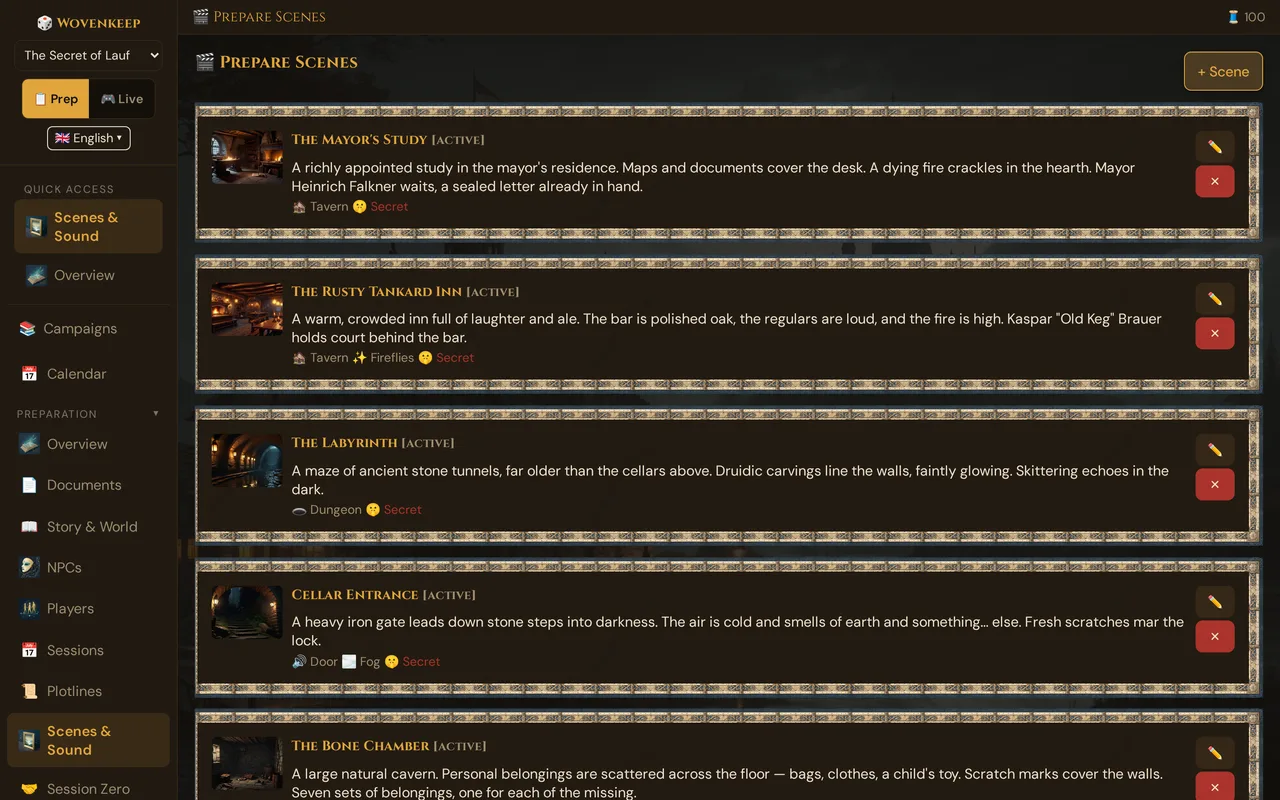
What it does
The GM tool runs in your browser at yourname.wovenkeep.com/gm (your Realm). Everything you build in Prep mode becomes instantly usable in Live mode — no export, no copy-paste. One click starts the session; another click pushes a scene image to every connected phone.
When to use it
Use this tour when you're new and want a map of the terrain before diving in. If you'd rather learn by doing, the Tantu Bubble in the bottom right of the screen offers a guided walkthrough and a step-by-step Lazy DM checklist.
The top bar — always visible

| Element | Visible | What it does |
|---|---|---|
| Page title | Always | Name of the section you're in |
| 🧵 Threads chip | Always (once your balance is loaded) | Your live Thread balance. It refreshes after every use of an AI help, and a small toast shows each deduction |
| 1 player | During a live session | Count of players connected to the live session |
| 🔑 Code | During a live session | The 8-character session code (letters and digits); click it to copy the join link |
| ⏱ 0:00 | During a live session | Session pacing timer (click to start/pause) |
| 📡 Push-Check | During a live session | Pings every player phone to verify reception |
| 📱 QR | During a live session | Shows the session-join QR code |
| 📺 TV | During a live session | Connects a TV or second screen |
| ⏹ End Session | During a live session | Ends the live session |
The page title sits at the left of the bar; the picture shows the right-hand part during a live session. You start a session in 🎮 Live → Scenes & Sound with ▶ Start Session.
The left sidebar — your navigation home
The sidebar has two modes. The mode toggle is at the top of the sidebar:
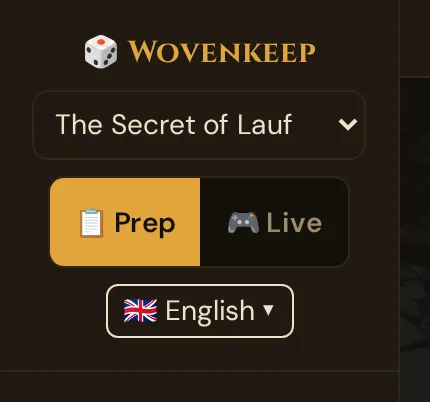
Prep mode is your default. Click 🎮 Live to switch to the live navigation; the session itself starts with ▶ Start Session in the middle of Scenes & Sound.
Prep sidebar — building your campaign
📚 Campaigns           ← the Campaigns hub: all campaigns, create, duplicate, delete
📅 Calendar            ← all game nights of all your campaigns, with who is in

Preparation
  📊 Overview          ← dashboard, stats, complexity, AI quick-actions
  📄 Documents         ← upload campaign documents Tantu can look things up in
  📖 Story & World     ← three text boxes: story, world, secrets
  👤 NPCs              ← the inhabitants of your world
  🎲 Players           ← player characters (PCs)
  📅 Sessions          ← past + planned sessions, notes, recaps
  📜 Plotlines         ← main plot + side quests
  🎬 Scenes & Sound    ← prepared scenes for live push, in acts and chapters
  📜 Handouts          ← letters, maps and clues to send live
  🤝 Session Zero      ← player preferences (playstyle, boundaries)
  📊 Session Log       ← analytics from past live sessions

World Building
  🌍 Worlds            ← worlds and planes (multi-realm settings)
  ⚡ World Events      ← track major happenings that shape your world
  📍 Locations         ← dungeons, cities, landmarks

Story & Tantu
  📖 Story Coach       ← AI dramaturgy advisor
  🧭 Ask Tantu         ← free-form advice in the context of your campaign
  📈 Tension Arc       ← visualize tension over the campaign
  🌱 Foreshadowing     ← plant hints, harvest later
  🕸️ Story Web         ← visual graph of NPCs/locations/events
  🤖 Customize Tantu   ← Tantu's name and tone

Create
  🎒 Items             ← custom items + optional suggestion (AI)
  🐉 Monsters          ← custom monsters + optional suggestion (AI)
  ⚔️ Encounters         ← encounter builder + CR calculator
  🎵 Media             ← your uploads and media made with AI
  🎲 Random Tables     ← 10 oracle tables (names, treasure, weather)

Admin
  🔐 Login Log         ← who logged in when
  💾 Storage           ← Media, every file by size + clean-up
  🎨 Theme             ← Wovenkeep Classic / Dark Forest / Royal Gold / Secret of Lauf
  🎮 Discord           ← send pushes to a Discord channel
  ⚙ Settings           ← favicon, game nights, notifications, privacy
  ⚙️ Tantu Settings    ← hide AI features, own AI API keys, player Tantu access
  🖨️ Print              ← printable session packet

🗑️ Trash              ← restore deleted items and campaigns (30 days)

Reference
  📚 Rulebook          ← the SRD reference (3,761 openly licensed entries)
That's a lot. Most days you only touch Overview, NPCs, Scenes & Sound, and Sessions. The rest is for setup or advanced use.
Live sidebar — running the session
When you click 🎮 Live (top of sidebar), the navigation collapses to seven items:
Session
  🎬 Scenes & Sound    ← push images, sound, cut-ins, recap
  👥 Players           ← see connected players, whisper, dice log, initiative, polls
  🎁 Items & Handouts  ← give items, send handouts
  🔨 Crafting          ← advance crafting jobs, release materials, cancel
  🎭 NPC Dialog        ← Dialog suggestions (AI)
  ⏱ In-Game Clock      ← date, time, calendar, effects, travel
  📚 Rulebook          ← same SRD as in prep
Live mode is much simpler than prep — by design. During the game you want fewer choices, not more.
💡 Tip: One Realm = one active live session at a time. Multiple GM devices (laptop + tablet) join the same session and see the same controls — not separate sessions.
The campaign selector
Top of the sidebar, just under the Wovenkeep logo:
[ The Secret of Lauf ▼ ]
Click to switch between campaigns. The Campaigns option (also accessible at the top of the Prep nav) opens the Campaigns hub — a card view of every campaign with create, duplicate, and delete actions.
The free Adventurer plan includes one private Realm. Higher plans add more storage and a monthly Threads allowance — see Threads & costs.
The page area — where work happens
To the right of the sidebar, the main content area. Whatever section you clicked in the sidebar renders here.
- Lists (NPCs, Sessions, Scenes) — cards in a grid or single column with edit buttons
- Editors (Story & World, NPC detail) — text boxes and inputs with autosave
- Visual tools (Story Web, Tension Arc) — canvas-based interactive views
- Dashboards (Overview, Session Log) — stat tiles and timeline visualizations
Create and edit forms open in a window over the page — they don't navigate you away. Close a window with ✕, a click next to it or Esc; if something was saved in it, the list behind it refreshes. The browser's Back button returns to the section you had open before (an open window closes); from the first section, it leaves the GM tool.
Questions before deleting appear in a Wovenkeep window with Cancel and OK (red when something is deleted): Esc or a click next to it cancels, Enter confirms. A few places still use the browser's own window.
The Tantu Bubble — help and onboarding
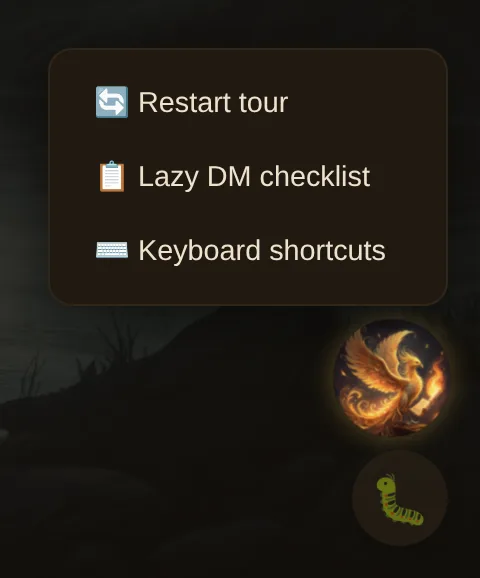
A floating button showing the Tantu mascot. Click it to open a small sheet with three options:
| Option | What it does |
|---|---|
| 🔄 Restart tour | Reopens the welcome modal so you can choose a path again |
| 📋 Lazy DM checklist | Opens the 8-step guided prep sidebar |
| ⌨️ Keyboard shortcuts | Coming soon |
When you first sign up, the welcome modal appears automatically (on a new device only while you have no campaign of your own) and offers the same three starting paths: a 5-minute guided tour, the Lazy DM 8-step checklist, or skip straight in. With Hide AI features ticked, the bubble shows a ❓ instead of the Tantu mascot; its menu stays the same (see Hide AI features).
The bug-report button
Also in the bottom-right area:
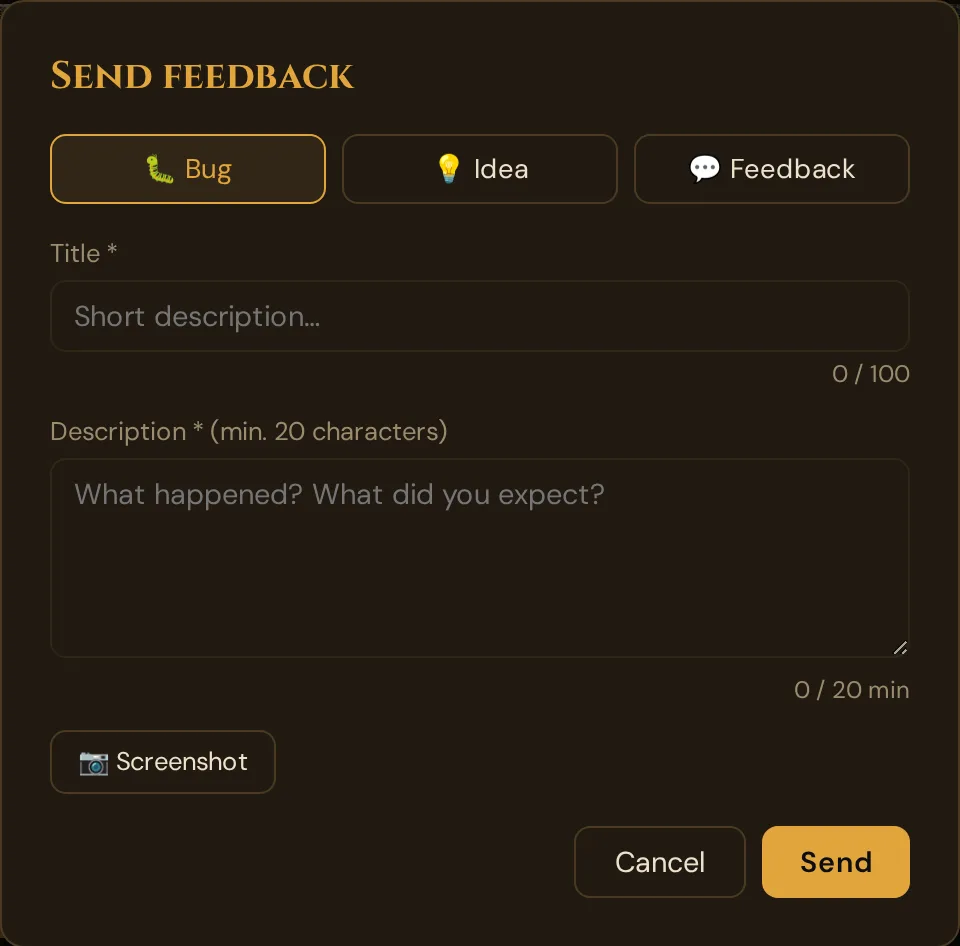
Click the 🐛 button to open the Send feedback window. Choose 🐛 Bug, 💡 Idea or 💬 Feedback, enter a Title and a Description (at least 20 characters), optionally add a 📷 Screenshot, then click Send. The report lands in the team's queue with your account ID and Realm name attached. Keyboard shortcut: Ctrl+Shift+B.
On smaller screens
On a narrow screen the sidebar collapses into a row of icons along the bottom (Overview, NPCs, Scenes, Story, Rules). Everything else is reachable from the ☰ Menu in the top-left.
The GM tool works best on a screen with some room to breathe — a tablet, laptop, or computer. It does run on a phone, but pushing scenes and editing on a phone is cramped and not much fun. Use the biggest screen you have on hand; let the players use the small ones.
Install it like an app (optional)
You can add Wovenkeep to your home screen or dock so it opens in its own window, like a normal app:
- Chrome / Edge: look for the install icon in the address bar → Install
- Safari (iPhone / iPad / Mac): the share button → Add to Home Screen
- Firefox: the install icon in the address bar
This is purely a convenience — it just makes Wovenkeep feel more like an app. It doesn't add offline use: if the connection drops, the GM tool shows the state it loaded last and says Offline – saved state — see Autosave → If your internet drops.
Logging out
Your GM-tool login lasts up to 30 days; after 14 days without use it ends earlier. To sign out, open ⚙ Settings in the GM tool: the Sign-in card has Sign out (this device) and Sign out all devices (every other device; you stay signed in here). See Instance Settings → Sign-in.
On your account page (app.wovenkeep.com), sign out with Sign Out in the top bar. This signs you out everywhere — on the account page and in the GM tool, on every device. If a live session is running, the page asks first. A new account password and Sign out on all devices on the dashboard also sign the GM tool out everywhere; Open GM Tool on the dashboard gets you straight back in.
Where do I find...?
| You want to... | Go here |
|---|---|
| Create your first campaign | Sidebar → Campaigns hub (top item) |
| Add an NPC | Sidebar → NPCs → + NPC |
| Build a scene to push later | Sidebar → Scenes → + Scene |
| Plan tonight's session | Sidebar → Sessions → + Session |
| Add a location or world event | Sidebar → World Building group |
| Generate an NPC portrait | NPCs → click NPC → Portrait button |
| Start the session | 🎮 Live → Scenes & Sound → ▶ Start Session |
| Push something to player phones | Switch to 🎮 Live → Scenes & Sound |
| See who's connected | Live sidebar → Players |
| Advance a crafting job | Live sidebar → Crafting |
| Buy or earn Threads | app.wovenkeep.com → Top up Threads |
| Change your plan | Not possible during the beta — see Pricing |
| Restore a deleted item | Sidebar → 🗑️ Trash (30-day window) |
| Delete the demo campaign | Top yellow banner → Delete Demo |
| Reset the demo | Top yellow banner → Reset Demo |
Related articles
- 👋 Your first session in 10 minutes — quick path through the tool
- 🏛️ The Realm concept — what your Realm is
- 💾 Autosave — Wovenkeep saves while you type
- 📊 GM Dashboard — deep dive on the Overview section
- 🧵 Threads & costs — how Threads are billed per use