💾 Storage & files
👤 For: Game Masters · 💳 Plan: All plans · 🔄 Updated 2026-10-17
Every image, sound, and portrait — uploaded or created with AI — lives in your Realm's storage. Storage is part of the Media page: 💾 Storage opens it on the shelf 📦 Everything by size — how much you've used, every file largest first, where each one is used, and a clean-up for broken entries. The trash for deleted media and campaigns and the option to buy extra space with Threads are covered here too.
What it does
- 📦 Everything by size lists every file that counts against your storage — your uploads and the media made with AI — largest first, each with where it is used.
- The storage bar at the top shows how much of your quota is used; a line below it shows what is waiting in the trash.
- 🧹 Clean up below the list counts missing files, loose files and media that nothing uses — and removes missing-file entries and loose files after you confirm.
- Media you delete go to the trash first, where you can restore them for 30 days — and so do deleted campaigns.
- When you're running low, More Storage (50 Threads = +500 MB) lets you spend Threads to expand your limit permanently.
When to use it
Open this view when your quota bar turns amber or red, before an upload fails, or whenever you want to audit what's taking up space after a busy campaign.
Where to find it
Sidebar → Admin group → 💾 Storage. It opens the Media page on the shelf 📦 Everything by size; the title at the top still reads 💾 Storage. On the Media page itself, 📦 Everything by size is the last shelf button.
Without an open campaign, 💾 Storage still works: it shows the storage bar, 📦 Everything by size with All campaigns and Without campaign (there is no This campaign), the search and the clean-up with 🗑️ Open trash. Instead of the other shelves and the upload buttons it says To upload files and use the shelves by type, open a campaign.
Everything by size
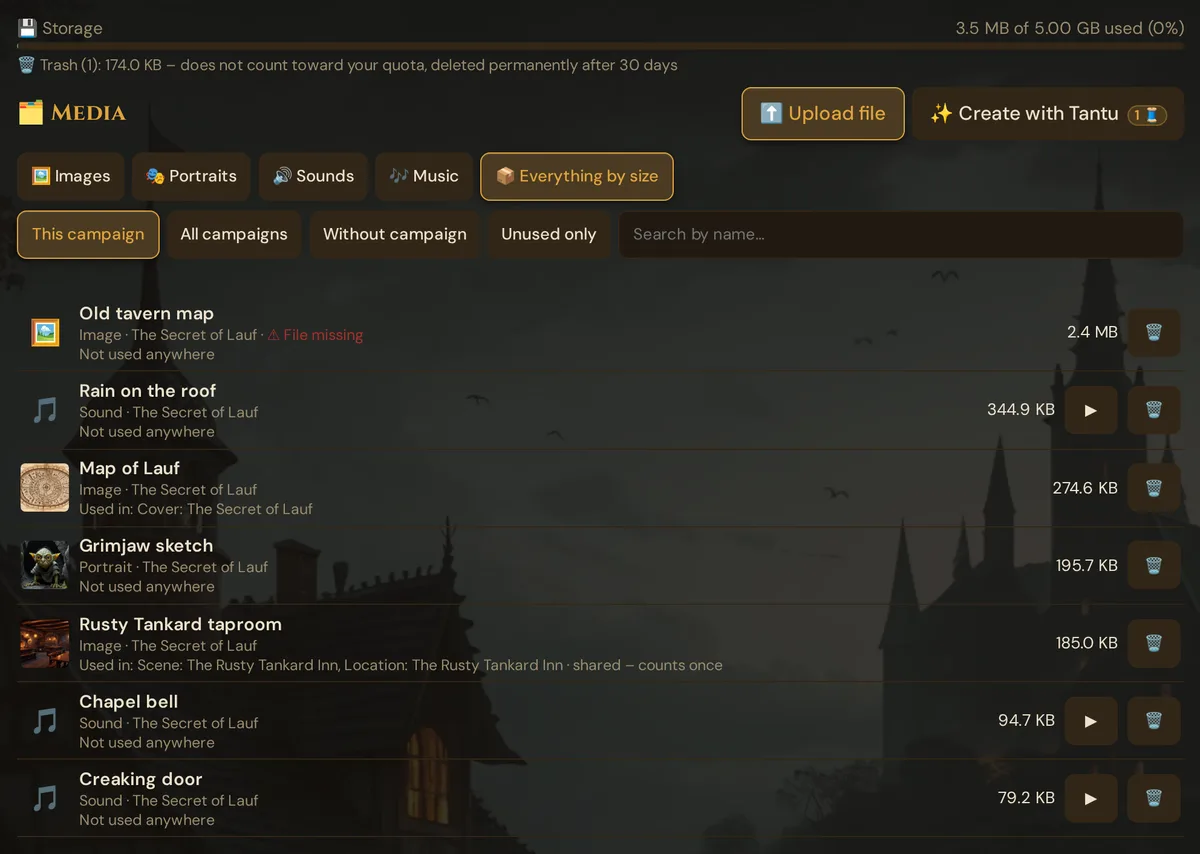
Below the shelf buttons you find This campaign, All campaigns, Without campaign, the button Unused only and Search by name…. Then one row per file, largest first:
- A preview for pictures (click it to see the picture large), otherwise an icon.
- The name, then the kind (Image, Portrait, Sound, Music, Video, Document or Other) and the campaign — or Without campaign, Campaign in trash (its campaign lies in the trash) or Campaign deleted. A red ⚠ File missing marks an entry whose file is gone.
- Where it is used — Used in: … (up to three, then N more; the campaign cover shows as Cover: …), Not used anywhere, or, with This campaign, Only used in one other campaign. A file that is used more than once adds · shared – counts once.
- On the right the size, ▶ to listen to a sound on your device (it turns into ⏹ while it plays) and 🗑️ to move the file to the trash.
The list follows the campaign buttons, and This campaign is the default. To see every file that counts against your storage, choose All campaigns — the storage bar and the clean-up always cover your whole Realm. Search by name… also matches the file path, and Unused only keeps just the files that nothing uses. The page shows 48 files at a time; below the list you see how many there are, for example 7 items.
Renaming a file and moving it to another campaign work on the other shelves of the Media page — this shelf is for finding what takes up space.
Quota by plan
| Plan | Storage |
|---|---|
| Adventurer (Free) | 100 MB |
| Game Master (Starter) | 1 GB |
| Storyteller | 5 GB |
| Guild Master | 20 GB |
The quota is per Realm — all campaigns share one pool. It covers:
- Uploaded scene, cover, and map images
- Uploaded NPC and PC portraits
- Portraits and images created with AI (stored in your Realm after generation)
- Sounds created with AI
- Custom sound and music uploads
- Handout images
It does not count:
- The SRD compendium (bundled in the app, not your storage)
- The sounds and demo pictures included with Wovenkeep
- Artwork you choose for Rulebook entries from Wovenkeep's own picture versions
- Text data (campaigns, NPCs, sessions — negligible, not metered)
- External-URL-referenced media (you linked it; it lives elsewhere)
- Media in the trash
- Loose files that belong to no medium
Each file counts once, even if several entries use it. An entry whose file is missing still counts with its recorded size until you remove it in 🧹 Clean up.
After the update of 2026-10-16: files that a scene, NPC or other entry used without having a media entry were added to your media once, when your Realm restarted. They appear like uploads, named after the file, and count against your storage from then on — so your storage figure may have risen once.
Freeing space
When you're near the limit:
- Open 💾 Storage and choose All campaigns — the list is already sorted largest-first.
- Click Unused only (or show in the clean-up block) to see the files nothing uses.
- The usual culprits:
- Uncompressed PNG scene images (often 5–10 MB; the same image as WebP is ~1 MB)
- Old portraits from regeneration — every 🔄 New portrait attempt is stored even if you didn't keep it
- Long sound clips in WAV format — an MP3 of the same clip is ~90 % smaller
- Move what you no longer need to the trash with 🗑️ on its row — or 🗑️ Delete on a card of the other shelves of the Media page.
- Remove entries whose file is missing and loose files in 🧹 Clean up.
Deleting asks first, in a window of its own: Move “…” to the trash? If the file is still in use, the question names where (“…” is still in use (Used in: …). Move it to the trash anyway?) and warns if another campaign uses it too. Your storage figure drops right away, because media in the trash don't count; the line below the storage bar shows what is waiting in the trash. The file itself stays until it is finally deleted — so a scene, NPC, or handout that still uses it keeps working.
The trash
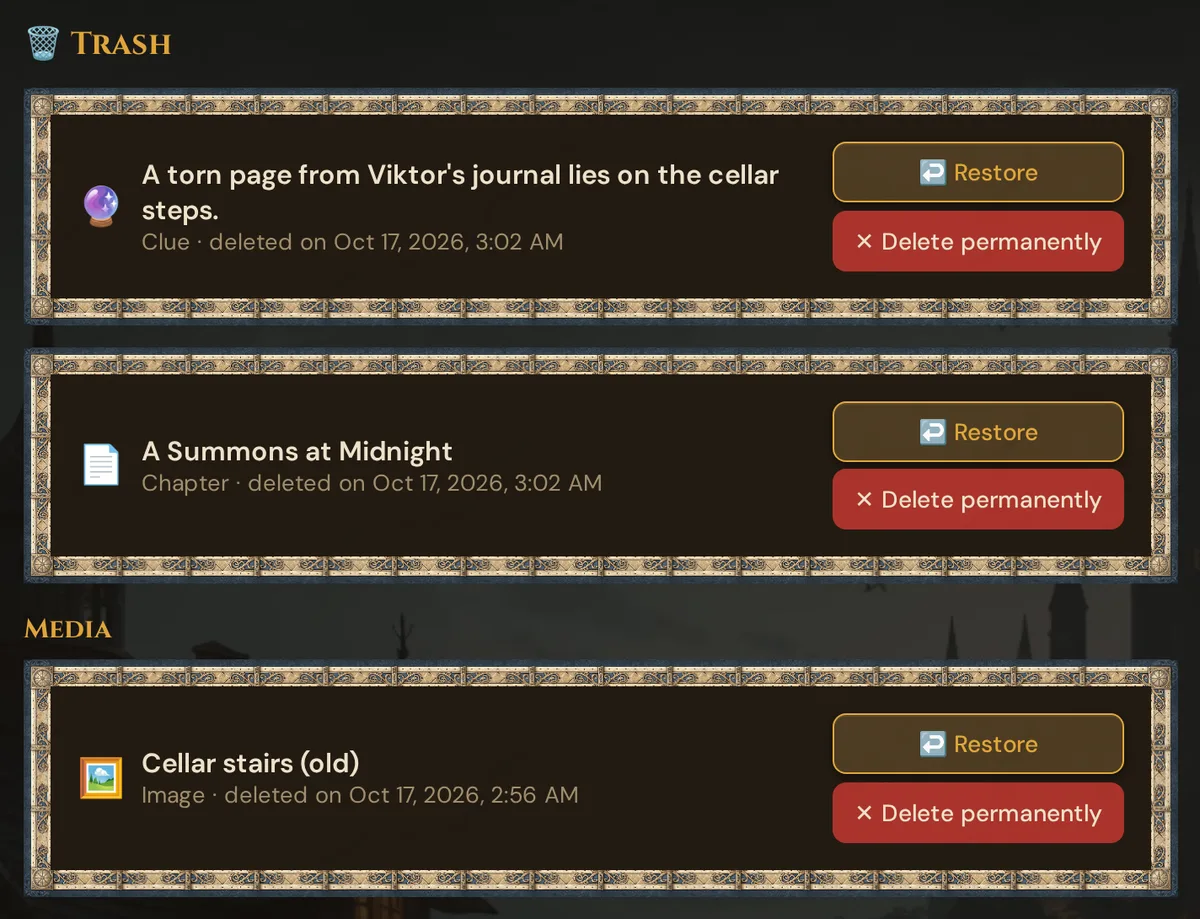
Sidebar → 🗑️ Trash (below the Admin group), or 🗑️ Open trash below the clean-up block. At the top you find Deleted campaigns (see below). Then follow deleted campaign items such as NPCs, scenes, library handouts, acts, chapters and clues, and the group Media — the media you deleted, newest first, with their kind and the time they were deleted. Deleted campaigns and Media cover your whole Realm. Without an open campaign, the trash shows only Deleted campaigns.
- ↩️ Restore brings the medium back with its name and campaign. A restored act brings its chapters back, and acts and chapters take back their scenes — unless a scene got another chapter in the meantime. A chapter whose act is in the trash too needs the act first (Restore the act first, then the chapter.). A clue comes back with its links.
- ✕ Delete permanently deletes it right away, after a confirmation (Delete this file permanently? This cannot be undone.).
- After 30 days, Wovenkeep deletes media from the trash by itself.
- Wovenkeep never deletes a file that is still in use — by another entry, a scene, encounter, NPC, player character, location, item, monster, handout, campaign cover or an artwork choice in the Rulebook. In that case only the entry is removed, and the file stays.
- The sounds and demo pictures that come with Wovenkeep are never deleted.
The line below the storage bar shows the trash share, for example 🗑️ Trash (1): 174.0 KB – does not count toward your quota, deleted permanently after 30 days. It appears only when the trash holds files that are still on the disk.
Deleted campaigns
A campaign you delete in the Campaigns hub waits here for 30 days, with everything in it. Each card shows 🏰, the name, when it was deleted and how long it stays, for example deleted on … · will be deleted permanently in 30 days.
- ↩️ Restore brings the campaign back with all its scenes, NPCs, sessions and media (Campaign “…” restored.). If your plan allows no further campaign, you see Cannot restore: your plan allows no further campaign. Delete another campaign first or change your plan.
- ✕ Delete permanently asks Delete campaign “…” permanently? All scenes, NPCs, sessions and files not used elsewhere will be gone. This cannot be undone. and deletes it right away (Campaign permanently deleted.).
- After 30 days, Wovenkeep deletes the campaign permanently by itself.
Deleting a campaign permanently removes all its content. The pictures and sounds of your media library and the media made with Tantu stay in your Realm — on the Media page under Without campaign. Other uploaded files that only this campaign used are deleted with it.
Campaigns in the trash don't count toward your plan's campaign limit, so you can create a new campaign right after deleting one.
Clean up
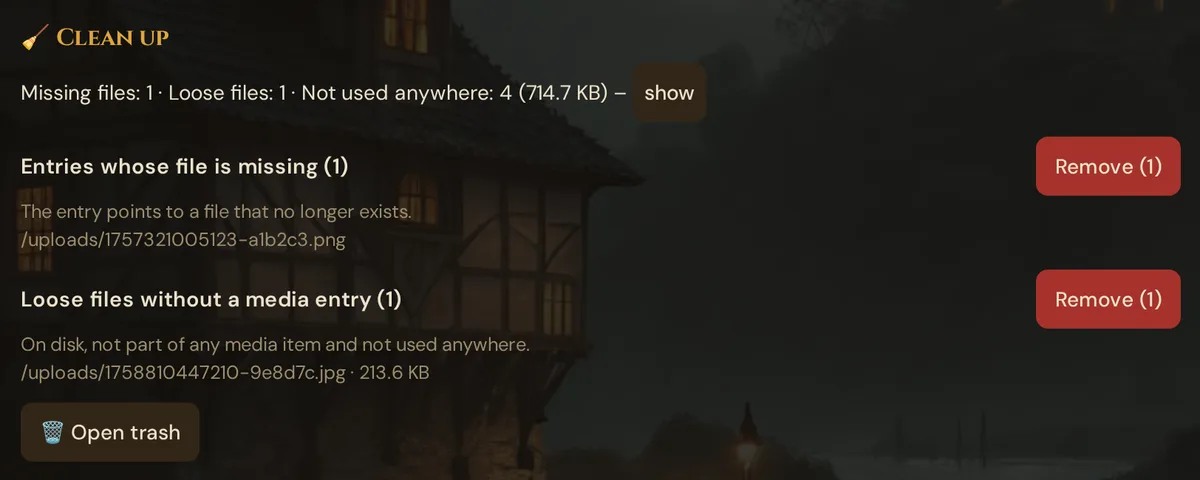
The block 🧹 Clean up sits below the list on the shelf 📦 Everything by size. Its first line always shows three counts for your whole Realm, for example Missing files: 1 · Loose files: 1 · Not used anywhere: 4 (714.7 KB) – show:
| Count | What it is | What you can do |
|---|---|---|
| Missing files | Entries that point to a file that no longer exists | Group Entries whose file is missing → Remove (N) deletes these entries |
| Loose files | Files on the disk that belong to no medium and that nothing uses | Group Loose files without a media entry → Remove (N) deletes these files |
| Not used anywhere | Media whose file exists, but no scene, NPC or other entry uses them | Counted only. show switches the list to All campaigns with Unused only — move what you don't need to the trash with 🗑️ |
A group appears only when it has entries, with a short explanation and the paths of its files. Remove (N) removes exactly the entries of that group, after a confirmation (Remove permanently (N)? This cannot be undone.) — this does not go through the trash. Afterwards Wovenkeep shows the counts of both groups together, for example Before: 2 · removed: 1 · remaining: 1. When both groups are empty and nothing is counted under Not used anywhere, you see Nothing to clean up. If only unused media are left, it says No missing or loose files. Unused media is shown by "show"; trash them there one by one.
Buying extra storage with Threads
The storage bar is green, turns amber at 70 % and red at 90 %. From 70 %, a More Storage (50 Threads = +500 MB) button appears below it.
- Cost: 50 Threads per pack
- Each pack: +500 MB permanent — the extra space stays on your Realm even if you switch plans
- Cap: up to +5 GB extra total (10 packs maximum, on top of your plan's base quota)
💡 Tip: If you're regularly buying packs, upgrading to the next plan is likely cheaper. Storyteller includes 5 GB base — check Pricing.
What happens at the limit
When an upload would push you over your quota, Wovenkeep refuses it and shows a "storage full" message. The upload doesn't go through at all (nothing is half-saved). You then either:
- Delete files to make room, or
- Buy a storage pack (50 Threads → +500 MB, up to +5 GB extra), or
- Upgrade your plan
The limit is enforced on upload and on every image or sound creation with AI — a file that won't fit is not generated, and no Threads are charged.
Reducing storage footprint
| Habit | Saving |
|---|---|
| Upload scene images as WebP not PNG | ~80 % smaller |
| Resize hero images to 1920 px max before upload | large for phone photos |
| Link big videos from elsewhere (YouTube, etc.) instead of uploading | counts 0 |
| Delete rejected portrait attempts after picking one | ~4 MB each |
| Keep custom sound clips short and MP3 | vs. WAV, ~90 % smaller |
A disciplined Realm rarely outgrows even the 1 GB Game Master quota. The most common reason GMs hit limits is leaving every regenerated portrait attempt in storage — clean those up first.
Storage and account deletion
If you delete your account, all stored files are removed along with the Realm. If you delete a campaign, its media are not deleted: on the Media page they appear under Without campaign or with the badge Campaign deleted. Give them a new campaign there, or delete them if you want the space back.
Plan limits
| Plan | Base storage | Max extra via packs |
|---|---|---|
| Adventurer (Free) | 100 MB | +5 GB (50 T each) |
| Game Master | 1 GB | +5 GB (50 T each) |
| Storyteller | 5 GB | +5 GB (50 T each) |
| Guild Master | 20 GB | +5 GB (50 T each) |
Storage packs cost 50 Threads each (+500 MB permanent). See Threads & pricing for how to get Threads.
Troubleshooting
| Symptom | Cause | Fix |
|---|---|---|
| Upload fails with "storage full" | Quota reached | Delete files or buy a storage pack (50 Threads) |
| 💾 Storage shows only 📦 Everything by size and To upload files and use the shelves by type, open a campaign. | No campaign is open | Open a campaign to upload files and to see the other shelves |
| A file is missing from the list | The list shows This campaign | Choose All campaigns or Without campaign, or search by name |
| More Storage (50 Threads = +500 MB) button not visible | Usage below 70 % | Button appears automatically once usage ≥ 70 % |
| More Storage (50 Threads = +500 MB) button shows but errors on click (402) | Not enough Threads | Buy a Threads bundle first — Pricing |
| Storage bar shows "Storage info unavailable" | Network error fetching stats | Reload the page; if persistent, check your connection |
| 🧹 Clean up says No missing or loose files. … | Only unused media are left — clean-up removes only missing-file entries and loose files | Click show and move the media you don't need to the trash with 🗑️ |
| Deleted the wrong file | Deleting moves media to the trash | 🗑️ Trash → Media → ↩️ Restore (within 30 days) |
| A row shows ⚠ File missing | The file of this entry is gone | Remove the entry in 🧹 Clean up (Entries whose file is missing → Remove); if you still need the picture or sound, upload it again |
| Scene / NPC shows no image | Its file is missing | Upload the image again and choose it in the scene or NPC |
Related articles
- 🎨 Media Library — the Media page: the same files by shelf and campaign
- 👤 NPCs — regenerated portraits accumulate; prune them here
- 💳 Pricing — plan storage quotas and Threads bundles
- 🧵 Threads & costs — how to earn and spend Threads