📈 Tension Arc
👤 For: Game Masters · 💳 Plan: All plans · 🔄 Updated 2026-10-16
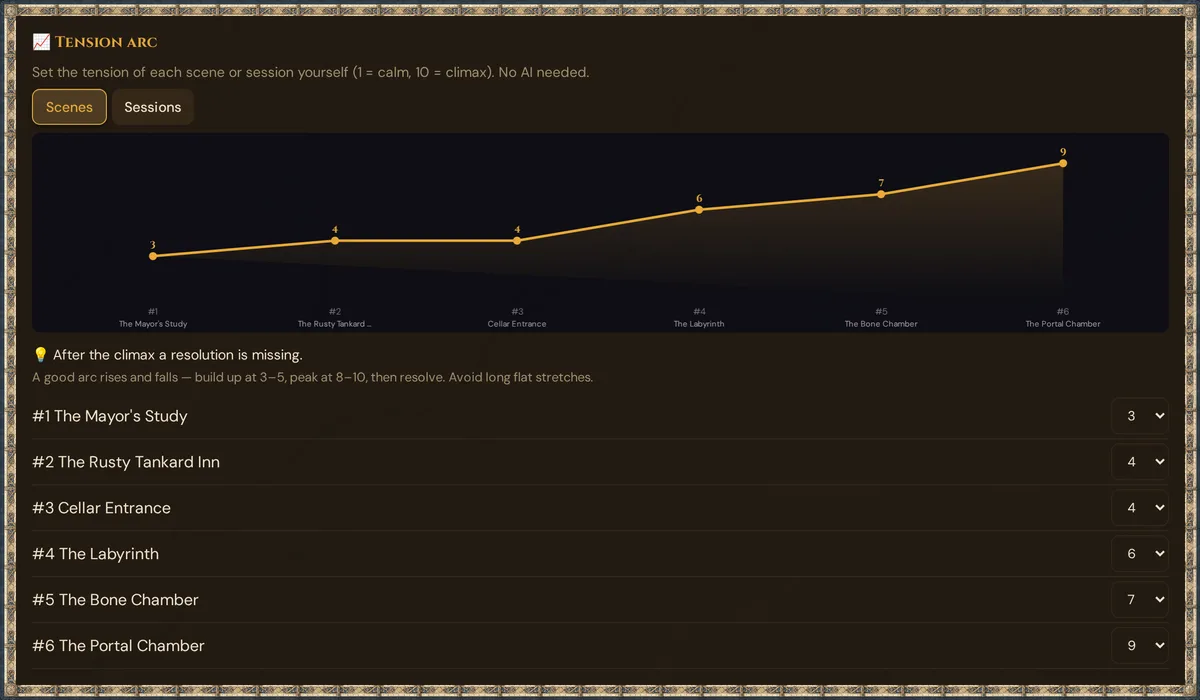
The Tension Arc shows the shape of your campaign. Rate each scene or session from 1 (calm) to 10 (climax), and Wovenkeep draws the curve and points out flat stretches, a missing climax or a missing resolution — no AI needed. If you like, Tantu can also draw a curve from your recaps (optional AI help).
What it does
- You set the tension of every scene or session from 1 to 10 — right in the list on this page.
- Wovenkeep draws the curve from your values and gives hints based on simple rules: flat stretches, no climax, a climax too early, no resolution after the climax, a calm opening.
- Optional: Tantu's AI Tension Arc reads your recaps and plotlines and draws its own curve, with a version history.
Your values and the AI curve are independent: Tantu doesn't read your values, and it doesn't change them.
When to use it
Use the Tension Arc when you want to zoom out and see the campaign's shape rather than plan individual scenes. It answers the question: "Are we building toward something, or just wandering?" Rate the scenes while you prepare them — and the sessions after you've played them.
Step by step
- Open your campaign and click 📈 Tension Arc in the sidebar (in the Story & Tantu group).
- In the card 📈 Tension arc, choose Scenes or Sessions. Wovenkeep remembers your choice in this browser.
- Pick a value from – (not set) to 10 for each entry in the list. Each choice is saved right away.
- Read the curve and the 💡 hints below it.
💡 Tip: Rate a scene by how it should feel at the table, not by how much happens. A quiet conversation that reveals the traitor can be an 8.
The list and the curve
Scenes lists your scenes in the order of your acts and chapters (scenes without a chapter come last); #1, #2 … are their positions in this list. Sessions lists your sessions by number; planned sessions are marked Planned.
The curve shows only the entries with a value:
- Left to right: the entries in list order, labelled #n and the title.
- Height: tension from 1 to 10 — the number above each point is your value.
- Amber points: your scenes and played sessions. Purple points with a ring: planned sessions.
An entry without a value leaves a gap. Without any values, the canvas says Set a value in the list below.
The hints
Below the curve, Wovenkeep checks your values in list order:
| Hint | When it appears |
|---|---|
| Set at least three values to get hints. | Fewer than three values — then it is the only hint |
| Flat stretch from #… to #… — change the tension here. | Three or more values in a row are the same |
| No climax — no value of 8 or higher. | At least four values, none of them 8 or higher |
| Climax very early — nothing comes close afterwards. | The highest value sits in the first 30 % and nothing later gets within one point of it |
| After the climax a resolution is missing. | The last value is 8 or higher and it is the only one that high |
| Calm opening — a strong start helps. | The first value is 1 or 2 |
| ✅ The arc rises and falls — no hints. | None of the above |
Several hints can appear at once. Below them, the card reminds you what a good arc looks like: build up at 3–5, peak at 8–10, then resolve. Avoid long flat stretches.
Optional: AI Tension Arc (Tantu)
The second card, 📈 AI Tension Arc, is optional AI help: Tantu reads your session recaps and plotlines and draws a tension curve from them, as a starting point for thinking about your pacing.
Tantu reads your campaign's setting, tone and themes, your recent session recaps, and your plotlines, then assigns each session a tension score from 1 to 10. Played sessions appear as a gold line; sessions Tantu expects still ahead appear as purple planned dots. A legend panel explains the five dramatic phases (Setup, Rising, Crisis, Climax, Resolution) and what the colour coding means.
Previous generations are saved automatically and available from a version history dropdown — so you can compare how the curve looked before and after a story pivot.
- Click 📈 Generate AI Tension Arc — the button shows a 4 🧵 badge (0 🧵 with your own AI key).
- A confirm dialog shows the cost, your current balance, and your balance after the run. Confirm it.
- Wait a few seconds — Tantu reads your campaign context and draws the curve.
- The legend panel appears automatically below the canvas. Read the colour key and phase labels.
- To revisit an earlier generation, pick it from the version history dropdown above the canvas.
💡 Tip: Tantu responds in your interface language. If you write recaps in German or French, the analysis text also comes back in that language.
Reading the AI curve
The AI curve shows one point per session:
- Left to right: your sessions in order, labelled #1, #2, #3 … under the curve (legend: Sessions →)
- Height: tension from 1 to 10 (legend: Tension 1–10) — the number above each point is Tantu's score
- Gold points: sessions you have played (Played)
- Purple points with a ring: planned sessions Tantu projects ahead (Planned)
A healthy campaign curve usually has:
- Rising onset — first 1–3 sessions ramp up gently as players get oriented
- Mid-game oscillation — alternating high-low-medium-high-low sessions
- Pre-climax build — 2–3 sessions of increasing intensity before the finale
- Climactic peak — the highest point near the end
- Resolution dip — denouement after the climax
Common pacing problems the curve reveals:
| Shape | Problem | Fix |
|---|---|---|
| Flat plateau at 8+ for 5+ sessions | All-climax, no breathing room | Add a downtime session |
| Flat plateau at 3–4 for 5+ sessions | All-downtime, no stakes | Introduce a plotline conflict |
| Sawtooth (high-low-high-low) | Whiplash for players | Smooth with medium sessions between |
| Slow constant rise, no peak reached | The climax hasn't happened yet | Escalate — if you're past session 10, it should be imminent |
| Peak in session 3 of 12 | Climaxed too early | Add a "world has changed" recovery arc |
How intensity is calculated
When you click 📈 Generate AI Tension Arc, Tantu reads:
- Campaign setting, tone & themes — the genre baseline
- Recent session recaps — what happened and its emotional weight (write good recaps — they are the main input)
- Plotlines — title, status, and priority, so it knows when threads activate or resolve
It assigns each session a score 1–10 and projects a few planned sessions ahead:
| Score | Vibe |
|---|---|
| 1–3 | Downtime, social, exploration, planning |
| 4–6 | Building tension, side-conflict, sub-plot beats |
| 7–8 | Major confrontation, plotline payoff, character moments |
| 9–10 | Climactic finale, life-or-death stakes, epic reveal |
Scores are approximate — Tantu errs toward middle values (4–7). What matters is the shape, not the exact numbers.
The legend panel
After generation, a Legend panel appears below the canvas. It shows:
- Colour key — gold = played, purple = planned
- Phase labels — Setup / Rising / Crisis / Climax / Resolution (what each dramatic phase means)
- Guidance — a good arc rises and falls; build up at 3–5, peak at 8–10, then resolve. Avoid long flat stretches.
Version history
Every generation is saved. The version history dropdown above the canvas lists all previous runs, newest first. Click any entry to redraw the curve from that generation — useful for comparing the arc before and after a major story pivot.
The most recent version is restored automatically each time you open the Tension Arc tab.
When to check the curve
- After every 3 sessions — sanity check your pacing
- Before planning the next session — pair with Story Coach → Next Session for the planning context
- At the campaign midpoint — assess whether the curve is heading toward a satisfying finale
- When something feels off — if players seem disengaged, the curve often reveals why
Tension Arc and other tools
Your values are stored with the scenes and sessions — they are copied when you duplicate a campaign. The AI curve doesn't modify your campaign data. To act on what the curves show, use:
- Story Coach to plan adjustments
- Plotlines to introduce or resolve threads
- Sessions to update strong starts and notes
Plan limits
The Tension Arc works on every plan, including the free Adventurer plan. Setting values, the curve and the hints are free. Only the optional AI Tension Arc costs 4 Threads per run (long text action) — the confirm dialog shows the cost and your balance before anything is spent. With your own AI key, text actions cost 0 🧵.
Caveat
Tantu's intensity scores reflect what you've written (recaps above all), not the values you set yourself. If your recaps undersell what happened — "we had a chase scene" when it was actually a 90-minute climactic chase — Tantu will undersell it too.
Write recaps that capture the feel of the session, not just the events.
Troubleshooting
| Symptom | Cause | Fix |
|---|---|---|
| Set a value in the list below | No entry has a value yet | Pick values in the list under the curve |
| Set at least three values to get hints. | Fewer than three values are set | Rate at least three scenes or sessions |
| Could not save the tension. — the value jumps back | The value couldn't be saved (for example, the connection dropped) | Try again; reload the page if it keeps failing |
| No sessions yet. under Sessions | The campaign has no sessions | Create sessions under Sessions, or rate Scenes |
| AI button is greyed out / looks locked | Stale UI from an older version — the Tension Arc works on every plan | Hard-refresh (Ctrl+Shift+R / Cmd+Shift+R); if the confirm dialog reports too few Threads, top up at app.wovenkeep.com |
| AI canvas stays empty after generation | Campaign has no sessions yet, or recaps are very sparse | Add at least 2–3 session recaps, then regenerate |
| Text comes back in the wrong language | Interface language setting | Change your language in Account Settings; Tantu follows the interface language |
| You want to restore an older AI curve | Previous generation was overwritten in view | Use the version history dropdown — every past generation is kept |
Related articles
- 📖 Story Coach — partner tool for pacing decisions
- 📜 Plotlines — plotline state drives the curve
- 📅 Sessions — recaps are the curve's main input
- 📊 Session Log & Analytics — objective event timeline (the curve is the subjective interpretation)
- 💳 Pricing — how plans and Threads work