⚔️ Running Encounters Live
👤 For: Game Masters · 💳 Plan: All plans · 🔄 Updated 2026-10-17
Encounters bring a prepared group of monsters, a difficulty rating, and optional notes straight into your live session — initiative tracked, HP hidden, drama intact.
What it does
When you start an encounter, Wovenkeep rolls initiative for every monster automatically and sends a roll request to each player's phone so they roll their own character. The combined order appears in real time on every device. You track monster HP secretly; players see only a colour-coded health band. Sound, lair actions, and the in-game clock all respond to combat automatically when configured.
When to use it
Use encounters whenever a fight has defined monsters and a clear structure — dungeon rooms, ambushes, boss fights. For pure narrative skirmishes without stats, the initiative tracker alone is enough.
Step by step
Option A — Start on scene push (recommended)
If you linked a combat encounter to a scene and ticked ⚡ Auto-Start:
- In 📋 Prep → ⚔️ Encounters, open the encounter with ✏️ — or create it from the scene editor's ⚔️ Encounters panel with + New from scene. Keep the Type ⚔️ Combat, choose the scene under 🎬 Link scene (optional), tick ⚡ Auto-Start (combat starts automatically when the scene is pushed) and click 💾 Save.
- In 🎮 Live → 🎬 Scenes & Sound, click the scene in 📋 Prepared scenes.
Wovenkeep immediately starts the fight with all auto-start encounters of the scene merged into one shared initiative order. Combat encounters linked to the same scene without the auto-start tick appear in a floating box ⚔️ Trigger the encounter for this scene anytime: — with one ⚔️ … button per encounter that you can click at any moment during the scene.
Social, exploration, trap and puzzle encounters never start a fight: pushing their scene only writes a reminder such as 🗣️ Social: Haggling with Old Keg to the 📋 Log (see Encounter types).
Option B — Start from the initiative panel
- Go to the Live tab of your running session.
- Open Players.
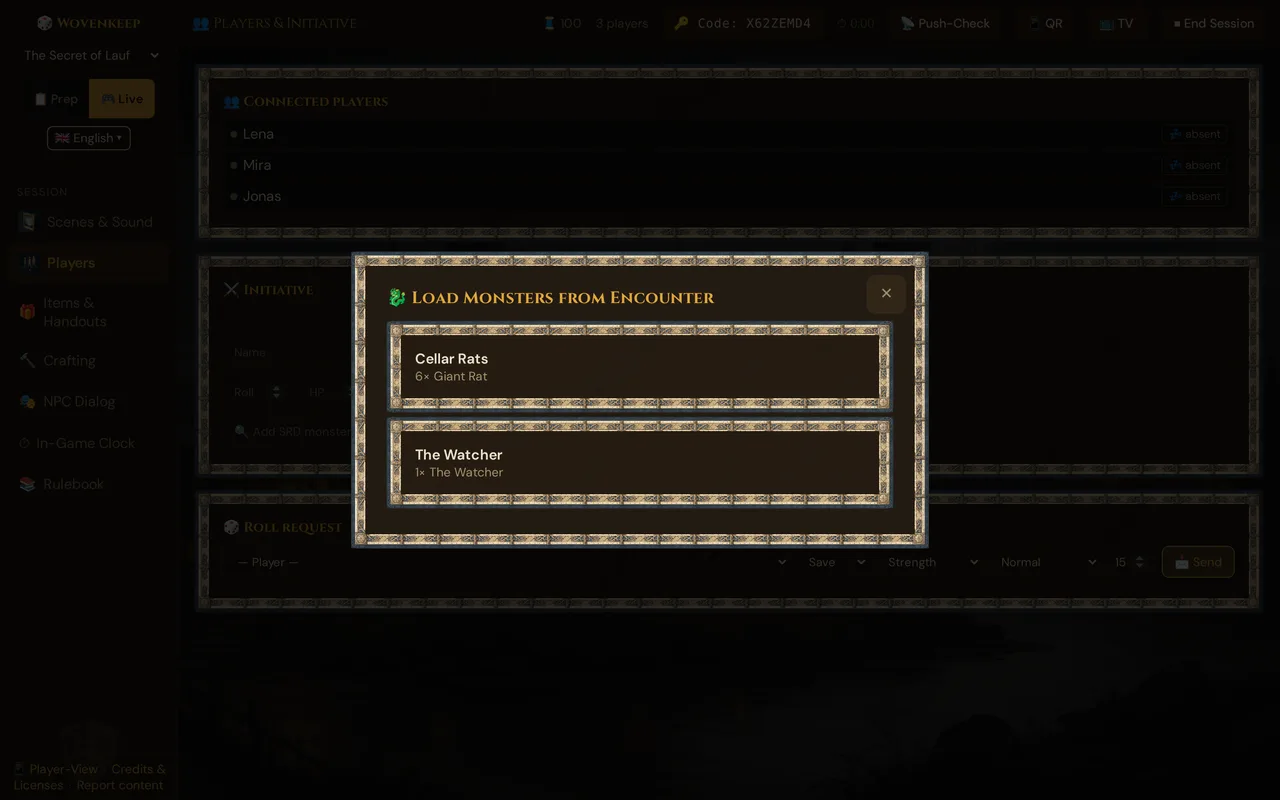
- Click the 🐉 Encounter button next to the
+icon. - The 🐉 Load Monsters from Encounter window lists the combat encounters of this campaign. Click one — combat starts right away.
Wovenkeep rolls initiative for monsters server-side and sends a roll request to each player's phone. Players roll directly from the prompt on their device; results arrive in your tracker within seconds.
💡 Tip: Prepare several encounters before your session. Only the one you trigger goes live — the rest wait silently in the picker.
Initiative and combat tracker
Once combat starts, the GM tracker shows every combatant sorted by initiative roll. Whose turn it is is highlighted.
Controls per combatant:
| Control | What it does |
|---|---|
| dmg field + −HP / +HP | Type an amount, then apply damage (−HP, red) or healing (+HP, green). Monster HP stays hidden from players |
| 👁 Reveal (monsters only) | Show the monster's true name on player screens — until then players see ???. Save this for the boss moment |
| ✕ Remove | Remove a combatant mid-fight |
Next Turn sits in the round panel at the top of Scenes & Sound; 🏁 End combat is in the add row of the Initiative card (see Clearing the tracker).
After the fight — award XP
When you end the fight with 🏁 End combat, the Initiative card shows 🏁 Combat over – award XP? with 🎖️ Award XP. The window suggests the XP per player of the encounter you started; tick the characters who get them and confirm. See Award XP.
What the player sees
On players' phones, the combat order appears in the game feed, below the current scene:
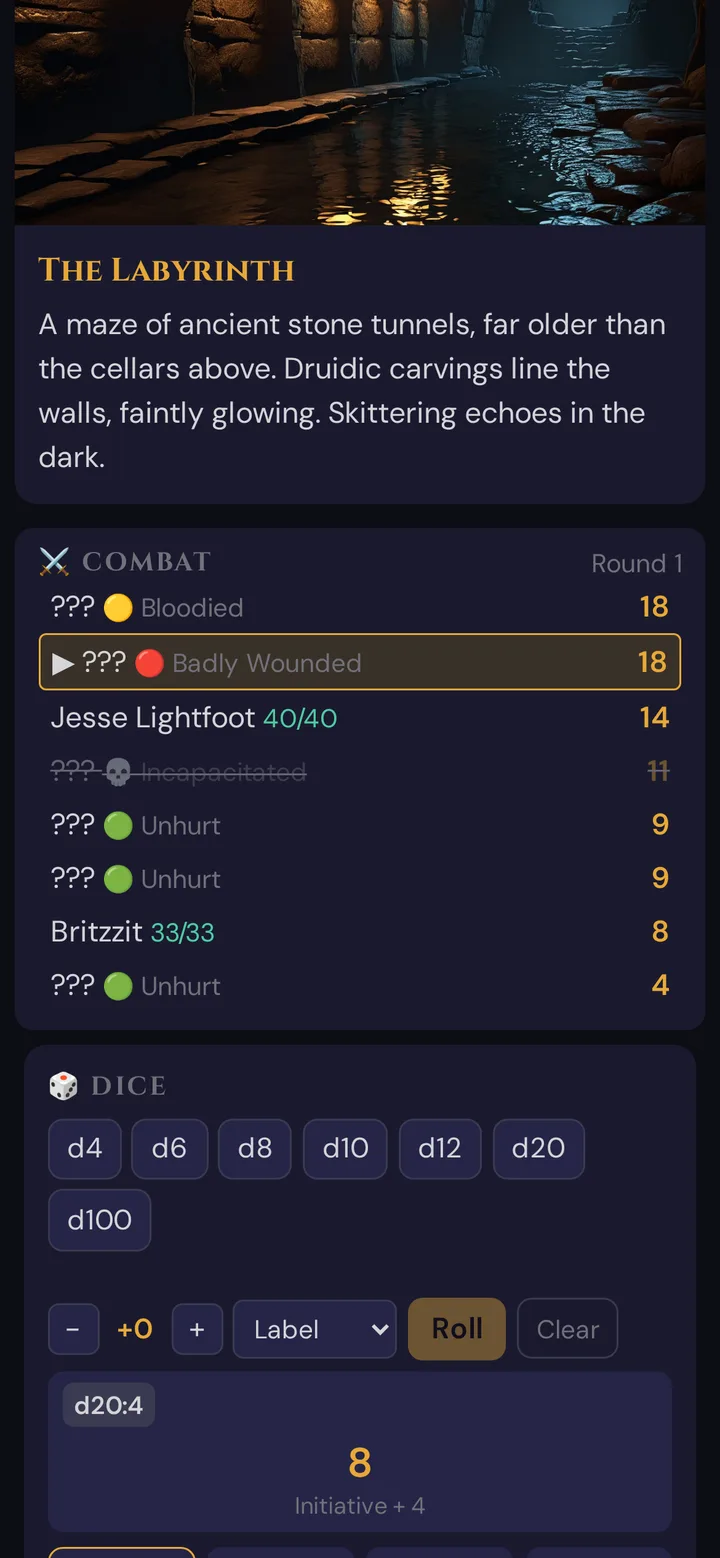
- The active combatant is marked with ▶.
- Player characters' HP is shown as exact numbers (colour-coded: green / amber / red).
- Monster names are masked as
???until you click the 👁 Reveal button on their row. - Monster HP is a coarse band only — 🟢 unhurt · 🟡 bloodied · 🔴 badly wounded · 💀 incapacitated. Players never see exact numbers.
- The round counter ticks automatically.
Players can also roll directly from their character HUD — tap any stat block entry to open the Roll prompt, which pre-fills the modifier and posts the result to the session roll log.
Lair actions
If the scene has a lair creature configured (via the Lair editor in scene prep), a Lair pseudo-combatant appears in the tracker at initiative count 20. Click it to trigger any of the defined lair actions.
- Each option shows its name, description, and duration (instant or until-round).
- A consecutive-repeat guard prevents using the same lair action two rounds in a row.
- Active lingering effects are listed below the trigger buttons until they expire.
- When the bound lair creature's HP reaches zero, the lair combatant removes itself automatically.
⚠️ Caveat: Lair actions work reliably on the 2014 classic edition path. If your campaign uses the 2024 edition legendary mode, test before relying on it in a live session — a known value-mismatch exists.
In-game clock
The ⏱ In-Game Clock panel (GM side, Live tab) lets you advance world time during or between fights:
| Button | Advance |
|---|---|
| +10 Min | 10 minutes |
| +1h | 1 hour |
| +4h | 4 hours |
| 🌙 Sleep (+8h) | Long rest |
You can also set a precise time or switch calendar presets. Players see the current in-game date and time on their device, plus any location clocks bound to the scene.
Roll feed
Every dice roll in the session appears in the persistent Roll log (GM side):
- Source badges show where each roll came from: manual entry, player app, or mixed.
- The log is filterable by combatant.
- It survives page reloads — the full session history is available until you end the session.
Requesting a roll
Use the Roll request panel to ask a specific player for a roll:
- Select the player from the list.
- Choose roll type: Save / Attack / Skill / Ability.
- Enter the DC (difficulty class).
- Click Send.
The player's phone shows a dark banner with a roll button. One tap rolls and posts the result — outcome and pass/fail appear immediately in your GM log.
Sound and encounters
When a fight starts, Wovenkeep plays the encounter's own combat sound — also when the encounter isn't linked to a scene. Without a combat sound of its own, the linked scene's sound plays; with neither, the fight starts silently. If several encounters start at once, the first one's sound counts. With 📺 Sound via: TV, the sound plays on the TV.
Set the combat sound in the encounter's ✏️ dialog (the block appears only when Type is ⚔️ Combat) under ⚔️🔊 Combat sound setting (AI prompt): 🎙️ Combat sound by Tantu (1 Thread; it shows the cost badge and asks you to confirm before spending), ⬆️ Upload sound or 🗂️ Choose from media (see Choose from media). The scene's sound is set in scene prep.
Push health check
Before a tense fight, confirm every player's phone is receiving audio and push events:
- In the top bar of the Live view, click the 📡 Push-Check button.
Wovenkeep sends a silent audio ping to all connected players and shows a per-player status (received / no response within 5 s). Fix any stragglers before rolling initiative.
Durability across restarts
Initiative order and all combat state survive a container restart. If the app reloads mid-fight — for any reason — players reconnect to the same session and the tracker rehydrates exactly where it left off.
Plan limits
Encounters themselves are free and unlimited on all plans. Features that cost Threads when used:
| Feature | Cost |
|---|---|
| Ambient sound suggestion (AI) for a scene | 1 Thread/generation |
| NPC conversation (AI) during combat | 1 Thread/reply |
Image pushes are unlimited on every plan, including the free Adventurer plan. See Threads & costs for full details.
Troubleshooting
| Symptom | Cause | Fix |
|---|---|---|
| Monster rolled initiative too — players didn't | Initiative roll-request was never received | Check Wi-Fi on player phones; use 📡 Push-Check to diagnose; have players refresh their session link |
| Sound didn't start when I started the encounter | Neither the encounter nor its scene has a sound | Choose a combat sound in the encounter's ✏️ dialog — a scene isn't needed |
| Lair actions panel is missing | No lair is bound to the current scene, or the scene has not been pushed | Open scene prep → Lair tab → bind a lair creature, then push the scene |
| Initiative bar gone after page reload | Rare — reconnection failed | Click Reconnect in the Live tab; state rehydrates automatically |
| Combat state lost after container restart | Should not happen — persistence is built in | If it does, file a bug at app.wovenkeep.com |
| Player's "You're up!" never appeared | Their device lost the WebSocket connection | Have them tap the session link again to reconnect |
Related articles
- 🗺️ Scenes & Sound — push a scene so sound and encounter auto-start together
- 🎲 Dice & Roll requests — full roll-request options and the roll log
- 🐉 Building an encounter — add monsters, set difficulty, link to scenes
- 🏰 Lair actions — set up lair and legendary actions for boss fights
- ⏱️ In-game clock — calendar presets and location clocks
- 👤 Player view — what players see during combat