👋 Your first session in 10 minutes
👤 For: Game Masters · 💳 Plan: All plans · 🔄 Updated 2026-10-17
This is the fastest path from "I just signed up" to "my players are at the table and we're playing". Ten minutes if you're efficient, twenty if you stop to admire the dragons.
What it does
Wovenkeep gives you a fully prepped demo adventure the moment you log in. You push scenes to player phones over Wi-Fi, run live combat, drop secret whispers to individual players, and hand out loot — all from a single browser tab.
When to use it
Use this guide on the day of your very first session. Once you've run through it once, you'll know the tool well enough to build your own campaign.
Before you begin
You need:
- An invite link from Wovenkeep, or a signup at
app.wovenkeep.com - A device with a reasonably large screen — a tablet, laptop, or desktop — and any up-to-date browser (Chrome, Firefox, Safari, Edge). You can run the GM tool on a phone, but a bigger screen makes prep and live sessions far more comfortable.
- 2–6 players with phones (any smartphone with a camera and a browser; no app to install)
Step 1 — Confirm your email (1 min)
When you signed up, Wovenkeep sent you a confirmation email. Click the link in it.
Wovenkeep now sets up your private space ("your Realm"). This takes about a minute and a half. When it's ready, you get a second email with your Realm URL and your GM password.
If that second email hasn't arrived after 5 minutes, check your spam folder. Still nothing? Contact support — setup almost always works, but occasionally it needs a nudge.
Step 2 — Log in to your Realm (30 sec)
Click your Realm URL in the welcome email, or go to yourname.wovenkeep.com/gm.
You'll see the password prompt:
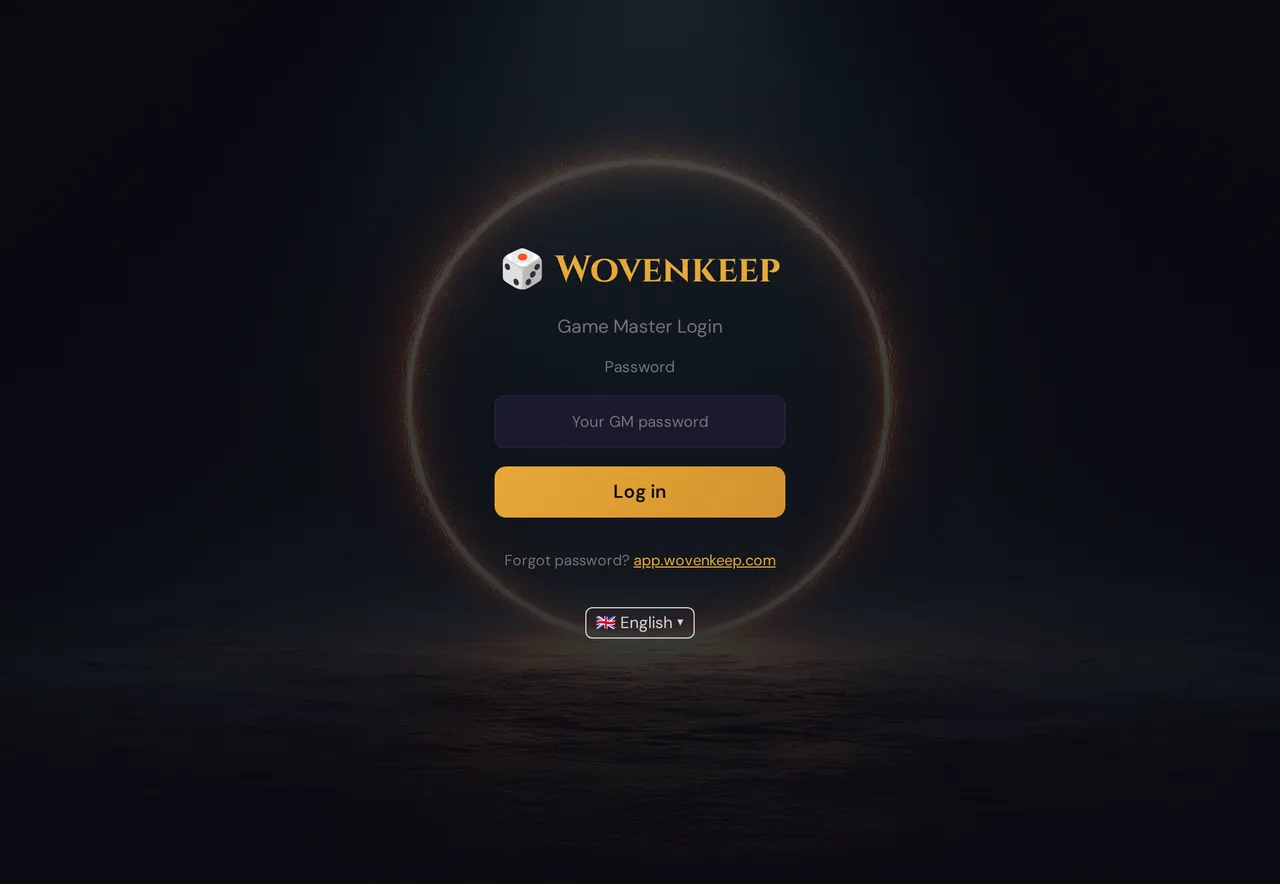
Paste the GM password from the email. (You can change it later on your account dashboard at app.wovenkeep.com.) Click Log in.
You're in. The GM tool loads — and because this is your first time, a welcome modal appears.
Step 3 — Meet Tantu (1 min)
On your first login, Wovenkeep opens a welcome modal with Tantu and three paths. Tantu answers with the help of AI.
| Button | What it does |
|---|---|
| 👀 Show me how it works | Starts a 6-step guided walkthrough — Tantu highlights each main area of the tool in sequence |
| 🛠️ Build my own campaign | Opens the Lazy-DM checklist — an 8-step prep guide for your own campaign |
| ⏩ I already know this | Goes straight to the GM tool; you can restart the tour any time via the help bubble (bottom-right corner) |
For your first session, choose Show me how it works. The spotlight tour walks you through the demo campaign, NPCs, scenes, and live mode — exactly what you need in the next 10 minutes.
💡 Tip: The help bubble (bottom-right of every screen) lets you reopen the Lazy-DM checklist or restart the tour any time after you dismiss the modal.
Step 4 — Tour the demo campaign (2 min)
After the tour (or if you skipped it), you'll see a demo campaign already created: The Secret of Lauf.
The demo contains:
- 5 NPCs with portraits and personalities — Mayor Heinrich Falkner, innkeeper Kaspar, Sister Margit, the goblin Grimjaw, and the shadowy Watcher
- 6 scenes ready to push, from the Mayor's Study to a portal chamber climax
- 2 encounters (tutorial rat fight + boss fight)
- 2 plotlines, handouts, a place clock, and 3 pre-built player characters
- A yellow banner at the top:
Demo Campaign — Delete this when you start your own.
[ Delete Demo ] [ Reset Demo ]
Delete Demo deletes the demo campaign right away — it doesn't go to the trash. Reset Demo replaces it with a fresh copy.
Leave the demo for now — we'll use it.
💡 Tip: One Realm = one active live session at a time. You can have multiple campaigns, but only one session runs live at once.
Step 5 — Invite your players (2 min)
Option A — Direct QR scan (fast, for today's session)
- Switch to 🎮 Live and click ▶ Start Session in the middle of Scenes & Sound.
- In the top bar, click 📱 QR — the join QR code appears. Show it to your players.
- Each player opens their camera, points at the QR, and taps the URL that appears.
Players join immediately. They pick a name and tap a join button — they're connected.
Option B — Pre-session invite link (for new players who want to explore first)
- In the prep sidebar, click Players
- Scroll to Onboarding invites → click + Create Link
- Set expiry (24h / 7d / 30d) and max uses (1 / 5 / 10 / unlimited)
- Share the link — players will go through a guided character-creation wizard before session day
💡 Tip: New players get the ELI5 wizard by default — a friendly step-by-step flow that builds their character with plain-language prompts. Experienced players can toggle to the classic form themselves.
See Player onboarding invites for the full workflow.
Step 6 — Start a session (1 min)
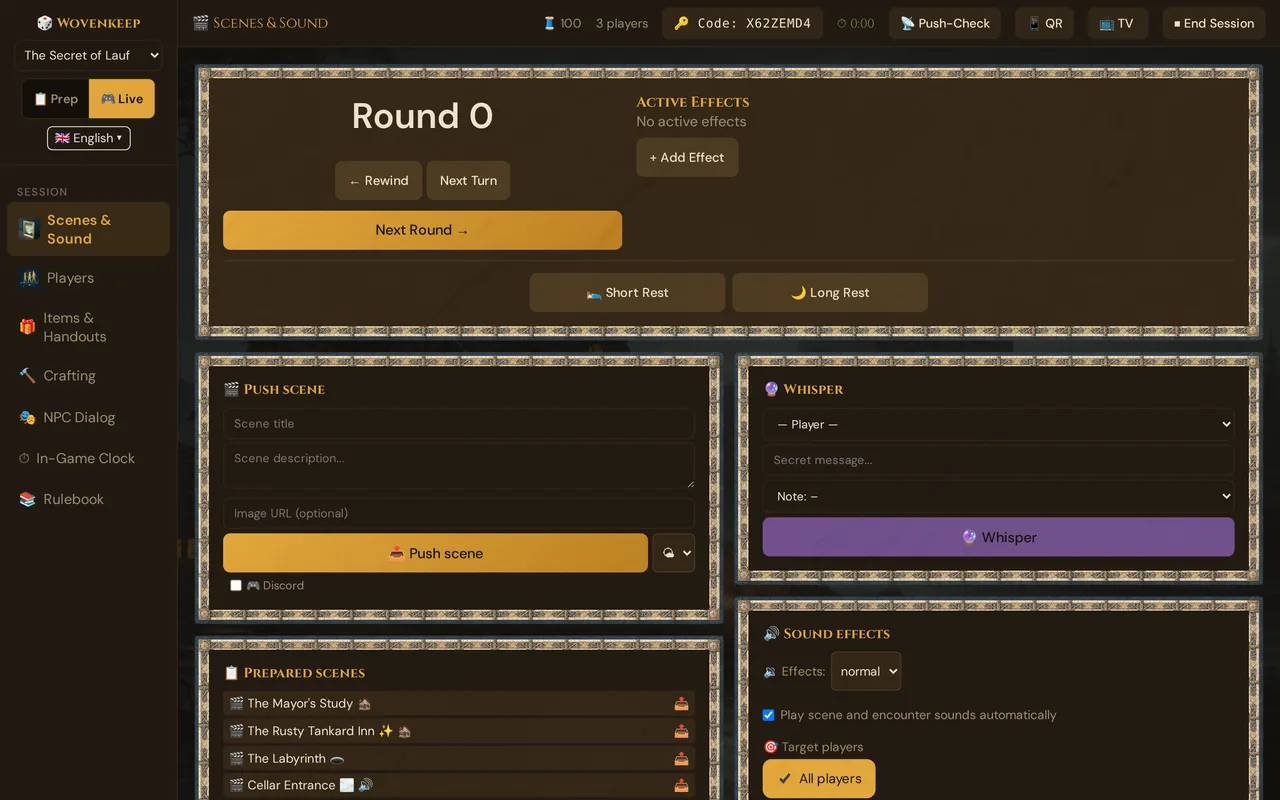
If you haven't already: in 🎮 Live → Scenes & Sound, click ▶ Start Session. The session opens; the top bar now shows your players, the session code, the timer, 📱 QR, 📺 TV and ⏹ End Session. Players who scan the QR are connected.
The live sidebar switches to:
🎮 Live
  Scenes & Sound
  Players
  Items & Handouts
  Crafting
  NPC Dialog
  In-Game Clock
  Rulebook
Step 7 — Push your first scene (1 min)
In the live sidebar, click Scenes & Sound. Find the 📋 Prepared scenes card and click The Mayor's Study — it is pushed right away.
Every connected phone now shows the scene image, title, and description with a fade-in. If you paired a sound preset during prep, ambient audio also starts.
Step 8 — Cut-in for drama (10 sec)
Roll some dice with your players. When someone rolls a Nat 20 or Nat 1, hit the matching cut-in button in the Cut-In card:
- ⚔️ Nat20 — green flash on every phone
- 💀 Nat1 — red flash
- ⚡ Twist — amber dramatic flash
- 🎭 Custom → type any text → flash
💡 Tip: Cut-Ins are included on all plans — including the free Adventurer plan — and cost no Threads.
See Cut-in system for all four styles.
Step 9 — Whisper a secret (15 sec)
Click Players in the live sidebar. In the 🔮 Whisper card:
- Pick a player from the dropdown
- Type: "You notice the captain's medallion symbol — it matches the temple seal you saw in your dream."
- Click 🔮 Whisper
Only that player sees it. The others stay in the dark.
💡 Tip: Whisper is included on all plans — including the free Adventurer plan — and costs no Threads.
Step 10 — Give an item (20 sec)
Players found loot? Click Items & Handouts in the live sidebar.
- Give Item card → pick a player → type an item name (the search lists magic items from the Rulebook — up to 6 matches)
- Set quantity; optionally check Unidentified if it's a mystery
- Click 🎁 Give Item
The item appears in that player's Inventory tab on their phone.
Step 11 — Request a roll (10 sec)
Want a player to roll a specific check? In Players → Roll Request:
- Pick the player from the dropdown
- Choose the roll type (Save / Attack / Skill / Ability)
- Set a DC
- Click 📩 Send
The player gets a prompt on their phone. Their result appears in the Roll Log at the bottom of the Scenes & Sound panel — filterable by All rolls or Manual-only.
Step 12 — End the session and review
Click ⏹ End Session and confirm with OK — closing the GM tab alone does not end the session. Player phones show The session has ended. If the live session belongs to a session from your plan, the window ✅ Wrap up session opens: keep Mark as played ticked, check the recap and click Save (see End the session). Everything — scenes pushed, dice rolled, whispers sent, items distributed — is now in the Session Log:
Prep sidebar → Session Log shows the full event timeline.
After a session, you can write a "previously on…" recap manually or optionally have a suggestion created with AI. In 📋 Prep → Sessions → ✏️ (or in Live, Scenes & Sound → Recap), click ✨ Suggest recap (AI): Tantu summarizes what was played (session log and live notes of the last evening played); if nothing has been played yet, there is no suggestion and nothing is charged. The button shows its Thread price as a badge, and a confirm dialog with the cost and your balance appears before it runs. Previous generated versions are available in a dropdown below the text area.
💡 Tip: The recap suggestion (AI) works on all plans. Each suggestion costs 1 Thread (short text). Bring your own API key = text actions free.
What to do next
You've used the demo. Now build your own:
- Delete the demo (yellow banner → Delete Demo) and create your first campaign in Campaigns
- Add real NPCs with portraits and personalities — see NPCs
- Build your story with acts, chapters, and scenes — see Story & World
- Invite players properly via onboarding invites so they pre-build characters before session 1
- Read the full Live session guide for the deep dive
- Use the Lazy-DM checklist (help bubble → Lazy-DM checklist) to stay on track during prep
Plan limits
Every feature — pushing, whispering, cut-ins — works on all plans, including the free Adventurer plan. Only the optional AI help features cost Threads. Sending text, scene titles, and descriptions is free and unlimited on all plans:
| Feature | Cost |
|---|---|
| Image push | Free and unlimited on all plans |
| Whisper | Free on all plans |
| Cut-Ins | Free on all plans |
| AI recap suggestion | 1 Thread per suggestion |
| AI image generation | 5 Threads per image |
You start with 100 free Threads at signup and earn more by creating your first campaign and playing sessions. Threads never expire. See Threads & costs.
Troubleshooting
| Symptom | Cause | Fix |
|---|---|---|
| Second welcome email never arrived | Spam filter or slow mail delivery | Check spam; wait up to 10 minutes; contact support |
| Players can't scan the QR code | Poor lighting or camera focus | Enlarge the QR pop-up (click to zoom); open the session URL manually and share it as a link |
| Pushed scene doesn't appear on phones | Player not yet joined to the session | Confirm the player list shows their name; have them rescan the QR |
| Onboarding modal doesn't appear on second login | Expected — it shows once per device, and not at all on a new device once your Realm has a campaign of your own | Reopen via the help bubble → 🔄 Restart tour |
Related articles
- 🗺️ Tour of the GM tool — get to know the prep sidebar
- 💾 Autosave — Wovenkeep saves as you type
- 💰 Threads & costs — how Threads work, what's free
- 📡 Running a live session — the full live-mode walkthrough
- 🃏 Player onboarding invites — invite players before session day
- ✂️ Cut-in system — all four dramatic cut-in styles