🔐 Two-factor authentication (MFA)
👤 For: Everyone · 💳 Plan: All plans · 🔄 Updated 2026-10-14
Two-factor authentication (2FA) adds a second step to your Wovenkeep account login: after your password, you enter a short code. Even if someone steals your password, they can't get into your account without that code.
What it does
- Protects your Wovenkeep account at
app.wovenkeep.com— the account that owns your Realm, your plan, and your Threads. - After your password, login asks for a 6-digit code from either an authenticator app or your email.
- Gives you 8 one-time recovery codes as a backup way in if you lose your authenticator or email access.
ℹ️ 2FA protects your account login at
app.wovenkeep.com. It does not change the GM password you use to go straight toyourname.wovenkeep.com/gm— that direct door keeps working as before. See Logging in & locked features for the difference between the two doors into your Realm.
When to use it
- You signed in and were told you must set up 2FA (this happens for admin accounts).
- For all other accounts, 2FA can't be switched on yet — the dashboard at
app.wovenkeep.comhas no setting for it.
Choosing a method
When you set up 2FA, you pick one of two methods. You can only have one active at a time.
| Method | What it is | Best when |
|---|---|---|
| Authenticator app (TOTP) | Codes are generated offline in an app like Google Authenticator, Aegis, Authy, or 1Password. | You want the strongest option — nothing is sent over the network. |
| Code via email | Wovenkeep emails a 6-digit code to your account address at every login. | You want convenience and don't use an authenticator app. Security then depends on your email account. |
💡 Tip: The authenticator-app method is the more secure choice — codes never leave your phone. Pick email only if you're comfortable that your email account is itself well protected.
Step by step — set up 2FA
The setup screen appears only as part of the login flow at app.wovenkeep.com, and only for accounts that require 2FA (admin accounts): they are taken here automatically until 2FA is enabled. You can't start the setup yourself.
- Sign in at
app.wovenkeep.comwith your email and password. - On the Choose 2FA method screen, pick Authenticator app or Code via email.
- If you chose the authenticator app:
- Scan the QR code with your authenticator app (or type the Manual key shown below it).
- The entry appears in the app under Wovenkeep, labelled app.wovenkeep.com (your-name).
- Enter the current 6-digit code and press Verify.
- If you chose email:
- Wovenkeep emails a 6-digit code to your account address.
- Enter it and press Verify. (Use Resend code if it doesn't arrive.)
- Save your recovery codes. You'll see 8 one-time codes on the "Recovery codes — save them now!" screen. Use Copy codes or Download codes, store them somewhere safe (a password manager is ideal), then press I saved the codes — continue.
⚠️ Recovery codes are shown once and only once. They are not stored in a form Wovenkeep can ever read back to you. If you don't save them now, you won't get a second chance.
What the setup screen shows
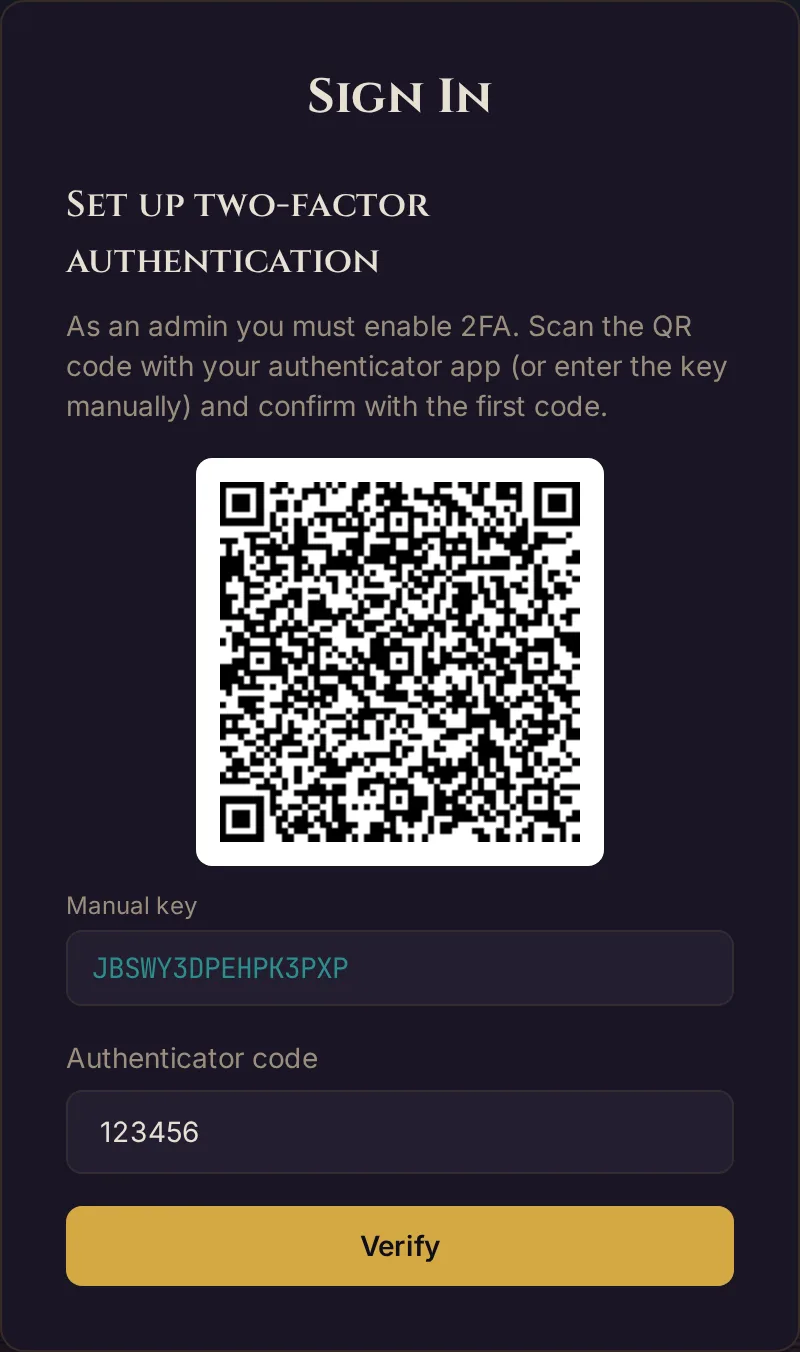
The picture uses an example key. Your own QR code and key are secret — never share them or post a screenshot of them.
Signing in with 2FA on
Once 2FA is active, every login takes two steps:
- Enter your email and password as usual.
- On the Two-factor verification screen, enter the 6-digit code — from your authenticator app, or from the email Wovenkeep just sent.
If you can't produce a code (lost phone, no email access), click Use a recovery code instead of an authenticator code and enter one of your saved recovery codes. Each recovery code works once, then it's spent.
Email codes: the fine print
If you use the email method, each code:
- is valid for 10 minutes, then expires;
- can be re-sent, but only once every 30 seconds (anti-spam throttle — wait if it says to);
- is invalidated after 5 wrong attempts — request a fresh one with Resend code.
Recovery codes
Recovery codes are your safety net. The numbers that matter:
| Fact | Value |
|---|---|
| Codes issued at setup | 8 |
| Uses per code | 1 (single-use) |
| When shown | Once, right after setup |
| Stored by Wovenkeep | Only as a one-way hash — they cannot be shown to you again |
A recovery code gets you past the login prompt when you can't produce a normal code. Treat them like account keys — store them offline or in a password manager, not in the same place as your password if you can help it.
Turning 2FA off
There's currently no setting to turn 2FA off — neither in the dashboard at app.wovenkeep.com nor in the GM tool. Admin accounts have to keep 2FA anyway: without it, signing in leads straight back to the setup screen.
Plan limits
2FA is free on every plan, including Adventurer (Free). It is a security feature, not a paid feature — there is nothing to buy and nothing to spend. See Threads & costs for what is plan-gated or pay-per-use.
Troubleshooting
| Symptom | Cause | Fix |
|---|---|---|
| Authenticator code rejected as invalid | Your phone's clock has drifted — TOTP codes are time-based | Enable automatic date/time on your phone, then try the next code |
| "Set up two-factor authentication" appears and won't let me skip | Your account is an admin account; 2FA is required before you can continue | Complete setup once — pick a method, verify, save the recovery codes |
| Email 2FA code never arrives | It went to spam, or you re-sent too fast (30-second throttle) | Check spam, wait for the throttle, then press Resend code |
| Email code says "invalid" repeatedly | The code expired (10-minute window) or you passed 5 wrong attempts and it was invalidated | Press Resend code to get a fresh one |
| Lost authenticator/email and no recovery codes | Recovery codes were never saved (they're shown only once) | Contact support at app.wovenkeep.com — manual account recovery is required |
| Can't find a way to turn 2FA off | There's no setting for it yet; admin accounts must keep 2FA anyway | Not possible yourself — contact support at app.wovenkeep.com if you need it |
| Used a recovery code and now I'm one short | Recovery codes are single-use — each one works for one sign-in | You can't create a new set yourself yet — keep the remaining codes safe |
Related articles
- 🔑 Logging in & locked features — SSO, the GM password, and feature locks
- 📋 Login Log — review who signed into your Realm
- 🔒 GDPR & Data Export — what account data is stored and how to export it
- 🏛️ The Realm concept — account vs. Realm authentication explained
- 🧵 Threads & costs — what is plan-gated or pay-per-use (2FA isn't)