📡 Running a live session
👤 For: Game Masters · 💳 Plan: All plans · 🔄 Updated 2026-10-17
A start-to-finish walkthrough of running game night with Wovenkeep — from the moment players sit down to the moment you push the recap.
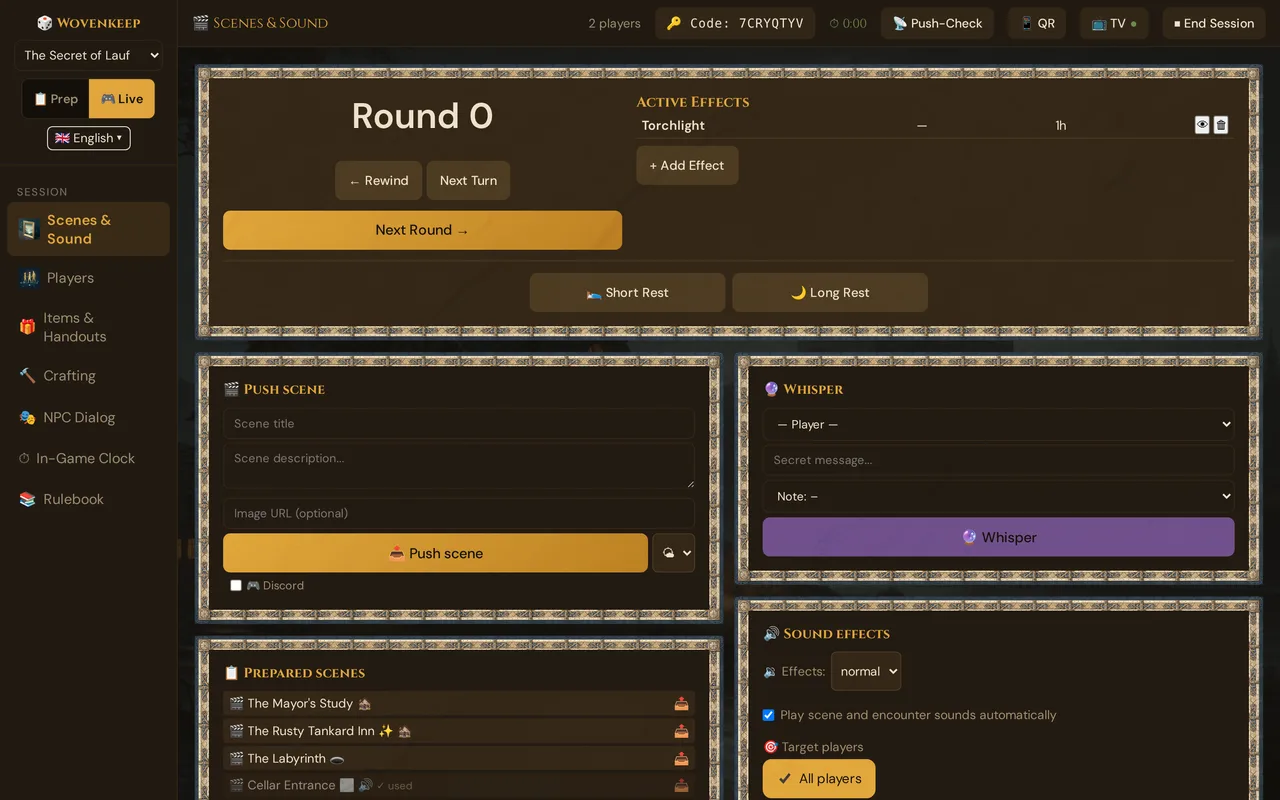
What it does
Wovenkeep's live mode turns your GM screen into a broadcast hub: push scenes, sounds, cut-ins, and quests directly to every player's phone in real time — no app install required. Everything players see is driven by you, one tap at a time.
When to use it
Open live mode whenever you sit down to actually play. Prep mode is for planning; live mode is for the table.
Before the session
You only need three things in place:
- A campaign with at least one player character (see Campaigns & Story)
- Players invited via onboarding invites — they pre-built their character so session 1 starts at minute zero, not minute forty
- The GM tool open on your Realm (
yourname.wovenkeep.com/gm)
A second screen is optional but handy: keep the GM view on your main screen, and a player view open on a second device so you can see exactly what your players see.
💡 Tip: One Realm can run only one live session at a time. If you want to switch campaigns mid-evening, end the current session first, then start a new one in the other campaign.
Step by step
1. Switch to Live mode
In the left sidebar of the GM tool there are two big buttons under your campaign name:
- 📋 Prep — the planning side (NPCs, scenes, story, monsters)
- 🎮 Live — the running side
Click 🎮 Live.
The sidebar collapses to these sections:
Scenes & Sound       ← push scenes, images, sound, cut-ins
Players              ← whisper, dice log, initiative, polls
Items & Handouts     ← inventory + handouts
Crafting             ← advance running crafting jobs live
NPC Dialog           ← dialog suggestions (AI) & scene conversations
In-Game Clock        ← date, time, effects, travel
Rulebook             ← searchable SRD reference
The Scenes & Sound section — still empty before a session runs — shows a large amber ▶ Start Session button front and center.
2. Start the session
Open Scenes & Sound and click the big ▶ Start Session button.
The button greys out while the session is being created (so a double-click can't start two). If starting fails, a toast tells you so and the button becomes clickable again.
Wovenkeep does three things at once:
- Creates a session record in the database
- Generates a unique 8-character session code (e.g.
K7XP2MQ4— letters and digits, without 0/O and 1/I) - Opens the live session that players can join
The top bar now shows the live controls:
- 📱 QR — opens a window with a scannable QR code
- 📡 Push-check — verifies every connected device is receiving pushes
- ⏱️ Pacing timer — click to start a session-length timer (green < 2 h, amber 2–2:30 h, red > 2:30 h)
- Player count —
0 Playersuntil someone joins - ⏹ End Session — ends the live session for everyone (with a confirm prompt)
- 🧵 Threads chip — your current Threads balance; it refreshes after every AI action
Which session it belongs to: a live session is linked to a session from your session plan (Sessions) — the planned session with the lowest number, or, if none is planned, the one with the highest number. You don't pick it; the line at the top of Scenes & Sound, for example 📅 Session #1 · Into the Dark, shows which one it is. Your live notes, Stars & Wishes and the wrap-up at the end go to that session. Without any session in the plan, the live session runs unlinked.
One session per Realm: if a live session is already running (say, on another device), clicking Start joins that session instead of creating a second one — even if it belongs to a different campaign. Your GM view switches to that session's campaign.
The GM name on player phones — players see a GM name at the top of their screen: the campaign's GM name, or Game Master in their own language if the campaign has none. Set it in the window Edit campaign (see GM Dashboard).
3. Get players in
Click 📱 QR. A window opens with two things:
- The QR code itself (256 × 256 px, amber on dark background)
- A copy-paste link below it:
https://yourname.wovenkeep.com/player/?s=K7XP2MQ4
Tell each player to scan the QR with their phone camera. The phone opens the link straight away — no app to install. iPhones, Android phones, and tablets all work.
If a player can't scan (camera broken, projector blocks the screen, remote game), share the link in your group chat or have them type the 8-character code into yourname.wovenkeep.com/player/. Enter in the code or name field joins, too.
What the player sees on first connect
- Join screen — they type their name (or pick their pre-built character if they used an onboarding invite) and tap Join ⚔️.
- Audio gate — a one-tap start screen ("Tap to enter the story"). Phones don't allow sound until the player taps once — this tap also connects the phone to the session.
- Game screen — empty until you push your first scene.
Your live log notes every player who joins:
👤 Lena joined
👤 Jonas joined (2 devices)
👤 Mira joined
The (2 devices) badge means the player has phone and tablet open — both receive every push. See Multi-device players.
4. Send the recap (optional but recommended)
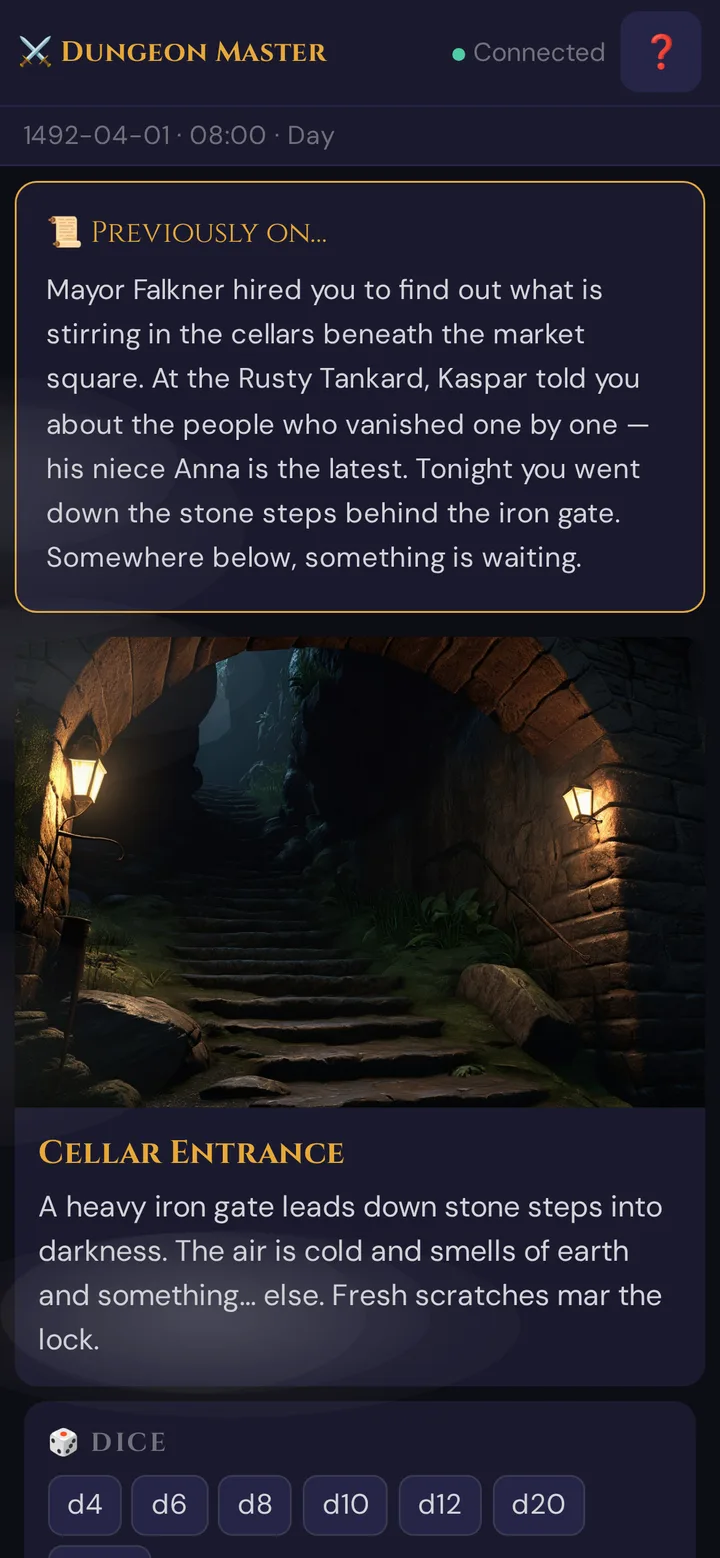
If this isn't session 1, open Scenes & Sound and find the 📜 Recap card.
You have two options:
- Type it manually — write your "previously on…" in the text box (free)
- ✨ Suggest recap (AI) (purple button, with the Thread price shown as a badge right on the button) — Tantu suggests a recap of what was actually played: the event log and live notes of the last evening played (the card names it, for example Recap of session #1). If nothing has been played and there are no live notes, you see Nothing played yet and no live notes: no recap possible. Nothing was charged. Before anything is charged, a confirm dialog shows the cost and your current Threads balance (see Threads & costs)
If you click ✨ Suggest recap (AI) more than once, each version is saved in the version list below the text box — a new suggestion never overwrites text that is already there. Pick any earlier version to restore it — useful if you liked the first draft better.
Then click 📜 Send. Every player gets a card on their phone:
5. Push your opening scene
Open Scenes & Sound. The Push Scene card has four fields:
| Field | What it does |
|---|---|
| Title | The scene heading on player phones (e.g. "The Whispering Ruins") |
| Description | Read-aloud text. Markdown supported. Phones show it collapsed below the image (📖 Read the text); the TV shows it only when Also show text on the TV is ticked. |
| Image | An image URL, or 🗂️ Choose from media to pick or upload a picture |
| Overlay | Particle effect — rain / snow / fog / embers / fireflies / none |
Two ways to fill this in:
- Manually — type/paste, then click 📤 Push Scene.
- From a prepared scene — if you set up scenes during prep (Scenes section), the card 📋 Prepared scenes below lists them, grouped by act and chapter if you use them. Click one — it is pushed in one step; any saved ambient sound starts automatically, linked combat encounters and place clocks activate, and the clues linked to the scene appear in 🔍 Clues for this scene.
Players see the scene full-bleed (image + title, with the text collapsed) with a fade-up animation. They can tap the image to expand it to fullscreen.
💡 Tip: If the scene has an auto-start combat encounter attached, Wovenkeep immediately opens the combat tracker when the scene lands. Combat encounters without the auto-start flag appear as floating ⚔️ … buttons with their names instead — tap one whenever the fight actually begins. Social, exploration, trap and puzzle encounters only leave a reminder in the 📋 Log.
For the full details of the scene push see Scene push.
6. Set the mood with sound
Still in Scenes & Sound, scroll down to the Sounds browser. You'll see two rows:
- Ambient — looping background tracks (tavern, forest, dungeon, rain, etc.)
- SFX — one-shot effects (sword, explosion, magic, scream, door, bell)
Before pushing to players, you can preview any track locally. Click the ▶ Preview button next to a track — only your speakers play it. When you're happy with the choice, click Push and it starts on every connected phone.
There's also a per-player checkbox row if you only want sound to hit a single phone (useful for "you hear a whisper in your left ear" moments).
Optional: have Tantu suggest ambient sound (AI)
Custom AI ambients are generated during prep, not from the live Sounds browser: in the scene editor, the 🎙️ Sound by Tantu button (costs 1 Thread) creates an ambient track matched to the scene's description — written in any language, Tantu turns it into an English prompt for the sound model first. Single effects and background sounds without a scene come from ✨ Create with Tantu on the Media page. It runs through a Wovenkeep service — you don't need a key in your Realm; if the service isn't available, you'll see Sound generation is not set up on this instance — please contact the operator. The generated track is saved as a custom sound attached to the scene and pushes the same way as preset ones.
See Sound & ambient for the full audio reference.
7. React to the action
The buttons you'll reach for most during a real session, by tab:
Scenes & Sound — quick cut-ins
Four large, color-coded buttons at the top right of the section:
| Button | Style | Best for |
|---|---|---|
| ⚔️ Nat20 | success (green) | Critical hit, masterful save |
| 💀 Nat1 | danger (red) | Critical miss, terrible failure |
| ⚡ Twist | dramatic (amber) | Cliffhanger, plot twist, NPC betrayal |
| 🎭 Custom | dramatic (custom text) | Anything else — opens a prompt for the text |
Each pops a full-screen 2.5-second flash on every player phone — text + color + slam animation. Cut-ins are included on all plans and cost no Threads. See Cut-in system.
Scenes & Sound — random tables
🎲 Random table (below 📋 Prepared scenes) — pick one of the ten built-in tables or one of your own, click 🎲 Roll, and the result appears in the card and in the log. 📤 To all players sends it to every phone as a document. See Random Tables.
Players — whisper, dice, initiative, polls
Whisper, the roll log and polls sit in Scenes & Sound; initiative and roll requests are under Players in the live sidebar.
🔮 Whisper (Scenes & Sound) — pick a player, type the message → 🔮 Whisper. Only that player's phone shows the purple whisper card. Without a recipient or a message, the card says Select a recipient and enter a message. Included on all plans, costs no Threads.
🎲 Roll Log (Scenes & Sound, at the bottom) — every roll the players make streams into the feed in real time. Each entry shows the source:
🎲 Jonas: d20 → 17          (App roll)
✍️ Lena: d20 → 14           (manual entry)
✍️🎲 Mira: d20 → 9          (mixed)
The feed is server-side persistent — it survives a tab reload and is available for review in the Session Log afterward.
🎲 Roll request (Players) — need a specific player to roll? Pick the player (or — All —), the type (Save / Attack / Skill / Ability) and what exactly is rolled, optionally Advantage or Disadvantage, set the DC (default 15) → 📩 Send. The player gets a prompt on their phone; when they roll, the result appears in the log below the card and in the roll log. A waiting line, for example 📩 … → Lena (waiting…), disappears when the result arrives; with — All — it counts down, (3 open). Without a player chosen, the card says Select a player.
⚔️ Initiative (Players) — when combat starts: type name + d20 roll + HP (and AC) → + to add. Advance with Next Turn in the round panel at the top of Scenes & Sound; ▶ marks whose turn it is. Players see the order, current turn, and HP bars (PCs only — monsters show as 🟢 / 🟡 / 🔴 / 💀 emoji to hide exact HP). 🏁 End combat ends the fight and resets the round to 0 — see Initiative & combat.
🎖️ Award XP (Players, card 👥 Connected players) — award XP to the characters you tick, with or without an encounter. After a fight, the hint 🏁 Combat over – award XP? offers the same. See Initiative & combat → Award XP.
🐉 Encounter (Players, next to +) — if you prepped a combat encounter (Encounters), pick it and Wovenkeep rolls initiative for every monster automatically. Only combat encounters are listed; without any, the card says No combat encounters in this campaign.
Lair actions — if the active encounter features a boss with lair actions, a Lair panel appears at the bottom of the combat tracker. Tap any lair action to trigger it (cooldown enforced); legendary effects are shown in an adjacent panel. Note: lair actions work reliably on the 2014 rules path; 2024 legendary mode may have edge cases.
📊 Poll (Scenes & Sound) — type a question and the options → 📊 Start poll. Players tap their answer; results stream back live.
Items & Handouts
🎁 Give item — pick the player, search the SRD's magic items or type any item name, set the quantity, optionally tick Unidentified to hide the real item until you identify it later. See Mystery items.
📦 Hand out creature loot — pick a creature (your NPCs and custom monsters) in — Choose creature —; the card lists its loadout items that haven't been handed out yet. For each item choose a player in — Player — → To player →. The item lands directly in the player's inventory — their phone shows a 🎁 New Item: notification, no accept step needed — and the row changes to ✅ Handed to {name}. (The transfer inbox for player-to-player transfers is currently switched off — see Mystery items.)
📜 Give handout — pick the player (or All players), title + content + type → 📜 Send. The card confirms 📜 Title → Name and clears the fields; if sending fails, it says ⚠️ Sending failed: … and your text stays. The handout lives in the player's Documents tab for the rest of the session (and beyond).
NPC Dialog
The NPC Dialog section holds two cards. Every generate button here shows its Thread price as a badge, and a confirm dialog with the cost and your balance appears before anything is charged.
🎭 What does the NPC say? — pick an NPC from the dropdown, describe the situation → click 🎭 Suggest dialogue. Tantu uses the NPC's personality, secrets, and current scene context to produce in-character speech (costs Threads). Click Push and the player phones show a visual-novel-style speech bubble with the NPC's portrait.
🗣️ NPC conversation (scene) — pick a scene that has at least two cast NPCs assigned → click 🗣️ Let the NPCs talk. Tantu suggests a back-and-forth exchange between the cast; you review the sequence, then play it out to the player phones.
Quests & plotlines
Quest pushes live in Prep → Sessions, not in the live sidebar: the 📜 Plotlines of this session panel lists every plotline attached to the session, each with a 📤 push button. The button is only active for plotlines marked player-visible (👁) — and it needs a running live session. Players see a quest card showing the title and any non-hidden objectives; hidden objectives stay invisible until you reveal them in prep.
In-Game Clock
If you're tracking time in-fiction (most campaigns benefit from this), the In-Game Clock panel shows:
- Current date and time on the active calendar (Gregorian default; Fantasy calendar or Custom selectable)
- Active effects (concentration spells, conditions) with auto-expiry
- Short Rest / Long Rest buttons (handles HP, spell slots, and effect cleanup)
- Travel computer (distance + speed → time elapsed + arrival time)
What players see: a time bar at the top of their screen showing the in-game date, time of day, and current combat round. Revealed clocks appear below it.
The segment clocks themselves — free ones and those of the pushed scene — are in the card ⏳ Clocks in Scenes & Sound; see Place & scene clocks.
See In-game clock & calendar for the full feature.
Mark a player absent
If a player has to leave before the evening is over, mark them absent. Their character stays in the game — you play it — and their phone gets no more prompts.
- Open Players in the live sidebar.
- In the 👥 Connected players card, click 💤 absent next to the player's name.
- A 💤 appears in front of the name, and your log notes
💤 Lena is marked absent.
While a player is marked absent:
- Combat start — their character joins the initiative even if their phone is no longer connected, and Wovenkeep rolls its initiative right away (d20 + initiative modifier). The player gets no initiative prompt. Without the mark, characters of disconnected players are left out of the initiative.
- Initiative list — the character shows 💤 next to its name.
- Turns — the player's phone doesn't show the ⚔️ YOUR TURN! banner; you play the character's turn.
- Roll requests — the player isn't offered in the — Player — list, and — All — skips them.
- Other targets — absent players are also left out of the player lists for Whisper, Give item, Give handout and Sound effects.
- Player list — if their device disconnects, they stay in the list, greyed out and marked not connected.
When the player is back, click mark present next to their name; prompts go to them again. Reconnecting alone doesn't remove the mark — your log reminds you with 💤 Lena is back and still marked absent.
The mark only applies to the current live session: the next session starts with nobody marked absent.
Push-check
If you suspect a player's phone isn't receiving (audio not playing, scenes look stale), click 📡 Push-check in the top bar.
Wovenkeep sends a silent ping to every connected device. Each phone replies with:
- Round-trip latency in ms
- Audio capability (whether the audio gate was unlocked)
Results appear in an overlay:
✅ Lena         iPhone 15      good    🔊 on
✅ Jonas        Pixel 7        good    🔊 on
⚠️ Jonas        iPad           good    🔇 muted     ← needs audio-gate tap
❌ Mira         (no response)                       ← reconnect needed
If a row is amber (audio muted), have that player tap their screen once. If a row is red (no response), have them rescan the QR code.
End the session
💡 Tip: Want feedback from the table? Ask for Stars & Wishes before you end the session — see Session recap.
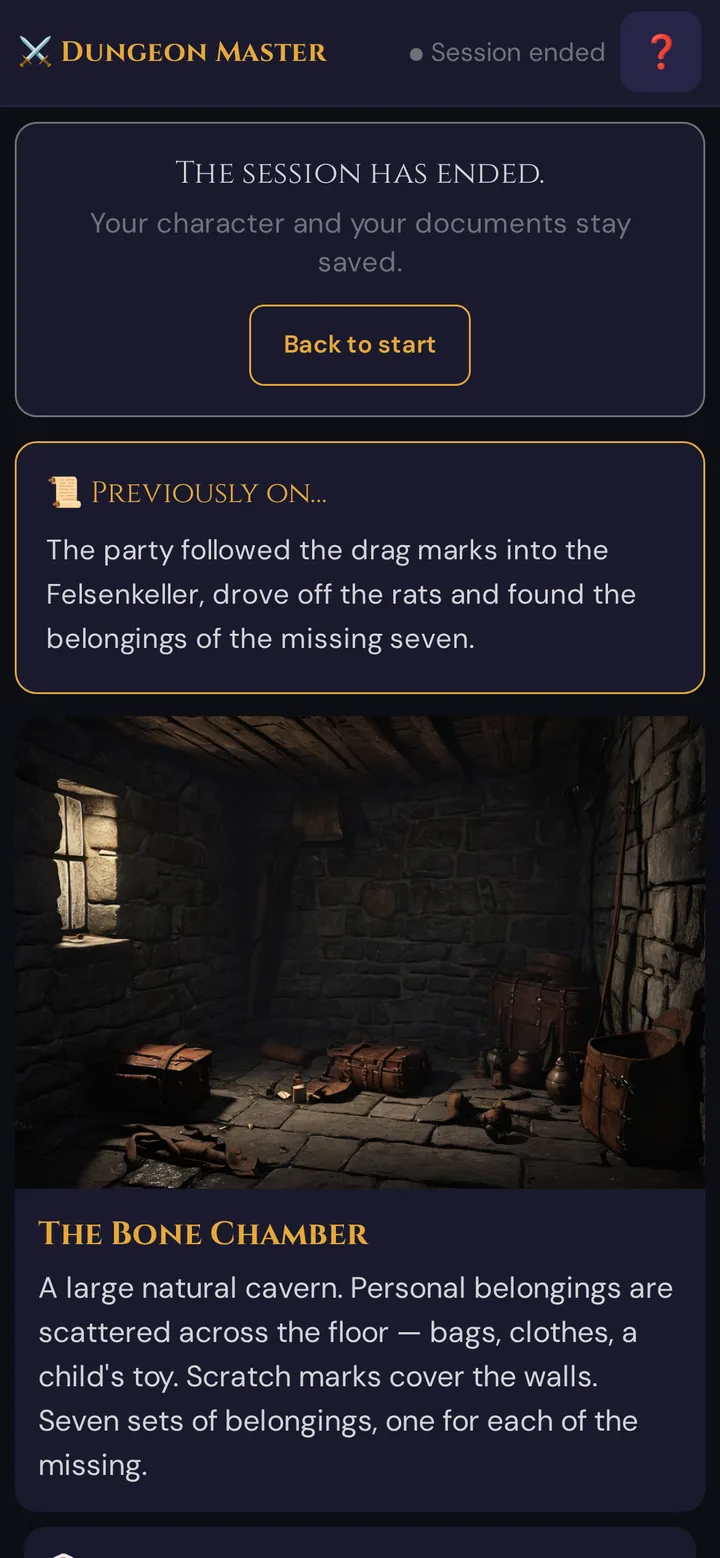
Click ⏹ End Session in the top bar. Wovenkeep asks End the live session? Players will be disconnected. — OK ends it, Cancel or Esc keeps playing. When you end a session:
- The live session ends for everyone. Player phones show Session ended at the top and the card The session has ended. — Your character and your documents stay saved. — with Back to start.
- Your GM view resets: initiative, round, effects and lair are cleared, and Scenes & Sound shows ▶ Start Session again.
- The Session Log records the start and the end (after N minutes); the full event log is available afterward in Prep → Session Log.
Next, on the device that ended the session, the window ✅ Wrap up session opens:
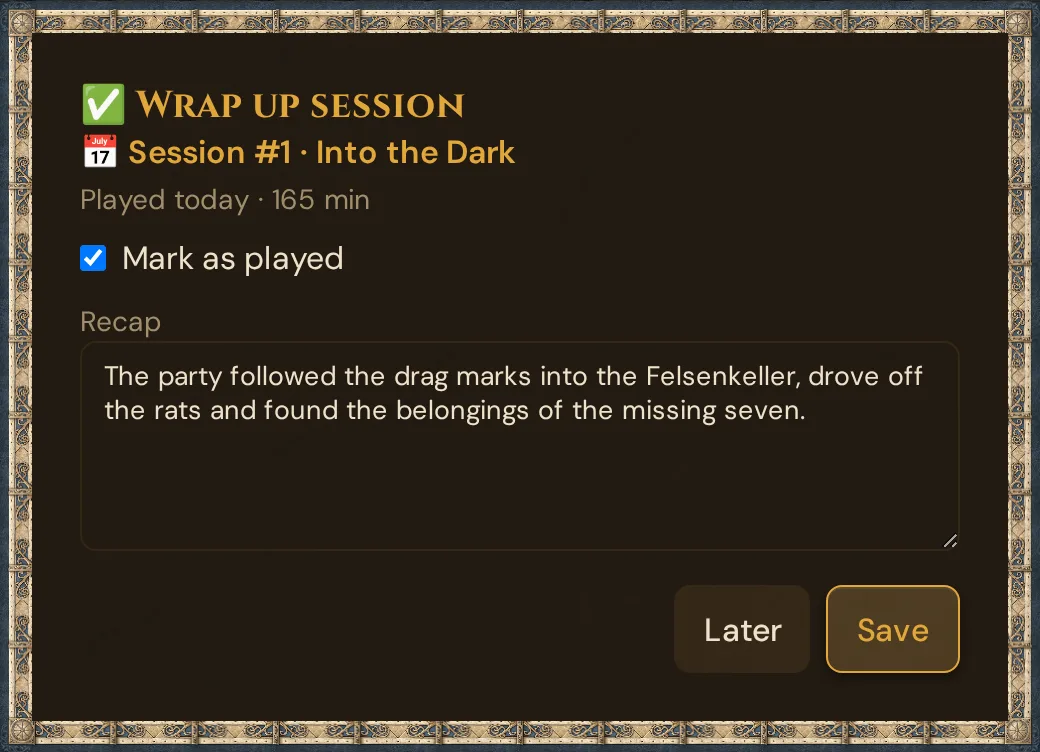
- If the live session belongs to a planned session from your plan, the first lines name it (📅 Session #1 · …). Otherwise — if the live session's campaign is open on that device — the first line reads Save as new session #n, the number after your highest session. A live session belongs only to a session that is still planned (or has no status), never to one already played.
- Played today · N min — today's date and the minutes since the start. You can't change them here; you can later, in the session editor (see Sessions).
- Mark as played (only for a session from your plan) is ticked: the session gets the status ✅ Played, and the next planned session becomes the target for live notes, Stars & Wishes and your next live session. A session that is already played keeps its status.
- Recap shows the recap saved with the session. Use the last recap sent — only there if you sent a recap in this tab with 📜 Send — copies that text into the field. Edit it as you like.
- Save stores the date, the duration and — if you changed it — the recap with the session (Session saved). An empty recap field never deletes a saved recap. Without the tick, the status stays as it is; the rest is saved anyway. With Save as new session #n, Save creates the session with the status ✅ Played, the title Session #n, the date, the duration and the recap. The session card then shows ✅ Played on … · N min. Later (or Esc) closes the window and saves nothing — no new session is created either.
Other GM devices just note The live session has ended. in their log.
Closing the GM tool does not end the session. The session keeps running on the server — when you reopen the GM tool, it detects the running session and puts you right back into it (every GM device converges on the same live session).
Switching campaigns: your Realm can only run one live session at a time. To play a different campaign the same evening, click ⏹ End Session first, switch to the other campaign, then hit ▶ Start Session there.
For the next session, just hit ▶ Start Session again — players rejoin with a fresh code. Their characters, inventories, and handouts from previous sessions are still there (they live on the campaign, not on the session).
Session persistence
- Session code lives in the URL — players who reconnect within the session get back exactly where they were
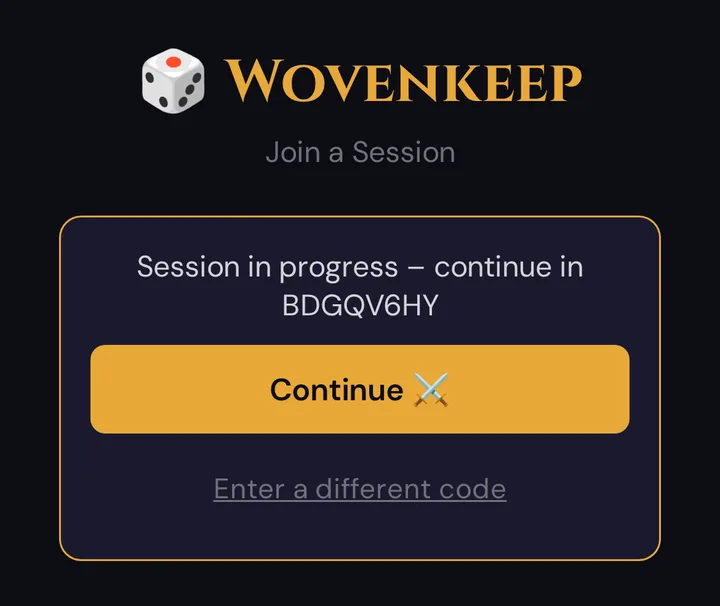
- Reloading a phone — on a phone with a saved character, the card Session in progress – continue in {code} appears; one tap on Continue ⚔️ joins again under the character's player name (the new one, if you renamed the player) and turns the sound on. Enter a different code shows the normal join screen
- Reopening the GM tool — you land in the live section you had open last
- Pushes are not replayed — if a player joins late, they see the current scene, not the history. Re-push if needed.
- Inventory and handouts persist across sessions — both are stored on the campaign, not on the session
- The dice log is server-side persistent — the feed survives a tab reload; the full roll history can be reviewed in the Session Log
Plan limits
Pushing text and scenes to player phones is free on all plans — every feature works on every plan, including free. Plans differ only in monthly Threads, campaigns, player seats, storage, and support. AI actions cost Threads per use:
| Feature | Cost |
|---|---|
| Image pushes | Free and unlimited on every plan |
| Whisper | Free on all plans |
| Cut-ins | Free on all plans |
| Recap suggestion (AI) | 1 Thread per suggestion (0 with your own AI key; nothing is charged if nothing has been played yet) |
| NPC dialog (AI) | 1 Thread per reply |
| Sound generation (AI) | 1 Thread per generation |
See Threads & costs and Pricing.
Troubleshooting
| Symptom | Cause | Fix |
|---|---|---|
| Players can't hear ambient sound | Audio gate not tapped | Have each player tap the 🔊 screen once on join |
| A player's phone shows a stale scene | Connection dropped | Click 📡 Push-check → if red, have them rescan the QR |
| QR window is blank / not loading | Session not started yet | Click ▶ Start Session in Scenes & Sound first, then 📱 QR |
| No ✅ Wrap up session window after ending | The live session isn't linked to a session from your plan — the campaign had no session | Plan the session in Prep → Sessions; set its status and recap there |
| A phone shows The session has ended. | You ended the session — or the player used an old link | Start a new session; players join with the new code |
| GM tool jumps to a different campaign when going Live | A live session is already running in that campaign — one session per Realm | End it via ⏹ End Session, then start a new session in the campaign you want |
| Lair action panel not visible | No lair assigned to the encounter's boss | Add lair actions to the monster in Prep → Monsters |
| Roll-request result never arrives | Player dismissed the roll prompt | Re-send the roll request from the dice panel |
Related articles
- 🖼️ Scene push — image + text pushes in detail
- 🎵 Sound & ambient — audio architecture and AI generation
- 🎲 Whisper & dice — private channels, dice log, and roll requests
- ⚔️ Initiative & combat — combat tracker and lair actions
- 📱 Multi-device players — phone + tablet per player
- 🗺️ Quests & plotlines — preparing quests to push live
- 🎟️ Player onboarding invites — pre-session prep