🎲 Player characters
👤 For: Game Masters · Players · 💳 Plan: All plans · 🔄 Updated 2026-10-17
Player characters (PCs) are the heroes your players control. Wovenkeep stores a full D&D 5e character sheet for each — abilities, HP, AC, inventory, backstory — plus GM-only notes that players never see. PCs live on the campaign and persist across every session.
What it does
- GM side (prep): create, edit, level up, and manage portraits for every PC in your campaign.
- Player side (live): players open their full character sheet on their phone — six tabs covering Combat, Skills, Spells, Inventory, Features, and Bio — and can tap any stat to roll dice directly.
- Live sync: HP changes, loot transfers, and dice rolls flow between GM and player phones in real time over the session connection.
When to use it
Open the PC list before session 1 to create characters (or let players build their own via player onboarding invites). During prep, keep it updated between sessions. During play, players use the HUD on their phones; you see their HP and status live.
GM view
Where to find it
Sidebar → 🎲 Players (under Preparation).
The PC list
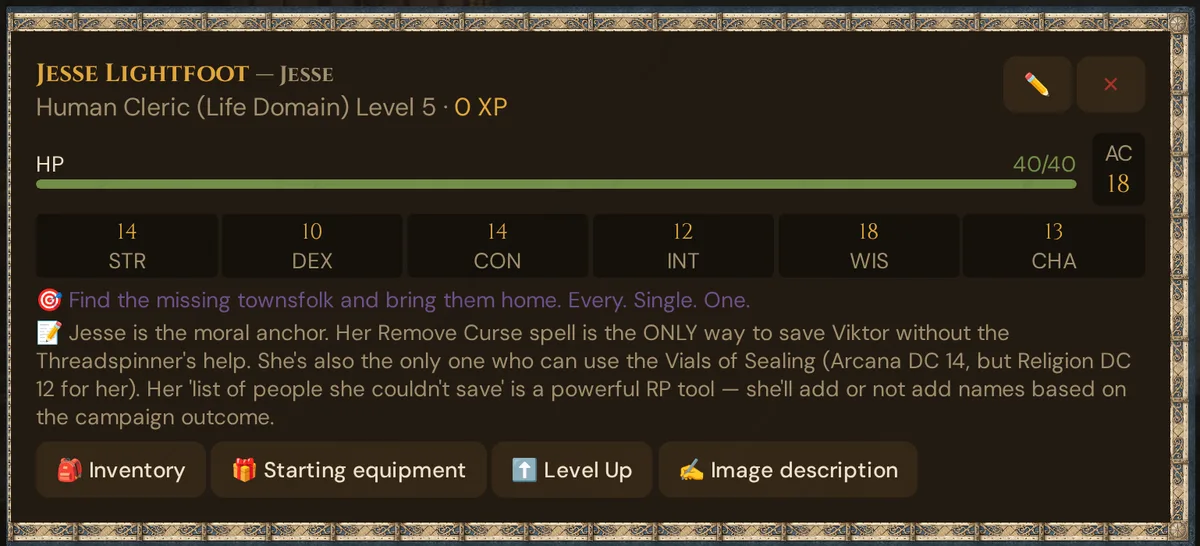
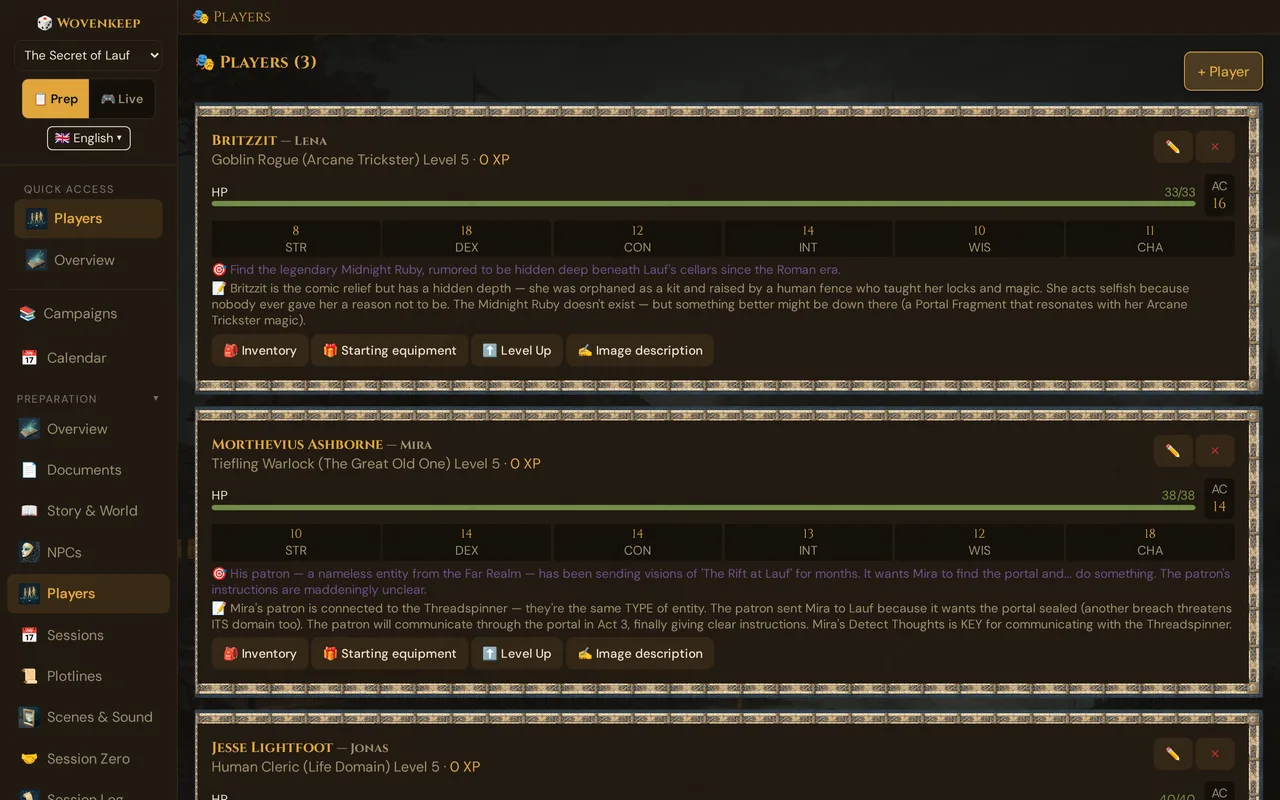
The card shows the essentials at a glance: species/class/level, the XP total, an HP bar (green/amber/red), AC, the six ability scores, the personal quest (🎯) and GM-only notes (📝), plus the buttons 🎒 Inventory, 🎁 Starting equipment (only while the sheet has none), ⬆️ Level Up and ✍️ Image description.
Creating a PC
Click + Player above the list. The form:
| Field | Type | Notes |
|---|---|---|
| Player name * | Text | The real person playing |
| Character name * | Text | The hero's name |
| Species | Dropdown | The 9 species of SRD 5.2.1 plus Half-Elf and Half-Orc (SRD 5.1) |
| Class | Dropdown | The 12 SRD classes |
| Subclass | Dropdown | Appears once a class is chosen — the subclass of SRD 5.2.1 for that class; a character that already has another subclass keeps it |
| Level | Number | 1–20, default 1 |
| AC | Number | Default 10 |
| HP max | Number | Default 10 |
| HP current | Number | Defaults to HP max |
| STR / DEX / CON / INT / WIS / CHA | Number ×6 | 1–30, default 10 |
| Backstory | Text box | The character's history |
| GM notes | Text box | GM-only — players never see this |
The Species/Class/Subclass dropdowns are cascading: pick a class and the subclass dropdown repopulates with that class's subclasses. Names appear in your interface language and are saved in English (SRD Rulebook).
Click 🎭 Add character. The PC appears in your Players list; ✏️ opens it for editing.
💡 Tip: New players? Use the ELI5 character creation wizard in the invite flow — it walks beginners through every choice in plain language and automatically assigns class starter equipment.
Editing a PC
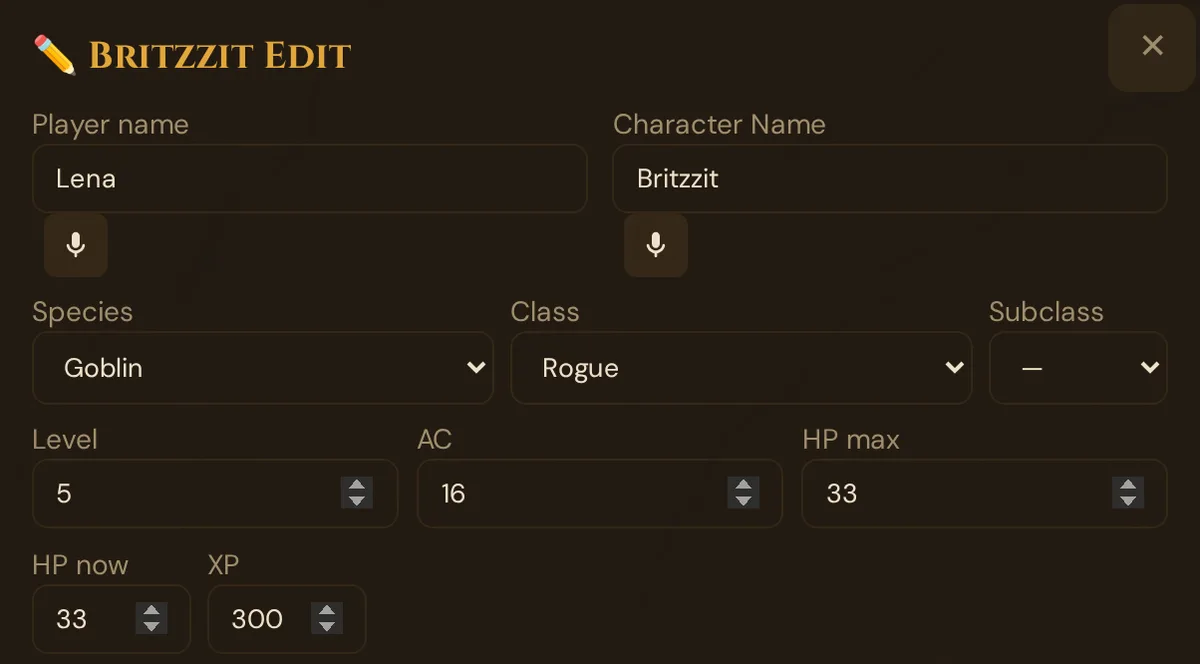
Click ✏️ on the card. The window ✏️ {name} Edit opens with all fields plus the additional sections below. All fields autosave (see Autosave) — no Save button needed. Next to HP current you find XP: it sets the character's XP total (a whole number from 0; an empty field saves 0).
Renaming a player
The first field of the ✏️ window is Player name — the name the player joins sessions with. Change it there; it saves when you leave the field or press Enter — not while you type. Wovenkeep moves everything addressed to the old name to the new one: the player's inventory, private handouts, item transfers, crafting jobs and campaign inventory entries.
Wovenkeep refuses the new name and says why in the window:
- Please enter a player name. 'ALL' and 'GM' are reserved. — the field is empty, ALL or GM;
- This player name is already taken in this campaign. — another character of the campaign has it;
- This player is currently connected live. Please disconnect before renaming. — ask the player to close the player view, or end the session first;
- There is already leftover data under this name in this campaign. Please choose a different name. — items or handouts already wait under the new name.
After renaming, the player joins with the new name — Continue ⚔️ on their phone picks it up by itself after a reload. Only if they type the old name by hand do their 📦 Inventory and 📜 Documents look empty. Their character sheet shows everything either way.
Inventory (GM)
Click 🎒 Inventory on a PC card. The inventory window lists the items kept for this character in the campaign:
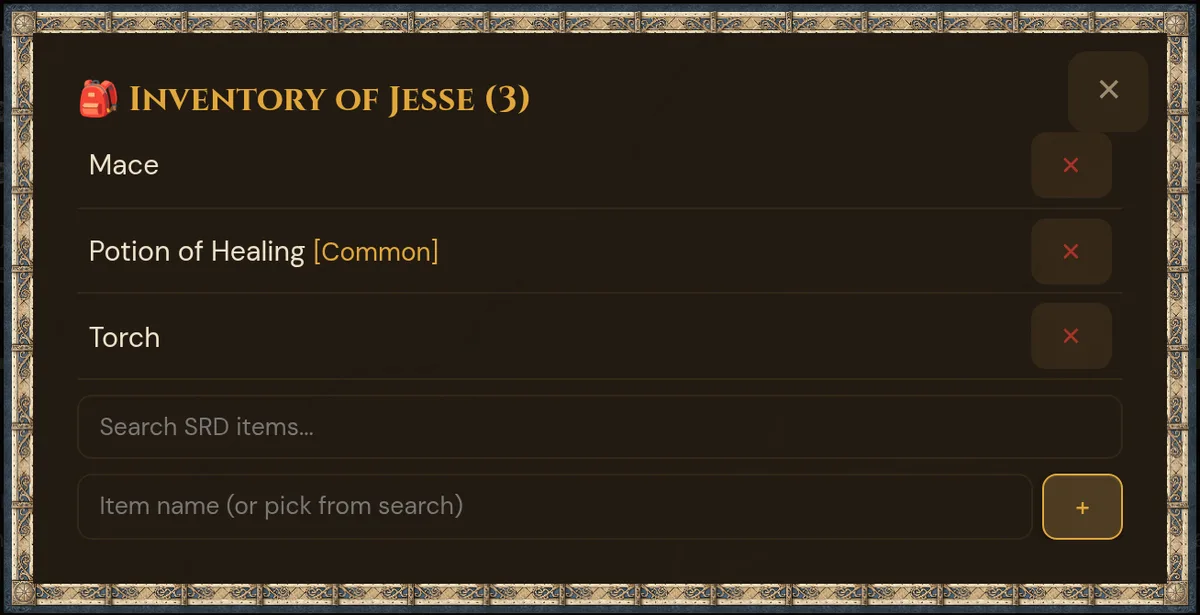
The item search box pulls from the openly licensed compendium (SRD 5.2 and 5.1 plus open content from other publishers) so you can quickly add named equipment.
Persistent vs. live loot — the flow:
- During a session, hand out loot live with 🎁 Give item or 📦 Hand out creature loot (an item from a creature's loadout). It goes straight into the player's inventory on the phone — there is no accept/decline step.
- This list on the PC card is kept separately: loot handed out live and starting equipment show up in the player's character sheet (🎒 Inventory tab), not here.
- Currency (cp / sp / ep / gp / pp) is tracked on the character sheet (📜 Bio tab).
🎁 Starting equipment for sheets without it
Characters built with the guided wizard (in the session or via an invite link) get their starting equipment automatically when they finish. Sheets without starting equipment, for example characters you added with + Player, show the 🎁 Starting equipment button on the PC card. The button only appears if the sheet has a class and has not received starting equipment yet.
- Sidebar → 🎲 Players, then click 🎁 Starting equipment on the PC card.
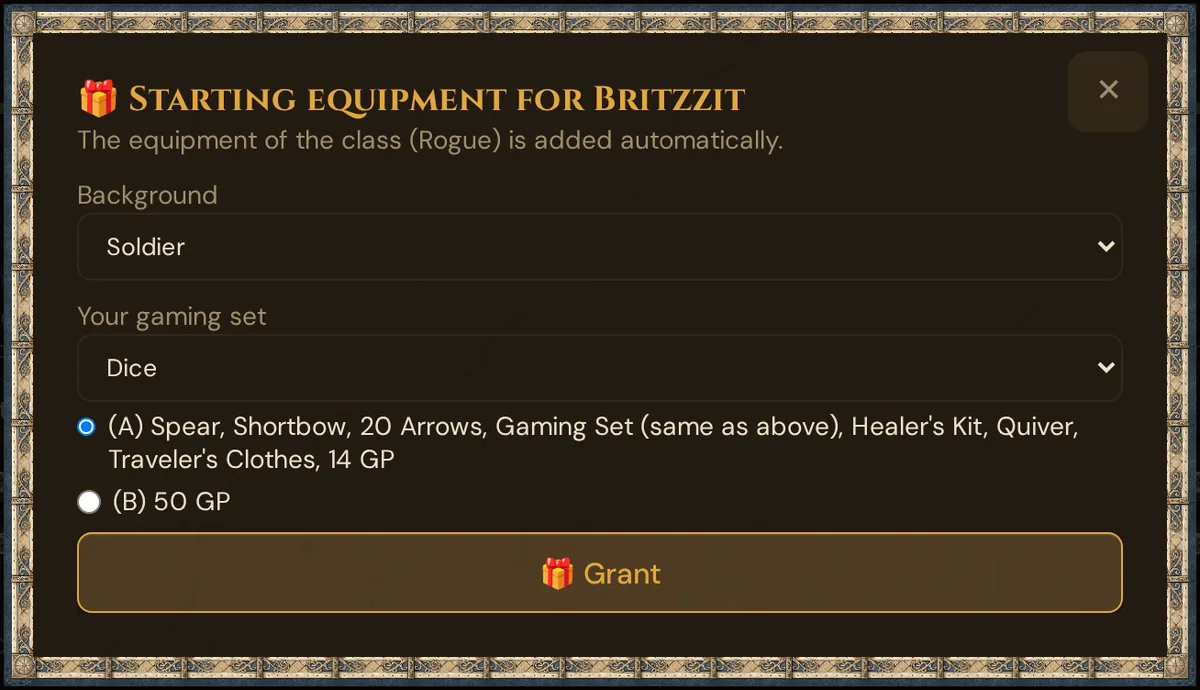
- The dialog Starting equipment for {name} opens: "The equipment of the class ({cls}) is added automatically."
- Optional: pick a Background (Acolyte, Criminal, Sage, Soldier), or leave — no background — for the class equipment only.
- With a background, choose (A) its equipment package (the dialog lists the items and gold) or (B) 50 GP. For the Soldier, first pick the kind of gaming set under Your gaming set (Dice, Dragonchess, Playing Cards, Three-Dragon Ante); it is part of package A.
- Click 🎁 Grant. A message confirms, for example "10 items and 14 GP granted.", and the button disappears from the card.
What is granted:
- The standard equipment of the class for the character's level (for the 12 SRD classes).
- With a background: the items of package A plus its gold (Acolyte 8 GP, Criminal 16 GP, Sage 8 GP, Soldier 14 GP), or 50 GP with B.
- Items land in the character's inventory (🎒 Inventory), the gold on the sheet. If the player is connected, the items show up on their phone right away. Item names follow your interface language.
Once per sheet (gold lock): items, gold and the "granted" mark are saved in one step. After that, the button is gone, and a new attempt grants nothing ("This character already has starting equipment."). The same lock applies to the invite link and to the session: saving the character again never adds the gold a second time.
If the class has no standard equipment and you didn't choose a background, nothing is granted and the dialog stays open: "This class has no standard equipment. Choose a background or add items via the inventory."
Level up
Click ⬆️ Level Up on a PC card. It raises the level by 1 and saves immediately: Wovenkeep adds the fixed hit points for the new level (class average plus Constitution modifier, at least 1) to maximum and current HP and updates the hit dice. Features and subclass choices you update in the ✏️ Edit view, where you can also adjust HP for rolled hit points or homebrew.
Multiclassing: use the Edit view to set level and class manually. A dedicated multiclass UI is on the roadmap.
XP
The PC card shows the XP total; the player HUD shows the XP and the threshold for the next level (the standard 5e table is built in). To award XP, use 🎖️ Award XP — in 🎮 Live in the card 👥 Connected players (also without an encounter), or with 🎖️ XP (Award XP to party) on a saved combat encounter in Encounters. The window suggests the XP per player, and you tick who gets them (see Award XP). To correct a total, set XP in the character's ✏️ window.
Portrait (GM side): ✍️ Image description
On the GM side, the PC card offers ✍️ Image description — Tantu writes you an image description, it does not generate an image directly:
- Click ✍️ Image description on the PC card.
- Optionally add Special features (e.g. "scar over the eye, silver hair").
- Click ✍️ Get description (badge: 1 🧵 — free with a BYO AI key; a confirm dialog appears first).
- Tantu builds a detailed image prompt from the character's name, species, class, and level. It is auto-copied to your clipboard, for example as a template for your own image — or hand it to your favorite artist.
The finished image comes from the player side: players upload their own portrait in the character sheet HUD or get one suggested (see below). Suggestions work if you have enabled player Tantu access and cost 5 Threads per image.
Portrait suggestions (AI): available on all plans — pay-per-use at 5 Threads per image (see Threads & costs).
GM notes — what players never see
The GM notes field is GM-only. It is never sent to the player's phone and never visible through any player-facing view. Use it for:
- "Player wants a redemption arc — give Lyra a chance to face her old mentor"
- "Secretly the prophesied one; don't reveal until session 10"
- "Lena prefers spotlight in social scenes, not combat"
Linking PCs to plotlines
In Plotlines, link a personal plotline to a PC. The link shows on the PC card (🎯 personal quest), feeds the Story Coach's "personal stakes" check, and drives the Story Web.
Player view — the character sheet HUD
When players join a session on their phone, they can open their full character sheet. The HUD has six tabs:
| Tab | Contents |
|---|---|
| ⚔️ Combat | HP bar, HP current/max, Temp HP, AC, Initiative, Speed, Proficiency Bonus, six ability scores + modifiers, saving throws, Death Saves tracker |
| 🎯 Skills | All 18 skills with proficiency indicators and modifiers |
| ✨ Spells | Spell slots (tappable pips to mark use), cantrips, prepared spells |
| 🎒 Inventory | Full item list with equip toggle, attunement (3-item limit), use/drop actions, currency, carry weight |
| 🌟 Features | Class features and racial traits with use counters (resets on rest) |
| 📜 Bio | Backstory, personality, bonds, flaws |
Players can change their character's name themselves with ✏️ in the sheet's header — see Changing your character's name. The player name stays the same.
Origin feats from the guided wizard partly work automatically: Alert adds the proficiency bonus to the initiative, Magic Initiate puts the chosen spells on the sheet. Details: Character creation → Origin feats.
Tap to roll
Tap any ability score, saving throw, or skill to open the roll chooser:
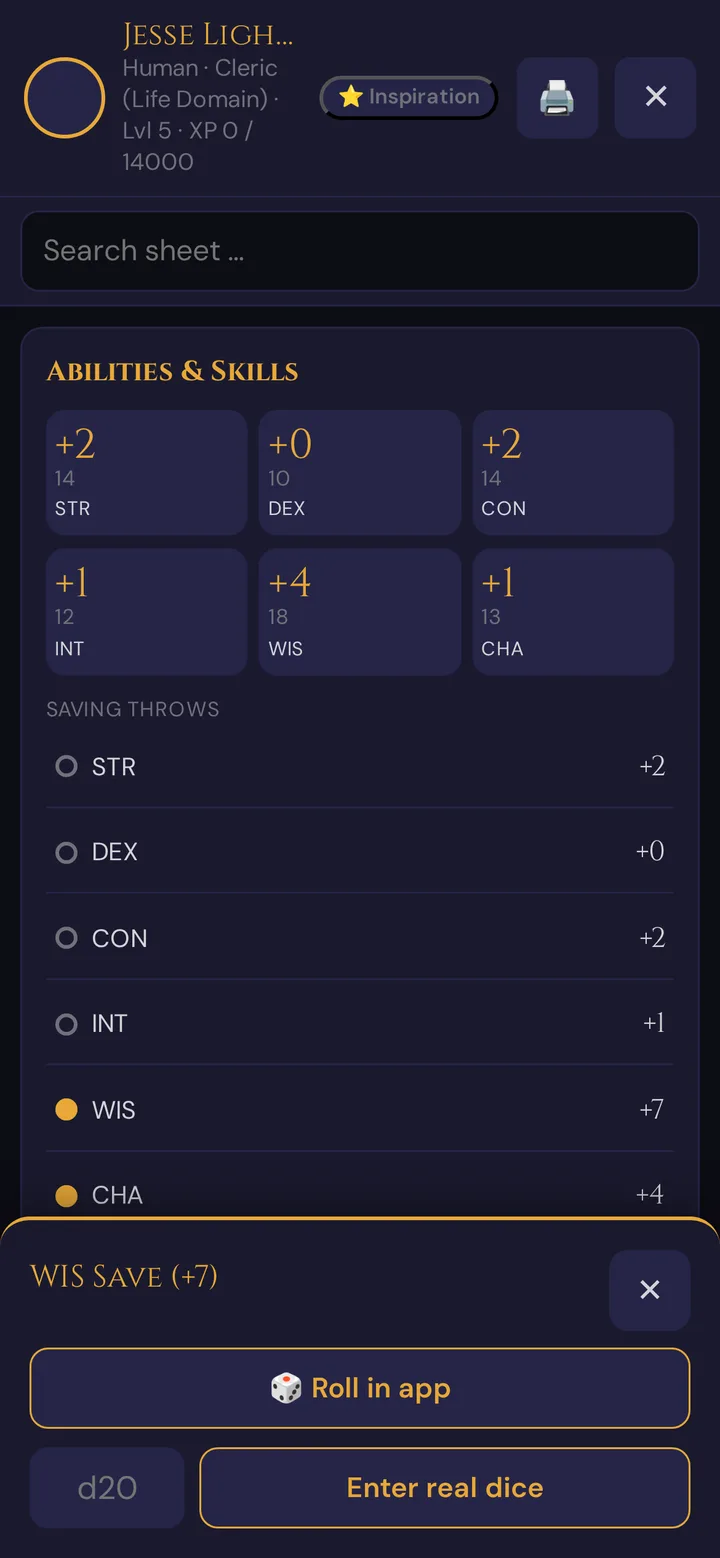
Roll in app rolls a d20 and sends the result to the GM's roll-log feed with a source badge ("App roll"). Enter real dice takes the result of a physical roll from the d20 field so it still appears in the shared log. Attack rolls and initiative work the same way.
Death Saves
When HP drops to 0, the Death Saves card appears on the Combat tab. Tap each pip to record a success or failure (three of either ends the struggle). A Nat 20 on a Death Save auto-fills one success; a Nat 1 fills two failures.
Short rest / Long rest
Tap Short Rest or Long Rest on the Combat tab to trigger the appropriate recovery. Short Rest prompts for Hit Die expenditure; Long Rest restores HP to max, resets spell slots, and resets feature use counters marked as "per long rest".
Spell slots
Spell slot pips are displayed in a row per spell level. Tap a filled pip to expend a slot; tap an empty one to recover it. Long Rest resets all slots automatically.
Transfer Inbox (incoming loot)
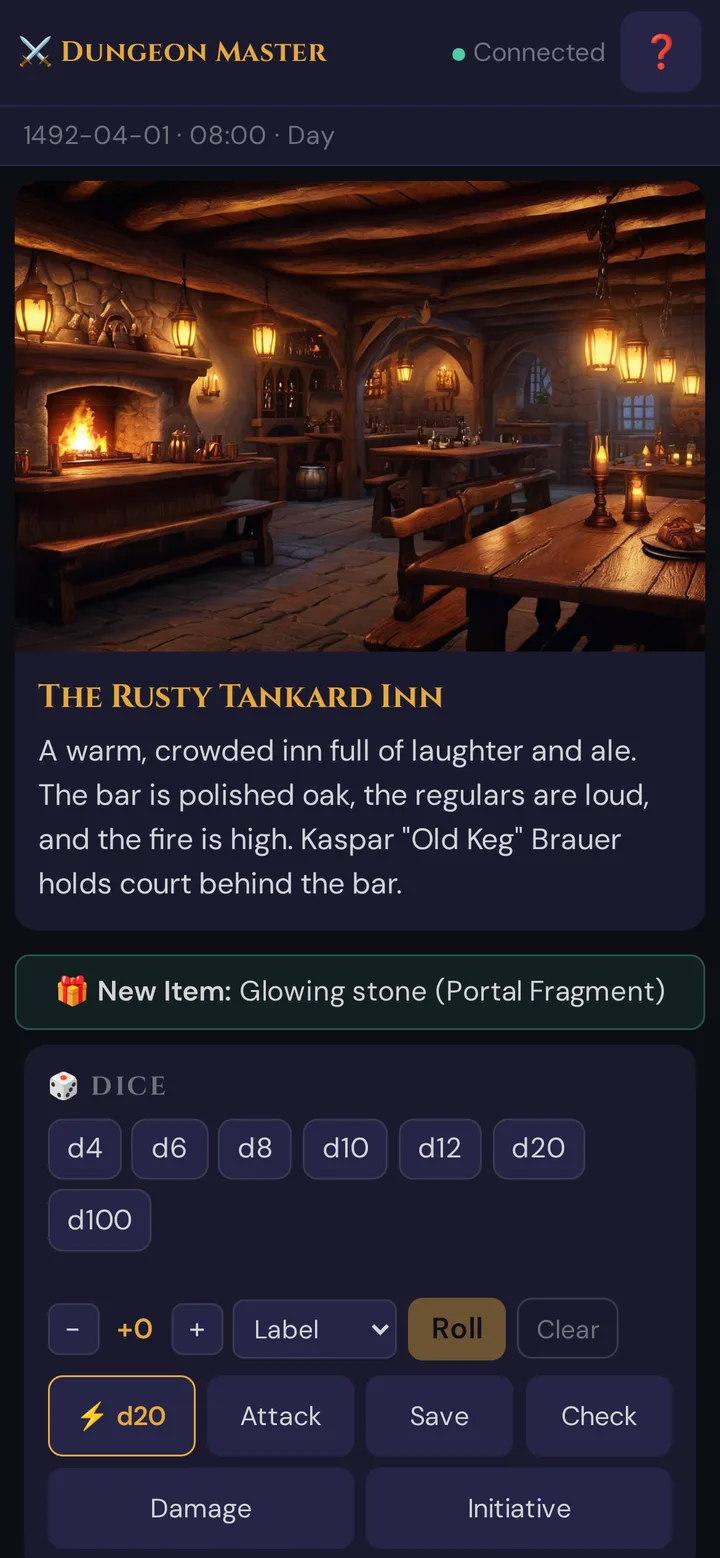
When the GM hands out an item live (📦 Hand out creature loot from a creature's loadout, or 🎁 Give item), it lands directly in the player's inventory: the phone vibrates briefly and shows a 🎁 New Item: notice for a few seconds. There is no longer an inbox to accept or decline items.
Equipping and attunement
In the Inventory tab, tap any item to see its detail sheet. Toggle Equipped to mark it as worn/held (tracked for encumbrance). For magic items, toggle Attuned — Wovenkeep enforces the 3-item attunement limit and warns you when you try to exceed it.
Portrait (player): upload or optionally get a suggestion (AI)
Players can upload their own image in the character sheet HUD (it shows up only after your approval) or get a portrait suggested. Each suggestion costs 5 Threads (pay-per-use, on all plans), charged to the GM's balance — so it requires the GM toggle "Players may use paid Tantu functions (charged to my Thread credit)" (Tantu Settings → Player Tantu access, default off; see Portrait variants). The portrait appears on their sheet and the GM can push it to all players.
Crafting (Inventory tab)
Players can start a craft from the Inventory tab by selecting materials and a recipe. Crafting uses a place-clock model: each work tick advances the clock, and the item is complete when the clock fills. The in-game clock tracks downtime automatically.
Plan limits
| Plan | Max simultaneously connected players |
|---|---|
| Adventurer (free) | 6 |
| Game Master | 8 |
| Storyteller | 8 |
| Guild Master | 12 |
You can store as many PCs as you like — the cap is only on how many players can be actively connected in a live session at the same time.
Portrait and character suggestions (AI) are available on all plans — pay-per-use with Threads. See Threads & costs.
Troubleshooting
| Symptom | Cause | Fix |
|---|---|---|
| Player can't see their character sheet | Player joined but the session hasn't started, or the token expired | Start the live session from the GM tool; have the player re-scan the QR code |
| Roll doesn't appear in GM's roll log | Player used "Real dice" mode and didn't tap Submit | Tap Submit after typing the roll value |
| Death Save card not showing at HP 0 | Browser cached an older player.html | Hard-refresh the player's phone (pull-to-refresh or clear site data) |
| 🎁 New Item notice didn't appear | The phone was disconnected during the hand-out | The item is still in the inventory: open 📦 Inventory or reload the page |
| A ⚠ message when you change Player name | The name is empty or reserved, already taken, the player is connected, or data already waits under the name | The message says which — see Renaming a player |
| The player's 📦 Inventory is empty on the phone after renaming | They typed the old name to join | Join again with the new name — or reload and tap Continue ⚔️ |
| The list still shows the old character name | The player renamed the character; the list catches up when the campaign reloads | Reload the GM tool |
| "Attunement limit reached" warning | Player is trying to attune a 4th item | Drop attunement on one of the existing three first |
| Spell slots not resetting after Long Rest | Player tapped Short Rest by mistake | Tap Long Rest — it resets everything. Short Rest only restores Hit Dice expenditure. |
| Player's portrait suggestion is refused | GM toggle Players may use paid Tantu functions is off (the default), or the Thread balance is empty | GM: enable the toggle under Tantu Settings → Player Tantu access, or top up Threads — portrait suggestions (AI) are pay-per-use (5 Threads/image) on all plans; see Threads & costs |
| No 🎁 Starting equipment button on the PC card | The sheet already received its starting equipment, or it has no class | Check 🎒 Inventory; for a sheet without a class, set the class with ✏️ first |
Related articles
- 🎟️ Player onboarding invites — let players build their own PCs, including the ELI5 wizard for beginners
- 👤 NPCs — same portrait pipeline, GM-only characters
- 🎁 Items & inventory (live) — how loot transfers from creatures to players
- 📕 SRD Rulebook — the race/class/item data source (3,761 openly licensed entries)
- 🧵 Threads & costs — pay-per-use costs for portrait and character suggestions
- 🎲 Dice & rolls — the shared roll-log feed