📱 Player character sheet (HUD)
👤 For: Players · 💳 Plan: All plans · 🔄 Updated 2026-10-17
Your full D&D 5e character lives in your pocket. Join a session on your phone, tap 📜 Sheet, and you get a six-tab character sheet you can actually play from — tap a stat to roll, tap a pip to spend a spell slot, tap +/− to take damage or heal. Everything you change flows straight to the GM's screen.
What it does
- A six-tab character sheet built for a phone: ⚔️ Combat, 🎯 Skills, ✨ Spells, 🎒 Inventory, 🌟 Features, 📜 Bio.
- Live mutations — HP, Temp HP, Inspiration, spell slots, feature uses and Death Saves change with a tap and sync to the GM.
- Tap to roll — tap any ability, save, skill, initiative or attack to roll a d20 (or type a real-dice result); it lands in the shared roll log.
- Survives a reload — close the tab, drop off Wi-Fi, switch phones: your character comes back as soon as you reopen the session.
When to use it
During a live session, when you want to do something with your character instead of just reading a sheet: roll a Perception check, mark a hit, fire a spell slot, take a Short Rest, or track Death Saves while you're down. Open it from the player view with the 📜 Sheet button after you've joined.
Step by step
- Join the session — scan the GM's QR code or open the invite link, and create or pick your character.
- Tap 📜 Sheet (the character button in the player view) to open the HUD.
- Use the tab bar at the bottom to move between ⚔️ Combat, 🎯 Skills, ✨ Spells, 🎒 Inventory, 🌟 Features and 📜 Bio.
- Tap any stat with a 🎲 to roll, or tap +/− on HP and Temp HP to heal or take damage.
- Tap 🖨️ in the top bar to print a clean copy of the sheet, or ✕ to close the HUD (your character stays in the session).
💡 Tip: You never "save" anything — except a new character name (see below). Every change writes through immediately. If a change ever fails to reach the GM you'll see a "Sync failed" toast and the HUD reloads itself from the server, so your sheet can't quietly drift out of step.
What the sheet shows
The header is always visible: your portrait, name with ✏️ to change it, species · class (subclass) · level, your XP, and an ⭐ Inspiration toggle. On a 2024-ruleset Realm the labels read Species and Heroic Inspiration; on a 2014 Realm they read Race and Inspiration.
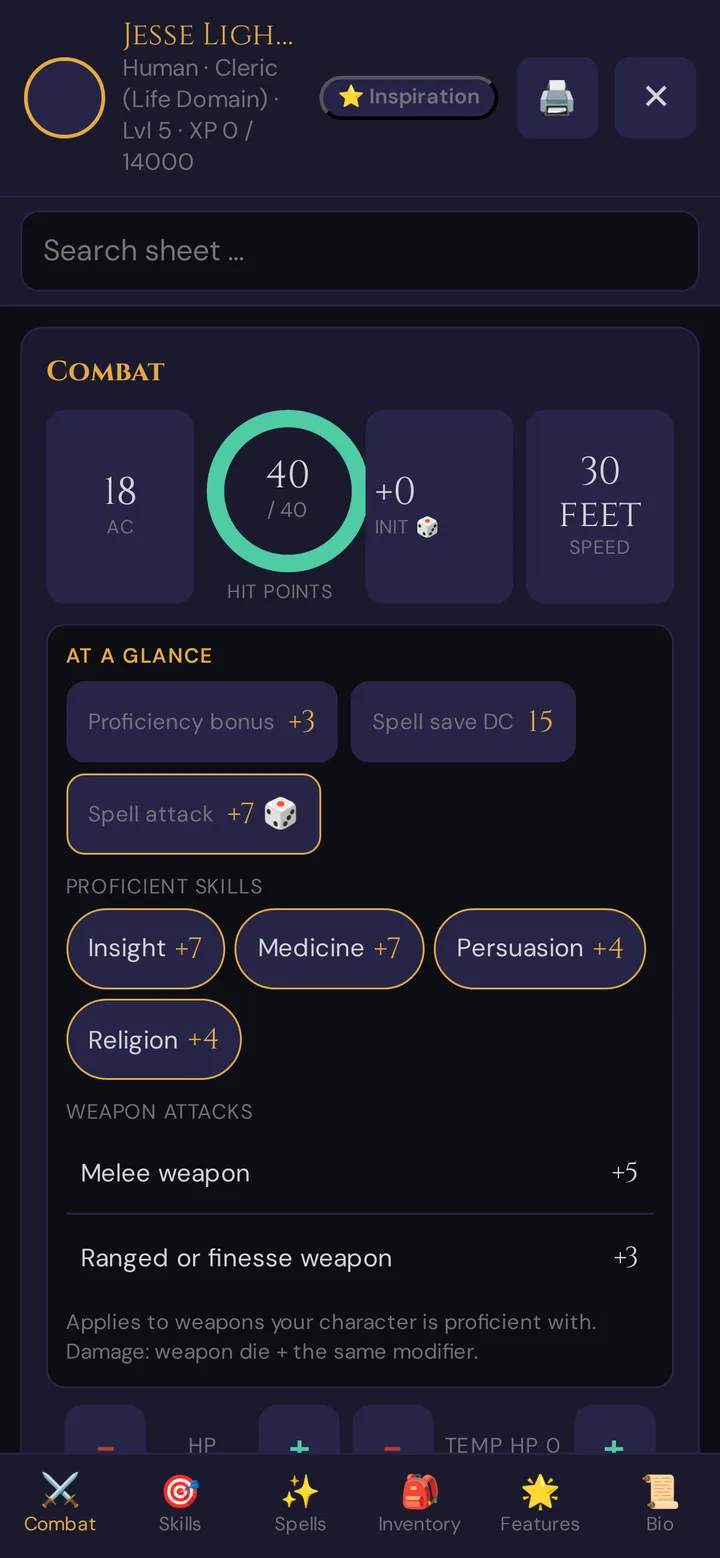
Below the header, Search sheet … finds skills, saving throws, spells, items and features anywhere on the sheet.
⚔️ Combat tab
- HP ring — current / max with a colour ring: green above 50 %, amber above 25 %, red below. Tap − / + to take damage or heal. Healing above 0 automatically clears any Death Saves.
- Temp HP — its own − / + stepper, shown next to the ring.
- AC, Initiative (tap to roll), Speed.
- At a glance — proficiency bonus, spell save DC and spell attack (spellcasters), your proficient skills and, as long as no actions are recorded, your weapon attacks. Tap a skill, the spell attack or a weapon to roll.
- Actions & attacks — your recorded actions; ones with an attack bonus get a 🎲 button to roll the attack.
- 🏕️ Short Rest / 🌙 Long Rest buttons (see below).
- Death Saves — a card that appears automatically when your HP hits 0 (see below).
🎯 Skills tab
The six ability scores (each tappable to roll a check), all six saving throws, and all 18 skills, each with a proficiency dot and its modifier. Passive Perception, Insight and Investigation are shown at the bottom. Tap any ability, save or skill to roll.
✨ Spells tab
Spells grouped by level (Cantrips first), with spell-slot pips per level. Tap a filled pip to expend a slot; tap an empty pip to recover one. Tap a spell card for its full detail (casting time, range, components, duration). A Long Rest resets every slot to full.
🎒 Inventory tab
Your items, with Equipped and Attuned badges and quantity. Tap an item for its detail sheet (type, rarity, description). Unidentified items show as ??? until the GM reveals them. Loot the GM hands out during the session lands here directly (the phone shows a short 🎁 New Item: notice); there is nothing to accept or decline. The 🔨 Craft button starts a craft (see Crafting below). Your coins live on the Bio tab.
🌟 Features tab
Class features and racial traits. Features with limited uses get a use counter and − / + buttons to spend or restore a use. Free-text "Other features" appear below.
📜 Bio tab
Personality traits, ideals, bonds, flaws, languages and backstory — plus your currency (CP / SP / EP / GP / PP).
Changing your character's name
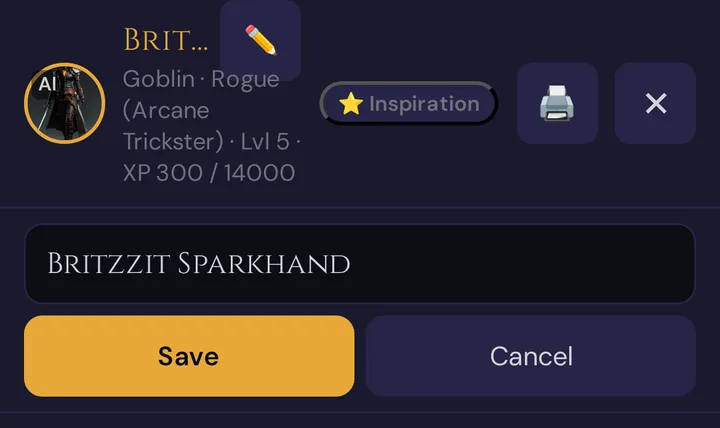
- Tap ✏️ next to your character's name (Change name).
- Type the new name in the field below — 1 to 60 characters;
<and>are left out. - Tap Save (or press Enter). Cancel, Esc or a second tap on ✏️ closes the field without saving.
The header shows the new name right away and confirms Name saved. If the field is empty, you see Please enter a name (1–60 characters).; if saving fails, The name could not be saved. Only the character's name changes — the name you join a session with stays. Your GM sees the new name after reloading their tool, and the character card below the sheet catches up when you reload the page.
Tap to roll
Tap any ability score, saving throw, skill, initiative, or attack and a roll chooser slides up:
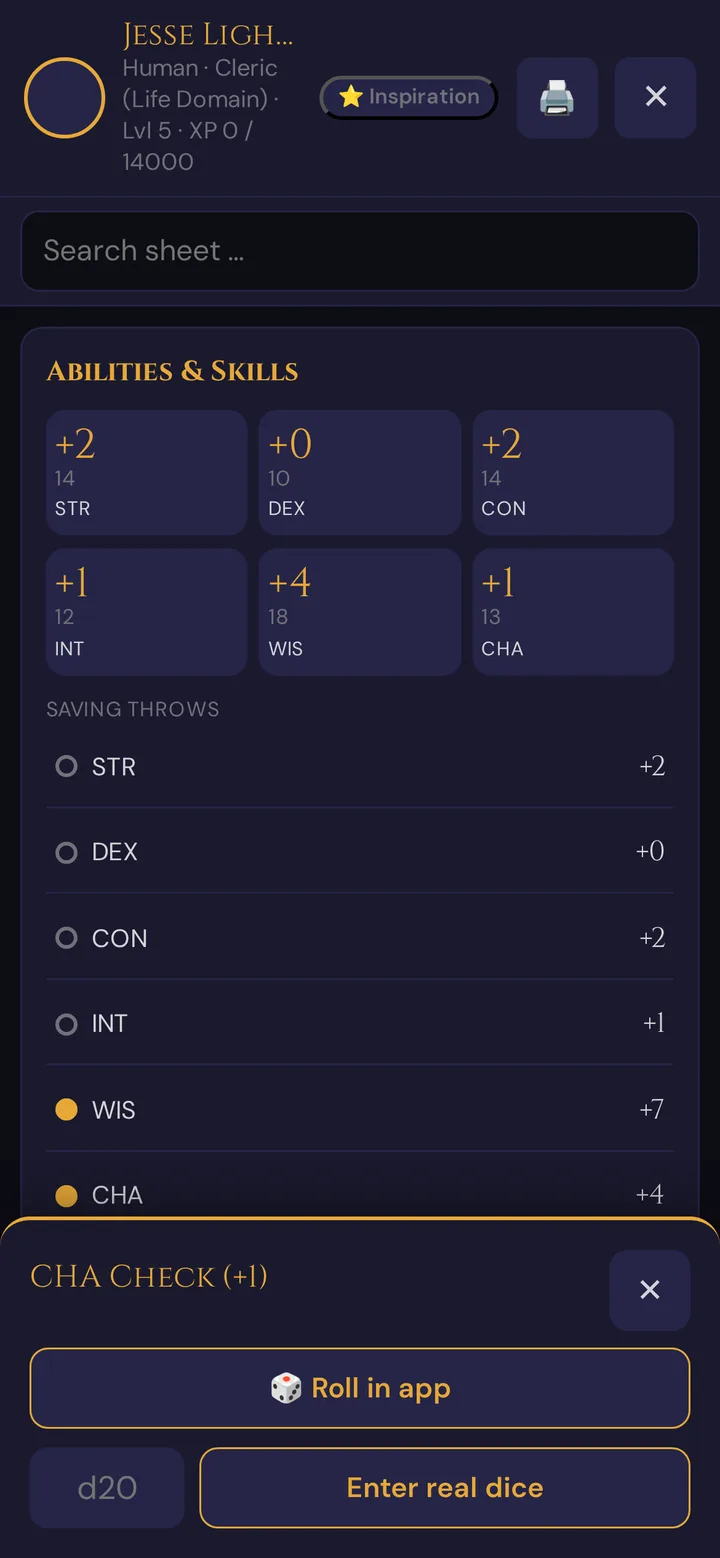
- Roll in app rolls a d20 for you and shows the total. The result is sent to the GM's roll-log feed.
- Enter real dice — rolled with physical dice? Type the d20 face you got into the d20 field and tap Enter real dice; it still lands in the shared log, tagged as a real-dice roll.
- A natural 20 or natural 1 gives your phone a little vibration so a crit or a fumble is unmistakable.
Death Saves
When your HP drops to 0, a Death Saves card appears on the Combat tab.
- Tap a Success or Failure pip to set it by hand (tapping the highest filled pip clears one).
- Tap 🎲 Death Save to roll one: a Nat 20 stabilises you with 1 HP and clears the card, a Nat 1 adds two failures, 10 or higher is a success, lower is a failure.
- Any healing that takes you back above 0 HP clears the card automatically.
Short Rest / Long Rest
- 🏕️ Short Rest — resets the uses on features that recharge on a short rest. (Hit Dice are spent by hand.)
- 🌙 Long Rest — asks you to confirm, then restores HP to full, clears Temp HP, resets all spell slots, resets features that recharge on a long rest (or per day), and clears any Death Saves.
💡 Tip: Tapped Short Rest when you meant Long? Just tap 🌙 Long Rest — it resets everything a Short Rest does and more.
XP and levelling
Your XP and the threshold for your next level show in the header (the standard 5e advancement table is built in). When the GM awards XP — after a fight, for a milestone, or by setting your total in their tool — the number rises. Levelling up is a GM action — the GM bumps your level from their tool, then HP, features and any subclass choices are set on the sheet. Your HUD shows the new level the next time it loads.
Crafting
From the 🎒 Inventory tab, tap 🔨 Craft to:
- Pick one or more materials from your inventory (they're consumed).
- Choose how many time ticks the work takes.
- Pick the target clock the GM has made visible.
- Name the result and confirm.
Each work tick advances the clock; when it fills, the item is made. If you don't see a clock, ask the GM to make a place or scene clock visible to players. This is the place-clock crafting flow.
Coming back after a reload
Your character is tied to your join token, stored on your device. If you refresh the page, lose connection, or reopen the player view later in the same session, your character is fetched again and rendered — you don't re-create it and you don't lose anything you changed. After a reload, the card Session in progress – continue in {code} appears: tap Continue ⚔️, then 📜 Sheet, and the HUD is right where you left it.
When the GM ends the session, your phone shows The session has ended. — Your character and your documents stay saved. The sheet and your documents stay readable.
Plan limits
The character sheet HUD itself is free — it works on the free Adventurer tier, and tap-to-roll, rests, Death Saves, spell slots and live HP cost nothing.
| What you do on the HUD | Cost |
|---|---|
| Open the sheet, roll, rest, track HP / slots / features | Free |
| Get a portrait suggestion (AI) | 5 Threads per image (charged to the GM's balance, if the GM allows it) — available on all plans, pay-per-use |
How many players can be connected at once depends on the Realm's plan (Adventurer 6, Game Master 8, Storyteller 8). See Threads & costs and Pricing.
Troubleshooting
| Symptom | Cause | Fix |
|---|---|---|
| 📜 Sheet button does nothing | No character is saved on this device yet | Create or pick a character first; the button needs a join token |
| Sheet won't open ("Character not found") | The join token is no longer valid, for example because the character was removed | Re-scan the QR code / reopen the invite link to rejoin |
| Please enter a name (1–60 characters). | The name field is empty or too long | Type a name of 1 to 60 characters |
| The name could not be saved. | No connection, or too many attempts in a minute | Wait a moment and tap Save again |
| A change didn't reach the GM | The connection dropped mid-update | A "Sync failed" toast shows and the HUD reloads from the server — your sheet stays correct |
| Death Saves card not appearing at 0 HP | An older cached version of the player page | Pull-to-refresh the phone, then reopen 📜 Sheet |
| Roll never shows in the GM's log | "Real dice" was chosen but not submitted | Type the d20 value and tap the real-dice button |
| Spell slots didn't reset | You took a Short Rest, not a Long Rest | Tap 🌙 Long Rest — slots only reset on a Long Rest |
| "Attunement limit reached" | Trying to attune a 4th magic item | Un-attune one of the existing three first |
| 🔨 Craft says "no visible clock" | The GM hasn't shared a place/scene clock | Ask the GM to make a clock visible to players |
| XP went up but my level didn't | Levelling is a GM action, not automatic | Ask the GM to level you up from their tool |
Related articles
- 🎲 Player characters — the GM-side sheet that feeds this HUD
- 🎟️ Player onboarding invites — how you join and create your character
- ✨ Character creation — the beginner-friendly build wizard
- 🎲 Whisper & dice — where your rolls land in the shared log
- 🎁 Items & inventory — how loot reaches your inventory
- 🧵 Threads & costs — pay-per-use costs for portrait suggestions