⏱️ Place & scene clocks
👤 For: Game Masters · 💳 Plan: All plans · 🔄 Updated 2026-10-17
Clocks are little segmented timers you pin to a scene or a location — or keep free during a session — to track building pressure — the guards growing suspicious, a ritual nearing completion, a flooding cave. Tick them up or down as the fiction moves, and reveal them to your players when you want the tension on the table.
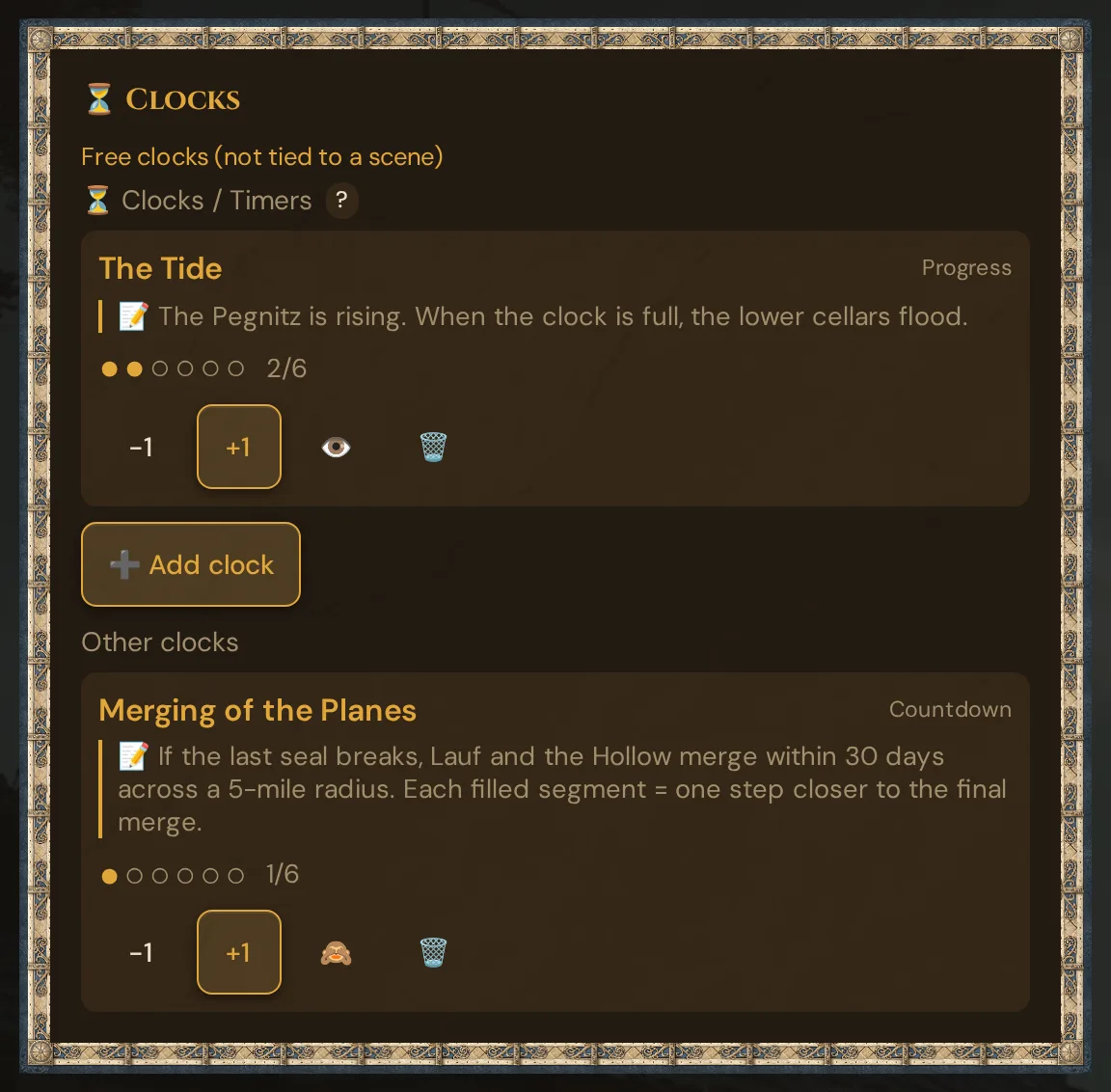
What it does
- A clock is a row of 1 to 12 segments with a title and a short reason.
- Two kinds: a Countdown (something runs out) or a Progress clock (something fills up). They behave the same mechanically — the label just frames the fiction for you.
- You move it with +1 / −1 buttons. When every segment is filled, the clock is marked ⏰ triggered — that is your cue to decide what happens. Wovenkeep never fires an effect for you.
- A clock is bound to a scene or a location, so it appears right where you prep and run that part of the story — or it is free: a clock you add during the session without pushing a scene.
- A clock is hidden from players by default. Flip the eye toggle and it appears live on every connected player phone.
When to use it
Reach for a clock whenever a situation has momentum that the dice alone don't capture: "the alarm goes off in 4", "the boat takes on water", "the cultists complete the summoning". Instead of holding the count in your head, you put it on screen, tick it as players act, and — when it matters — let the table watch the danger creep closer.
Step by step
- Open the scene (in Scenes) or the location you want the clock to live on. Each shows a ⏳ Clocks / Timers panel.
- Click ➕ Add clock.
- Give it a Title (e.g. Guards grow suspicious).
- Fill in the Reason — this field is required. It is a one-line note to yourself about why the clock ticks, and it keeps every clock self-explanatory weeks later.
- Pick Countdown or Progress.
- Set the number of Segments (1–12) — the default is 6.
- Click Create. The clock appears in the panel, empty.
- During play, hit +1 to advance it or −1 to walk it back.
- When you want the players to see it, click the 🙈 / 👁️ toggle.
During a session you can also add a clock straight from the ⏳ Clocks card in 🎮 Live — see below.
💡 Tip: The reason stays on your side of the screen. Players only ever see the clock's title and its filled segments — so you can name a clock plainly for the table ("The Tide") while keeping the real stakes in the reason ("PCs drown at 0").
What the player sees
Once you reveal a clock (👁️) — bound or free — it shows up on every connected player phone, right below the in-game time, and on the TV. Players see the title, the dots, and the count — never the reason or the clock kind:
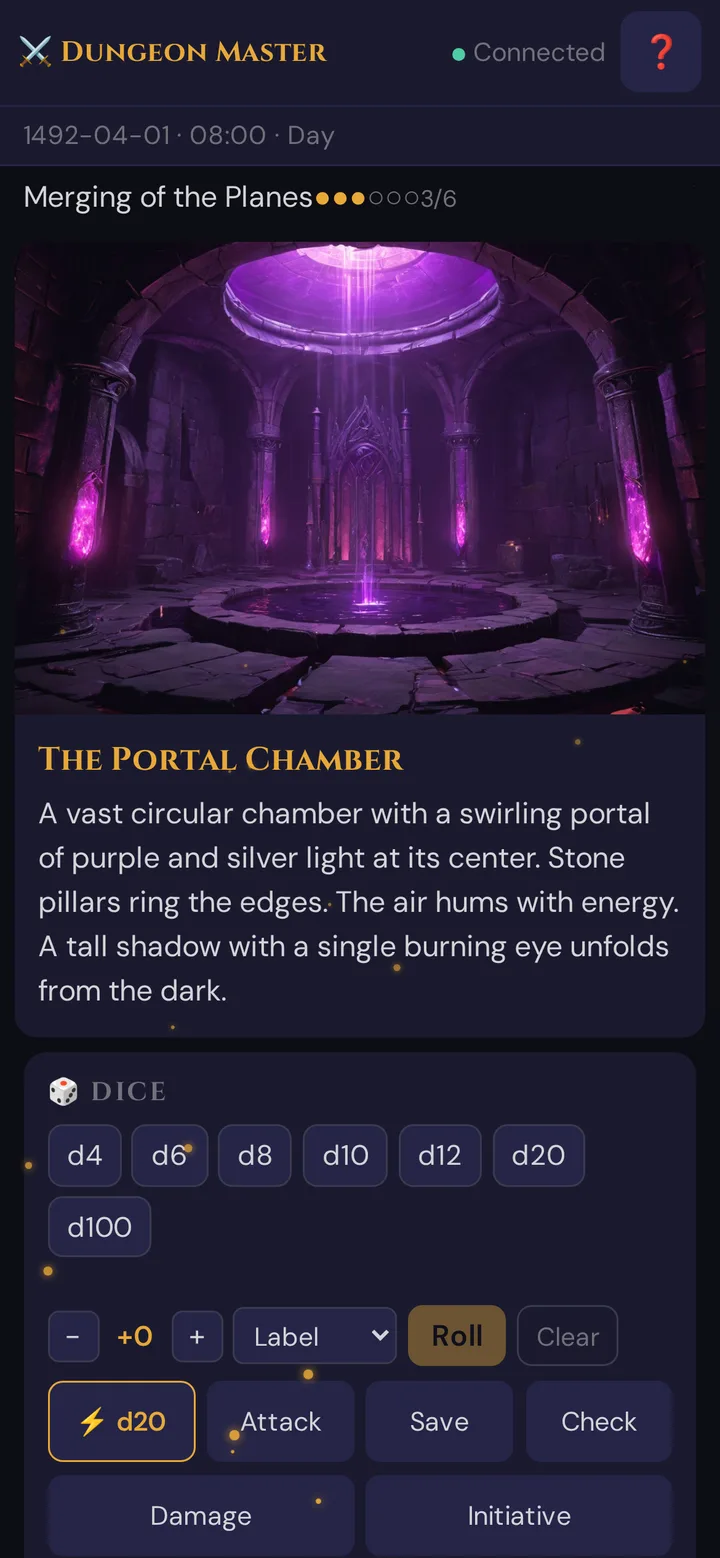
Each time you tick the clock, the dots update live on their phones in under a second. Hide it again (🙈) and it disappears from their view.
The reason field (why it's required)
Every clock must carry a reason before you can save it. This is deliberate: a clock with no "why" becomes a mystery the moment you set it down. The reason shows only in your GM card, marked with a 📝, so a half-filled clock three sessions later still reads at a glance — "📝 PCs drown at 0" — instead of forcing you to reconstruct what it was for.
Countdown vs. progress
| Kind | The fiction | Triggered when |
|---|---|---|
| Countdown | Time / safety running out | All segments filled |
| Progress | A goal building toward completion | All segments filled |
Mechanically both fill from empty to full with +1, and both mark ⏰ triggered at full. The choice is purely a framing cue for you — pick whichever reads more naturally for the situation.
Clocks in the live session
In 🎮 Live, the card ⏳ Clocks in 🎬 Scenes & Sound appears only while a session is running — before you start one, 🎮 Live shows just ▶ Start Session. Prepare clocks ahead of time on a scene or location, as described above. During the session, the card stays there:
- After you push a prepared scene, the card shows This scene: … with that scene's clocks, ready to tick. The scene stays selected when you switch live sections.
- Before that — or after reloading the page — it shows Free clocks (not tied to a scene).
- ➕ Add clock adds a clock to the pushed scene, or, without a pushed scene, a free clock. The form is the same as in prep (the reason is required); a new clock starts hidden.
- Other clocks lists every other clock of the campaign — of other scenes, of locations and free ones — revealed clocks first, each with −1, +1, 👁️ and 🗑️.
Every tick and every reveal reaches the players instantly. The Session Log notes each change as ⏳ Clock Updated — with title and count for revealed clocks, never with the reason.
Plan limits
Clocks are free on every plan, including Adventurer. There is no Threads cost to create, tick, or reveal them, and no cap on how many you make. See the Threads & costs for what does cost Threads.
Troubleshooting
| Symptom | Cause | Fix |
|---|---|---|
| "Create" does nothing | The Reason (or title) is empty | Both fields are required — fill them in, then save. |
| Players can't see the clock | It is still hidden (🙈) | Click the eye toggle so it reads 👁️. |
| +1 won't go any higher | The clock is already full (and marked ⏰ triggered) | That's expected — decide what the trigger means, then delete it or use −1 to reset. |
| A clock isn't under This scene | It belongs to another scene, a location, or is free | Find it under Other clocks in the same card — or push its scene. |
| Deleted clock won't come back | Delete is permanent | Clocks are meant to be disposable; re-create it if you removed it by mistake. |
Related articles
- ⏱️ In-game clock & calendar — the world-time layer, not segment clocks
- 🎬 Scenes prep — where scene clocks live
- 🖼️ Scene push — pushing the scene that carries its clocks
- ▶️ Running a live session — the screen where clocks tick
- 📱 Players on multiple devices — how reveals reach phones