📊 GM Dashboard (Overview)
👤 For: Game Masters · 💳 Plan: All plans · 🔄 Updated 2026-10-17
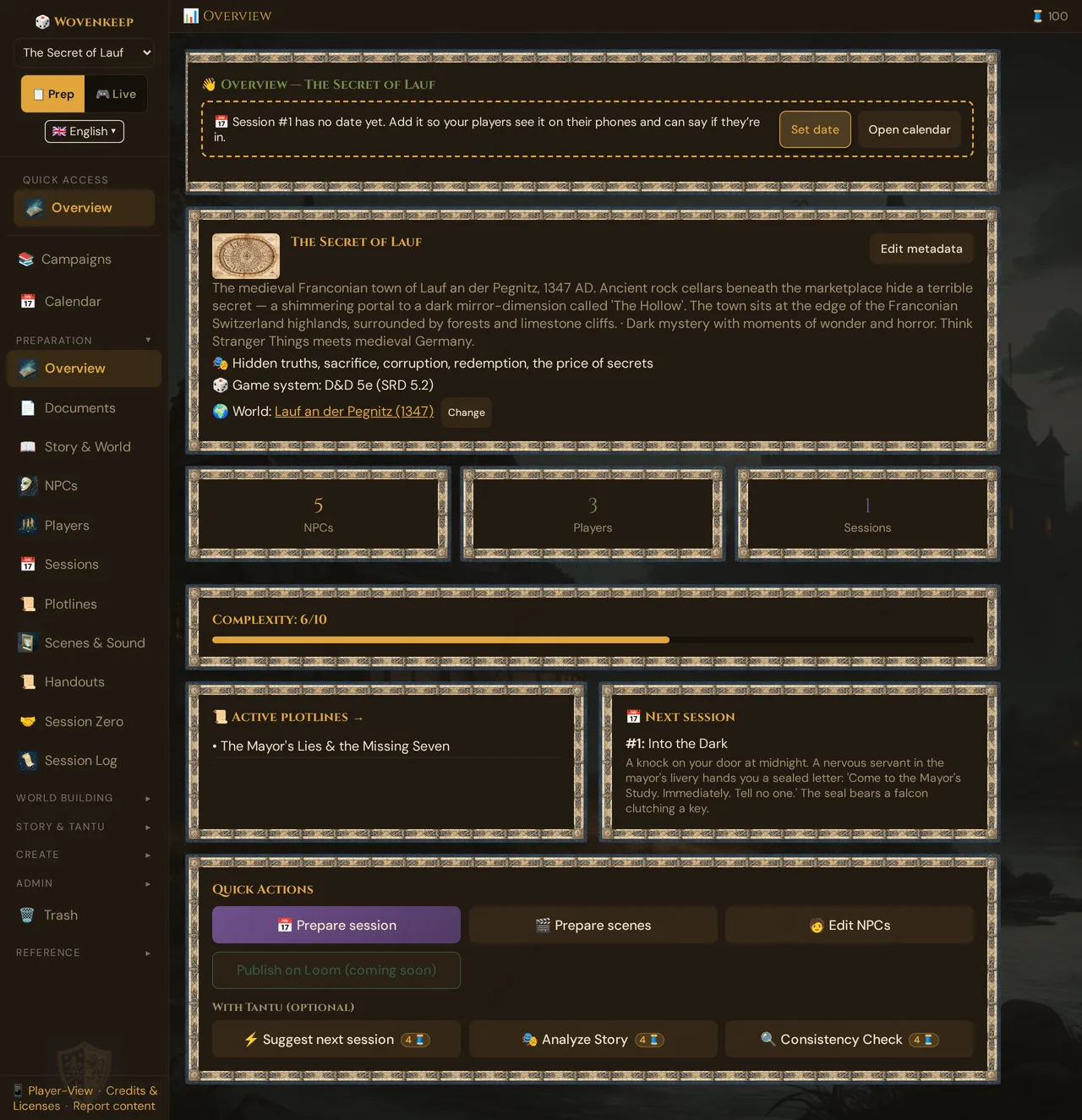
The Overview is the first thing you see when you open a campaign — a one-glance snapshot of your campaign's shape, recent activity, and shortcuts to common tasks.
What it does
The Overview assembles four pieces of information that answer the question "where am I, what's happening, and what should I do next?":
- Welcome-back card — picks up where you left off and surfaces your next upcoming session.
- Campaign metadata card — name, setting, tone, themes, the game system and the world your campaign belongs to.
- Stats grid + complexity score — NPC / player / session counts and a heuristic complexity score.
- Quick Actions — shortcuts into session, scene and NPC prep, plus three Story Coach suggestions (AI).
When to use it
Land here at the start of every prep session to re-orient, check whether anything has shifted since last time (active plotlines, last session recap), and, if you like, start a planning suggestion (AI) before you dive into the details.
Step by step
Opening a campaign
- Click 📚 Campaigns in the sidebar. The Campaigns Hub opens.
- Find your campaign card and click Open. The Overview loads automatically.
If you have no campaigns yet, the hub shows an empty state with two buttons: Guided Create (the full Tantu onboarding wizard) and Quick Create (a plain form — see Creating a campaign below).
💡 Tip: The sidebar dropdown at the top of the page also lets you switch between campaigns instantly without going back to the hub.
The Overview cards
Welcome-back card
👋 Overview — The Whispering Ruins

📅 Next: "The Captain's Letter" · Friday
🔄 Continue: NPCs
The Continue chip takes you back to whatever section you were working in last. The next session badge appears only when a session has a future date set.
Campaign metadata card
The Secret of Lauf
Setting:  Classic fantasy kingdom
Tone:     Dark fantasy with comedic moments
Themes:   Mystery, betrayal, redemption
🎲 Game system: D&D 5e (SRD 5.2)
🌍 World: The Northlands  [Change]
Click Edit metadata — on the metadata card, or via the ⋯ menu on any campaign card — to change name, GM name, setting, tone, themes, and cover image in the window Edit campaign. All five text fields auto-save as you type — no Save button needed. A new name shows up in the campaign selector and on the hub card right away; the window stays open.
GM name: the name your players see at the top of their view — and the TV on its waiting screen. Left empty, they see Game Master in their own language.
🎲 Game system: every campaign is played with D&D 5e (SRD 5.2). The card and the Edit campaign window show it for information; it can't be changed.
World link: The metadata card shows the world this campaign is assigned to. Click the world name to jump to the Worlds section. Click Change to assign a different world — existing sessions keep their plane assignments; new sessions inherit the new world.
Stats grid

The tiles are an overview, not links — open the sections from the sidebar. The NPC tile counts every NPC in the campaign; the complexity score below counts only living NPCs.
Complexity score
Complexity: 6/10

████████████░░░░░░░  amber

⚠️ High complexity! Consider merging NPCs or resolving plotlines.
The score is a heuristic:
score = living_npcs × 0.8 + active_plotlines × 1.5 + sessions × 0.3(capped at 10)
Color thresholds:
| Color | Score | What it means |
|---|---|---|
| Green | ≤ 4 | Comfortable — easy to track |
| Amber | 5–7 | Getting busy — watch the threads |
| Red | > 7 | High complexity — consider consolidating |
At score > 7 a warning banner appears. This is a nudge, not a hard cap — a 50-session epic naturally runs high.
Active plotlines card
A scrollable list of all plotlines with status active. Click any entry to jump to its detail in the Plotlines section. If you have no active plotlines, the card shows a tip: "2–3 parallel plotlines are ideal for casual players."
Last session card
The most recently played session (status ✅ Played, highest number): its number, title, and short recap (or strong-start text if no recap is written yet). If no session has been played yet, the card is called 📅 Next session and shows the planned session with the lowest number. The card is for reading only — open the session under Sessions.
Quick Actions row
The Quick Actions card at the bottom of the Overview has three shortcuts into your prep, the (still disabled) Publish on Loom button and — under With Tantu (optional) — three Story Coach suggestions (AI):
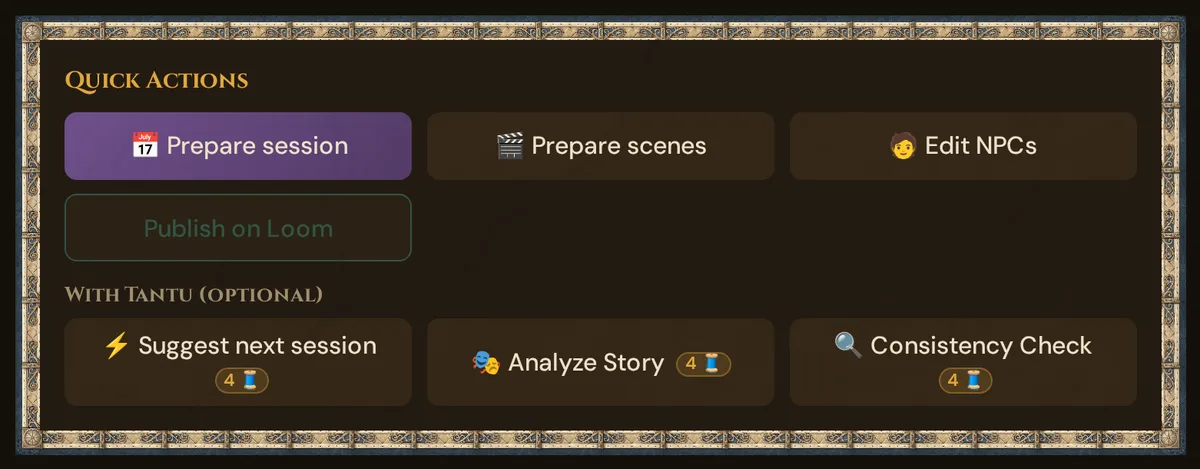
| Button | What it does | Threads cost |
|---|---|---|
| 📅 Prepare session | Opens Sessions | — |
| 🎬 Prepare scenes | Opens Scenes & Sound | — |
| 🧑 Edit NPCs | Opens NPCs | — |
| Publish on Loom | Coming soon — disabled | — |
| ⚡ Suggest next session | Navigates to Story Coach and runs the next-session plan immediately | 4 Threads (long text) |
| 🎭 Analyze Story | Navigates to Story Coach and runs the story analysis | 4 Threads |
| 🔍 Consistency Check | Navigates to Story Coach and runs the consistency check | 4 Threads |
The three Tantu buttons navigate to Story Coach and trigger the matching action automatically. Each button shows its price as a 🧵 badge, and a confirm dialog with the cost and your balance appears before the run starts. Results appear in Story Coach. If you have an AI key configured, these text actions cost nothing.
Coming soon — Loom Marketplace: The "Publish on Loom" button is visible but disabled. The Loom campaign marketplace is not yet open.
The Campaigns Hub
Click 📚 Campaigns at the top of the sidebar to see all your campaigns.
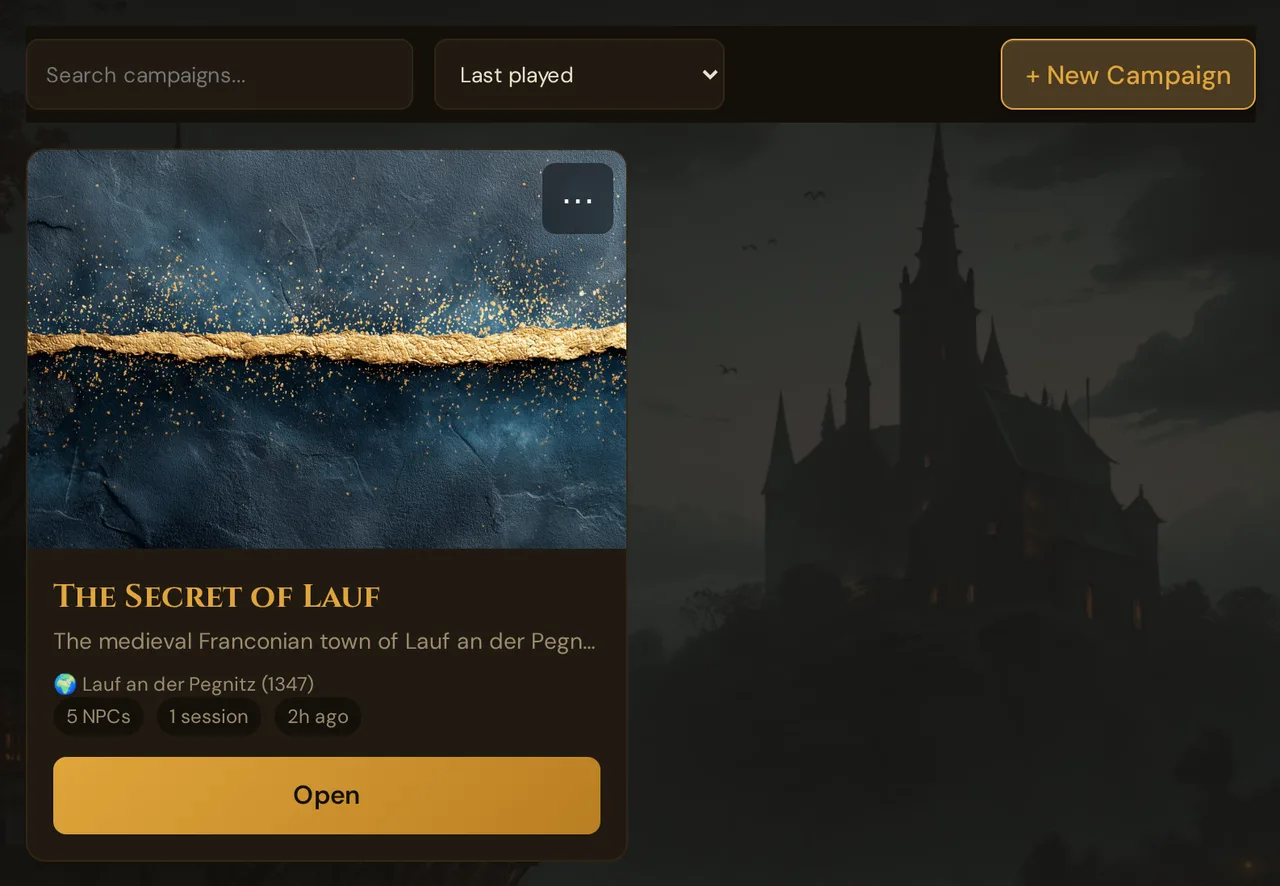
Search and sort: Use the search field to filter by campaign name. The sort dropdown offers Last played, Name A→Z, and Created (newest).
Campaign card: Each card shows the cover image, name, a short line with setting and tone, the assigned world, NPC/session counts, and last-played time. If a campaign has been submitted to the Loom Marketplace, a status badge appears (Draft / Submitted / Live / Rejected).
⋯ menu options:
| Option | What it does |
|---|---|
| Edit metadata | Opens the campaign edit form (name, GM name, setting, tone, themes, cover image) |
| Duplicate | Copies the campaign as {name} (Copy) — the word in your interface language. The copy takes NPCs, scenes, acts and chapters, locations, player characters, sessions, plotlines, clues with their links, encounters, handouts, the Story Web and your own random tables. The copy keeps the cover image. Not copied: your own monsters and items, clocks, lair actions and Session Zero answers |
| Export JSON | Downloads <campaign name>.wovenkeep.json with the whole campaign: acts, chapters, scenes, locations, NPCs, player characters, sessions, plotlines and their objectives, clues, handouts, encounters, your own items and monsters, the campaign inventory, the Story Web, links between entries, random tables, clocks, the in-game calendar, Session Zero answers, the session log and the dice log. Left out: your players' personal links and the join codes of live sessions. Pictures and sounds are only listed — the files themselves are not in it — and the file can't be imported again; for a copy with all files use ⚙ Settings → Download My Data (GDPR & Data Export) |
| Publish to Loom… | Coming soon — disabled |
| Delete | Moves the campaign with all its content to the trash for 30 days — see below |
⚠️ Duplicate vs. original: The duplicate is a completely separate copy. Editing it never affects the original.
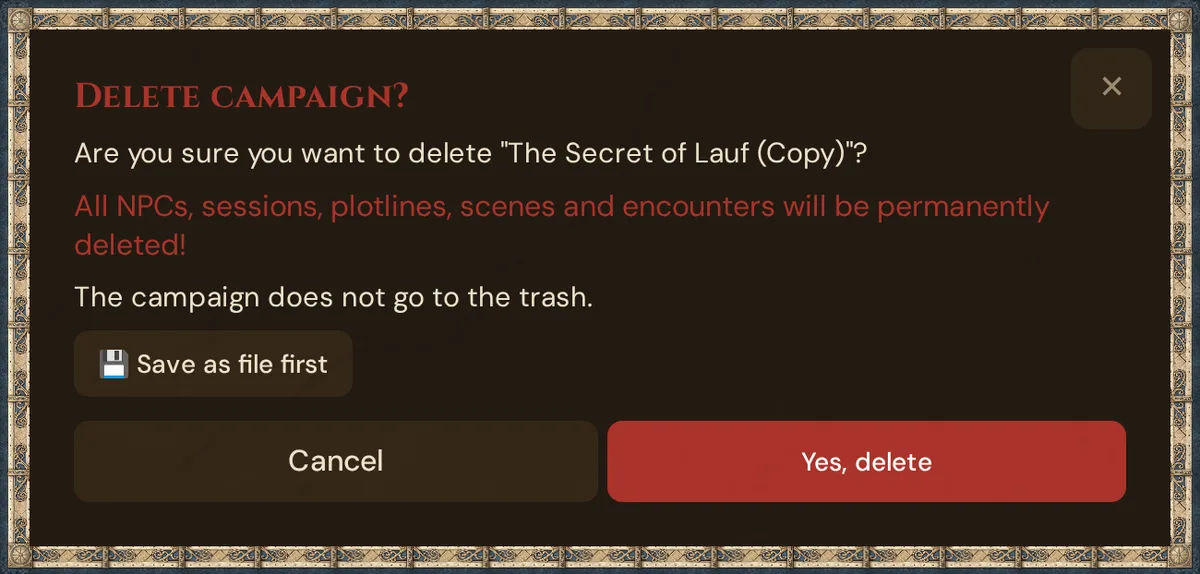
Deleting a campaign: ⋯ → Delete opens the window Delete campaign? with the warning All NPCs, sessions, plotlines, scenes and encounters go to the trash with it. and the sentence The campaign stays in the trash for 30 days and can be restored there. After that it is deleted permanently. 💾 Save as file first downloads the same file as Export JSON; the window stays open. Yes, delete moves the campaign to the trash and confirms “…” moved to the trash; if that fails, the window stays open with The campaign could not be deleted. Please try again.
While a campaign is in the trash, it is missing from every list, its invite links don't work, no reminders or Discord announcements go out for its sessions, and it doesn't count toward your plan's campaign limit. If a live session of the campaign is still running, it ends. The campaign's media stay — on the Media page they are marked Campaign in trash. To get the campaign back, open 🗑️ Trash → Deleted campaigns → ↩️ Restore (see The trash). The yellow demo banner's Delete Demo works differently: it deletes the demo campaign right away, without the trash.
Creating a campaign
Click + New Campaign in the Campaigns Hub.
A modal opens with these fields:
| Field | Notes |
|---|---|
| Name (required) | Your campaign's title — left empty, Enter a name! appears right below the field |
| Setting | Where the story takes place — free text that keeps your world consistent across prep (e.g. "Classic fantasy kingdom", "Post-apocalyptic Mars"). (Tantu also uses it as context for suggestions.) |
| Tone / Mood | The emotional register (e.g. "Heroic & hopeful", "Dark fantasy", "Comedy/slapstick") — keeps the mood consistent from session to session. (Tantu also uses it as context for suggestions.) |
| Themes | Core themes, comma-separated (e.g. "Betrayal & redemption, Power corrupts") — used by Story Coach and Foreshadowing |
| World | Which world to assign this campaign to (choose from your existing worlds, or let it default). Of the demo world, only the version in your interface language is offered; worlds with the same name show how many campaigns they have, for example (2 campaigns) |
Click Create. You land in Overview with an empty campaign ready to fill in.
First time? If you have no campaigns at all, Wovenkeep offers the Guided Create path instead — this opens the Tantu onboarding wizard (walkthrough with the demo campaign "The Secret of Lauf", or an 8-step Lazy-DM campaign builder). You can re-open the wizard anytime via the Tantu mascot icon at the bottom-right of the screen.
Campaign cover image
To set a cover image, open Edit metadata (on the Overview card or via ⋯ on any campaign card), then click Choose from Media Library. It opens the dialog 🗂️ Choose from media: pick one of your pictures, or upload a new one right there (also by dragging it onto the dialog). The cover is saved at once. Upload new next to it uploads a picture from your device and sets it as the cover at once. Remove cover takes it off again. See Choose from media.
On the Media page, the cover shows under Used in: as Cover: {campaign}.
Cover images appear on campaign cards in the hub.
Quick Access — recently visited sections
The sidebar shows a Recent list of the last three sections you visited within the current campaign. This is automatic — there is no manual pin system. Switch campaigns and the Recent list updates to reflect that campaign's history.
Permissions (today)
Each campaign belongs to a single GM. There is no co-GM access or read-only sharing yet. Planned for a future release:
- Co-GMs — shared write access
- Public read-only links — share a campaign overview with players (no GM Secrets)
- Player view links — players see their own character sheet without the full GM tool
Costs
The Overview itself is free on every plan. The three Tantu buttons in Quick Actions start Story Coach suggestions, which cost 4 Threads each (long text) — Threads are your credit for optional extras. Bring your own AI key and these text actions cost 0 🧵.
See Threads & costs for how to get Threads and configure your own key.
Troubleshooting
| Symptom | Cause | Fix |
|---|---|---|
| Campaign opens but Overview is blank | Campaign data still loading | Wait a moment; if it persists, reload the page |
| World shows "No World assigned" | No world has been linked to this campaign | Click Assign in the metadata card to pick one from your worlds list |
| Quick Actions buttons navigate to Story Coach but show no result | Story Coach loaded but the suggestion failed (no key, no Threads) | Check your AI key in Settings, or top up Threads |
| "Publish on Loom" button is greyed out | Feature not yet available | No action needed — it's coming soon |
| Cannot restore: your plan allows no further campaign. … in the trash | Restoring would go over your plan's campaign limit | Delete another campaign first, or change your plan |
| A deleted campaign is no longer in the trash | It was deleted permanently — after 30 days, or with ✕ Delete permanently | Only a file you saved before (💾 Save as file first or Export JSON) or an earlier data export still has its content |
| Complexity score seems wrong | Score is based on living NPCs only — dead NPCs are excluded | Mark deceased NPCs as dead rather than deleting them to keep the count accurate |
| Continue chip in welcome card is missing | You haven't navigated to any section in this campaign yet | Visit any section (NPCs, Sessions, etc.) and the chip will appear on your next visit |
Related articles
- 📖 Story Coach — the full dramaturgy panel these buttons connect to
- 📜 Story & World — the next thing to fill in after creating a campaign
- 🗺️ Tour of the GM tool — navigation overview for first-timers
- 📊 Session Log & Analytics — campaign-wide analytics
- 💳 Threads & costs — how Threads work and how to get them