🎁 Items & inventory (open and mystery)
👤 For: Game Masters · Players · 💳 Plan: All plans · 🔄 Updated 2026-10-17
Give items to players during a live session — either revealed immediately (open) or hidden until you choose to identify them (unidentified). Players can equip, attune, and track carry weight directly on their phones.
What it does
The inventory system works in two modes: open (the player sees the real item the moment you give it) and unidentified (the player sees a placeholder until you reveal it). Both flow through the same Give Item card in the live session panel. Items persist for the full session — if a player drops and rejoins, their inventory comes back intact.
When to use it
Use the open mode for mundane gear, potions, and clearly recognisable treasure. Use the unidentified mode whenever the story demands a mystery:
- Loot from a dungeon that needs an Identify spell or a visit to a sage
- A magic item the party cannot decode — a wand whose alignment matters
- A cursed item that hides its nature until activated
- An NPC's gift with a hidden purpose — a coin that is actually a tracker
- A letter written in a foreign language the players cannot yet read
The pattern is: give the item now so it lives in the inventory and shapes player decisions; reveal it later when the narrative calls for it.
Step by step — giving an item
- Open Live → Items & Handouts.
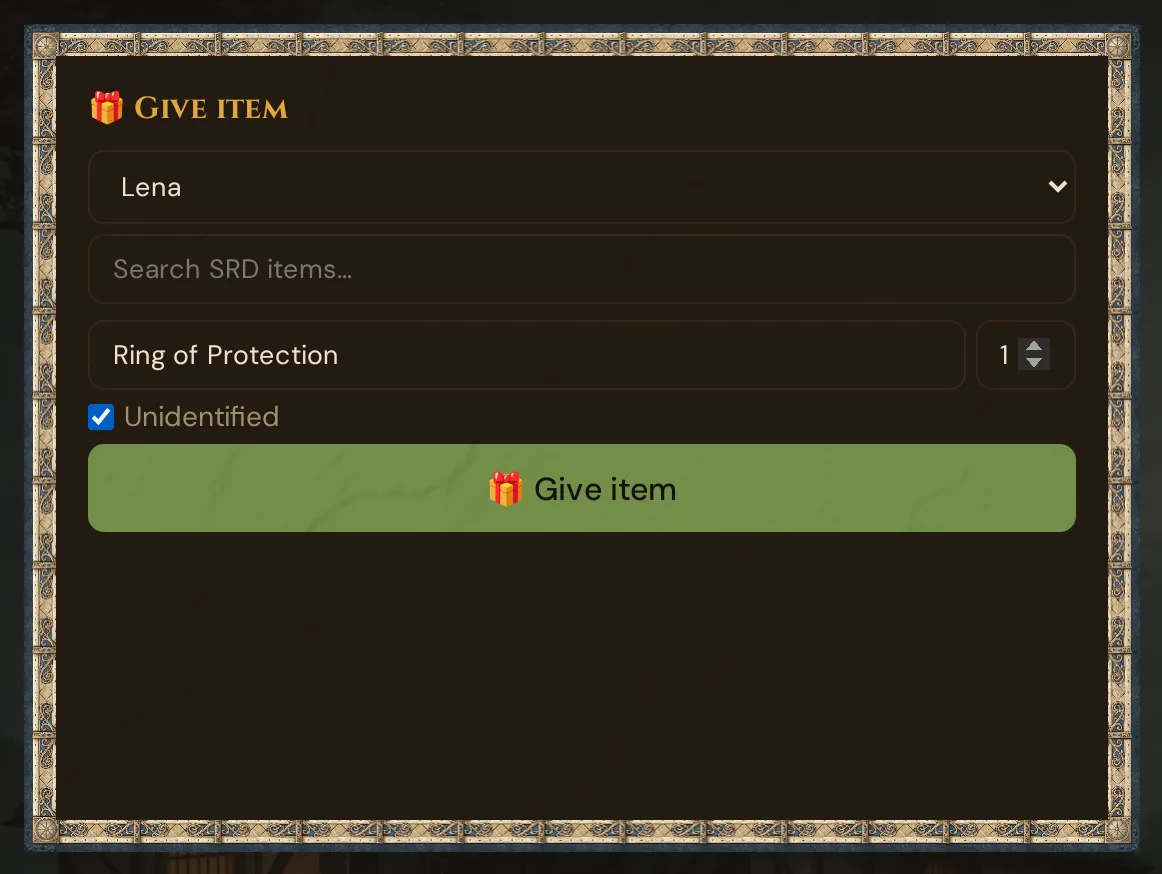
- In the 🎁 Give item card, pick the target player from the dropdown.
- Type into the Search SRD items… field: Wovenkeep searches the SRD's magic items by English name and shows up to 6 matches below the field. Pick one to fill Item name and the rarity — or type any name into Item name yourself.
- Set Qty (default 1).
- To hide the real item from the player, tick the Unidentified checkbox.
- Click 🎁 Give item.
The item appears in the player's Inventory tab immediately.
💡 Tip: The SRD search fills name and rarity; it does not lock you in — you can give any custom item. Items you created under Prep → Items don't appear in this search — type their name into Item name.
Open items
If Unidentified is unchecked (the default), the player sees the full item right away:

Rarity is color-coded on the card border:
- Common — grey
- Uncommon — green
- Rare — blue
- Very Rare — purple
- Legendary — orange
- Artifact — red with a subtle glow
Unidentified items
If Unidentified is checked, the player sees a placeholder:

The real item — name, image, description, rarity — is stored in your Realm but never sent to the player's device until you identify it.
Terminology note: The in-app checkbox label reads Unidentified. The term "mystery item" is used in this documentation as shorthand for the same concept.
Custom placeholder text
The default placeholder name is ??? and the description is Ein mysteriöser Gegenstand…. You can override these by editing the item after giving it (via Player inventories → Edit) to set a custom unidentified_name and unidentified_desc — for example: "a heavy locket on a tarnished chain". Descriptive but not informative.
⚠️ Note: Editing the unidentified placeholder text directly in the Give Item window is not yet supported in the GM interface. The backend stores these fields and they can be set via the item edit panel.
Identifying an item
⚠️ Partial feature: The backend route
/api/inventory/:id/identifyis fully implemented and fires ainventory:identifiedsocket event. A dedicated Identify button in the GM live interface is not yet built. Until then, identifying an item requires using the Prep → Player Characters → Inventory panel to mark the item as identified.
When your party casts Identify, visits a sage, or otherwise earns the reveal:
- Go to Prep → Player Characters and open the relevant character.
- In their Inventory list, find the unidentified item (marked ❓).
- Use the item's edit action to flip it to identified.
Once identified, the player's inventory updates on their phone and shows the real name, image, and description.
Creature loot transfer
When the party defeats a creature that has a Loadout (items assigned in the NPC or Monster editor), you can transfer those items to players without typing them out again:
- In Live → Items & Handouts, scroll to the 📦 Hand out creature loot panel.
- Pick a creature from the dropdown. The panel lists its non-transferred Loadout items.
- For each item, choose a target player from the dropdown and click To player →.
The item moves into that player's inventory immediately with a provenance record showing where it came from. Items already transferred are hidden from the list so you don't accidentally double-give.
💡 Tip: Prepare creature Loadouts in advance under Prep → NPCs or Prep → Monsters. For random loot, use the random tables, or optionally have loot suggested (AI) on the creature editor — it produces 5e-balanced treasure and costs 1 Thread per use (free with a BYO AI key).
Player-side inventory
Players open their Inventory tab to see everything they've been given. Each item card shows:
- Real name and rarity color (open items) or ❓ placeholder (unidentified)
- Description (or placeholder text)
- Item image if one was provided
- Carry weight (if the SRD item has weight data) — in lb in English, in kg in German, French and Spanish
Players can take these actions on each item:
Equip / Unequip
Tap Equip to mark an item as equipped. The card gets an amber left border and a slot badge (⚔️ weapon, 🛡️ armor/shield). Tap again to unequip.
Attunement
Items that require attunement show an Attune button. Tap it to attune. Wovenkeep enforces the 5e 3-item attunement limit — trying to attune a fourth item shows an alert. Attuned items show a ✨ badge.
Use / Drop
Tap Use to consume a use (quantity decrements by 1; the item disappears when quantity reaches 0). If the item has quantity 1, the button reads Drop and removes it entirely. Your live log shows e.g. 🎁 Lena used Healing Potion (1 remaining).
Carry weight
The total carry weight of all inventory items is shown at the top of the Inventory tab (e.g. ⚖️ 12.5 lb). In German, French and Spanish it shows kilograms, converted like the official translations of the rules (1 lb = 0.5 kg) — e.g. ⚖️ 6,25 kg. Weight is calculated from the SRD data; custom items without weight data count as 0.
Transfer inbox
The transfer inbox for items passed between players is currently switched off: the player view shows no inbox and no accept or decline buttons. Items reach a player only from the GM — via 🎁 Give item or creature loot.
What's stored in the database
Items live in the player_inventory table. Relevant columns after the PT3/PT4 inventory update:
| Column | Notes |
|---|---|
item_name |
Real name (hidden if unidentified) |
display_name |
What the player sees (placeholder or real) |
quantity |
Integer ≥ 1 |
rarity |
common / uncommon / rare / very_rare / legendary / artifact |
image_url |
Real image URL |
display_image |
Image shown to player |
description |
Real description |
display_desc |
Description shown to player |
is_identified |
0 = unidentified, 1 = revealed |
unidentified_name |
Custom placeholder name (default ???) |
unidentified_desc |
Custom placeholder description |
equipped |
0 / 1 |
attuned |
0 / 1 |
slot |
Equip slot string (weapon, armor, shield, …) |
weight |
Weight in lb (from SRD data) |
requires_attunement |
0 / 1 |
Items stay in the inventory across sessions. Closing the GM tab does not clear them, and in the next session of the same campaign the player finds the same inventory again — as long as they join under the same name. If you rename the player in 📋 Prep → Players, the inventory moves to the new name (see Renaming a player).
Per player name and campaign: the inventory belongs to the player name within the campaign, not to a single session.
Troubleshooting
| Symptom | Cause | Fix |
|---|---|---|
| Item does not appear on player's phone | The player's connection dropped briefly during the give | The item is safely saved. Have the player rescan the QR code to rejoin — their inventory comes back intact |
| Identify does nothing visible | The dedicated Identify button in the live session GM UI is not yet built | Use Prep → Player Characters → Inventory to mark the item as identified |
| Wrong player got the item | Player dropdown was stale | Refresh the GM page and verify with the Player List panel |
| Attunement button missing | The item was not given with requires_attunement set |
Give the item again from the SRD autocomplete (SRD items carry the attunement flag), or edit via the PC sheet |
| Transfer inbox not visible | The transfer inbox is currently switched off | Give the item from the GM side with 🎁 Give item |
| Worried a tech-savvy player could peek at a hidden item | The player view only ever receives the placeholder; real data stays in your Realm | In normal play there is nothing to intercept |
Related articles
- 📜 Handouts — push documents, letters, and maps to player phones
- 🎲 Player characters — long-term inventory on the PC sheet (survives across sessions)
- 📚 SRD Rulebook — 3,761 openly licensed D&D 5e entries (items, monsters, spells, classes) with images
- 🗡️ Creatures & loadouts — assign Loadout items to NPCs and monsters for creature loot transfer