📊 Session Log & Analytics
👤 For: Game Masters · 💳 Plan: All plans · 🔄 Updated 2026-10-17
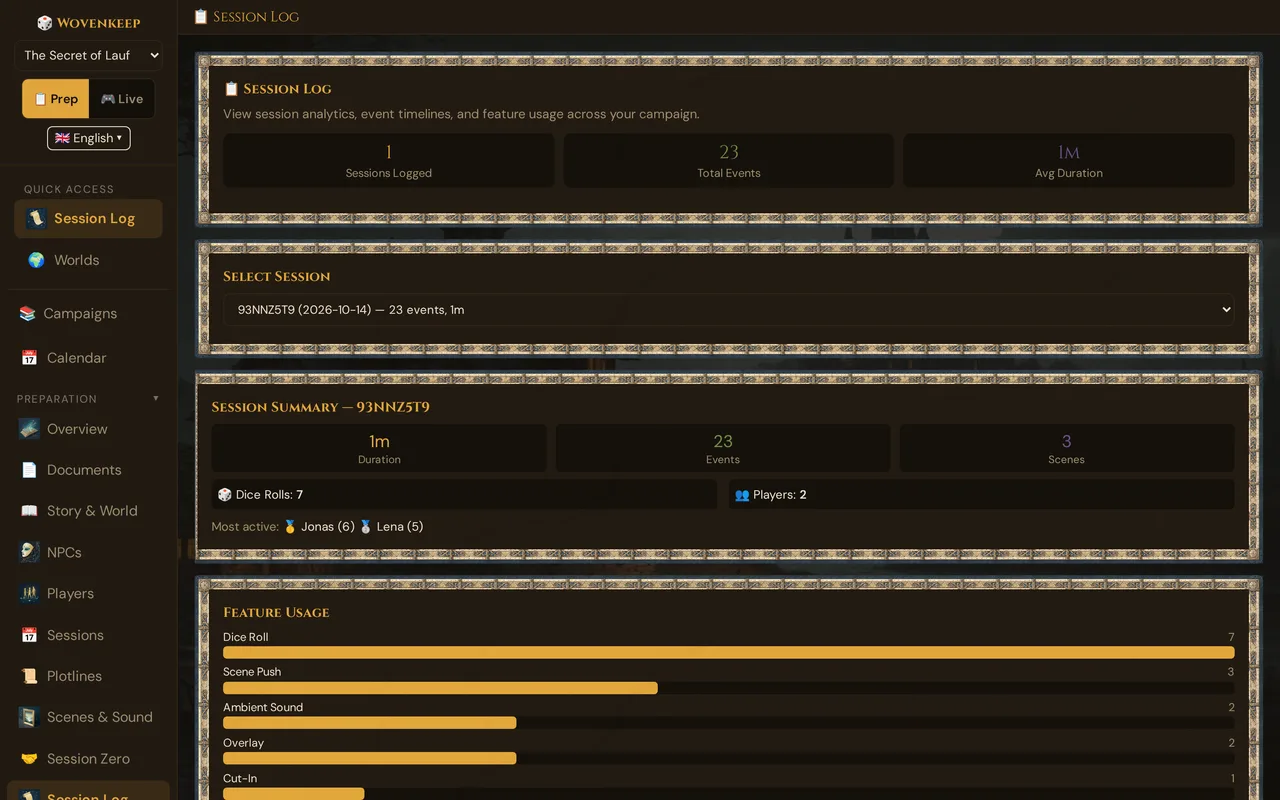
Every event during a live session is automatically recorded — the start and end of the session, scenes pushed, sounds played, dice rolled, fights started and ended, conditions set, clocks ticked, XP awarded, items given, whispers sent, polls run. The Session Log is where you go after a session to look back at exactly what happened and how active your table was.
What it does
- Shows campaign-wide totals (sessions logged, events, average session duration) at a glance.
- Lets you pick any completed session and drill into its timeline and summary stats.
- Renders a Feature Usage bar chart so you can see which tools your table actually uses.
- The event log is your campaign's memory; the optional recap suggestion reads it too (AI).
When to use it
Open this page right after a session to debrief — how long did you play, how many scenes did you push, which players were most active? Over multiple sessions the campaign-wide view shows whether you're growing into the full toolkit.
Where to find it
Sidebar → 📊 Session Log (under Preparation).
What the page shows
The page has three layers, top to bottom:
- 📋 Session Log — the campaign-wide overview with three numbers
- Select Session — the session picker (a dropdown)
- Session Summary, Feature Usage and Timeline for the selected session
Campaign-wide overview
The top card shows totals across all sessions in the campaign that have at least one logged event:
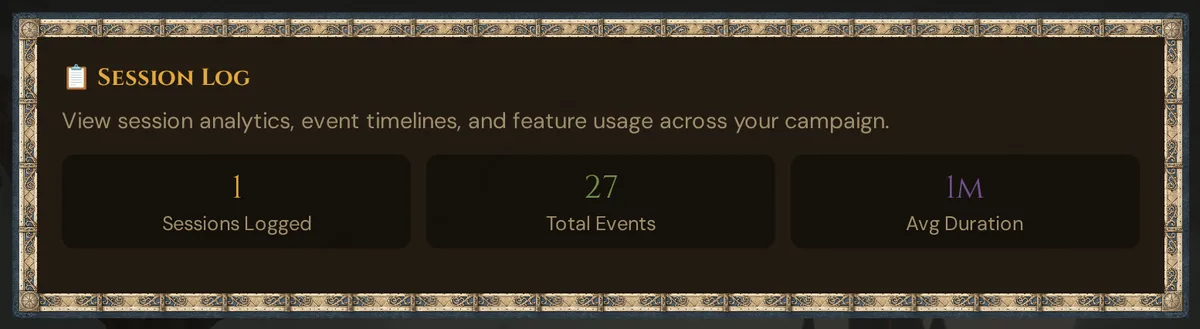
- Sessions Logged — how many sessions generated at least one event.
- Total Events — cumulative events across all sessions.
- Avg Duration — average session length in minutes across all logged sessions.
Session picker
A dropdown to select a specific session for the detail view:
[-- Choose a session --                           ▼]
[XK92AB (2026-06-15) — 87 events, 155m            ]
[BF34DD (2026-06-01) — 112 events, 210m           ]
The picker shows the session code, date, event count, and duration for each session. It auto-selects the most recent session on page load.
💡 Tip: The session code is the same short code players use to join. While a live session is running, it appears in the top bar in 🎮 Live mode as 🔑 Code: … — click it to copy the join link. Codes of earlier sessions are listed in the picker above.
Per-session summary
Once you select a session, a summary card appears:
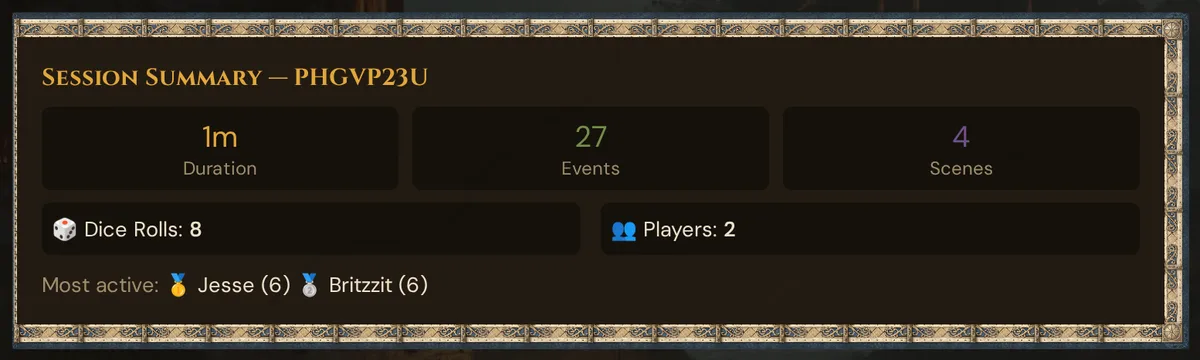
- Duration / Events / Scenes — the three headline numbers.
- Dice Rolls — total rolls logged from the in-app dice (does not count physical rolls the GM enters manually without using the roll prompt).
- Players — number of distinct players who had at least one logged event (sends to all players and GM entries don't count as a player).
- Most active — top 3 players by event count, with medal badges (🥇🥈🥉).
Note: "Most active" is based on event count (joins, dice rolls, items received, etc.), not purely on dice rolls.
Feature Usage bar chart
Below the summary, a bar chart shows the five most frequent event types of the selected session (joins don't count):
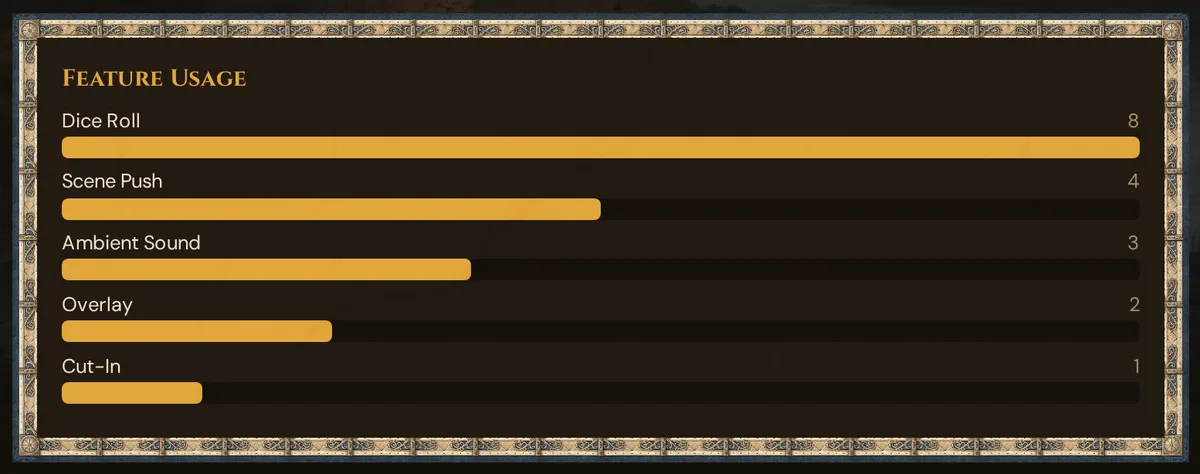
This shows you which Wovenkeep features you actually reached for during the session. If "Scene Push" is near zero you may be running scenes ad-hoc; if "Ambient Sound" is high the players are probably noticing the atmosphere.
Per-session timeline
Below the Feature Usage chart, the Timeline lists every event of the selected session, newest first. Each row shows the time, the player (if any) and what happened:
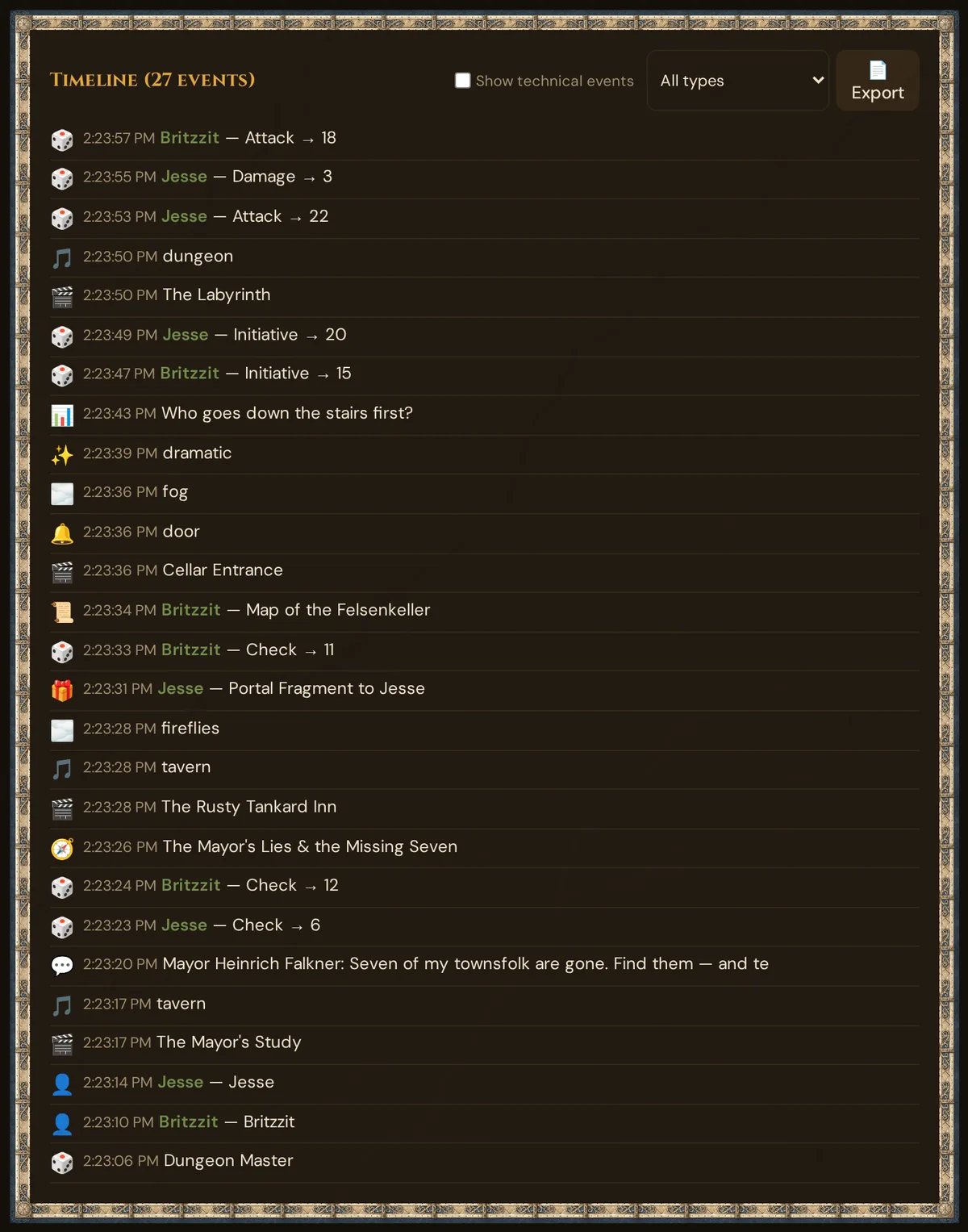
The most common event types and their icons:
| Icon | Event type |
|---|---|
| ▶️ | Session Started |
| ⏹️ | Session Ended |
| 👤 | Player Join |
| 👋 | Player Disconnect |
| 🎬 | Scene Push |
| 🔔 | Sound Effect |
| 🎵 | Ambient Sound |
| 🔇 | Ambient Stop |
| 🌫️ | Overlay (weather / particle effect) |
| 📹 | Video (Coming soon — player receiver not yet live) |
| 🎲 | Dice Roll |
| ⚔️ | Combat Started |
| 🏁 | Combat Ended |
| 🩸 | Condition Set |
| ⏳ | Clock Updated |
| 🎖️ | XP Awarded |
| 📖 | Recap |
| 💬 | NPC Dialog (pushed to players) |
| 🎭 | Character |
| ✨ | Cut-In |
| 📜 | Handout |
| 📊 | Poll |
| 🤫 | Whisper |
| 🎁 | Item Given |
| 🧭 | Quest Pushed |
Items, trades and crafting have entries of their own (for example 🧪 Item Used, 🤝 Trade Offered, 🛠️ Crafting Started). Technical entries such as connection checks and 🔌 GM connections are hidden; tick Show technical events above the timeline to see them. The details of these entries — participants, rounds, minutes, conditions, clocks and XP — appear in the language of your GM tool, in the timeline and in the export. Entries from before this update keep their original wording.
Filter by type using the dropdown at the top-right of the timeline:
[ All types ▼ ] [ 📄 Export ]
Only event types that actually appear in the selected session show up in the filter dropdown.
Pagination: the timeline loads 200 events at a time. If the session had more, a Load more… button appears at the bottom.
Exporting
The 📄 Export button downloads the current session's timeline as a plain-text .txt file — one line per event, with timestamp, type, player name (if any), and event data.
The export contains only the currently loaded events (up to the last Load more click).
Note: JSON, CSV, and Markdown export formats are not available — the current export is plain text only.
What the optional AI help reads from it
The session log keeps track of what happened at your table. One optional helper reads it:
- ✨ Suggest recap (AI) in live mode or in the session editor → Tantu summarizes what was played: the log of the last evening played (scenes, NPC dialogue, items, handouts for everyone, quests, polls, cut-ins, the start and end of fights) together with your live notes. Whispers, private handouts, dice rolls, conditions, clocks and XP are left out. If nothing has been played and there are no live notes, there is no suggestion and nothing is charged.
Story Coach and the Tension Arc don't read the event log — they work from your recaps, plotlines and other campaign notes.
What's logged vs. what's not
Logged:
- Scene pushes (title, event data)
- Ambient start/stop (sound name)
- Cut-ins (style label)
- Polls (question, not voter names per option)
- Item and handout gives (name, recipient)
- Dice rolls (type, result, player name)
- Session start and end (with the minutes played)
- Fight start and end (number of participants, number of rounds)
- Conditions set in the initiative tracker
- Clock ticks and reveals (title and count of revealed clocks; hidden clocks without a name, never the reason)
- XP awarded in Live (amount and number of characters)
- Overlay and particle effects
- Player joins and disconnects
- Whispers (type/direction only — content is never stored)
- NPC dialog pushes (character name)
- Recaps pushed (only their length)
Not logged:
- Whisper text (privacy — never stored)
- Actual content of AI responses
- Scene description text (only the event label, not the full prose)
- Audio data or image bytes
- Chat between you and the AI
This means the log is safe to share — it contains no GM secrets or private player content.
Retention
Session logs are retained as part of your campaign data. Deleting a session deletes its log. Deleting the campaign deletes all logs. Deleting your Realm (account deletion) removes everything.
Troubleshooting
| Symptom | Cause | Fix |
|---|---|---|
| "No session log data yet" in the overview | No live sessions have been started with this campaign, or sessions existed before logging was introduced | Start a live session — events begin recording immediately on session start |
| Dropdown shows "Choose a session" but no options | The campaign has no sessions with logged events | Play at least one live session, then reload the page |
| Feature Usage chart is missing | The selected session only has join events (GM and player joins don't count) | Use at least one feature during the session — one event type is enough, e.g. a scene, a sound or a dice roll |
| Timeline shows 0 events after filter | The selected event type did not occur in this session | Switch back to All types to confirm events loaded correctly |
| "Load more…" button is missing | The session had 200 or fewer events | This is normal; no action needed |
| Export file is empty | No events are loaded yet | Select a session and wait for the timeline to load before exporting |
| Dice roll count looks low | The in-app roll button was not used (physical dice or manual rolls are not logged) | Use the Roll button in the live session view to have rolls captured |
Related articles
- 📡 Running a live session — where the log is created
- 📈 Tension Arc — your campaign's pacing as a curve
- 📜 Session recap — your recap for the table; optional suggestions read the log (AI)
- 📅 Sessions — prep-side session records
- 📖 Story Coach — optional dramatic analysis of your campaign (AI)