🎵 Sound & ambient
👤 For: Game Masters · 💳 Plan: All plans · 🔄 Updated 2026-10-17
Wovenkeep plays sound directly through every connected player phone — no separate Spotify, no Discord bot. You control a single audio mixer that fans out to all devices instantly. With a TV connected, the table's sound can come from the TV instead — see Sound on the TV below.
What it does
Every built-in sound button in the GM tool pushes audio to player phones via the live session. Ambient tracks loop continuously in the background; SFX one-shots play once and end. You can have one ambient loop and any number of stacked SFX running at the same time. You can also upload your own sound files or generate a context-aware AI ambient — see below.
When to use it
Use sound to set atmosphere without leaving the GM tool. Switch to a dungeon loop when the players descend into the catacombs, fire off a sword SFX on a critical hit, or whisper footsteps to one player only — all without touching a separate app.
Step by step
- Open Live → Scenes & Sound in the GM tool.
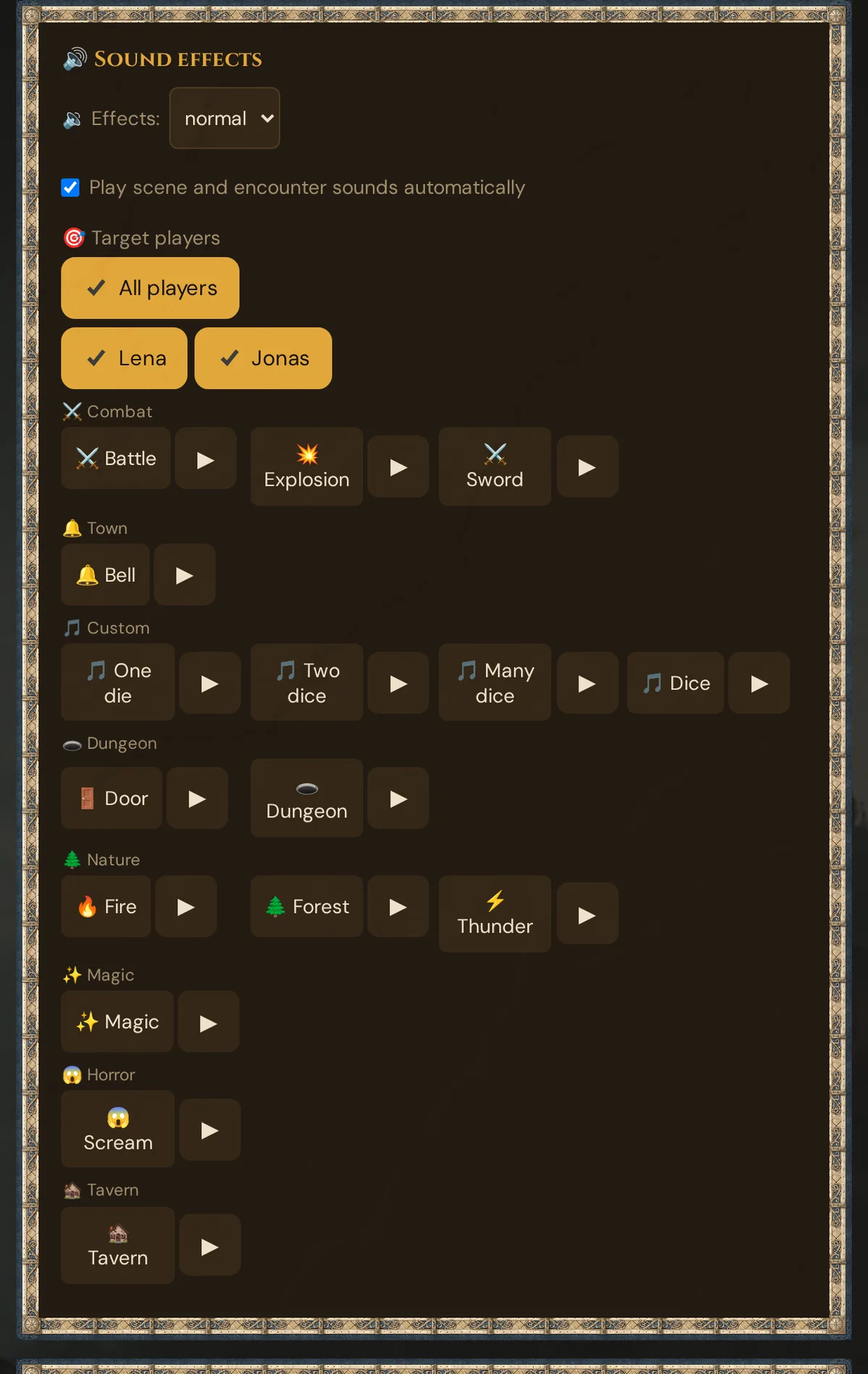
- Scroll to the 🔊 Sound effects card (the Sound Browser).
- Sounds are grouped by category — find the one you want.
- Click the sound button (shows icon + name) — it pushes to all connected phones immediately.
- To preview a sound locally first (GM only, no push), click the ▶ button next to it.
- To stop the current ambient loop, click ⏹ Stop below the browser.
💡 Tip: Pre-pair a sound with a scene in prep (see Scenes in prep). When you push that scene live, the sound starts automatically — one click, full atmosphere.
The audio gate (player side)
Mobile browsers (Safari, Chrome) block audio until the user explicitly interacts with the page. That is why a player sees this screen right after tapping Join ⚔️:
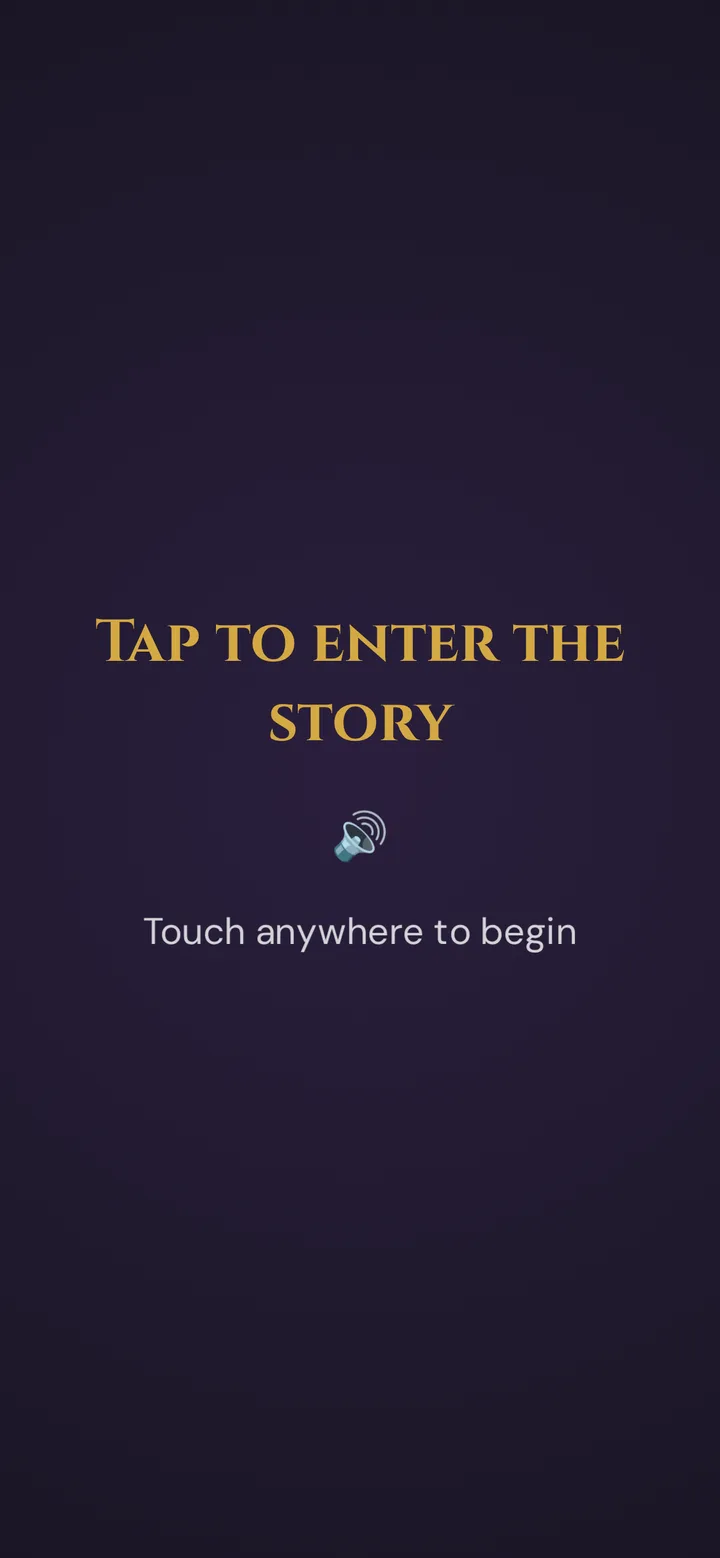
One tap anywhere unlocks sound and connects the phone to the session — only then do scenes, sound and other pushes arrive.
If the phone blocks sound again later (for example after switching apps), an amber 🔊 Tap to enable sound button appears at the bottom of the screen and Push-check marks the device 🔇 no audio. One tap brings the sound back.
The built-in sound library
The Sound Browser groups all built-in sounds by category. Each entry has a play button (pushes to players) and a ▶ preview button (plays locally for the GM only).
Ambient loops (play continuously)
| Sound | Category |
|---|---|
tavern 🏚️ |
Tavern |
dungeon 🕳️ |
Dungeon |
forest 🌲 |
Nature |
battle ⚔️ |
Combat |
rain 🌧️ |
Nature |
SFX one-shots (play once)
| Sound | Category |
|---|---|
sword ⚔️ |
Combat |
explosion 💥 |
Combat |
thunder ⚡ |
Nature |
fire 🔥 |
Nature |
door 🚪 |
Dungeon |
bell 🔔 |
Town |
magic ✨ |
Magic |
scream 😱 |
Horror |
All built-in sounds are available on every plan.
Built-in catalog: All built-in sounds are public-domain / royalty-free and bundled with Wovenkeep. Licenses are listed on the Credits page of your Realm.
Per-player targeting
By default, ambient and SFX go to all connected players. Above the Sound Browser there is a player checkbox row:
☑ All ☑ Lena ☑ Jonas ☐ Mira
- All checked → every connected player hears the next sound push (default).
- Untick All, tick individual names → only those players' phones play the sound.
The targeting stays active until you change it — it does not auto-reset after a push. Remember to re-check All when you're done with targeted audio.
Use cases:
- One player hears a whisper — uncheck All, check one name, click
screamSFX - The rogue hears the lock click — target the rogue with
doorSFX - Battle music for the fighters only — target two players with the
battleambient
Sound on the TV
If a TV is connected through the 📺 TV view, the 🔊 Sound effects card shows 📺 Sound via: with Player phones (default) or TV. With TV, the ambient loops and SFX for all players play on the TV, and the phones stay quiet for them. Sounds for individual players still go to their phones. Cut-in sounds move to the TV, too — the phones still show the cut-in and vibrate. The TV needs one key press or tap before it can play sound; until then — and whenever no TV with sound is connected — everything plays on the phones as usual.
Custom sound uploads
Built-in sounds cover the basics, but every campaign benefits from custom uploads.
Uploading a custom sound
The easiest place is the Media page: ⬆️ Upload file, pick the file and choose the Kind of sound — 💥 Effect (plays once), 🔁 Background sound (loops) or 🎶 Music. See Media.
- Supported formats:
.mp3(recommended — smallest, widest browser support).ogg,.wav
- Max file size: 30 MB per upload.
- Wovenkeep stores the file in your Realm and adds it to the Sound Browser under the 🎵 Custom category. There the sound keeps its file name: Thunder.wav appears as Thunder (spaces, accented letters and other special characters become
_). On the Media page it shows the name you gave it.
The upload counts against your storage quota (see Storage & files).
You can also upload a sound right where you choose a scene's sound — see Scenes (prep) — or in the dialog 🗂️ Choose a sound from media (see Choose from media). 📁 Upload in the 🎵 Media library card in Live checks the file type and size first, stores the sound with the open campaign as an effect, reports the result in the card (🎵 Sound uploaded: … or ⚠️ …) and refreshes the list.
Using a custom sound
After upload, the new sound appears in the 🎵 Custom category. Click it like any built-in — same targeting, same volume. In the Sound Browser, your own sounds play once, like an effect. To loop a background sound or music at the table, use 🔊 Play at the table in the 🎵 Media library card (below) or on the Media page during the session, or make it a scene's sound.
The Media library card in Live
In 🎮 Live → 🎬 Scenes & Sound, the card 🎵 Media library lists the sounds and music of your campaign and the sounds included with Wovenkeep — 💥 effects, 🔁 background sounds and 🎶 music:
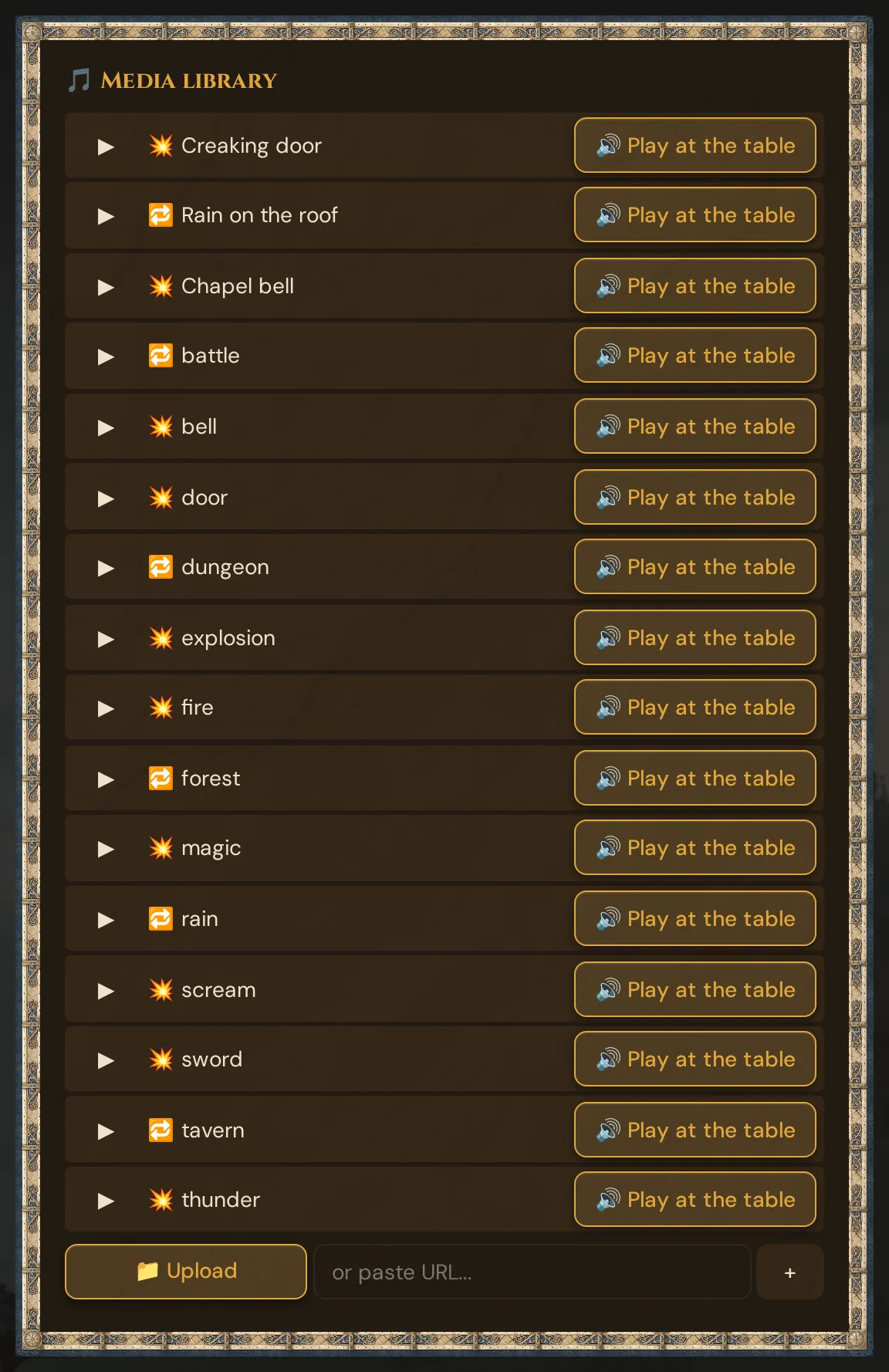
- ▶ plays the sound on your device only, so you can check it first; click again to stop.
- 🔊 Play at the table plays it for the whole table: an effect once, a background sound or music in a loop until you stop it with ⏹ Stop in the 🔊 Sound effects card. It follows 📺 Sound via: — TV or player phones.
- The 🎯 Target players of the 🔊 Sound effects card apply here too: untick All and tick names to play a sound only for those players.
- Listed are the sounds of this campaign, then the included sounds (named in your language, for example Battle or Rain), then music. Sounds without a campaign are not listed.
You can also play a sound from a direct URL (e.g. a self-hosted MP3): paste it into the URL field next to the upload button and press +. This plays immediately as an ambient push — it does not get saved to your library.
Deleting a custom sound
Delete your own sounds on the Media page: shelf 🔊 Sounds → 🗑️ Delete. The sound moves to the trash, where you can restore it for 30 days, and your storage figure updates right away — see Storage & files.
Tip: For session-specific soundscapes, prefix file names by campaign —
lauf-tavern-1.mp3,lauf-dungeon-lair.mp3. Built-in names (tavern,forest, etc.) are reserved.
Optional: have Tantu suggest ambient sound (AI)
From the Scene edit panel, Tantu can suggest a matching ambient sound with the help of AI:
- Open a scene for editing in prep or live.
- Click 🎙️ Sound by Tantu — the button shows the cost badge, and a confirm dialog with your balance appears before anything is spent.
- Tantu generates audio from the scene's base setting (or, if that is empty, its description) and attaches it to the scene: the new sound is selected in the scene's 🔊 Sound list under AI sounds. The description may be in any language — Tantu first turns it into a short English prompt for the sound model; if that step fails, your own text is used.
- You can preview it with ▶ or push it to players immediately.
Need a sound without a scene — a single effect or a background sound? On the Media page, ✨ Create with Tantu makes one from your description (see Media).
Generating a sound costs 1 Thread per generation — this also applies with your own AI key (own keys make text actions free, and images with a Google Gemini key — never sound).
Note: Sound generation runs through Wovenkeep's audio provider, configured platform-side. If the button returns an error about a missing audio key, contact support — there is nothing to configure in your own settings.
Volume control
The volume slider lives on the player side, not the GM side. Each player can adjust their own audio in the bottom bar of the player view:
🔈 ━━━━●━━━━━ 🔊
This is intentional — players in different rooms (or playing remotely) need to balance against their own room noise. The GM has no master volume override.
Pairing sound with scenes
Two patterns:
Manual — Push the scene first, then start the ambient. Full control, two steps.
Automatic via prepared scenes — When you create or edit a scene in prep, pick its sound in the 🔊 Sound list: a soundscape, one of your own sounds or an AI sound — or upload a file right there. When you push that scene live, the sound starts automatically. See Scenes in prep.
The automatic approach is recommended for set-piece moments: pre-pair the scene and the sound so you have one less thing to think about at the table.
Stopping all audio
The ⏹ Stop button below the Sound Browser stops the current ambient loop on every connected phone — or on the TV, if the sound plays there. SFX one-shots are not stoppable — they play to the end of the sample (typically 1–3 seconds).
If a player's phone is stuck on audio or the sound is feeding back, click ⏹ Stop and ask that player to close and rejoin the session tab. There is no "mute all phones instantly" button by design — sessions rarely need it.
Plan limits
All sounds — tavern, dungeon, forest, battle, rain ambients and every SFX including fire — are available on every plan, including Adventurer (free). Plans differ only in monthly Threads, campaigns, player seats, storage, and support.
AI sound generation costs 1 Thread per generation — also with your own AI key. There's no setting for your own sound key: sound always runs on Wovenkeep's sound service.
See Threads & costs for how to get Threads.
Troubleshooting
Error messages from the sound tools appear in your Realm's interface language (not as raw technical codes).
| Symptom | Cause | Fix |
|---|---|---|
| One player hears nothing | They did not tap the audio gate | Ask them to tap their screen; check Push-check 🔇 marker |
| All players are quiet | Ambient was never started, or ⏹ Stop was clicked | Re-click an ambient preset |
| All phones are quiet, the TV plays the sound | 📺 Sound via: is set to TV | Expected — choose Player phones to move the sound back to the phones |
| Sound plays for some but not others | Per-player targeting is active | Re-check the All checkbox in the targeting row |
| Upload refused: storage full | You have hit your storage limit | Delete unused custom sounds, or add a storage pack |
| Upload refused: unsupported file type | File type is not supported | Convert to MP3 first (any free audio converter works) |
| Audio is delayed by 1–2 sec on one phone | Slow mobile data | Switch that player to Wi-Fi; sound buffers before playback |
| Looping ambient stops on its own | Player switched away from Wovenkeep | Player taps back into Wovenkeep; the loop continues |
| 🎙️ Sound by Tantu returns an audio-key error | The platform-side audio provider key is missing | Contact support — this is not something you configure in your Realm |
| A sound uploaded in the Live card before 2026-10-16 is missing from its list | Back then, sounds uploaded there got no campaign | Find it on the Media page under Without campaign and give it a campaign with 📁 Campaign |
Related articles
- 🖼️ Scene push — pair scenes with ambient
- 🎬 Cut-in system — cut-ins also accept an SFX trigger
- 💾 Storage & files — manage upload quota
- 🎨 Media Library — your full asset library
- 🧵 Threads & costs — how Threads pay for optional AI use