🎵 Media Library
👤 For: Game Masters · 💳 Plan: All plans · 🔄 Updated 2026-10-17
The Media page collects every picture and sound in your Realm in one place: what you uploaded, what Tantu created for you, and the sounds that come with Wovenkeep. It sorts them onto shelves, finds them by name, and shows where each one is used — and during a session you can play a sound for your table right from here.
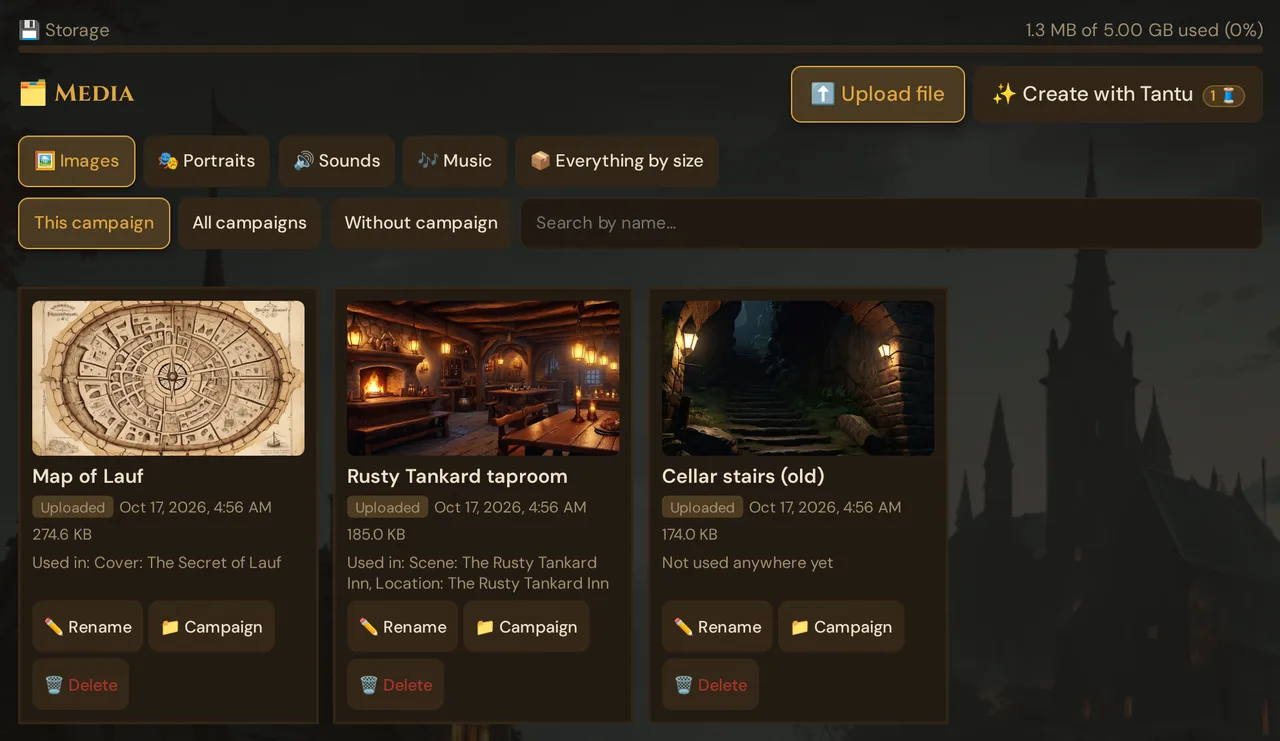
What it does
- Sorts your media onto four shelves: 🖼️ Images, 🎭 Portraits, 🔊 Sounds and 🎶 Music — plus 📦 Everything by size, which lists every file that counts against your storage, largest first, with a clean-up.
- Shows on every card where the item comes from (Uploaded, Created by Tantu or Included), when it was added, how big it is and where it is used (Used in: …).
- Lets you listen to sounds on your own device (▶ Listen) and, during a running session, play them for your players (🔊 Play at the table).
- Lets you rename your media, move them to another campaign and delete them — deleted media go to the trash first.
- Adds new media: ⬆️ Upload file for images and sounds, ✨ Create with Tantu for a new sound from a short description (optional AI help).
- Feeds the dialog 🗂️ Choose from media, which picks a picture or sound wherever you need one — scenes, encounters, NPC portraits, locations, handouts, the campaign cover and the live cards (see Choose from media).
When to use it
Open the Media page when you want to:
- find a picture or sound again — by shelf, campaign or name;
- check where a file is used before you delete it;
- tidy up: give files readable names, move them to the right campaign, delete what you no longer need;
- play a sound effect or a background sound at the table without leaving the page;
- get a sound for which you have no file.
Where to find it
Sidebar → Media (in the Create group).
💾 Storage (in the Admin group) opens this page on the shelf 📦 Everything by size — see Everything by size.
The Media page needs an open campaign. Without one, 💾 Storage still shows the storage bar, 📦 Everything by size and the clean-up (see Storage & files).
Shelves, campaigns and search
The buttons at the top switch between the shelves 🖼️ Images, 🎭 Portraits, 🔊 Sounds, 🎶 Music and 📦 Everything by size. The row below chooses whose media you see:
| Button | What it shows |
|---|---|
| This campaign | Media of the campaign you have open (the default) |
| All campaigns | Media of all your campaigns — each card also shows its campaign |
| Without campaign | Media that belong to no campaign, for example older uploads |
- The sounds included with Wovenkeep appear with every button, named in your language (for example Tavern or Rain).
- Search by name… filters the open shelf while you type.
- The page shows 48 items at a time. Below the grid you see how many there are (for example 5 items); ‹ Back and Next › page through larger collections.
- Wovenkeep remembers the shelf and the campaign button you used last — except that 💾 Storage always opens 📦 Everything by size.
The cards
Each card shows:
- A preview — click a picture to see it large. Sounds and music have ▶ Listen: the sound plays only on your device, with or without a running session. While it plays, the button reads ⏹ Stop; click it to stop the sound.
- The name, then badges: the origin — Uploaded, Created by Tantu or Included (sounds that come with Wovenkeep) — and, for sounds, Effect or Background sound. With All campaigns or Without campaign, a badge also names the campaign — or says 🗑️ Campaign in trash while its campaign lies in the trash.
- Date and size.
- Used in: … — the scenes, NPCs, locations, handouts, items, monsters, encounters and player characters that use the file (up to three by name, then N more); a campaign cover shows as Cover: …. A scene also counts when one of the included soundscapes is its sound. If nothing uses the file, the card says Not used anywhere yet; an included sound that no scene uses says Included, available in the live soundboard.
- ⚠ File missing — the entry still exists, but its file is gone. You can remove such entries in 🧹 Clean up below Everything by size.
On the 🔊 Sounds shelf, the cards are grouped into Background sounds, Effects and Other sounds (sounds without a kind, for example older uploads). The included sounds appear in these groups too, with the badge Included.
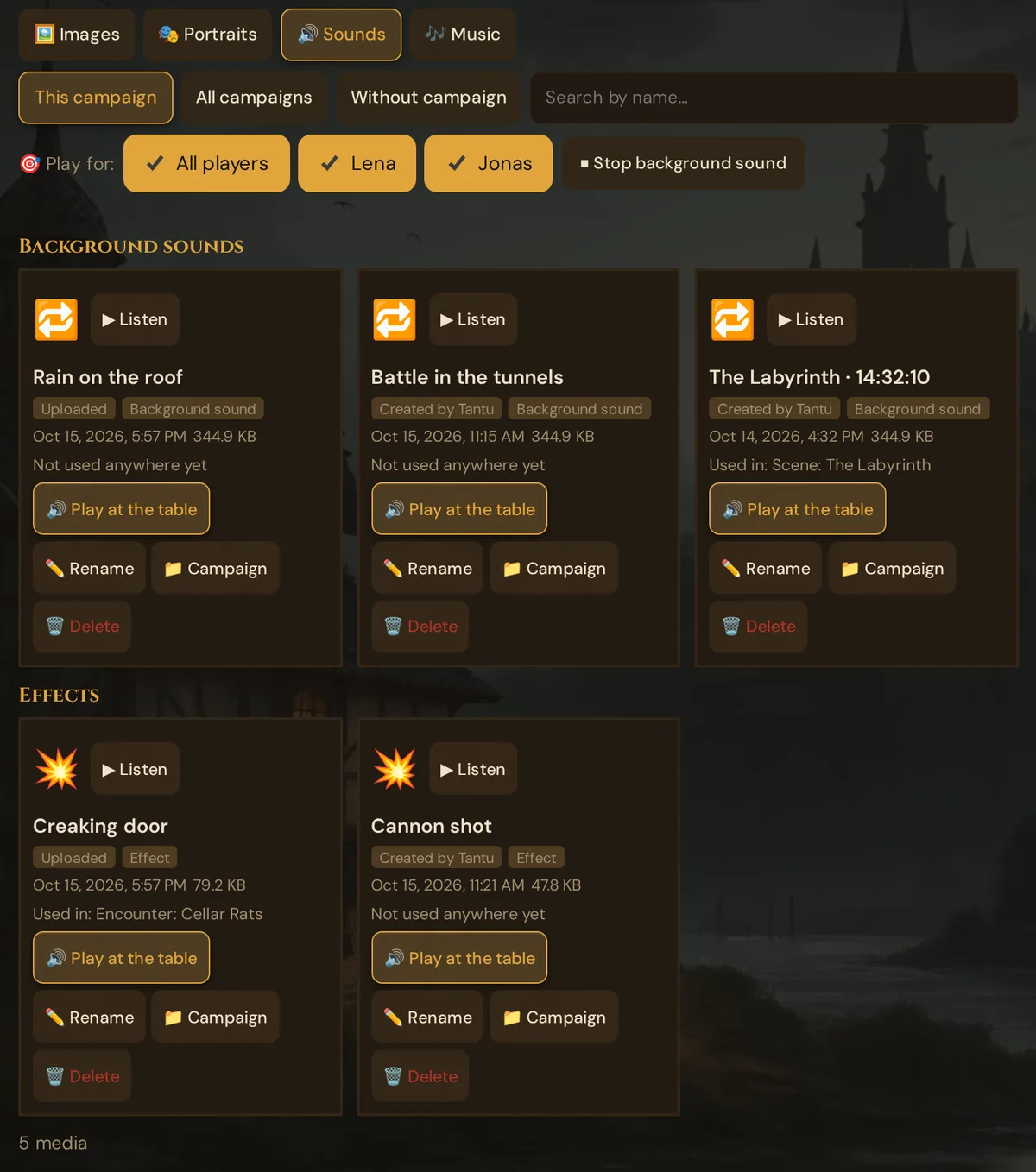
Actions on a card
| Button | What it does |
|---|---|
| ▶ Listen | Plays the sound on your device only |
| 🔊 Play at the table | Only during a running session: plays the sound for your players (see below) |
| ✏️ Rename | Gives the item a new name — the file stays the same |
| 📁 Campaign | Opens Campaign for “…”: pick another campaign or Without campaign, then Save |
| 🗑️ Delete | Moves the item to the trash, where you can restore it for 30 days |
Deleting asks first: Move “…” to the trash? If the card shows a use, the question names it. If another campaign uses the file too, the question adds ⚠ It is also used in 1 other campaign(s). The storage is freed right away, but the file itself stays until the trash is emptied — and even then Wovenkeep keeps any file that a scene, NPC or other entry still uses. More in Storage & files → Trash.
The sounds included with Wovenkeep have no Rename, Campaign or Delete buttons — they belong to Wovenkeep and don't count against your storage.
Everything by size
The last shelf, 📦 Everything by size, is a list instead of cards: every file that counts against your storage — your uploads and the media made with AI, videos and documents included — largest first. 💾 Storage in the Admin group opens the page right here.
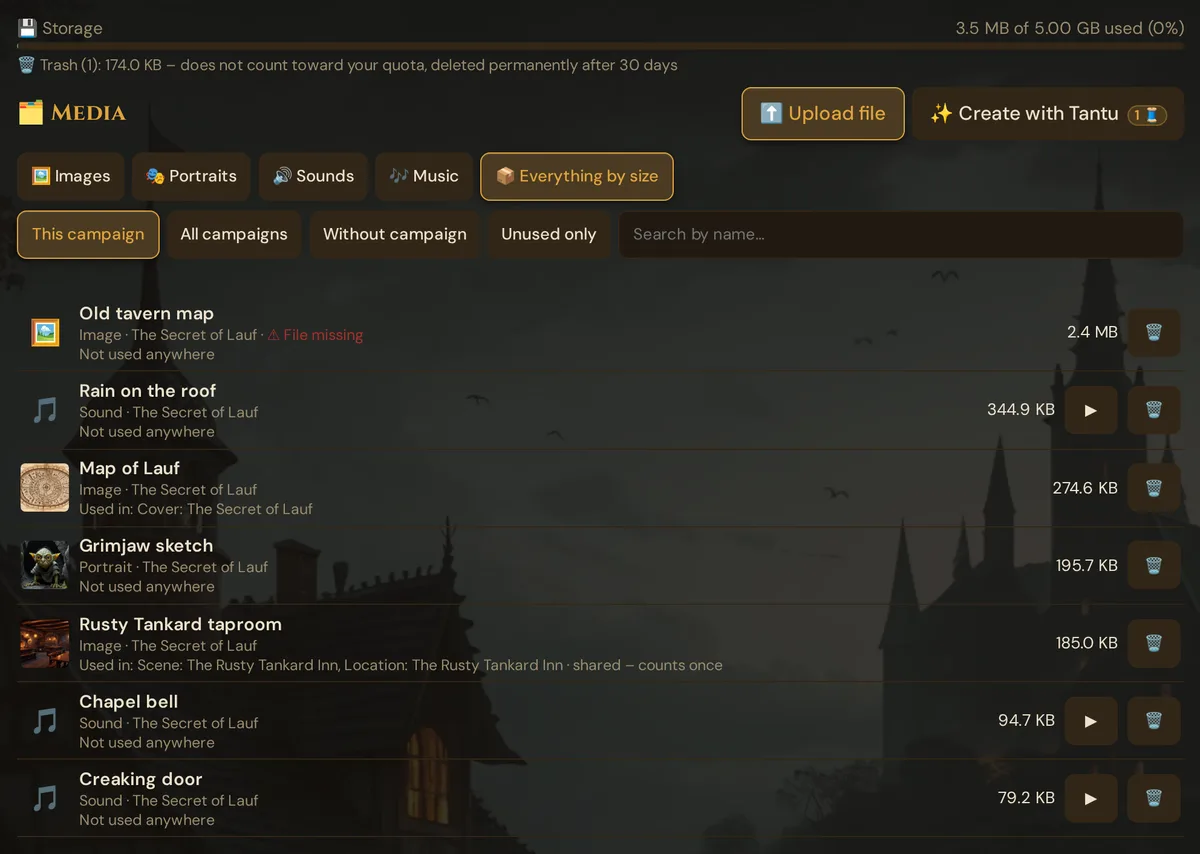
- Each row shows the name, the kind and the campaign, where the file is used — or Not used anywhere — and its size. A file used in several places adds · shared – counts once.
- Unused only keeps the files that nothing uses; ▶ plays a sound on your device, 🗑️ moves a file to the trash.
- Below the list, 🧹 Clean up counts missing files, loose files and unused media for your whole Realm and removes broken entries after you confirm.
Details, the trash and the clean-up: Storage & files.
Play at the table
While a session is running in 🎮 Live, the Media page shows the row 🎯 Play for: with All players and each connected player, and the button ⏹ Stop background sound. Every sound and music card gets 🔊 Play at the table:
- Effects play once. Background sounds and music loop until you click ⏹ Stop background sound or start another background sound.
- Untick All players and tick names to play the sound only for those players.
- For a sound without a kind, the card offers 🔊 Play once at the table and 🔁 Loop at the table.
- Sounds for all players follow 📺 Sound via: — with TV they play on the TV (see TV view). Sounds for single players always go to their phones.
The line at the top of the page confirms what is playing, for example Playing at the table: Rain on the roof.
In 🎮 Live, the card 🎵 Media library in 🎬 Scenes & Sound offers the same for the sounds of the campaign without leaving the live view — see Sound & ambient.
Upload a file
- Click ⬆️ Upload file.
- Click 📁 Choose File and pick an image (JPG, PNG, WebP, GIF; up to 5 MB) or a sound (MP3, WAV, OGG; up to 30 MB). Wovenkeep checks the file before uploading: another type or a larger file is refused straight away, with the reason.
- Name — leave it empty to use the file name.
- For sounds, choose the Kind of sound: 💥 Effect (plays once), 🔁 Background sound (loops) or 🎶 Music.
- Click ⬆️ Upload.
The file belongs to the campaign you have open. Images land on 🖼️ Images (or on 🎭 Portraits, if that shelf was open), sounds on 🔊 Sounds, music on 🎶 Music. Uploaded sounds are also available in the 🎵 Custom category of the live Sound Browser and in every scene's 🔊 Sound list.
Every upload counts against your storage.
Only images and sounds can be uploaded here. Videos stay hidden until sending videos to players is available — see Video push.
Choose from media
Wherever Wovenkeep needs a picture or a sound, the button 🗂️ Choose from media opens one shared dialog — 🗂️ Choose from media for images, 🗂️ Choose a portrait from media for NPC portraits and 🗂️ Choose a sound from media for sounds:
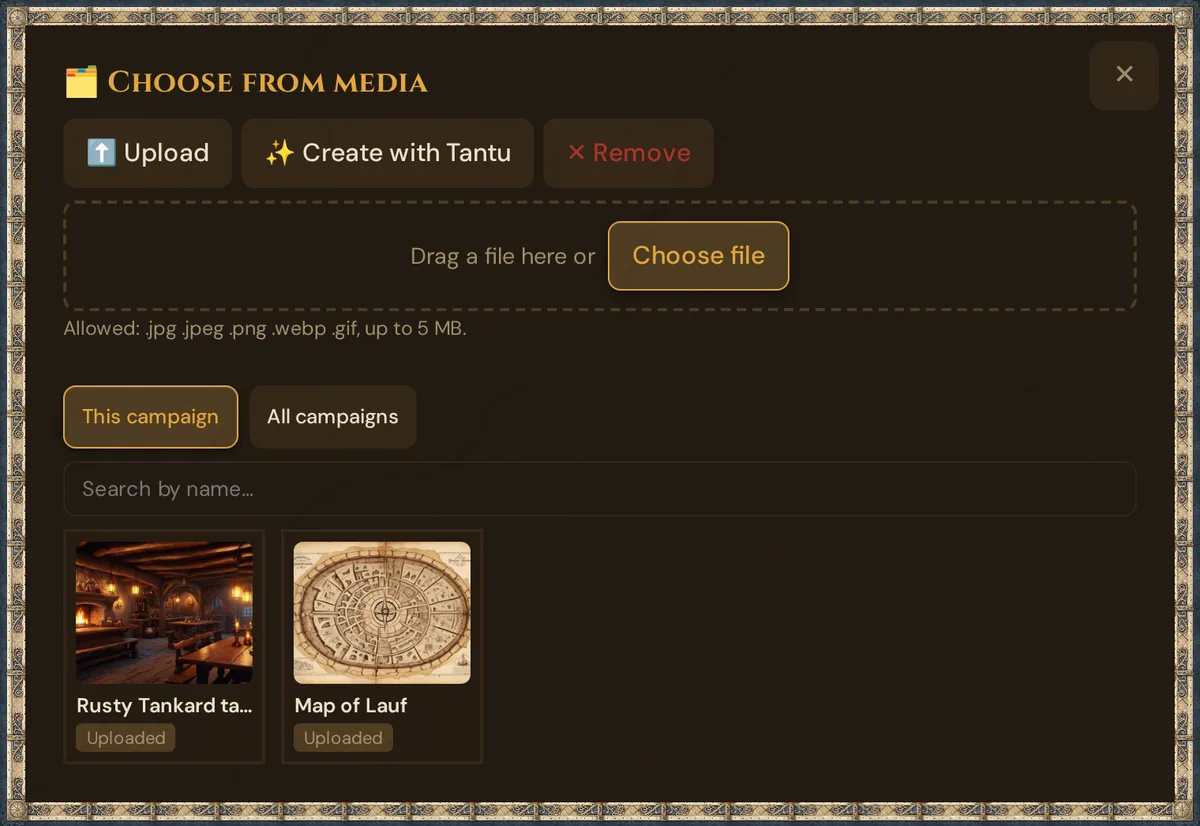
- This campaign (the default) and All campaigns choose whose media you see; All campaigns also shows media without a campaign. The sound dialog lists the sounds included with Wovenkeep with both buttons. Search by name… filters the list and searches all your media, however many there are.
- The image dialog shows your pictures and portraits; the portrait dialog the same, portraits first. Every tile names its origin — Uploaded, Created by Tantu or Included.
- The sound dialog lists sounds and music. ▶ plays a sound on your device only; click the row to pick it.
- Click a tile to pick it. The dialog closes, and the picture or sound is set.
Upload, create, remove
- ⬆️ Upload opens the area Drag a file here or Choose file, with the allowed types: images
.jpg .jpeg .png .webp .gifup to 5 MB, sounds.mp3 .ogg .wavup to 30 MB. You can drag a file onto the whole dialog. Only one file is taken at a time; a wrong type or a too large file is refused before anything is uploaded. After the upload, the new file is picked right away. Sounds uploaded here count as background sounds. - ✨ Create with Tantu shows its price on the button. In the sound dialog it opens a description field and ✨ Create sound: Tantu makes a looping background sound (1 Thread, see Let Tantu create a sound). In the image dialogs of scenes and locations it starts the image suggestion for that scene or place (5 Threads); the other image dialogs don't offer it.
- ✕ Remove clears the picture or sound of the scene, portrait or field — the file itself stays in your media.
Where you find it
| Where | What it sets | Saved |
|---|---|---|
| Edit Scene → image | the scene image | at once |
| Prepare New Scene / Edit Scene → 🔊 Sound | the scene sound | at once in Edit Scene, with 🎬 Save Scene in Prepare New Scene |
| Encounter ✏️ → ⚔️🔊 Combat sound setting (AI prompt) (only for ⚔️ Combat) | the combat sound | at once |
| NPC → 🖼️ Portrait window | the NPC portrait | at once (✓ Portrait saved) |
| Location ✏️ → image | the location image | at once |
| Handout library → Image | the handout image | with Save |
| Live → 🎬 Push scene and 📜 Give handout | the image field of the card | when you send |
| Overview → Edit metadata → Choose from Media Library | the campaign cover | at once |
Let Tantu create a sound
No file for that one sound you need? ✨ Create with Tantu opens ✨ Let Tantu create a sound — optional help made with AI:
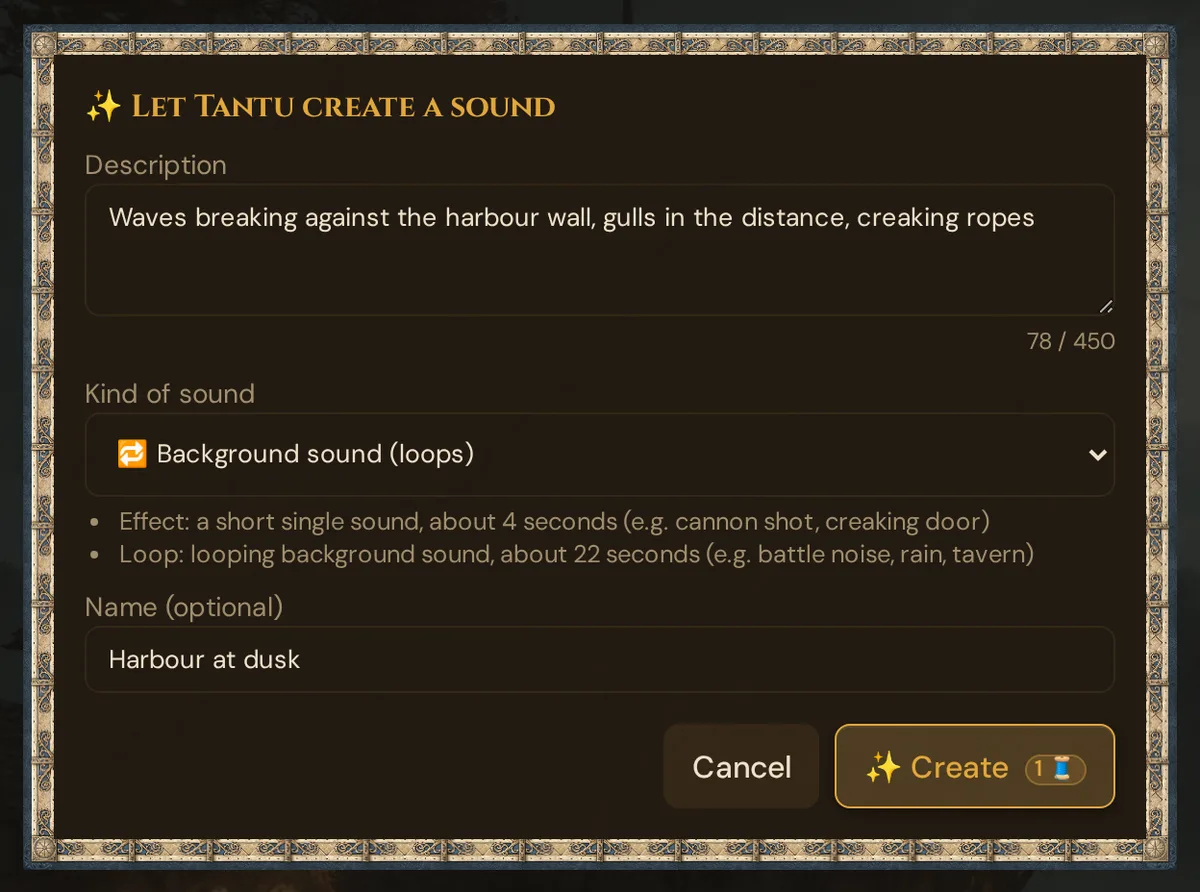
- Description — describe what should be heard, up to 450 characters. Any language works: before the sound is made, Tantu turns your description into a short English prompt for the sound model. If that step fails, your own text is used.
- Kind of sound — the dialog explains the two kinds:
- 💥 Effect (plays once) — a short single sound, about 4 seconds, for example a cannon shot or a creaking door.
- 🔁 Background sound (loops) — about 22 seconds that loop seamlessly, for example battle noise, rain or a tavern.
- Name (optional) — without a name, the start of the description is used.
- Click ✨ Create. The button shows the price (1 🧵); a confirmation with your balance appears before anything is spent.
The new sound appears at the top of the 🔊 Sounds shelf with the badge Created by Tantu. It belongs to the open campaign, and you can also pick it in every scene's 🔊 Sound list under AI sounds.
Cost: 1 Thread per sound — also with your own AI key, because sound always runs on Wovenkeep's sound service. If creating the sound fails, the Thread is refunded. You need about 5 MB of free storage; otherwise nothing is created and nothing is charged. More on Threads: Threads & costs.
Media of deleted campaigns
Deleting a campaign does not delete its media. You find them on the Media page under Without campaign, or under All campaigns with the badge ⚠ Campaign deleted. Use 📁 Campaign to give them a new home — or delete them.
Storage bar
The bar at the top of the page shows how much of your Realm's storage is used — all campaigns together, for example 3.5 MB of 5.00 GB used (0%). It turns amber at 70 % and red at 90 %. A line below it shows what is waiting in the trash; media there don't count. From 70 %, More Storage (50 Threads = +500 MB) buys a permanent +500 MB pack; up to +5 GB can be added this way. Details: Storage & files.
Plan limits
Storage quota by plan:
| Plan | Storage |
|---|---|
| Adventurer (Free) | 100 MB |
| Game Master (Starter) | 1 GB |
| Storyteller | 5 GB |
| Guild Master | 20 GB |
The quota is per Realm — all campaigns share it.
You can expand storage beyond your plan's base quota by purchasing +500 MB packs (50 Threads each, up to +5 GB total).
See Threads & costs for how Threads work and how to earn or buy them.
Troubleshooting
| Symptom | Cause | Fix |
|---|---|---|
| A picture or sound doesn't show | Another shelf or campaign button is selected | Check the shelf, choose All campaigns, or search by name |
| No 🔊 Play at the table button | No session is running | Start the session in 🎮 Live; ▶ Listen works anytime |
| A card shows ⚠ File missing | The file of this entry is gone | Remove the entry in 🧹 Clean up below Everything by size; upload the file again if you still need it |
| “…” can't be uploaded. Allowed: .jpg .jpeg .png .webp .gif .mp3 .ogg .wav. | The file is neither an allowed image nor an allowed sound | Upload JPG, PNG, WebP or GIF images and MP3, WAV or OGG sounds |
| “…” is too large (max. 5 MB). (or 30 MB) | The image is larger than 5 MB, or the sound larger than 30 MB | Shrink or compress the file, then upload it again |
| A picture is missing in 🗂️ Choose from media | It belongs to another campaign | Switch to All campaigns, or search by name |
| Upload rejected with "storage full" | Quota reached | Delete unused files or buy a storage pack (50 Threads) |
| ✨ Create reports Too many requests – please wait a moment. | More than 10 sound requests within a minute | Wait a moment, then try again |
| A sound is not created | Not enough Threads, or less than about 5 MB free storage | Top up Threads, or free up storage first |
| Deleted something by mistake | Deleting moves media to the trash | 🗑️ Trash → Media → ↩️ Restore (within 30 days) |
| An included sound can't be deleted | Included sounds belong to Wovenkeep | Nothing to do — they don't count against your storage |
Related articles
- 💾 Storage & files — Everything by size, trash and clean-up
- 🎵 Sound & ambient — the live Sound Browser and sound on the TV
- 🎬 Scenes (prep) — choosing a scene's sound
- 🖼️ Scene push — push images to player devices
- ⚒️ Suggestions: items, monsters, images, sound — all suggestions from Tantu
- 💰 Threads & costs — storage packs, Thread costs, plan storage limits