🕸️ Story Web
👤 For: Game Masters · 💳 Plan: All plans · 🧵 Story generation 4 · 🔄 Updated 2026-10-17
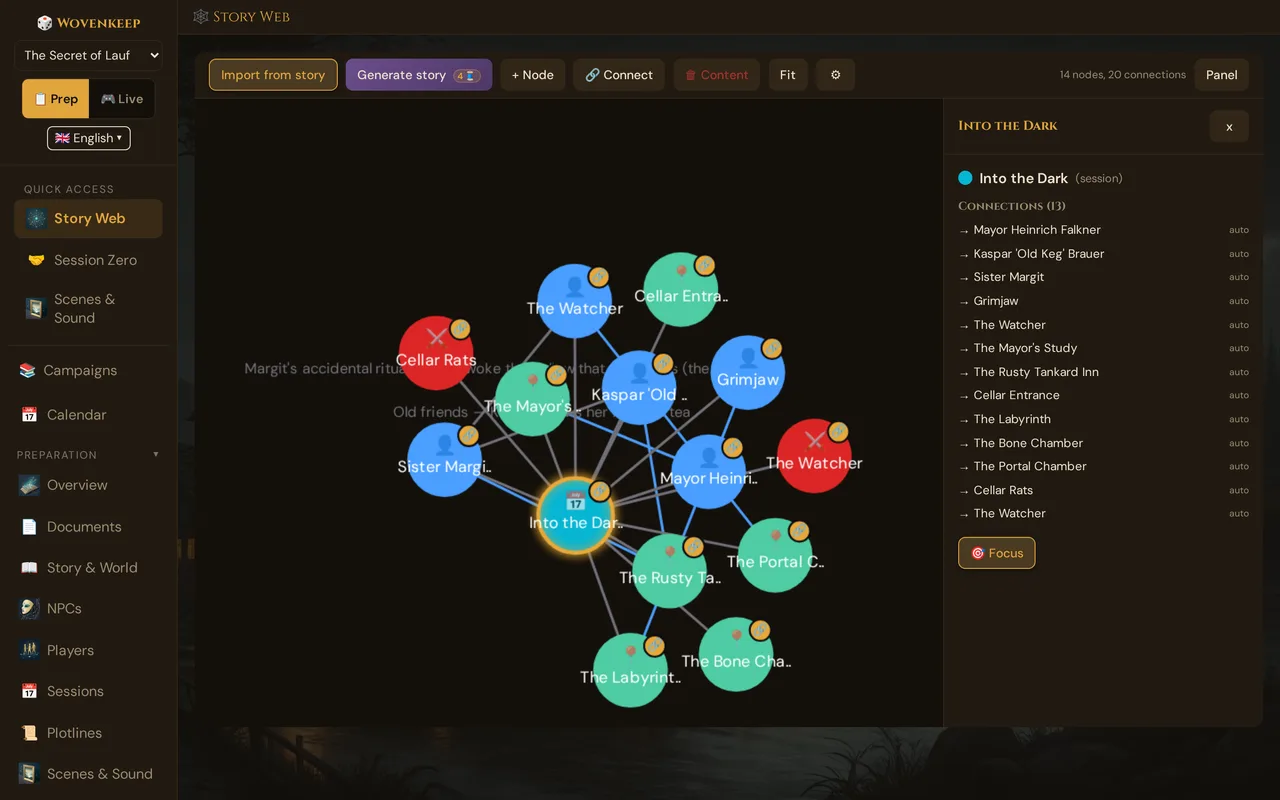
The Story Web is a live visual graph of everything connected in your campaign. Every NPC, location, faction, scene, plotline, and item is a node; every relationship is an edge. New links you create elsewhere in Wovenkeep appear here automatically — no re-import needed.
What it does
The Story Web derives its graph live from the connections you build across the tool — NPC relationships, plotline links, scene references, and more. Manually added nodes and edges overlay the derived graph. Switch between a focused Local view (the immediate neighbourhood of one entity) and the Full graph to keep large campaigns manageable.
When to use it
- You want to see at a glance who is connected to whom before a session
- You are planning a faction conflict and need to spot missing links
- A player asks "who do we know in this city?" and you want to quickly map it
- You need to navigate from a character to a related scene without losing your place
Step by step
- Open Story Web from the sidebar (in the Story & Tantu group) — it opens embedded in the GM tool, using your current campaign.
- Prefer a full screen? A standalone version lives at
/gm/story-web.html(the embedded view links to it on small screens). The standalone page has a campaign dropdown in the toolbar. - The graph loads automatically in Local view — centred on the most-connected node in your campaign.
- Click any node to open its details panel on the right.
- Use 🎯 Focus in the details panel to make that node the centre of the Local view.
- On the standalone page, switch to Full graph in the toolbar to see every node at once.
💡 Tip: Double-click an empty area of the canvas to create a new node directly, without opening the toolbar dialog.
The interface
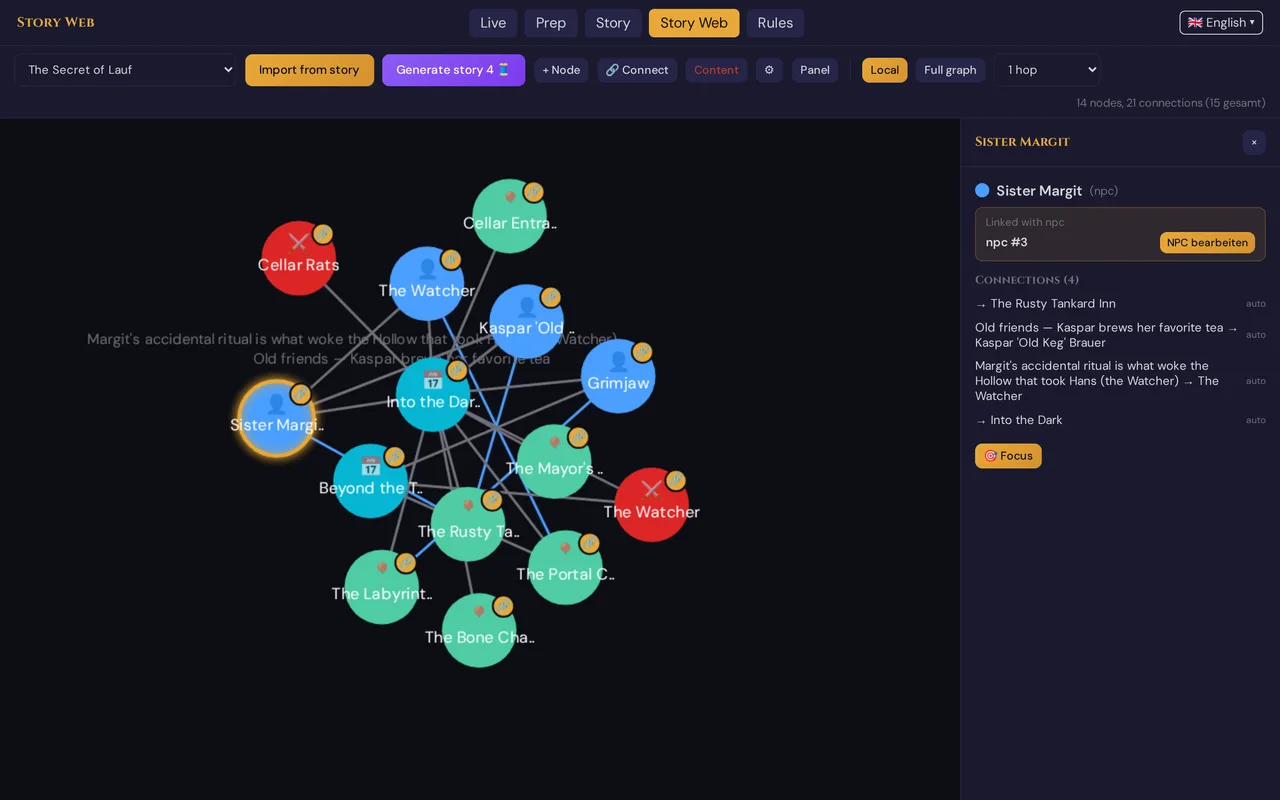
The canvas takes up most of the page. The toolbar at the top has the main actions. The side panel (toggled with Panel) shows details of the selected node or edge.
Local view vs. Full graph
| Mode | What you see | Best for |
|---|---|---|
| Local | Nodes within 1–2 hops of the focus node | Large campaigns, session prep |
| Full graph | Every node in the campaign | Small campaigns, overview |
Switch with the Local / Full graph buttons in the toolbar of the standalone page (/gm/story-web.html). Use the 1 hop / 2 hops selector to adjust how far the Local view reaches. The embedded view in the GM tool opens in Local view — use 🎯 Focus to navigate, or open the standalone page for the Full-graph toggle.
Changing focus: click any node → in the details panel click 🎯 Focus to make that node the centre of the Local view.
Deep links: the 🔗 Links panel of NPCs, locations, plotlines, clues and scenes has a 🕸 Show in web button. Clicking it opens the Story Web in a new browser tab with that entity already in focus — the GM tool stays where you were.
Live derivation — connections appear automatically
When you link entities elsewhere in Wovenkeep (add an NPC to a scene, connect two plotlines, link a clue to an NPC or a scene) those connections appear in the Story Web immediately on the next load. You do not need to re-import. Clues you linked appear as 🔍 nodes.
Acts and chapters are the exception: they enter the web only through Import from story — with part of edges from chapter to act and from scene to chapter — and are not updated afterwards. If you rename or regroup them later, the web keeps the imported state.
Automatically derived edges are labelled auto in the details panel and cannot be deleted directly — they reflect your actual campaign data. Manual edges (ones you draw yourself) show a delete button.
Importing from your campaign
Click Import from story to add nodes for entities that are not yet in the web.
A dialog lets you choose which categories to import:
☑ NPCs              ☑ Scenes        ☑ Locations
☑ Acts              ☑ Chapters      ☑ Plotlines
☑ Foreshadowing     ☑ Encounters    ☑ Handouts
☑ Sessions          ☑ Player characters
☑ Items             ☑ Monsters
All thirteen are ticked to begin with. Pick a layout under Position — Tree (hierarchical) or Grid — and click Import. Existing nodes are not duplicated; in the tree, acts form the first row and chapters the second.
Node types
Fifteen default types are available. The colour and icon are shown on the canvas:
| Type | Color | Icon | Typical use |
|---|---|---|---|
| NPC | Blue | 👤 | Non-player character |
| Location | Teal | 📍 | City, dungeon, region |
| Faction | Amber | ⚔️ | Guild, army, cult |
| Item | Red | 💎 | Artifact, key object |
| Event | Purple | ⚡ | Battle, ritual, betrayal |
| Plotline | Purple | 📜 | A story thread |
| Hint | Amber | 🔍 | Foreshadowing or clue |
| Act | Red | 🎭 | Story act |
| Chapter | Orange | 📖 | Chapter within an act |
| Session | Cyan | 📅 | A played session |
| Encounter | Dark red | ⚔️ | Combat or skill challenge |
| Handout | Green | 📝 | Document given to players |
| PC | Blue | 🧙 | A player character |
| Monster | Dark red | 🐲 | Custom or SRD creature |
| Custom | Gray | 🔮 | Anything else |
You can also create your own types — see Custom types.
Edge types
Nine default edge types are available:
| Type | Color | Meaning |
|---|---|---|
| Connection | Gray | Generic relationship |
| Ally | Teal | Friendly bond |
| Enemy | Red | Hostile relationship |
| Family | Amber | Blood or marriage tie |
| Location Link | Teal | "X is at location Y" |
| Quest Link | Purple | Related to a plotline |
| Part of | Gray | Structural hierarchy |
| Appears in | Blue | Entity appears in an entity |
| Foreshadowing | Amber | Narrative foreshadowing |
Adding nodes
Import from campaign (recommended)
Click Import from story and select the categories to import. Existing nodes are skipped.
Manually — + Node
Click + Node. A form opens in the side panel:
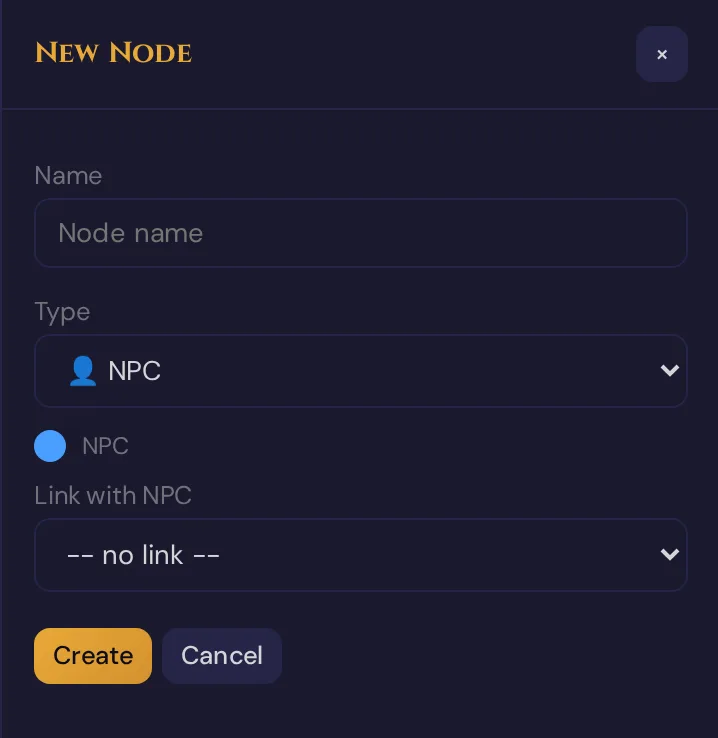
The node appears at the canvas centre. Drag it to position.
When you create an NPC or Location node, you can link it directly to an existing NPC or scene from the dropdown — this creates a live entity link so changes are reflected automatically.
Adding edges
Click 🔗 Connect to enter connect mode — the button highlights to show it is active.
In connect mode:
- Click a source node
- Click a target node
- A form opens in the side panel — pick the edge type and an optional label
- Click Save
To exit connect mode, press Escape or click 🔗 Connect again.
You can also Shift + drag from any node to start a connection without switching modes.
Editing and deleting
| Action | How |
|---|---|
| Open node details | Single-click a node |
| Edit node (name, type, notes) | Double-click a node, or single-click → Edit in panel |
| Reposition node | Drag |
| Delete manual node | Right-click → Delete, or single-click → Delete in panel |
| Delete manual edge | Click the edge → Delete in panel |
| Clear all content | 🗑 Content in toolbar (confirmation required; custom type definitions are kept) |
Note: Derived nodes (auto-generated from campaign entities) cannot be deleted from the Story Web. Remove the underlying link in the entity itself.
All edits save automatically.
The side panel
Toggle with Panel in the toolbar.
Node selected:
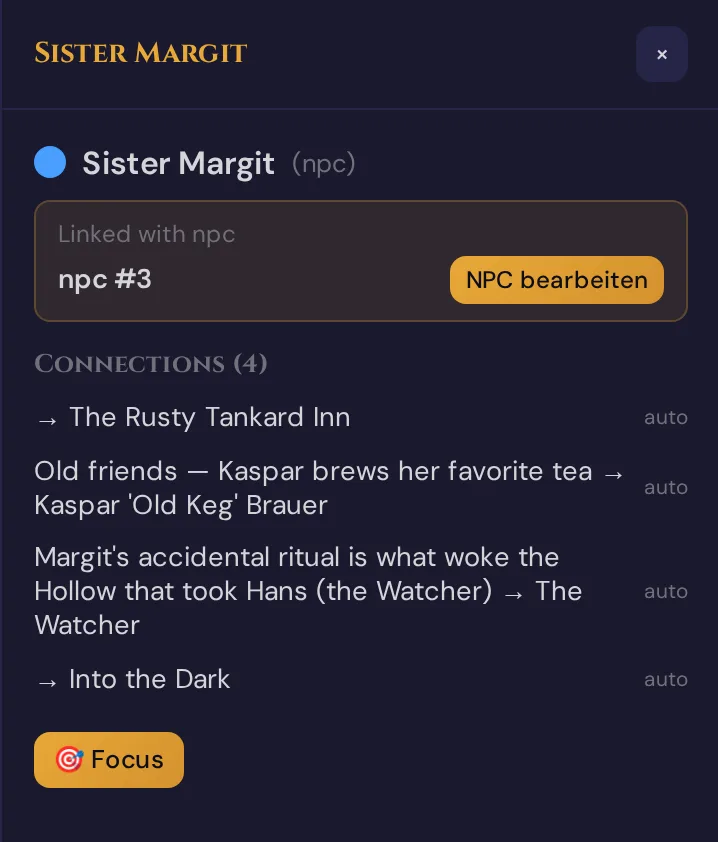
Derived edges show auto — they cannot be deleted here. Manual edges show [x].
The NPC bearbeiten / Szene öffnen quick-link jumps directly to that entity's editor.
Custom types
Click ⚙ in the toolbar to open Type Settings.
Node types tab
Add a new type with + Type (key, label, color, icon). Existing nodes can be re-assigned to new types.
Edge types tab
Same structure for edge styles (line color, label). Custom edge types appear alongside the defaults when you draw a connection.
Navigation and layout
| Control | Action |
|---|---|
| Fit button in the toolbar | Auto-scales view to show all visible nodes |
| Pan | Click-drag on empty canvas |
| Zoom | Scroll wheel |
| D3 force layout | Runs automatically; connected nodes drift together |
| Manual position | Drag any node to pin it; others adjust around it |
Performance notes
- D3 force simulation runs smoothly up to ~100 nodes in view
- 100–300 nodes: noticeable but tolerable
- 300+ nodes: layout may stutter on every drag
For large campaigns, stay in Local view with 1 Hop to keep the visible node count low. Use 🎯 Focus to navigate session-by-session rather than loading the full graph.
When to use the Story Web
| Use case | Effectiveness |
|---|---|
| Tracking relationships in a 5-NPC campaign | Low — overkill |
| Tracking relationships in a 25-NPC campaign | High — essential |
| Visualising a faction war (three factions) | High |
| Planning a heist with many connected NPCs | High |
| Navigating from one entity to related entities | High (use Local view + 🎯 Focus) |
| Session-by-session story planning | Low — use Story Coach instead |
Troubleshooting
| Symptom | Cause | Fix |
|---|---|---|
| A connection I made elsewhere isn't showing | Graph not reloaded | Re-select the campaign from the dropdown (standalone page), or leave and reopen the Story Web section (embedded) |
| Node appears but has no edges | Entity was imported but not linked anywhere | Link it via the entity's detail page; the edge appears automatically |
| "Derived nodes cannot be deleted" toast | You tried to delete a derived (auto) node | Remove the underlying link in the NPC, scene, or entity itself |
| Canvas is blank after switching campaigns | D3 simulation is running; large graph takes a moment | Wait 2–3 seconds; use Fit if nodes are off-screen |
| Local view shows only one node | Focus node has no edges yet | Draw a connection, or switch to Full graph to see all nodes |
Optional: Story suggestion from your web (AI)
Everything above works without AI. If you like, the Generate story button turns your web into narrative material. It sends your current nodes and edges to Tantu and returns, in the side panel:
- a story summary weaving your connected entities into a coherent narrative,
- a list of plot ideas based on the relationships in the graph,
- suggested nodes — entities that are missing according to Tantu, each with a reason and a + Hinzufügen button that adds it to the web in one click.
Tantu answers with the help of AI. You need at least 2 nodes in the web before generating. The button carries a 4 🧵 badge (long text action; 0 🧵 with your own AI key), and a confirm dialog with cost and balance appears before anything is spent. The voice you set in 🪶 Tantu: name & voice shapes the result.
Related articles
- 👤 NPCs — the primary source of NPC nodes
- 📜 Plotlines — plotline nodes appear automatically when linked
- 📖 Story Coach — analysis of your campaign for narrative prep (AI)
- 🪶 Tantu: name & voice — name and tone of Tantu for Generate story
- 💎 Threads & costs — what optional AI help costs