🎭 Scene cast
👤 For: Game Masters · 💳 Plan: All plans · 🧵 image 5 · sound 1 · conversation 1 · 🔄 Updated 2026-10-17
A scene can have a cast of NPCs and monsters, for combat planning and an overview at the table. Optionally, Tantu suggests a conversation, an image, or an ambient sound from it (AI). This page covers those scene-editor tools in depth. For the basics of building and pushing scenes, see Scenes (prep).
What it does
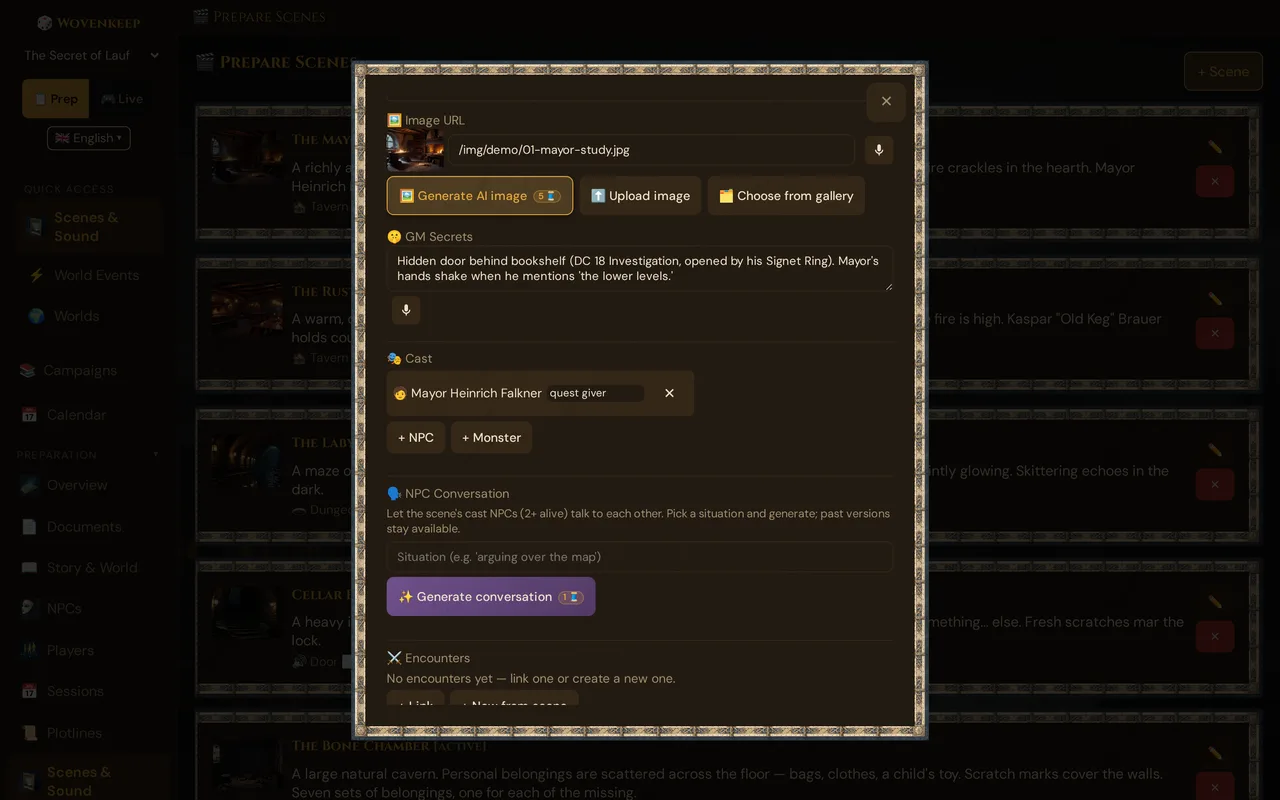
Open a saved scene with ✏️ and you get these panels the create form doesn't show:
- 🎭 Cast — assign campaign NPCs (with a role label) and monsters (your custom ones or any of the SRD's 471 monsters) to the scene.
- ⚔️ Encounters — plan combat directly from the scene (covered on Scenes (prep) and Encounters).
- 🗣️ NPC Conversation (optional) — Tantu suggests an exchange between two or more cast NPCs; you push it to players.
- 🎙️ Sound by Tantu + 🖼️ Generate AI image (optional) — Tantu suggests a custom ambient track and a scene illustration, both driven by the scene's 🎭 Base setting (drives AI image & sound) field.
- 🔗 Links — connect the scene to NPCs, locations, plotlines, clues and more (see Scenes (prep)).
When to use it
Use the cast when a scene is a roleplay beat or a fight — a tense negotiation at the gate, two villains scheming, a tavern argument the party walks in on. If you like, let Tantu suggest a conversation, a bespoke image, or ambient sound for it instead of hunting for stock art or audio. Build it all once during prep, fire it during play.
Step by step
- Save a scene first (the create form only takes title, chapter, description, sound, overlay, an image — by URL, upload or from your media — GM secrets, and optional cast checkboxes).
- Click ✏️ on the scene card to open the editor.
- In 🎭 Cast, click + NPC / + Monster to assign cast members.
- Optional: fill in 🎭 Base setting (drives AI image & sound) — a short, atmospheric prompt.
- Optional: with two or more living NPCs assigned, type a situation in the 🗣️ NPC Conversation box and click ✨ Generate conversation.
- Optional: click 🖼️ Generate AI image for an illustration and 🎙️ Sound by Tantu for an ambient track. Each button shows its 🧵 price, and a confirm dialog appears before the generation runs.
💡 Tip: The base setting field is a prompt, not prose. "moss-covered stone archway at night, torchlight, fog" beats a paragraph of story text — for both the image and the sound.
The Cast panel
After saving, the 🎭 Cast section lets you build the scene's line-up:
| Action | What happens |
|---|---|
| + NPC | Search your campaign NPCs; assign one or more. Each gets an optional Role text field (e.g. "Villain", "Guide"). |
| + Monster | Two groups: your custom monsters and a live search of the SRD monster compendium (471 monsters). Each monster has a count field (default 1). |
| ✕ | Removes a cast member (does not delete the NPC/monster itself). |
You can also pre-select NPCs and custom monsters with checkboxes in the + Scene create form, then refine them in the editor afterwards.
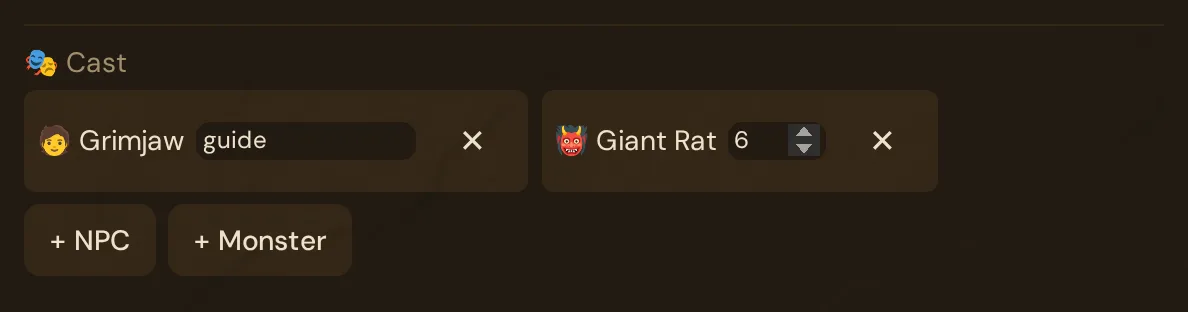
Cast members serve as an at-a-glance reminder of who is in the room when you push the scene, and feed the optional conversation suggestion.
Scene-centric encounter planning
The ⚔️ Encounters panel inside the scene editor lets you link an existing encounter, detach one, or create a fresh encounter already tied to this scene — so combat lives next to the scene it belongs to. Details are on Scenes (prep) and Encounters.
What it costs
The cast and encounter tools are free and unlimited on every plan. The optional suggestions inside a scene spend Threads — your credit for optional extras:
| Action | Threads |
|---|---|
| NPC conversation (✨ Generate conversation) | 1 per generation |
| Image (🖼️ Generate AI image) | 5 per image |
| Sound (🎙️ Sound by Tantu) | 1 per sound |
All three buttons show their price as a 🧵 badge, and a confirm dialog with the cost, your current balance, and the balance after appears before the action fires.
Bring your own AI key and text actions like the NPC Conversation cost 0 🧵 — images are free only with your own Google Gemini key; sound always costs Threads. There is no per-feature plan wall — everything here works on the free Adventurer plan as long as you have Threads. New accounts start with free Threads; you can earn or buy more. See Threads & costs.
Troubleshooting
| Symptom | Cause | Fix |
|---|---|---|
| Cast / Conversation / image and sound buttons are missing | These panels only appear in the edit view, not the create form | Save the scene, then open it with ✏️ |
| "At least 2 living NPCs in the scene cast are required." when generating dialogue | Fewer than two cast NPCs are marked alive | Add a second NPC to the cast, or set a cast NPC's status back to alive on its NPC page |
| A suggestion spins, then reports insufficient balance | No Threads left | Top up or earn Threads; with your own AI key, text actions cost 0 🧵 (images are free only with your own Google Gemini key; sound always costs Threads) |
| 🎙️ Sound by Tantu reports Sound generation is not set up on this instance — please contact the operator. | The Wovenkeep sound service isn't available on this instance | Use a sound preset or upload your own audio; contact the operator |
| 🖼️ Image fails with "storage full" | Realm storage quota reached | Free space in Storage & files or buy a +500 MB pack |
| SRD monster doesn't appear in the picker | Search needs at least 2 characters | Type more of the monster's name |
Optional: Suggestions from Tantu (AI)
Everything above works without AI. If you like, Tantu suggests a conversation, an image, or an ambient sound for the scene, with the help of AI. Each suggestion costs Threads (see What it costs), and nothing reaches your players until you push it.
NPC conversation
If the scene has at least two living NPCs in its cast, the 🗣️ NPC Conversation panel can suggest a short scripted exchange between them.
- Type the situation or context (optional — it falls back to the scene's description, then title).
- Click ✨ Generate conversation.
- Tantu suggests a multi-line dialogue (typically 4–8 lines, each attributed to one cast NPC, each with a mood).
- Previous generations are kept in a History dropdown — restore and reuse any earlier version.
Only NPCs marked alive count toward the two-NPC minimum. A dead NPC stays in the cast list but is skipped by the conversation suggestion.
The generated dialogue isn't sent to players automatically — you read it, optionally edit it, and then push it as a dialogue sequence during the live session (players see each line play out one speaker at a time). See NPC dialogue suggestions for the live-push side.
💡 Tip: Give your NPCs a personality, motivation, and secret on the NPC page first. Tantu uses those fields, so richer NPCs produce sharper dialogue.
Image (🖼️ Generate AI image)
The 🖼️ Generate AI image button asks Tantu for a wide, establishing scene illustration:
- The prompt is built from the scene's base setting (falling back to the description).
- The image is saved automatically as the scene's image and pushes for free during a live session — you don't pay again to show it.
- Image suggestions need an image provider (the platform default, or your own key).
Sound (🎙️ Sound by Tantu)
The 🎙️ Sound by Tantu button asks Tantu for a custom ambient track for the scene:
- Same prompt source as the image (base setting → description → title).
- The text may be in any language: Tantu first turns it into a short English prompt for the sound model. If that step fails, your own text is used.
- The result becomes the scene's sound: it is selected in the scene's 🔊 Sound list under AI sounds and plays instead of a soundscape when you push the scene.
- You can instead pick from that same list — a soundscape, one of Your sounds or an earlier AI sounds entry (reusing one is free — no Thread is spent) — or add your own file with ⬆️ Upload sound. See Scenes (prep).
💡 Tip: Sound suggestions run on a Wovenkeep service — you don't need a key of your own in your Realm. If the button reports Sound generation is not set up on this instance — please contact the operator., use a built-in preset or upload your own audio instead.
Related articles
- 🎬 Scenes (prep) — building and pushing scene cards
- 👤 NPCs — create the NPCs you assign to a cast
- 💬 NPC dialogue suggestions — pushing dialogue sequences to players
- ⚒️ Suggestions: items, monsters, images, sound — all image and sound suggestions
- ⚔️ Encounters — plan combat linked to a scene
- 🧵 Threads & costs — your credit for optional extras