🎬 Scenes (prep)
👤 For: Game Masters · 💳 Plan: All plans · 🔄 Updated 2026-10-17
A scene is a pre-built card with title, description, image, sound, and overlay that you push to player phones with one click during a live session. Pre-building scenes is one of the biggest time-savers in Wovenkeep — instead of typing during the session, you click.
This page covers the prep side (building scenes). For pushing them live, see Scene push.
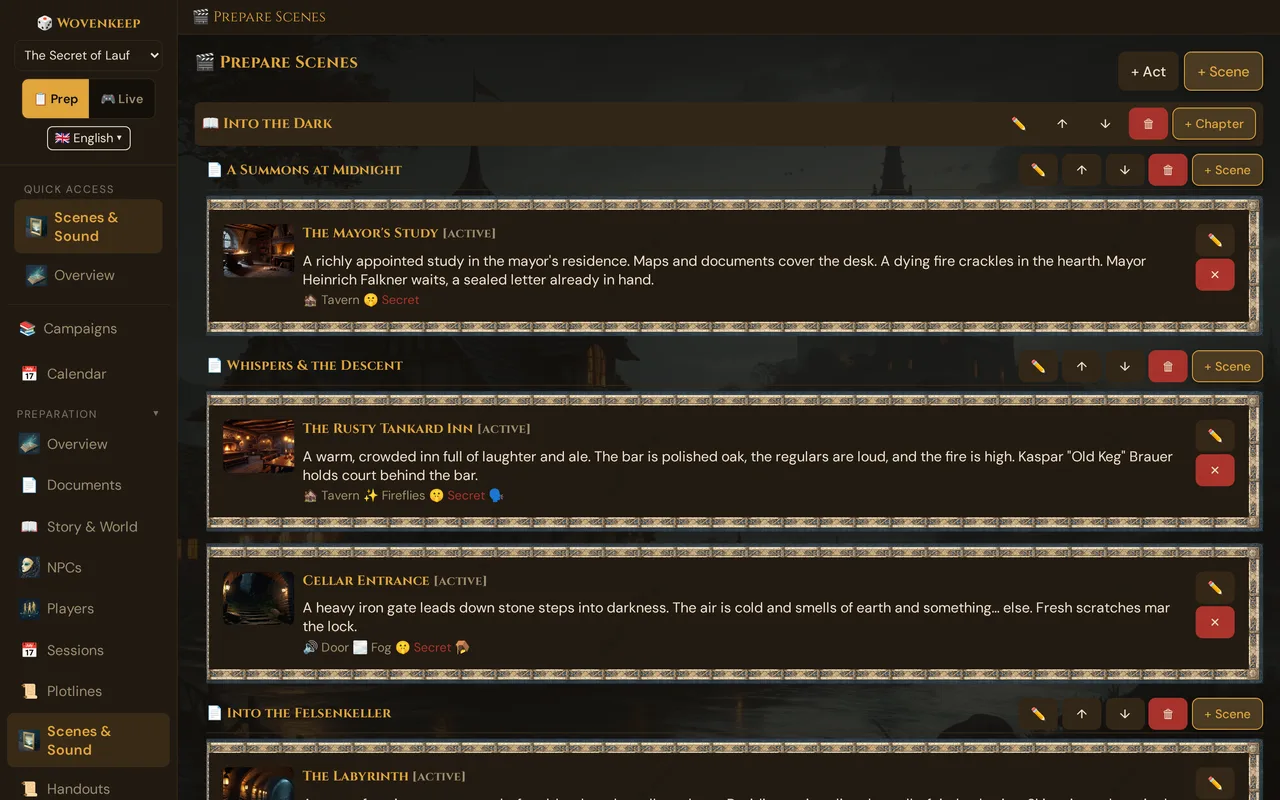
What it does
Each scene packages everything players see and hear into a single card. When you push it, the image fills their phone, the ambient sound starts, and the overlay effect kicks in — all in one tap. GM Secrets stay private. The scene card persists until you push the next one or clear it.
When to use it
Use scene prep whenever you already know which locations, reveals, or dramatic moments are coming. Prep the cards during the week; fire them during play without breaking flow.
Step by step
- Open the sidebar and click 🎬 Scenes & Sound (under Preparation).
- Click + Scene — or + Scene on a chapter, to put the new scene straight into it (see Acts and chapters).
- Fill in Title (required — left empty, the form shows Enter a title! right below it), then 📖 Chapter, Description, Sound, Overlay, Image URL, and GM Secrets as needed. Below Image URL, ⬆️ Upload image and 🗂️ Choose from media add a picture, with a preview.
- Optionally check NPCs or custom monsters in the Cast section at the bottom to assign them to the scene.
- Click 🎬 Save Scene. The scene appears in the list immediately.
- To expand and edit a saved scene, click the ✏️ button on its card.
💡 Tip: Write the Description like a read-aloud passage — sensory detail, present tense, 2–4 sentences. That text appears verbatim on player phones.
The scene list
Each scene renders as a card:
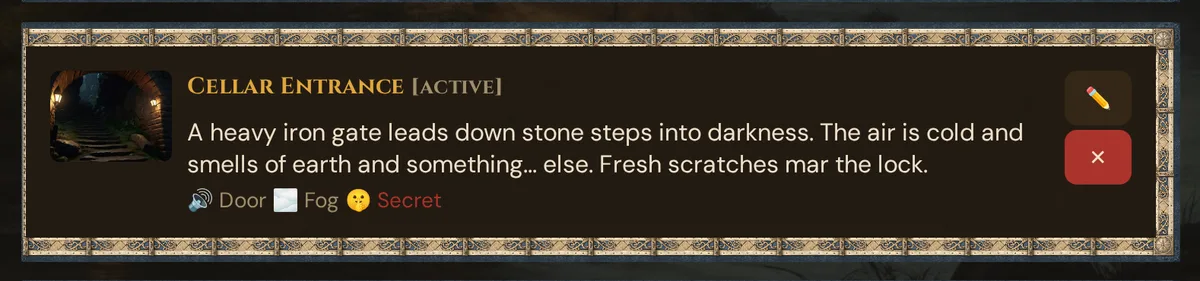
The status follows the title in brackets: planned, active or used. A scene becomes used once you push it, and its left border turns grey. Below the description you see the sound and the overlay, 🤫 Secret if the scene has GM secrets (the text itself stays in the editor), and the icons of its linked encounters — ⚔️ combat, 🗣️ social, 🧭 exploration, 🪤 trap, 🧩 puzzle. A ⚡ after ⚔️ marks a fight that starts automatically when you push the scene (⚡ Auto-Start).
Acts and chapters
Acts and chapters are optional. Use them to group a longer adventure: an act holds chapters, a chapter holds scenes. A scene belongs to one chapter or to none.
- + Act (top right, next to + Scene) adds an act at the end. Each act has ✏️ (rename), ↑ / ↓ (move) and 🗑, and + Chapter to add a chapter at its end.
- Each chapter, indented below its act, has ✏️, ↑ / ↓, 🗑 and + Scene — which opens Prepare New Scene with this chapter already chosen.
- New acts and chapters, and new names, are typed into a small window with Title *, Save and Cancel; Enter saves too.
- The chapter window also has 📖 Act. Pick another act to move the chapter there: it goes to the end of that act, with all its scenes. With + Chapter, the same list lets you create the chapter in another act right away.
- ↑ / ↓ move an act among the acts, or a chapter within its act. Scenes can't be reordered in the list.
- To move a scene to another chapter, open it with ✏️ and pick a different 📖 Chapter. The choice is saved at once; the list catches up when you click Close.
- 🗑 on an act asks Move act “…” to the trash (30 days)? It contains … chapters and … scenes. Scenes are kept; restoring puts them back into their chapters. — on a chapter, likewise; confirm with OK. The act (with its chapters) or the chapter waits in the 🗑️ Trash for 30 days. Its scenes keep everything they have and move to No chapter at the bottom of the list.
- ↩️ Restore in the trash brings the act or chapter back and puts its scenes back in — unless you gave a scene another chapter in the meantime. A chapter whose act is in the trash too can only come back after the act: Restore the act first, then the chapter.
- Without any act, the list stays flat as before, with the note Acts and chapters are optional. Use “+ Act” to group your scenes.
In 🎮 Live, the card 📋 Prepared scenes groups your scenes by act and chapter as well — see Scene push. The Tension Arc lists the scenes in the same order. Players never see acts or chapters.
Creating a scene
The + Scene form (fields in order):
| Field | Required | What it does |
|---|---|---|
| Title | Yes | The scene heading shown on player phones. Left empty, the form shows Enter a title! below the field |
| 📖 Chapter | Optional | The chapter the scene belongs to, or — none —. Shown only once an act has a chapter |
| Description | Recommended | The read-aloud body. Shown on player phones. |
| Sound | Optional | A soundscape, one of your own sounds or an AI sound — starts automatically when the scene is pushed (see Choosing the sound) |
| Overlay | Optional | Particle effect layered over the scene image |
| Image URL | Optional | Full-bleed background image on player phones. Below the field: ⬆️ Upload image and 🗂️ Choose from media, with a preview — the picture is saved with 🎬 Save Scene |
| GM Secrets | Optional | Private notes — never sent to player phones |
| Cast (NPCs / monsters) | Optional | Assign campaign NPCs or custom monsters to this scene |
Editing a scene
Click ✏️ on any scene card. The edit panel has all the same fields plus additional panels that are only available after the scene is saved:
- 🎭 Base setting (drives AI image & sound) — a short mood description of the scene (your cheat sheet; optionally also the basis for image and sound suggestions, described below)
- Cast panel — manage NPCs and monsters
- NPC Conversation panel — optionally have a conversation between cast NPCs suggested (AI)
- Encounters panel — link or create encounters tied to this scene
- Clocks panel — attach World Clocks to this scene
- 🔗 Links — link the scene to NPCs, locations, plotlines, clues, player characters and more with + Link; 🕸 Show in web opens the Story Web in a new tab
All text fields autosave; a sound you pick in the 🔊 Sound list, a picture and a new 📖 Chapter are saved right away.
- The title stays required. If you empty it, nothing is saved — the old title stays, and the status line at the bottom of the window, next to Close, shows ⚠ Please enter a title.
- Changed somewhere else? If the same scene was changed in another tab or on another device since you opened it, Wovenkeep doesn't overwrite it. The status line shows ⚠ Changed in another window: … with the other value: Use theirs puts that value into the field, Save mine saves yours over it. This covers title, chapter, description, base setting, overlay and GM secrets — see Autosave.
Choosing the sound
Prepare New Scene and Edit Scene use the same 🔊 Sound list with three groups:
| Group | What's in it |
|---|---|
| Soundscapes | The built-in background sounds (table below) |
| Your sounds | Sound files you uploaded — for example here or on the Media page |
| AI sounds | Sounds Tantu made — for your scenes and encounters or on the Media page; reusing one costs no Threads |
- — No Sound — keeps the scene silent.
- The search field above the list filters all three groups by name.
- ▶ plays the selected sound locally, for you only — soundscapes, your own sounds and AI sounds alike.
- 🗂️ Choose from media opens 🗂️ Choose a sound from media with your sounds and music: ▶ plays a sound for you only, a click picks it. There you can also upload a file or let Tantu create a background sound (1 Thread); ✕ Remove sets — No Sound —. See Choose from media. The included soundscapes appear in that dialog only under All campaigns.
- ⬆️ Upload sound adds a file right from the list:
.mp3,.oggor.wav, up to 30 MB. The new sound appears under Your sounds and is selected straight away. It keeps its file name: Thunder.wav is listed as Thunder (spaces, accented letters and other special characters become_). - In Prepare New Scene, 🎬 Save Scene saves your choice — an uploaded or AI sound, too. In Edit Scene, every change is saved right away.
| Soundscape | Mood |
|---|---|
| 🍺 Tavern | Crowd murmur, lute, clinking plates |
| 🌲 Forest | Birds, wind, distant streams |
| 🕯️ Dungeon | Dripping water, distant echoes |
| ⚔️ Battle | Drums, distant clashing |
| 🌧️ Rain | Steady rain on stone |
When the scene is pushed live, the chosen sound starts automatically — you don't have to remember to trigger the ambient separately.
Overlay options
Particle effect layered on top of the scene image:
None / 🌧️ Rain / ❄️ Snow / 🌫️ Fog / 🔥 Embers / ✨ Fireflies
The overlay persists after the scene is pushed until you push a new scene or clear it with the ⏹ overlay button in the live view.
Image options
In the create form: paste an HTTPS image URL into Image URL, or use ⬆️ Upload image or 🗂️ Choose from media below it. The dialog uploads or picks a picture, or ✕ Removes it — it doesn't offer an image from Tantu here. The picture is saved with 🎬 Save Scene.
In the edit panel: below the Image URL field you find three buttons and a preview:
- 🖼️ Generate AI image — Tantu suggests an image for the scene (AI), based on the Base setting field (falling back to the description). 5 Threads.
- ⬆️ Upload image — a JPG, PNG, WebP or GIF of up to 5 MB from your device.
- 🗂️ Choose from media — pick one of your pictures or portraits. The dialog can upload a new picture (also by dragging it onto the dialog), create one with Tantu like 🖼️ Generate AI image, or ✕ Remove the scene's image. See Choose from media.
Every new image is saved with the scene at once.
💡 Tip: Fill in Base setting before clicking 🖼️ Generate AI image. A concise atmospheric description like "moss-covered stone archway at night, torchlight, fantasy" produces sharper results than a story-prose description.
GM Secrets
The "what the players don't know" part of the scene. Examples:
- The hooded NPC is actually Captain Morr in disguise — only revealed if PCs roll Insight 15+
- Behind the painting is a hidden compartment with a letter
- The bartender will react badly to mentions of the Black Sun
GM Secrets are never sent to player phones. They appear only in your own scene card as an at-the-table reminder.
Base setting
The 🎭 Base setting (drives AI image & sound) field (visible in the edit panel, not in the create form) is a short mood description of the scene — your cheat sheet for setting the atmosphere at the table. Players never see it.
Optionally, Tantu also uses it as the basis for these suggestions:
- 🖼️ Generate AI image — suggests a scene image (AI)
- 🎙️ Sound by Tantu — suggests a matching ambient sound (AI)
If the base setting is empty, Tantu uses the scene's description instead. Keep the base setting brief and atmospheric — a few vivid keywords, not prose. Any language works: for the sound, Tantu first turns the text into a short English prompt.
A sound from 🎙️ Sound by Tantu lands in the scene's 🔊 Sound list under AI sounds and is selected right away. Your own files and all earlier sounds are in the same list — see Choosing the sound.
Cast panel
After saving a scene, open it in the edit panel to see the 🎭 Cast section. Here you can:
- Add an NPC — search your campaign NPCs and assign one or more, each with an optional Role label (e.g. "Villain", "Guide")
- Add a monster — pick from your custom monsters or search the SRD's 471 monsters
- Remove any cast member with ✕
Cast members assigned to a scene are a useful at-a-glance reminder during live play, and they are available to the optional NPC Conversation panel (see below).
Encounters panel
The ⚔️ Encounters panel inside the edit view lets you:
- See all encounters already linked to this scene — each with its type icon; combat encounters also show difficulty and XP
- Link an existing encounter (picks from encounters with no scene yet)
- Unlink an encounter (detaches it without deleting it)
- + New encounter from scene — create a fresh encounter pre-tied to this scene
Linking keeps your scene and its combat organised in the same place without switching tabs.
Clocks panel
World Clocks (countdown timers representing pressure, doomsday countdowns, event triggers) can be embedded in a scene via the Clocks panel at the bottom of the edit view. This lets you start or check a clock at the same moment you push the scene.
Linking scenes to sessions
In a session's edit view (Sessions) you can link a scene to that session. Linked scenes appear as connections of the session in the Story Web; the live view still lists all your prepared scenes, grouped by act and chapter.
Linking scenes to plotlines
If a scene is the payoff of a plotline — the BBEG reveal, the dramatic finale — link it from the plotline's edit view. That keeps setup and payoff connected; the optional Story Coach also reads this link when it looks at your campaign arc (AI).
What gets pushed to player phones
When you click a scene in the card 📋 Prepared scenes during a live session:
| Scene field | Pushed? | Notes |
|---|---|---|
| Title | ✅ Yes | Heading on the phone card |
| Description | ✅ Yes | Body of the phone card |
| Image | ✅ Yes | Background of the phone card |
| Sound preset | ✅ Yes | Starts ambient on phones |
| Custom sound file | ✅ Yes | Plays instead of preset if set |
| Overlay | ✅ Yes | Triggers particle layer |
| GM Secrets | ❌ No | Stripped before anything reaches players |
| Base setting | ❌ No | GM-only mood note |
| Cast / Encounter / Clocks | ❌ No | GM tools only |
| Act / chapter | ❌ No | Only for your overview |
Scene reuse
A prepared scene can be pushed multiple times in the same or different sessions. Pushing doesn't consume the scene — it's a template you can fire repeatedly. (The session log records each individual push.)
Useful for recurring locations: build The Crooked Tankard tavern once, push it whenever the party returns.
What the scene system doesn't do
- Interactive elements (clickable hotspots on the image) — not supported; push a scene then send a follow-up handout with the detail
- Video push — Coming soon; the player receiver is not yet active
- Branching scenes — no "if A push this, if B push that" automation; you choose which prepared scene to push based on player choices
- Plane-tagged scenes — scenes do not have a Plane dropdown; filtering by plane is handled through session linking
Optional: NPC conversation from Tantu (AI)
If the scene has two or more living NPCs in its cast, Tantu can suggest a short exchange between them in the 🗣️ NPC Conversation panel. Describe the situation, click ✨ Generate conversation, and read the exchange aloud or paraphrase it.
Previous conversations for this scene are stored in a History dropdown — you can restore and reuse them.
Cost: 1 Thread per generated reply. Bring your own AI key = free. See Threads & costs.
What it costs
The scene system itself is free and unlimited — you can create and push as many scenes as you like on any plan.
The optional AI help inside a scene spends Threads — your credit for optional extras:
| Action | Threads |
|---|---|
| Prepping and pushing scenes | free |
| Image suggestion (🖼️ Generate AI image) | 5 per image |
| Sound suggestion (🎙️ Sound by Tantu) | 1 per sound |
| NPC conversation (✨ Generate conversation) | 1 per reply |
Each of the three buttons shows its price as a 🧵 badge, and a confirm dialog with the cost and your balance appears before the generation runs.
With your own AI key the text action (✨ NPC Conversation) costs 0 🧵 — images are free only with your own Google Gemini key; sound always costs Threads. See Threads & costs.
Troubleshooting
| Symptom | Cause | Fix |
|---|---|---|
| Scene image doesn't appear on phones | URL is HTTP (not HTTPS) or behind a login | Use a direct HTTPS image link with no authentication |
| 🖼️ Generate AI image button is missing | Only available in the edit panel, not the create form | Save the scene first, then open it with ✏️ |
| NPC Conversation panel shows "need two NPCs" | Fewer than two NPCs with Cast status "alive" are assigned | Add a second NPC in the Cast panel |
| Image, sound or conversation button spins but returns an error | No Threads remaining, or no API key configured | Check your Thread balance or add a BYO key in Settings |
| Sound doesn't play on player phones after push | Custom sound file may still be uploading, or browser blocked autoplay | Wait a moment and push again; players can also tap the sound icon manually |
| "⚠ Only audio files: .mp3, .ogg, .wav" below the sound list | The file is not an MP3, OGG or WAV file | Convert it to one of these formats and upload it again |
| "⚠ File too large (max. 30 MB)." | The sound file is larger than 30 MB | Shorten or compress it, then upload it again |
| ⚠ Please enter a title at the bottom of the edit window | The title field is empty | Type a title — until then, the old title stays saved |
| ⚠ Changed in another window: … | The scene was changed in another tab or on another device | Use theirs takes the other value, Save mine saves yours over it |
| Restore the act first, then the chapter. in the trash | The chapter's act is in the trash, too | Restore the act first, then the chapter |
Related articles
- 🖼️ Scene push — pushing prepared scenes during a live session
- 🎵 Sound & ambient — the sound presets that pair with scenes
- ⚒️ Suggestions: items, monsters, images, sound — optional image and sound suggestions from Tantu
- 📅 Sessions — link scenes to specific sessions for filtering
- ⏱️ World Clocks — countdown timers you can attach to scenes
- ⚔️ Encounters — plan combat linked to your scenes