⛩️ Pantheon, gods & custom races
👤 For: Game Masters · 💳 Plan: All plans · 🔄 Updated 2026-10-14
Give every world its own gods and peoples. Inside a world you can build a deity pantheon — homebrew or cloned from a built-in SRD template — and define the races that live there, either as custom homebrew or adopted from the D&D SRD.
What it does
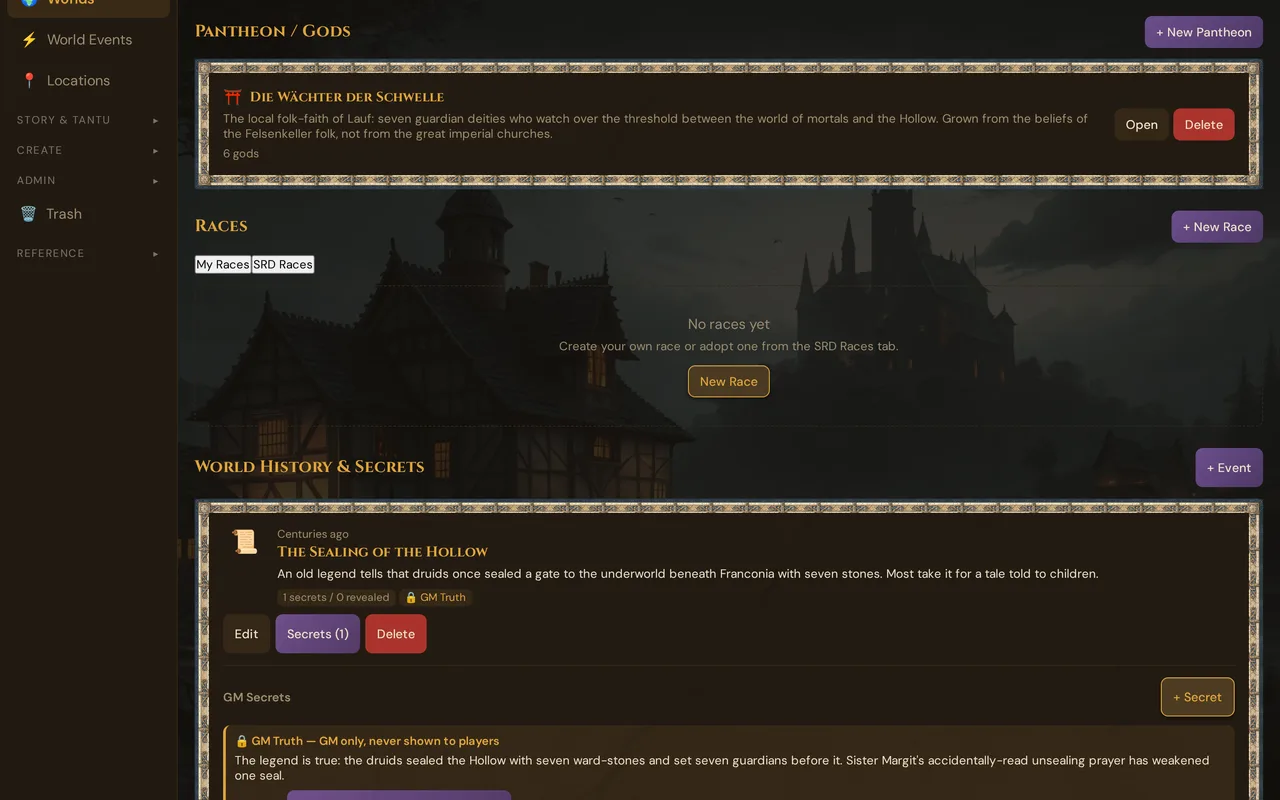
Pantheon / Gods and Races are two sections inside the world detail view. They are world-scoped lore: each world keeps its own list of pantheons (with the gods inside them) and its own list of races. Nothing here is shared automatically with another world — it belongs to the world you opened.
- Pantheons group deities. Each god carries a name, a title/portfolio, an alignment, recommended cleric domains, and a description.
- Races describe the peoples of the world — size, speed, ability bonuses, traits, and lore.
Both sections work the same way: create something of your own, or copy a licensed SRD entry as a starting point and edit it freely.
When to use it
- You're building a homebrew setting and want a custom pantheon your clerics and paladins can worship.
- You want a quick mythological pantheon (Greek, Norse, Egyptian, Celtic) without typing out every god.
- The world has non-standard peoples — a homebrew race, or you simply want to record which SRD races are native here so the table knows what they'll meet.
- You're preparing the World Events / Deicide beats and need named gods to fall (see Worlds & Planes).
You don't need this for a one-shot on a single continent — it's prep depth for worlds you'll return to.
Where to find it
Open a world from the 🌍 Worlds page (click its card or Edit). Scroll down past Planes to the Pantheon / Gods section, and below it the Races section.
Pantheon / Gods
Creating a pantheon
- In the world detail view, find Pantheon / Gods and click + New Pantheon.
- A modal opens with two tabs:
- From SRD template — clone a complete mythological pantheon, gods included.
- Custom — type a Name (e.g. Gods of the North) and an optional Description, then click Create.
- The new pantheon appears as a card showing its name, description, and god count.
💡 Tip: Adopting an SRD template gives you a full pantheon in one click — then delete the gods you don't want and add your own. Faster than starting from a blank page.
The four SRD template pantheons
The From SRD template tab offers four historical pantheons from the D&D System Reference Document 5.1. Cloning one copies the pantheon and every god inside it into your world, where they become fully editable.
| Template | Gods |
|---|---|
| Celtic Pantheon | 14 |
| Greek Pantheon | 19 |
| Egyptian Pantheon | 14 |
| Norse Pantheon | 20 |
These are the only built-in pantheons. They are licensed content (CC-BY-4.0) and carry a small license badge; the attribution stays visible even after you edit them. No setting-specific gods from licensed campaign settings are included — those are protected and not part of the SRD.
Managing gods
Click a pantheon card (or Open) to see its deity list. From here:
- + Add God — opens the deity editor.
- Edit any god to change its fields.
- Delete a god from the pantheon.
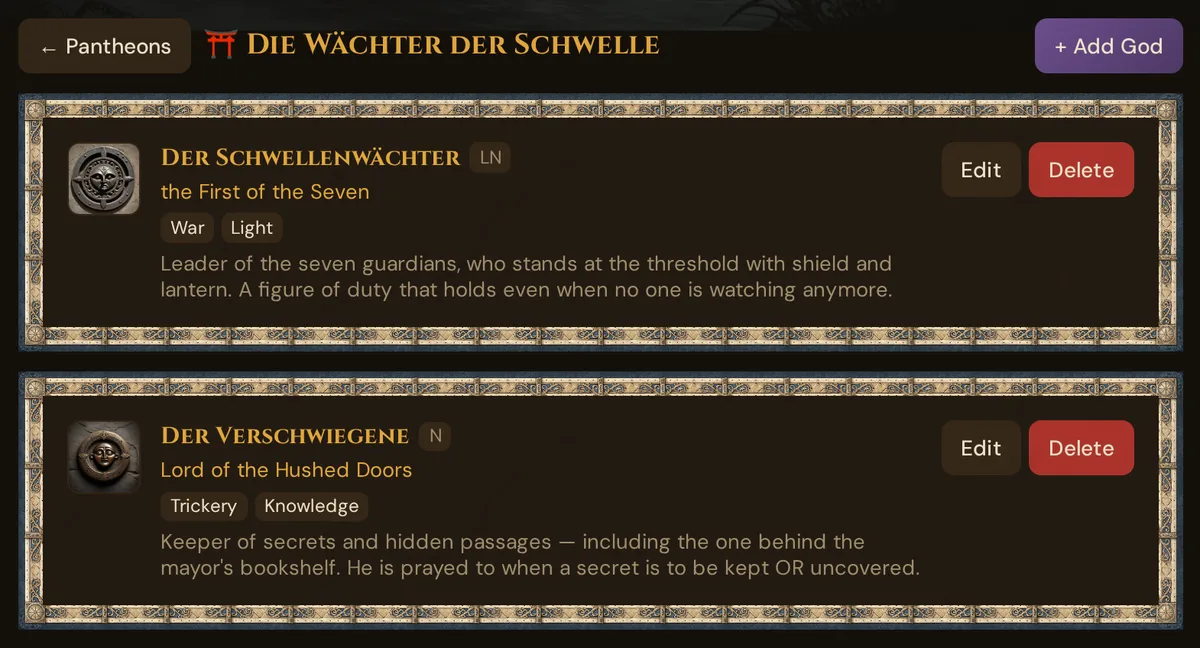
Each god card shows an icon (or symbol image), name, alignment badge, title, domain badges, and description.
The deity editor
| Field | What it's for |
|---|---|
| Name (required) | The god's name, e.g. Moradin |
| Title / Portfolio | The flavour line, e.g. The Soul Forger, god of creation |
| Alignment | One of the nine: LG · NG · CG · LN · N · CN · LE · NE · CE |
| Symbol / Image URL | A paste-in image URL (shows as the god's avatar) or a short symbol text |
| Recommended domains | Tick any of: Knowledge · Life · Light · Nature · Tempest · Trickery · War · Death · Arcana · Forge · Grave · Order · Peace · Twilight |
| Description | Lore, dogma, worshippers — free text |
Click Save to commit. SRD-templated gods you edit keep their license badge and a note reminding you the attribution stays visible.
The demo world comes with its own pantheon, Die Wächter der Schwelle — this is its god list:
Gods connect to other systems
Gods you define aren't isolated lore. They become link targets elsewhere in your prep:
- Plotlines — link a quest or storyline to a deity (e.g. the cult of Set).
- World Events / Deicide — a god is the subject of a Deicide event, and player characters can hold a deity bond to one.
So building the pantheon first pays off when you wire up your story later.
Races
The Races section sits below Pantheon / Gods. It has two tabs:
- My Races — the world's own races (custom + adopted).
- SRD Races — the SRD reference races you can adopt.
Adding a custom race
- Click + New Race.
- Fill in the editor:
| Field | What it's for |
|---|---|
| Name (required) | e.g. Half-Elf |
| Size | Tiny · Small · Medium · Large · Huge · Gargantuan |
| Speed | e.g. 30 ft. |
| Ability Bonuses | free text, e.g. +2 Cha, +1 to two others |
| Traits | e.g. Darkvision, Fey Ancestry, Skill Versatility |
| Description | Lore, appearance, culture |
- Click Save. The race appears under My Races.
Adopting an SRD race
Switch to the SRD Races tab to browse the SRD reference races. Each shows its name, a license badge, size/speed/bonus line, and traits. Click Add to world to copy it into your world, where it becomes editable. A race already adopted shows an In world badge instead of the button.
💡 Tip: Adopted SRD races pre-fill name, traits, and stats. Custom races you create from scratch start blank apart from the name — fill in size, speed, and bonuses yourself.
[ My Races ]  [ SRD Races ]
   ┌──────────────────────────────────────────────┐
   │ 🧝 Elf                          [CC-BY-4.0]     │
   │    Medium · 30 ft. · +2 Dex                     │
   │    Darkvision, Fey Ancestry, Trance             │
   │                            [ Add to world ]     │
   └──────────────────────────────────────────────┘
What races here are (and aren't) used for
Races you record in a world are world lore and GM reference — a list of the peoples your party can meet, with stats and culture notes you can lean on while you run.
⚠️ A world's race list is separate from the race picker in player character creation, which draws on the full D&D SRD race catalogue. Adding a homebrew race to a world does not (today) make it selectable in the character-creation wizard — keep custom races as prep/lore and assign them to a character's notes by hand.
Editing and deleting
- Pantheons, gods, and races all support inline Edit and Delete from their cards.
- Deleting a pantheon removes all the gods inside it (confirmation required).
- Deleting a race removes only that race.
- Edits to SRD-cloned content are kept locally to your world — they never change the original SRD reference.
Costs
Creating pantheons, gods, and races — custom or cloned from SRD templates — is free on every plan and costs no Threads. There is no AI generation in this section. See Threads & costs for where Threads do apply.
Troubleshooting
| Symptom | Cause | Fix |
|---|---|---|
| No Pantheon / Gods or Races section visible | These live inside a world's detail view, not on the Worlds list | Open a specific world first (click its card or Edit) |
| SRD template pantheons don't appear in the modal | The template list loads on first open; a slow connection may delay it | Wait a moment or reopen the + New Pantheon modal |
| SRD Races tab is empty | The SRD race list loads when you switch to the tab the first time | Wait 1–2 seconds; if still empty, reopen the world |
| Adopted SRD race shows blank fields | Adoption pre-fills what the SRD entry has; some fields may simply be empty in the source | Click Edit and fill in the missing size/speed/bonuses |
| Custom race not selectable in player character creation | The character-creation wizard uses the global SRD race catalogue, not world races | Record the race as lore here; assign it to the character manually |
| Deity won't save | Name is required | Enter a name, then Save |
Related articles
- 🌍 Worlds & Planes — the world view these sections live in
- 📜 Plotlines — link quests to a deity
- 📜 Story & World — the single-world text fallback
- ✨ Character creation — how players pick a race
- 📕 SRD Rulebook — the full licensed reference catalogue