🌍 Worlds & Planes
👤 For: Game Masters · 💳 Plan: All plans · 🔄 Updated 2026-10-16
Most campaigns live in one world. For dimension-hopping epics, Spelljammer voyages, or Feywild incursions, Wovenkeep lets you define multiple worlds per campaign — and break each world into planes, pantheons, races, and a full history with GM secrets.
What it does
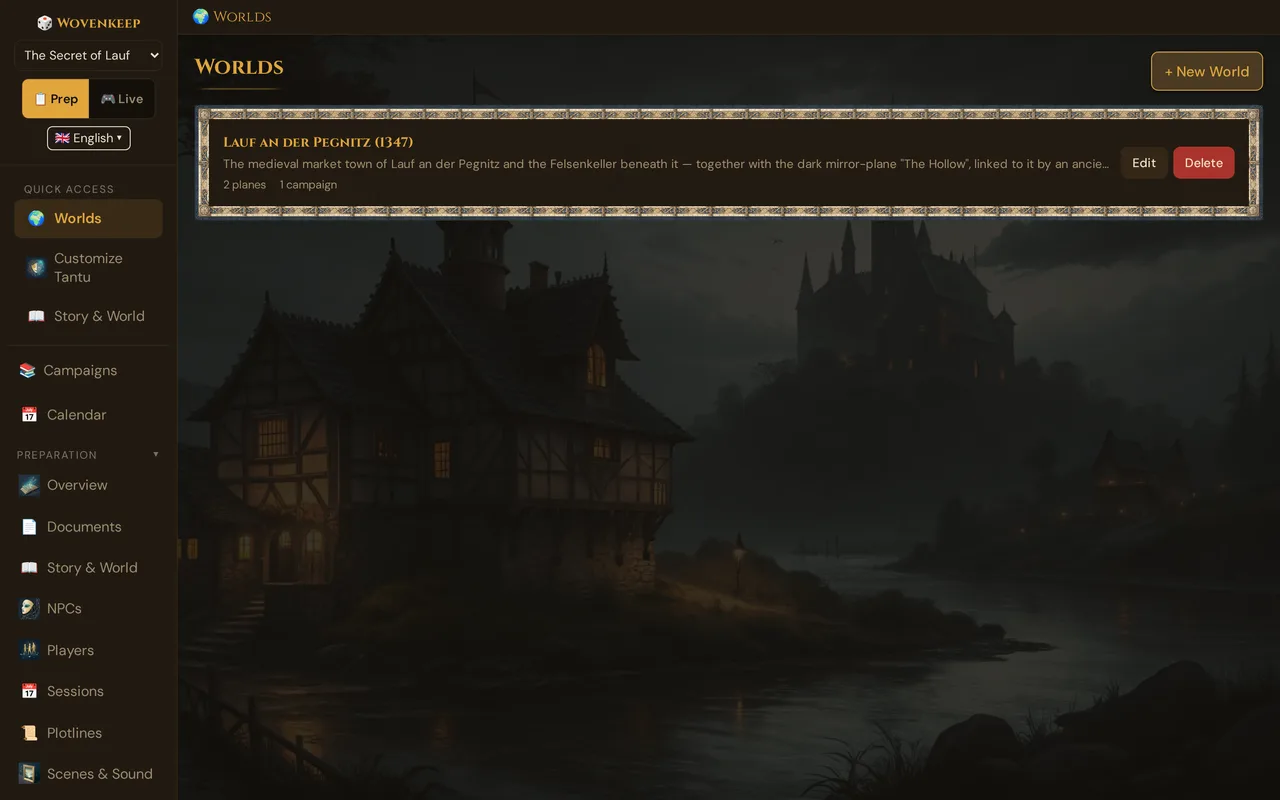
Each World you create is a container for related planes, a deity pantheon, the races that inhabit it, and a historical timeline with hidden secrets. Worlds live in your Realm and can be shared across multiple campaigns. Planes within a world are purely descriptive scaffolding — they let you organise your prep by dimension. (Tantu also uses them as context for suggestions.)
When to use it
Use Worlds & Planes when:
- The party will visit the Feywild, Shadowfell, or another plane as a major narrative beat
- You're running Spelljammer with multiple crystal spheres / worlds
- The campaign is dimension-hopping (a plane-spanning multiverse, manifest zones between worlds)
- You want to attach a custom pantheon, races, or historical lore to a specific setting
Don't use it when the whole campaign stays on one continent — just fill in the World text box on the Story & World page.
💡 Tip: A campaign with no worlds defined falls back to the single World text field. You can add worlds at any time; it never resets your existing prep.
Where to find it
Sidebar → 🌍 Worlds (under the World Building group, next to World Events and Locations). The page opens in list view showing all worlds in your Realm.
Creating a world
- In list view, click + New World.
- Fill in:
- Name — short, like The Northlands or Spelljammer Wildspace
- Description — 2–3 sentences: dominant tone, magic level, notable geography
- Click Create. The dialog closes and the new world appears in the list, already with a Material Plane.
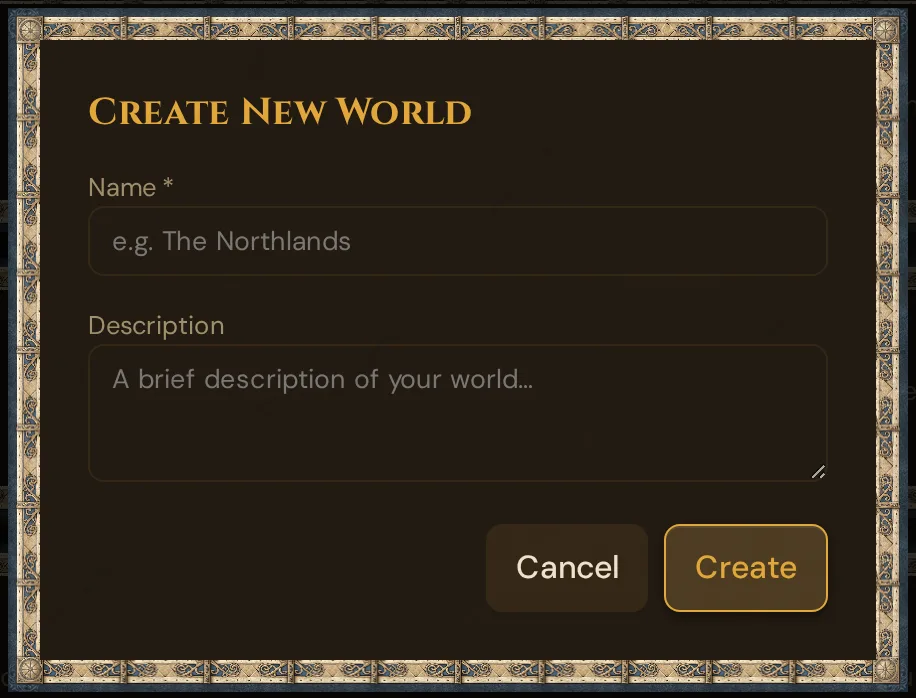
The new world belongs to your Realm, not to a single campaign. To use it in a campaign, open the Overview, click Change next to 🌍 World: and pick it. A world can be reused across multiple campaigns — useful if you run the same setting in parallel groups.
💡 The create dialog keeps a local draft: if it closes before you click Create, your Name and Description are restored the next time you open it. The draft lives in your browser and is cleared once the world is created.
The world detail view
Opening a world (click its card in list view or Edit) shows four expandable sections below the world's name and description:
| Section | What's in it |
|---|---|
| Planes | Dimensions / realms within this world |
| Pantheon / Gods | Deity groups with individual god entries |
| Races | Custom or SRD races inhabiting this world |
| World History & Secrets | Timeline of past events with GM-only secrets |
All text fields autosave as you type.
Planes
Adding a plane
Inside the detail view, scroll to Planes and click + Add Plane. A modal opens with two tabs:
From Template — a scrollable list of built-in planes (standard 5e cosmology). Click one to add it instantly with pre-filled name, description, and type.
| Template | Type |
|---|---|
| Material Plane | Material |
| Feywild | Feywild |
| Shadowfell | Shadowfell |
| Ethereal Plane | Ethereal |
| Astral Plane | Astral |
| Plane of Fire / Water / Air / Earth | Elemental |
| The Abyss | Outer — Abyss |
| The Nine Hells | Outer — Nine Hells |
| Celestia | Outer — Celestia |
| (full list in the modal) |
Custom — three fields:
- Name — your plane's name (e.g. The Twilight Library)
- Description — what it's like, what rules differ, what entities reside there
- Type — dropdown: Custom / Material / Feywild / Shadowfell / Ethereal / Astral / Elemental Fire–Water–Air–Earth / Outer – Abyss / Outer – Nine Hells / Outer – Celestia
Click Add Plane to save.
Reordering planes
Each plane card has ▲ / ▼ buttons on the left. Use them to set the display order within the world.
Editing a plane
Click Edit on a plane card. A modal opens with Name, Description, and Type — all autosave as you type. Close with the Close button to return to the list.
Deleting a plane
Click Delete on a plane card → confirmation dialog → the plane is removed. Deleting a plane does not delete any other content; it only removes the plane entry itself.
Pantheon / Gods
The Pantheon / Gods section appears below the Planes list inside each world.
Adding a pantheon
Click + New Pantheon. A modal with two tabs opens:
- From SRD template — choose one of the built-in pantheons (Celtic, Greek, Egyptian, Norse) to clone it into your world with all its deities pre-filled
- Custom — enter a Name and Description for a homebrew pantheon
Managing deities
Open a pantheon to see its deity list. Each deity entry shows name, title, alignment, domains, and description. You can:
- Add deity — name, title, alignment (LG / NG / CG / LN / N / CN / LE / NE / CE), domains (Knowledge / Life / Light / Nature / Tempest / Trickery / War / Death / Arcana / Forge / Grave / Order / Peace / Twilight), and a description
- Edit any field inline
- Delete a deity
SRD-templated deities are marked with a license badge (CC-BY-4.0 or OGL 1.0a).
Races
The Races section appears below Pantheon/Gods inside each world.
Adding a race
Click + Add Race. Two tabs:
- Custom — name, description, size (Tiny / Small / Medium / Large / Huge / Gargantuan), and any additional notes
- SRD Races — browse the reference list and click Adopt to copy a D&D SRD race into your world; adopted entries are editable
Races you define here serve as world lore and record who is native to this world. Tantu also uses them as context for suggestions, such as NPC descriptions or encounter flavour.
World History & Secrets
The World History & Secrets section lets you build a timeline of past events, each with a hidden GM truth and a reveal reward you can grant to players mid-campaign.
Adding a historical event
Click + Add Event. Fill in:
- Title — the event name (e.g. The Sundering of Lauf)
- Era / Label — optional period marker (e.g. Age of Shadows, Year 412)
- Public summary — what the party can learn through research or lore checks
- GM truth — the real backstory; only visible to you
Secrets and reveal rewards
Expand an event to see its secrets panel. Click + Add Secret to attach a hidden detail with a reward:
- Reward kind — Item 🎒 / Boon ✨ / XP ⭐ / Info 📜
- Reward label and details — e.g. Scroll of Identify, +1 Inspiration
When you're ready to reveal a secret in-session, click Reveal → choose a player character → the reward is granted and the secret is marked as revealed.
World Events (separate section)
World Events is a standalone section in the sidebar (in the World Building group), separate from the World detail view. It records what changes the world at the campaign level: news and rumours, places that change, NPC fates, plot progress — and the deicide, when a deity of this world falls.
Triggering a deicide
Click ⚡ Create event → 💀 A deity falls, choose the deity and, optionally, places that are destroyed with it, then confirm. Wovenkeep then:
- Records the event in the campaign's chronicle
- Marks the deity as dead in the world state
- Notes Loss of divine blessing for every character bound to that deity — their stats don't change
Character–deity bonds
In the World Events section you record which player characters are bound to a deity (patron, cleric, paladin oath, etc.) and how devoted they are. When the deity falls, the world state lists the bound characters with the note — your prompt to play out the loss at the table.
Reverting an event
Each event in the chronicle has ↩︎ Revert — useful if you change your mind or played it as a dream or vision. It restores the state before the event, so the deity counts as alive again, unless a later event changed the same thing.
All details: World events.
Multiple worlds vs. multiple planes
Multiple planes within one world is the right structure for most multi-realm campaigns. The Northlands — with its Material Plane, Feywild, Shadowfell, and Ethereal — is one world with four planes.
Multiple worlds in one campaign is for genuinely separate settings:
- Spelljammer with Realmspace and Greyspace as distinct worlds
- A homebrew multiverse where worlds barely interact
Each world carries its own planes, pantheon, races, and history.
- Campaign: The Worldsplinter
- World: The Northlands
- Plane: Material (Coastal Reach)
- Plane: Feywild
- Plane: Shadowfell
- World: The Southlands
- Plane: Material (Border Provinces)
- Plane: Mirrorlands (planar overlap zone)
- World: The Northlands
Troubleshooting
| Symptom | Cause | Fix |
|---|---|---|
| World list is empty even though you've created worlds | Worlds are Realm-wide, not per-campaign — check the dropdown in the top bar shows the right Realm | Switch to the correct Realm |
| Plane edit modal doesn't save | Autosave fires on blur; make sure you click or tab out of the field before closing | Tab away from the last field, then close |
| SRD pantheon templates don't appear | Template list loads on first open; a slow connection may delay it | Wait 2–3 seconds or reopen the modal |
| Adopted SRD race is missing custom fields | SRD races pre-fill name and description; all other fields are blank by default | Edit the race entry to fill in size, notes, etc. |
| World Events section not visible in sidebar | World Events is a campaign-level section; make sure a campaign is selected | Select or create a campaign first |
Related articles
- 📜 Story & World — single-world default for simpler campaigns
- 🎬 Scenes (prep) — Tantu uses world and plane context for scene suggestions
- 👤 NPCs — race and pantheon data feeds NPC generation
- ⚡ World Events — campaign-level deicide and world-state overlay
- 🧵 Threads & costs — what optional AI help costs