⚔️ Initiative & combat
👤 For: Game Masters · 💳 Plan: All plans · 🔄 Updated 2026-10-17
Wovenkeep's initiative tracker keeps combat moving: turn order, HP, round counter, and a live view on every player's phone showing who is up next.
What it does
The tracker maintains a sorted list of combatants, advances turns, and syncs the current state to every connected player in real time. You can add combatants manually, pull them from a prepared encounter, or search the SRD compendium directly — no prep required. When the active scene has a bound Lair monster, Lair Action buttons appear automatically in the tracker.
When to use it
Open it as soon as you call for initiative — usually when the party rolls for combat order. The tracker works for any turn-based sequence: a chase, a debate at court, a heist with a clock.
Where to find it
Live mode → Players → Initiative card. It is a compact panel with:
- A search bar for adding SRD monsters directly
- Input fields for adding any combatant by name + roll + HP + AC
- The sorted combatant list
- A round counter at the bottom
Adding a combatant
Option 1 — SRD monster search (fastest)
Below the initiative card header is a search bar labelled 🔍 SRD-Monster in die Initiative…
- Start typing a monster name. Matching entries from the compendium appear in a dropdown — showing type icon, CR badge, and name.
- Click any result.
Wovenkeep automatically:
- Rolls a d20 + the monster's Dexterity modifier for initiative
- Takes the HP from the monster's stat block
- Adds the monster to the list, sorted descending
This path requires no prior encounter prep — useful for adding ambushes mid-session.
Option 2 — Manual entry
In the Initiative card, find the three input fields:
- Name — combatant's name
- d20 — their initiative roll (1–20+)
- HP — current hit points (also becomes max HP)
Type the values, then click + (the amber plus button).
After adding, focus returns to the Name input so you can rapid-fire all combatants:
Lena   17  45    +
Jonas  14  38    +
Mira    8  29    +
Goblin 22  12    +
Ogre    5  82    +
Option 3 — Encounter import
If you prepped a combat encounter during the planning phase (Encounters), pull every monster in with one click.
- Click the 🐉 button next to the + in the Initiative card.
- A window lists every combat encounter in the current campaign — social, exploration, trap and puzzle encounters have no monsters to fight and are left out. Without any combat encounter, the card says No combat encounters in this campaign instead.
- Click an encounter card.
Wovenkeep does three things:
- For each monster, rolls initiative as d20 + the DEX modifier from its stat block (SRD or your own monster)
- Takes the starting HP from the stat block. Only if a monster is in neither the SRD nor your own monsters does Wovenkeep estimate its HP from its CR with a built-in table:
- CR 1/8 → 9 HP, CR 1/4 → 13 HP, CR 1/2 → 22 HP, CR 1 → 32 HP
- CR 2 → 45, CR 3 → 65, CR 4 → 85, CR 5 → 110
- CR 6–10 → 130 / 150 / 170 / 190 / 210
- CR 11–15 → 235 / 260 / 290 / 320 / 350
- CR 16–20 → 380 / 410 / 445 / 480 / 520
- Adds each monster (numbered for duplicates: Goblin 1, Goblin 2, Goblin 3) and sorts the list
The table is only a fallback for monsters without a stat block. You can edit HP per row after import.
Option 4 — Encounter auto-start via scene push
When you push a prepared scene that has a combat encounter with auto-start enabled, Wovenkeep kicks off the combat immediately — monsters from all auto-start encounters on that scene are merged into one initiative list. Encounters without auto-start appear as a floating button you can trigger at any point during the active scene.
💡 Tip: Use auto-start for boss fights and set-piece battles you have fully prepped. Leave optional skirmishes as manual-trigger encounters so you can skip them if the party talks their way through.
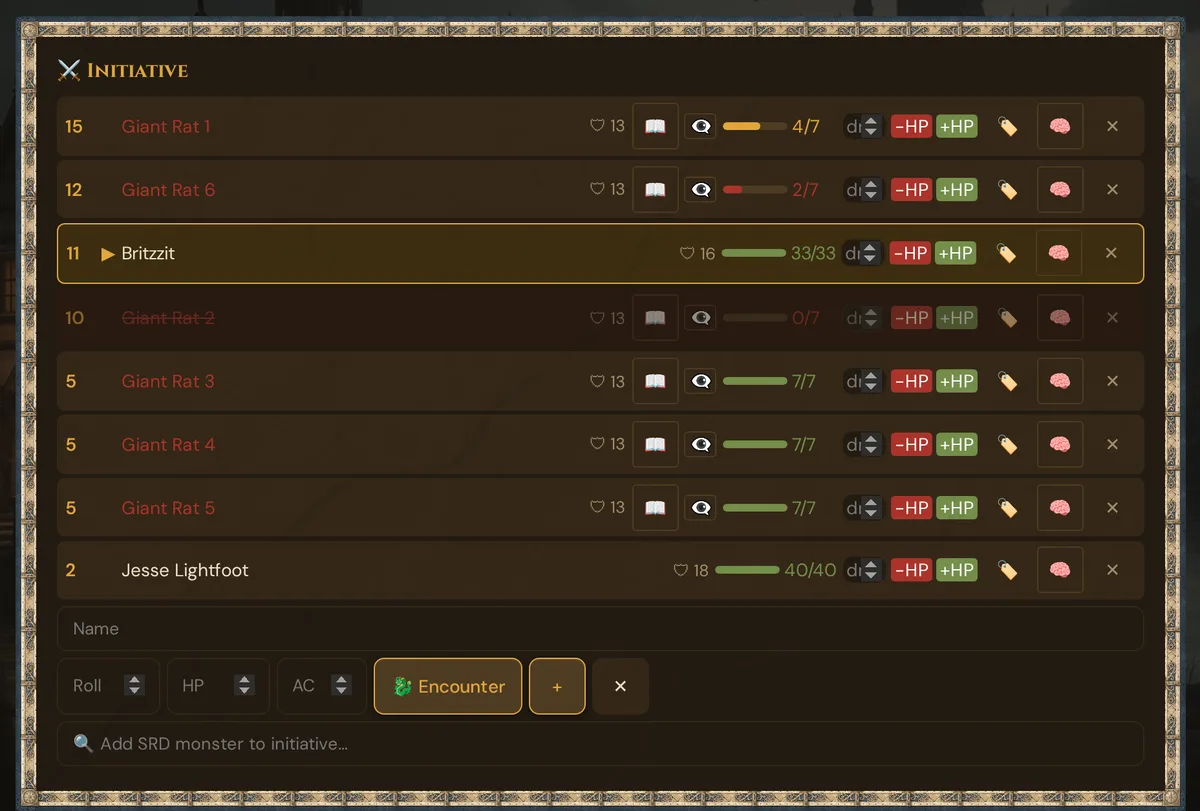
The combatant row
Each row in the initiative list has:
[d20] ▶ Name [👁] [HP bar] [HP/maxHP] [dmg] [-HP] [+HP] [✕]
- d20 — the initiative roll (left, amber)
- ▶ — small arrow indicating current turn (only on the active combatant)
- Name — white for PCs, red for monsters, strikethrough if HP = 0
- 👁 Reveal (monsters only) — players see the monster's name as
???until you click this; amber when revealed. Save the reveal for the boss moment - HP bar — colored: green > 60 %, amber > 30 %, red ≤ 30 %
- HP/maxHP — current and max numbers
- dmg input — number field for damage or healing amount
- -HP (red) — apply damage from the dmg input
- +HP (green) — heal from the dmg input
- ✕ — remove this combatant from the order
- 🛡 AC, 🏷️ Conditions, 🧠 Concentration and 📖 Show stat block — see Conditions, concentration and stat blocks below
Whether a combatant is a PC or a monster is determined by matching the Name field against the character_name / player_name values stored in the campaign. Type the exact PC name if the label is wrong.
Advancing turns
Three buttons at the top of the Initiative card:
| Button | Action |
|---|---|
| ← Rewind | Move turn pointer back one (rolls back the round if you pass the first combatant) |
| Next turn ▶ | Move turn pointer forward one. If we pass the last combatant, the round counter increments. |
| Next round → | Force-advance to the start of the next round (resets turn pointer to combatant 0, increments round) |
The current combatant is highlighted with an amber background and a leading ▶. Players see the same thing on their phones.
The round counter sits below the list:
⚔️ Round 3 | Turn: Goblin 2
Damage and healing
Type a number in the dmg field of any row, then click:
- -HP to subtract that amount from current HP (clamped at 0)
- +HP to heal by that amount (clamped at max HP)
When HP drops to 0:
- The combatant's row dims to 50 % opacity
- The name gets a strikethrough
- They stay in the turn order — handle death saves, unconscious states, or resurrection as needed
- Click ✕ to remove them entirely when combat is done
Lair Actions
If the active scene has a custom monster bound as a Lair, the tracker automatically loads that monster's Lair Action options.
Classic 2014 mode (default): A pseudo-combatant Lair (Init 20) is inserted into the turn order, positioned after all real Init-20 combatants (loses ties). When that slot becomes active, the Lair Action buttons appear below the combatant list. Each option has a one-round cooldown — the button dims and shows 🔒 if it was used last round.
Legendary 2024 mode: No Init-20 slot is added. Instead, Lair Action buttons appear as a permanent panel below the tracker, usable alongside normal combat flow.
Active timed effects (e.g. until Round 5) are displayed in a small strip beneath the buttons and are cleaned up automatically when the round passes.
⚠️ Caveat: The 2024 Legendary mode has a known edition-mismatch issue. Document Lair Actions using the classic 2014 path until this is resolved.
Lair Actions are set up in the monster editor during prep (Custom Monsters).
Conditions, concentration and stat blocks
Each combatant row has a few extra tools for the rules that matter mid-fight.
Conditions
Click 🏷️ on a row to open Conditions: {name}. It lists the 15 SRD 5.2.1 conditions — Blinded, Charmed, Deafened, Exhaustion, Frightened, Grappled, Incapacitated, Invisible, Paralyzed, Petrified, Poisoned, Prone, Restrained, Stunned, Unconscious. Tap a condition to set it, tap it again to remove it. Active conditions appear as chips below the combatant's name; clicking a chip ({condition} ✕) removes it. Players see the conditions next to the combatant in the initiative list on their phones, and the TV view shows them behind the health bar, in the TV's language.
Concentration
Click 🧠 on a row to mark that the combatant is concentrating on a spell. The mark is the same as a concentration effect in the In-Game Clock effect list — setting it in one place shows it in the other, and a new concentration replaces the old one.
When a concentrating combatant takes damage, a hint appears below the initiative list: {name}: concentration — CON save DC {dc}. The DC is 10 or half the damage (rounded down), whichever is higher, up to 30. For player characters, the Request save button sends a Concentration (CON save) roll request with that DC straight to the player's phone. At 0 HP the hint reads {name}: concentration ends (0 HP) and the concentration ends.
Armor Class and stat block
The add row has an AC field next to HP. Monsters from the SRD search, encounter import and player characters bring their AC along automatically; it shows as 🛡 on the row. For monsters linked to an SRD or custom monster, 📖 Show stat block opens the full stat block without leaving the tracker.
What players see
Players see a simplified version of the initiative panel above their dice roller:
INITIATIVE                       Round 3
━━━━━━━━━━━━━━━━━━━━━━━━━━━━━━━━━━━━━━━
  17  ▶ Lena                            45 / 45
  14    Jonas                           38 / 38
  22    ???                             🟢          ← emoji, not numbers
  22    ???                             🟡
  22    Goblin 3                        🔴          ← revealed by the GM
   8    Mira                            29 / 29
   5    ???                             🟢
Differences vs the GM view:
- PCs show real HP numbers (so each player can see their own HP)
- Monster names are masked as
???until you click the 👁 Reveal button on their row - Monsters show only an emoji — players see the trend without exact numbers:
- 🟢 full HP — unhurt
- 🟡 50–99 % HP — bloodied
- 🔴 under 50 % HP — badly wounded
- 💀 0 HP — incapacitated
- Current combatant gets the ▶ arrow and an amber row background
This is intentional: players know "the goblin looks hurt" without gaining exact numbers — or even what it is, until you reveal it.
Clearing the tracker
Click 🏁 End combat in the add row of the Initiative card. It is greyed out while nobody is in the list. Wovenkeep asks End combat and reset initiative? — OK ends the fight, Cancel keeps it going. (The ✕ on a single row still removes just that combatant.)
After ending the fight:
- The initiative list empties, and open initiative roll requests are cancelled
- Round and turn reset to 0 — your round field reads Round 0
- Player phones hide the initiative panel and the round badge; the TV hides its combat block
- The Session Log notes 🏁 Combat Ended with the number of rounds
- The card shows 🏁 Combat over – award XP? with 🎖️ Award XP — until you award XP or start the next fight
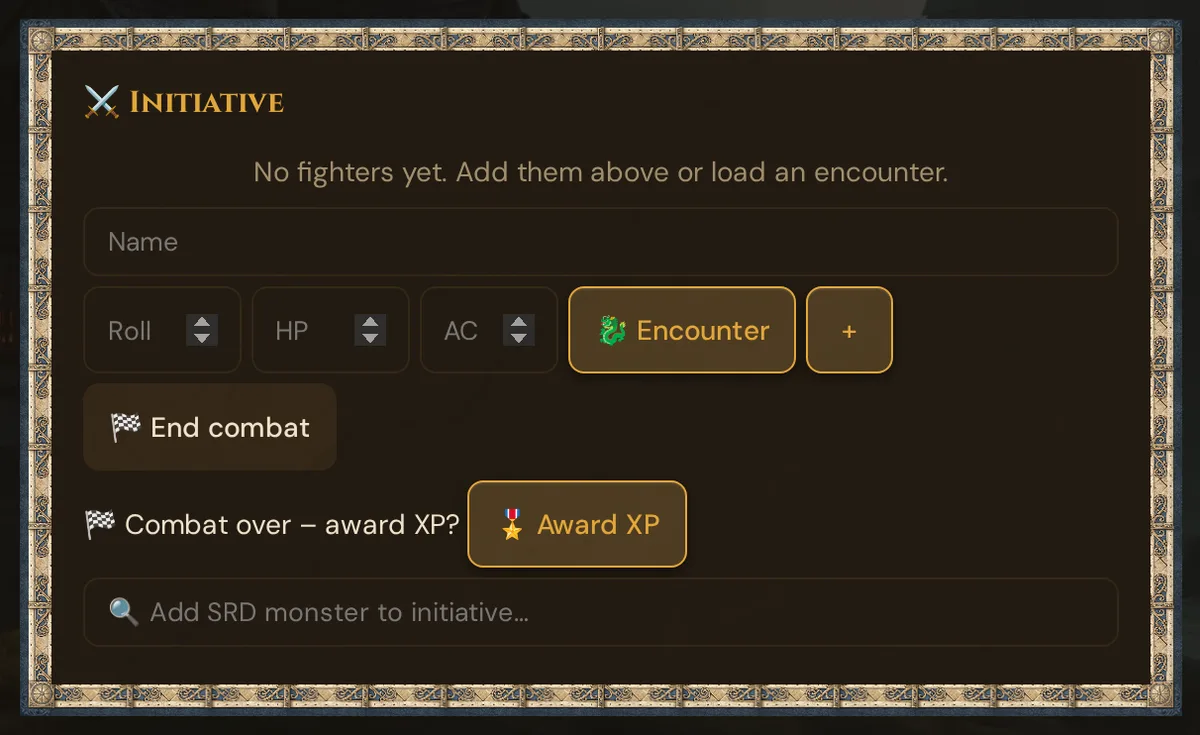
Award XP
🎖️ Award XP opens the same window wherever you start it: in 🎮 Live → Players in the card 👥 Connected players (while a session is running — with or without an encounter, for example for a milestone), in the hint after a fight, or with 🎖️ XP on a combat encounter in Encounters.
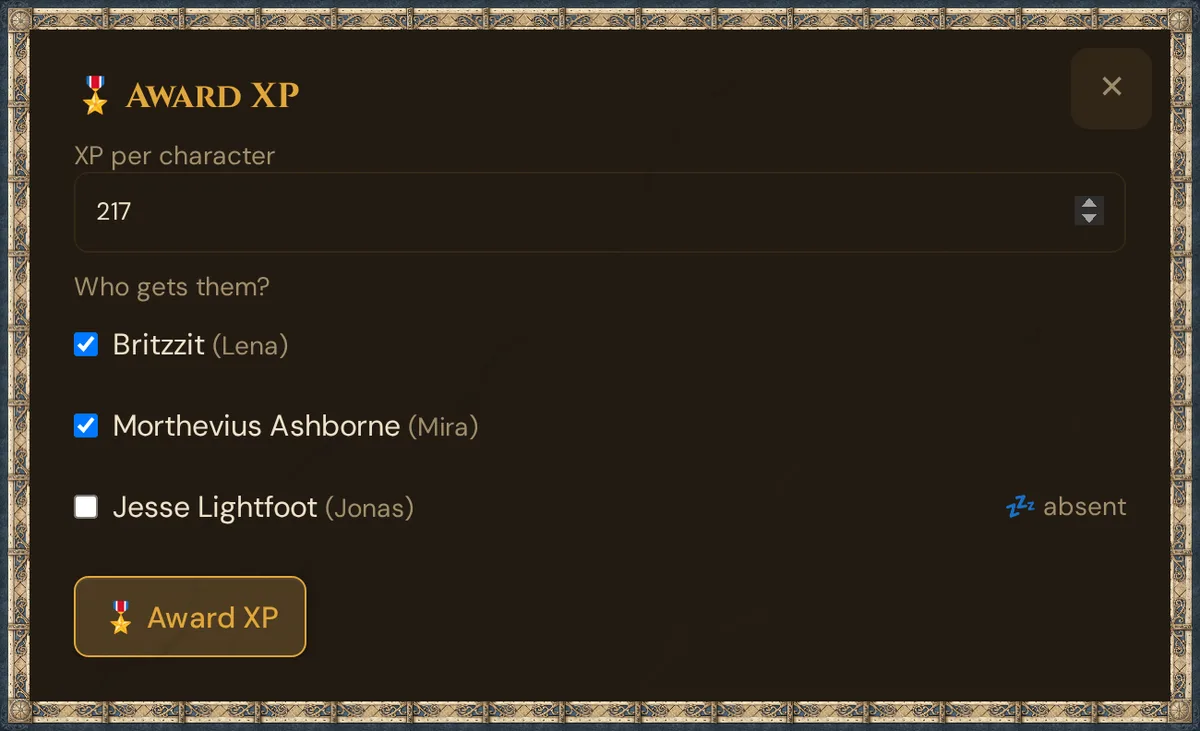
- XP per character — a whole number from 0 to 100,000. After a fight it suggests the XP per player of the combat encounter(s) you started in this tab; otherwise 0.
- Who gets them? — one box per character of the campaign, shown as character (player). Characters of players you marked absent are unticked and marked 💤 absent.
- Click 🎖️ Award XP. The window confirms, for example Awarded 250 XP to 3 character(s)., and stays open; the button is locked so you can't award twice by accident.
The XP add to the ticked characters' totals; levels don't change by themselves (see Player characters → XP). In a running session, the Session Log notes 🎖️ XP Awarded. Players get no message — the new total shows in the header of their character sheet the next time it loads. Messages: Invalid XP amount., No character selected., Awarding XP failed.
What gets recorded
The tracker syncs player phones in real time and persists the full initiative state in the database — a server restart or container update does not reset your combat. The Session Log notes the start and end of a fight (⚔️ Combat Started, 🏁 Combat Ended), conditions you set (🩸 Condition Set) and XP awarded live (🎖️ XP Awarded). HP changes and round advances do not write individual lines.
Pacing tips
- Pre-roll monster initiative during prep — eliminates the "let me roll real quick" pause at combat start
- Use the SRD search for surprise combatants — add an ambush monster mid-fight in seconds without leaving the tracker
- Use encounter import for set-piece fights — one click to pull a full encounter beats typing each monster by hand
- Call out the next combatant — when you click Next Turn, also say their name aloud so the player can start thinking about their action
- Don't track minion HP — for swarms, give each goblin 1 HP and let one good hit drop them. Faster than tracking 9 HP × 12 goblins.
Troubleshooting
| Symptom | Cause | Fix |
|---|---|---|
| HP bar does not update on phones | Player's phone briefly lost connection | Have them rescan the QR code; the GM's next state update pushes everything current |
| Wrong combatant marked PC vs monster | Name did not match a PC by character_name or player_name |
Type the exact PC name as stored in the campaign |
| Lair Actions panel does not appear | Scene has no bound Lair monster, or monster has no Lair Actions defined | Check the monster in the custom-monster editor; verify the scene's Lair binding |
| Encounter import gives unexpected HP | The monster has no stat block in the SRD or among your own monsters (e.g. renamed), so the CR table was used | Use the exact SRD name or create the monster under your own monsters; otherwise edit HP on the row |
Player sees stale Round 1 |
Player joined mid-combat after Round 1 ended | They will see the correct round on the next turn advance |
| SRD search returns no results | Slow network or search cleared before results loaded | Type at least 2–3 characters and wait a moment; try again if blank |
Related articles
- ⏱️ In-Game Clock & Calendar — long-form time tracking, effects, and concentration
- 📡 Running a live session — where combat fits in the overall flow
- 🎲 Whisper & dice — dice rolling that feeds the combat log
- 🐉 Encounters in prep — building reusable encounters with auto-start
- 👾 Custom Monsters — defining Lair Actions and binding monsters to scenes