⏱️ In-game clock & calendar
👤 For: Game Masters · 💳 Plan: All plans · 🔄 Updated 2026-10-14
Wovenkeep's time-tracking layer keeps your in-fiction world ticking in sync with your table — from individual combat rounds all the way to multi-day travel — and automatically expires spells, conditions, and scheduled events as the clock advances.
What it does
- Displays the current in-game date and time on the Gregorian calendar, a neutral Fantasy calendar, or a fully configurable custom calendar
- Advances time by a button press (+10 min, +1 h, +4 h, or +8 h), and automatically decrements spell/condition durations and fires scheduled events as the clock moves
- Calculates travel time from distance + terrain + pace, then applies it to the clock in one click
- Lets players see the current date, time, and their active effects on their phones in real time
- Shows active Place Clocks (location-specific countdown timers) on the player HUD
When to use it
Open Live → In-Game Clock whenever the fiction cares about time: tracking concentration and buff durations during combat, computing a travel leg between locations, building pressure with a timed trigger ("at midnight, the gates close"), or just keeping the party honest about short vs. long rests.
Where to find it
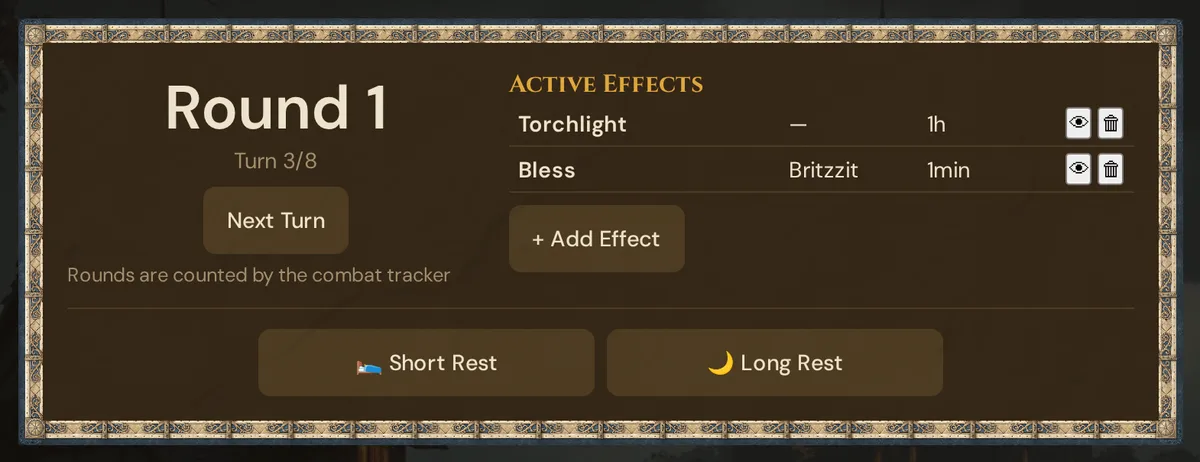
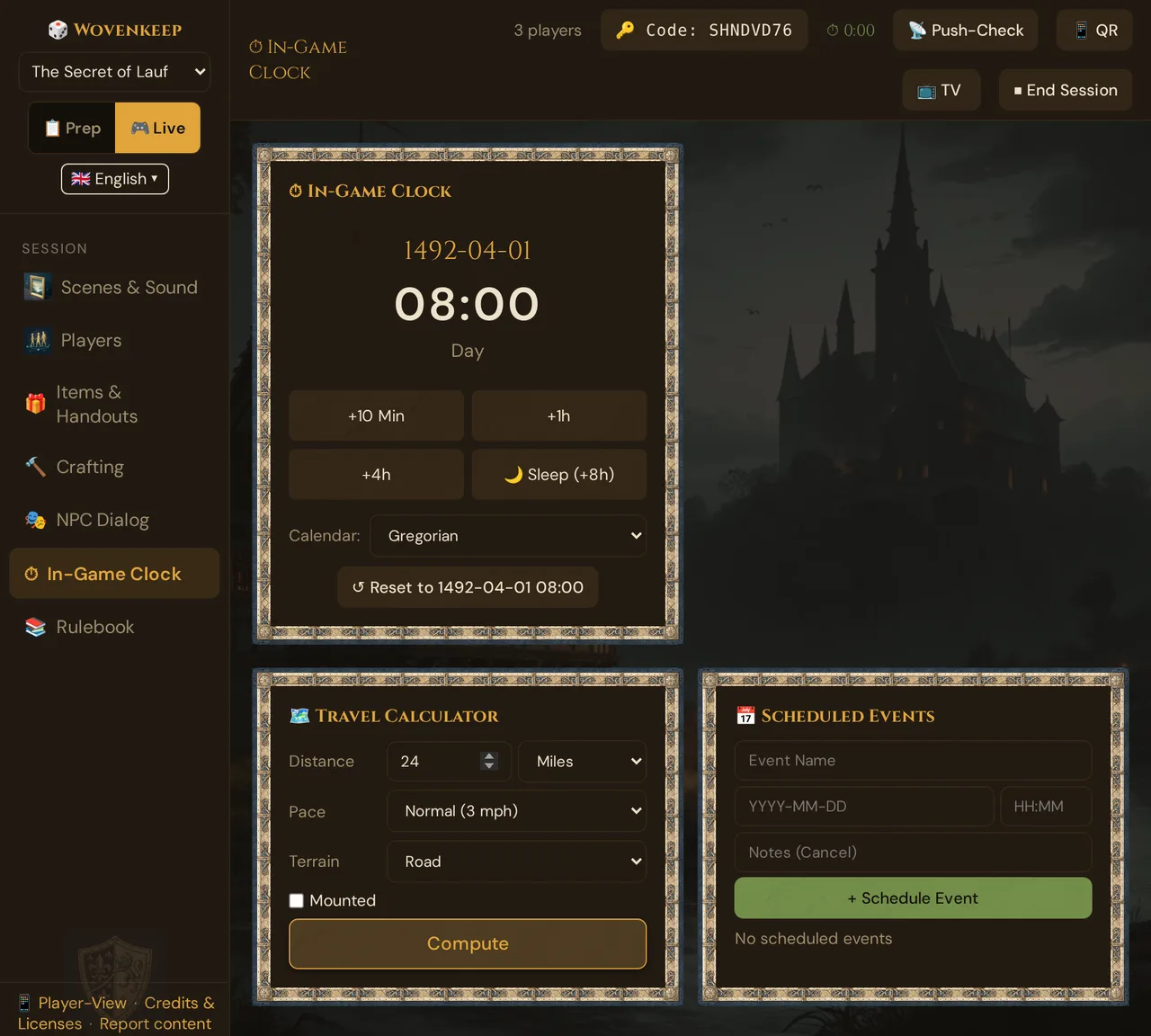
Live → In-Game Clock in the live sidebar. The section has three cards: ⏱ In-Game Clock (date, time, calendar), 🗺️ Travel Calculator (distance + pace + terrain → time) and 📅 Scheduled Events (future triggers, e.g. at sunset). The round counter, effects and rests (combat time, see below) sit at the top of Scenes & Sound.
Pacing timer
In the top bar of the GM tool, next to the player count, a small timer shows your session's wall-clock duration:
⏱ 0:00
Click it to start or pause. The colour shifts from green → amber at 2 h, then red at 2 h 30 min — a silent nudge if the session is running long. The pacing timer is local to your browser and does not affect the in-game clock.
Combat time (rounds and rests)
This panel sits at the top of Live → Scenes & Sound. It overlaps with the Initiative tracker but adds rest mechanics.
| Button | Effect |
|---|---|
| ← Rewind round | Decrement round by 1 |
| Next turn ▶ | Same as the Initiative tracker's Next Turn |
| Next round → | Force-advance to the start of the next round |
| 🛌 Short Rest | Removes effects with durationKind=rest_short; restores hit dice usage |
| 🌙 Long Rest | Removes effects with durationKind=rest_short or rest_long; restores HP / spell slots / abilities |
Both rest buttons show a confirm prompt before applying.
💡 Tip: Players can also trigger Short Rest and Long Rest from their own character sheet on their phone — tap Rest in the player HUD. The result is the same as the GM pressing it.
In-game clock
The clock shows the current in-game date and time.
Default state
Fresh campaigns start at the Gregorian calendar, date 1492-04-01, time 08:00. You can switch to any calendar preset at any time; the underlying absolute time is preserved.
⚠️ The ↺ Reset button resets the clock back to
1492-04-01 08:00(Gregorian). It asks for confirmation before applying.
Quick-advance buttons
[ +10 Min ] [ +1 h ] [ +4 h ] [ 🌙 Sleep (+8h) ] [ ↺ Reset ]
| Button | Minutes advanced |
|---|---|
| +10 Min | 10 |
| +1 h | 60 |
| +4 h | 240 |
| 🌙 Sleep (+8h) | 480 (treated as a long rest) |
Every advance recomputes the date display, decrements minute- and hour-based effects, fires any scheduled events whose trigger time has passed, and pushes the new time to player phones.
Day parts
The clock appends a day-part label based on the hour:
| Hours | Label |
|---|---|
| 05:00–07:59 | Dawn |
| 08:00–17:59 | Day |
| 18:00–20:59 | Evening |
| all other hours | Night |
So 1492-04-01 14:30 renders as 1 Blossom Moon 1492 A.F. · 14:30 · Day when using the Fantasy calendar.
Switching calendars
A dropdown below the clock display lets you choose:
| Preset | Year notation | Notes |
|---|---|---|
| Gregorian | standard year | Default for new campaigns |
| Fantasy calendar | A.F. | Neutral, setting-agnostic calendar: 12 moons of 30 days each (Ice Moon … Star Moon), 7-day week (Forgeday … Restday) |
| Custom | user-defined | Configurable months + holidays, up to 99 months with up to 99 days each |
Switching calendar does not reset the time — the same absolute moment is re-rendered in the new calendar's format.
Custom calendars
If the Fantasy calendar doesn't fit your homebrew setting — or you're running a published campaign world with its own calendar — switch to Custom and click Configure.
A dialog opens with two sections:
Months
For each month provide a Name and a Days count. Add rows with + Add Month, remove with the × next to a row. Up to 99 months, each with up to 99 days, are allowed.
Holidays
For each named holiday provide a Name, Month (index from your months list), and Day (1–N within that month). Holidays are decorative — the clock display shows the holiday name when the current date matches.
Click 💾 Save Custom Calendar. The definition is stored with the campaign and the clock switches to it immediately.
💡 Tip: Running a published campaign world with its own calendar? Recreate it as a custom calendar — enter its month names and day counts here.
Effects and conditions
The effects panel tracks anything with a duration: spells, conditions, exhaustion, environmental effects.
Adding an effect
Click + Add Effect and follow the prompts:
- Effect name — e.g.
Bless,Hunter's Mark,Poisoned - Duration — pick from:
- 1 Round · 1 Min · 10 Min · 1 h
- Short Rest · Long Rest
- Concentration
- Permanent
- Target — leave empty for a global effect, or pick a character to bind to a specific combatant
- Visible to players? — OK = all players see it on their initiative panel; Cancel = GM-only
The effect appears in the Effects list:
Bless              Lena             3R
Hunter's Mark      Goblin 2         10min
Concentration      Mira             Concentration
Format: Name | Target | Remaining. Duration codes:
<n>R— rounds left<n>min— minutes left<n>×10min— 10-minute blocks left<n>h— hours leftSR/LR— expires on next short / long rest∞— permanentConcentration— linked to a caster; auto-released if the caster takes damage
Auto-expiry
Wovenkeep decrements durations automatically:
- Round-based effects tick down each time you click Next Turn (or Next Round)
- Minute-based effects tick down on every clock advance
- Rest-based effects expire when you apply a Short or Long Rest
- Permanent effects never auto-expire
When an effect hits 0 it turns grey and the player's phone shows a toast: "Bless wore off". Click 🗑 to remove it. Expired effects stay visible (greyed) until cleared so you can see what just fell off at a glance.
Concentration
When you add an effect with the Concentration duration:
- The effect is bound to the chosen character as its concentration owner
- A Concentration row appears at the top of the effects panel
- If that character takes damage (via the Initiative tracker → -HP), Wovenkeep prompts: "Lena was concentrating on Bless — release?"
To release manually, click Release next to the concentration entry. To swap to a new spell on the same character, just add a new concentration effect — Wovenkeep auto-releases the old one and shows a confirmation banner.
Travel Calculator
When the party travels between locations, the travel calculator turns distance + terrain + pace into time elapsed and applies it to the clock.
- In the Travel Calculator sub-panel, fill in:
- Distance — a number plus a unit dropdown (Miles / Kilometers)
- Pace — Slow (2 mph) / Normal (3 mph) / Fast (4 mph) / Forced March (3 mph, >8 h)
- Terrain — Road / Plains / Hills / Forest / Mountain / Swamp
- Optionally tick Mounted and enter a mount speed in mph to override the pace
- Click Compute.
Wovenkeep displays the travel time and projected arrival:
Distance: 24 miles  ·  Pace: Normal (3 mph)  ·  Terrain: Road
─────────────────────────────────────────────────────────────
Travel time: 8 h
Arrival: 1 Blossom Moon 1492 A.F. · 16:00 · Day
- Click Apply travel time to advance the clock. All minute/hour effects decrement, and any scheduled events between now and arrival fire in sequence.
Scheduled Events
Schedule a trigger to fire at a specific future in-game moment.
- In the Scheduled Events sub-panel, click + Schedule Event.
- Fill in:
- Event Name — a short description (e.g. "The gates close")
- Trigger date — in
YYYY-MM-DDformat (pre-filled to the current in-game date) - Trigger time — in
HH:MMformat (pre-filled to current in-game time + 1 h) - Notes — optional
- Click + Schedule Event to save.
The event appears in the list with a countdown. When the clock advances past the trigger time:
- A pop-up notice appears in the GM tool: "⏰ The gates close"
- The event row highlights to indicate it has fired but not been acknowledged
- Click Dismiss to clear it
Events are ideal for clock-based pressure: arrive in the city → schedule the gates closing at sunset → travel and roleplay tick the clock → the notice fires at the dramatic moment.
Place Clocks (player-visible)
Place Clocks are location-specific progress clocks defined in your campaign's Worlds & Clocks section. Any clock marked visible to players appears on the player HUD as a segment display:
The Ritual Begins   ● ● ● ○ ○ ○   3/6
The Siege           ● ● ○ ○        2/4
Filled segments (●) are amber; empty segments (○) are dimmed. Players see the clock title and its fill state, but not the description or GM notes. The GM advances segments from the Worlds section of the prep tool; the player phone updates in real time.
What gets recorded
Clock ticks are not logged one by one. What is recorded in the Session Log: rests applied, scheduled events that fired, and calendar changes. The current time and all active effects persist between sessions — picking up a campaign resumes exactly where you left off.
Troubleshooting
| Symptom | Cause | Fix |
|---|---|---|
| Effects don't decrement on Next Turn | You clicked Next Turn in the Initiative tracker, not in the Combat Time sub-panel | Use the Next Turn button inside the Combat Time sub-panel |
| Custom calendar doesn't render | Months list is empty | Add at least one month with at least 1 day, then 💾 Save |
| Travel time looks wrong | Terrain or Mounted-speed mismatch | Re-check the Terrain dropdown and the mounted-speed field |
| Scheduled event didn't fire | Clock hasn't been advanced past the trigger time yet | Click any advance button (+10 Min, etc.) to move the clock past the trigger |
| Player phone shows no time bar | No in-game time state has been sent yet | Click any +10 Min button to seed the initial state to connected players |
| Place Clock not showing on player phone | Clock is not marked visible, or status is cancelled | Open Worlds & Clocks, edit the clock, and enable Visible to players |
Related articles
- ⚔️ Initiative & combat — round and turn tracker; the combat side of time
- 📡 Running a live session — where time-tracking fits in the overall session flow
- 📚 SRD Rulebook — rest mechanics and condition rules from D&D 5e
- 🌍 Worlds & Clocks — create and manage Place Clocks and World Events