🎟️ Player onboarding invites
👤 For: Game Masters · 💳 Plan: All plans · 🔄 Updated 2026-10-17
The single biggest time-sink in session 1 of a new campaign is character creation at the table. Onboarding invites eliminate it — you send each player a link, they build their character on their own phone or computer before game night, and you arrive at session 1 with finished characters already in your Players list.
What it does
You generate a unique link (and QR code) for your campaign. Players open it in any browser, go through a guided character-creation wizard, and their character lands directly in your GM tool — no account needed on their side. You control how many uses the link has and when it expires.
When to use it
Send onboarding links 1–2 weeks before session 1. Players who procrastinate still have time; you can review every sheet before game night instead of at the table.
Step by step
- Open your campaign and go to Players in the sidebar.
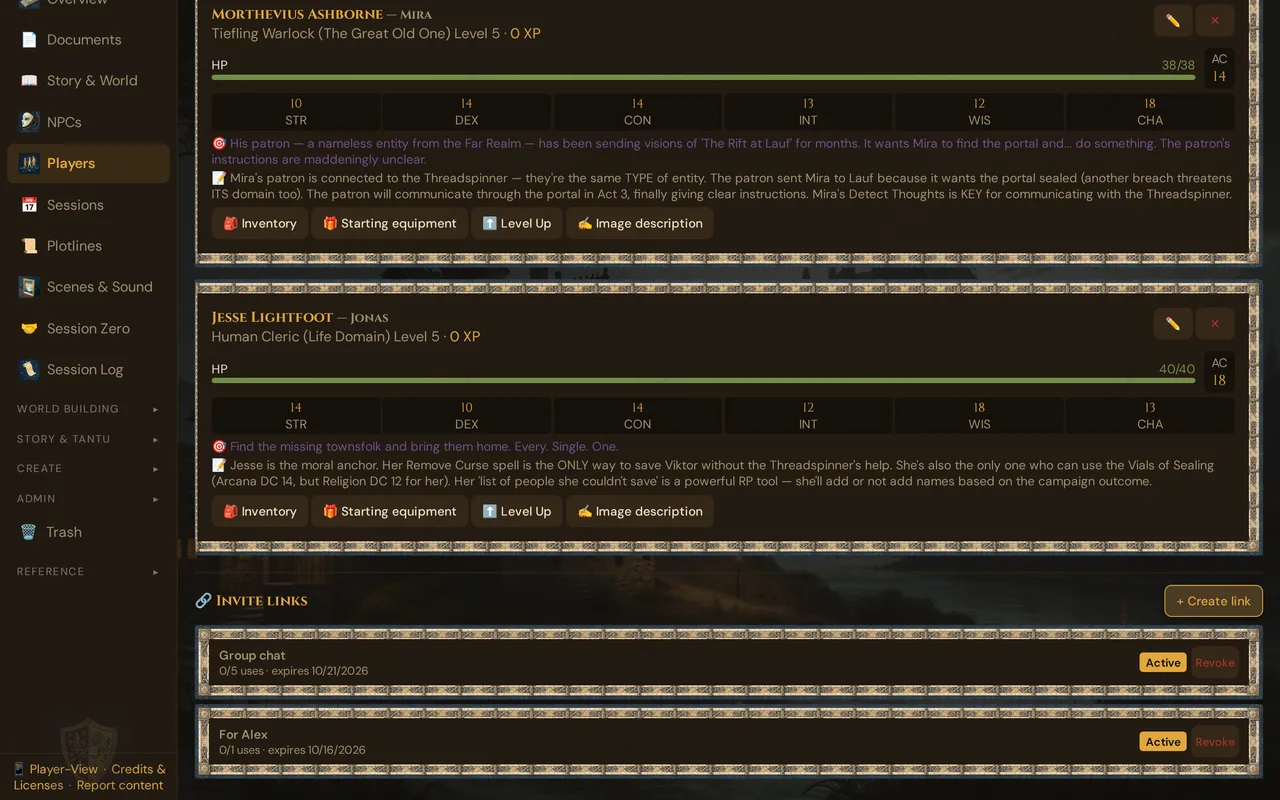
- Scroll to the 🔗 Invite links section and click + Create link.
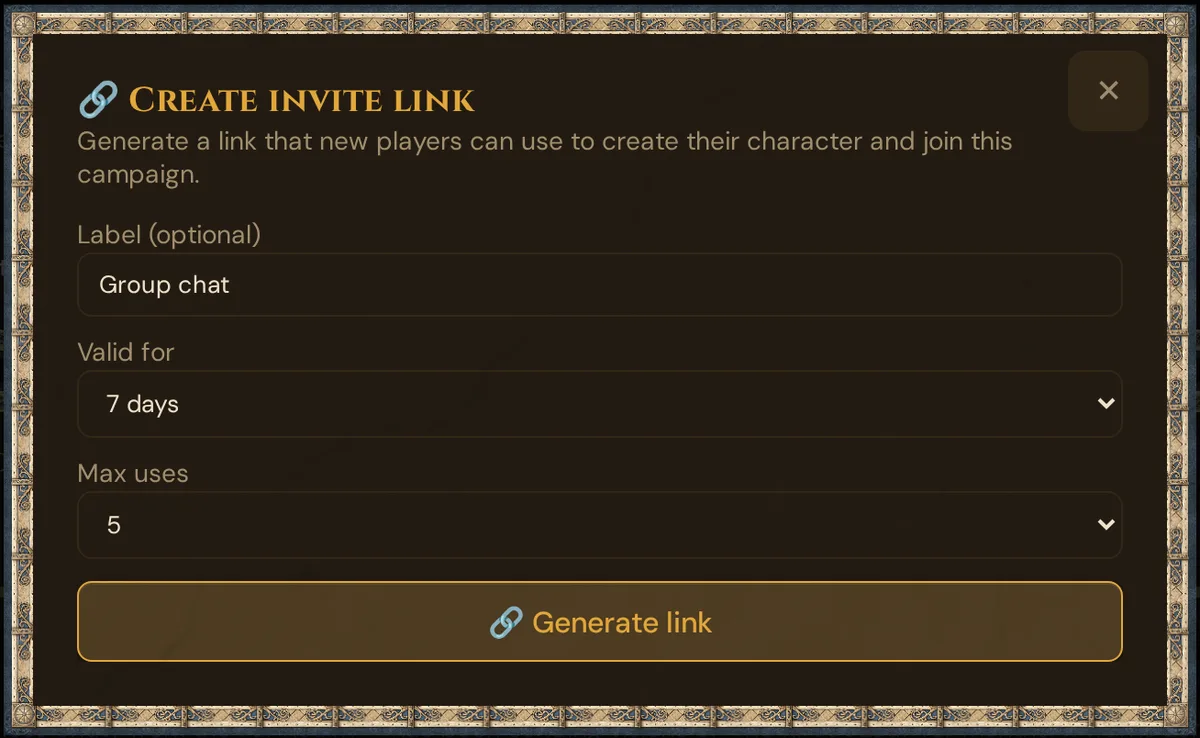
- Fill in the form (see options below) and click 🔗 Generate link.
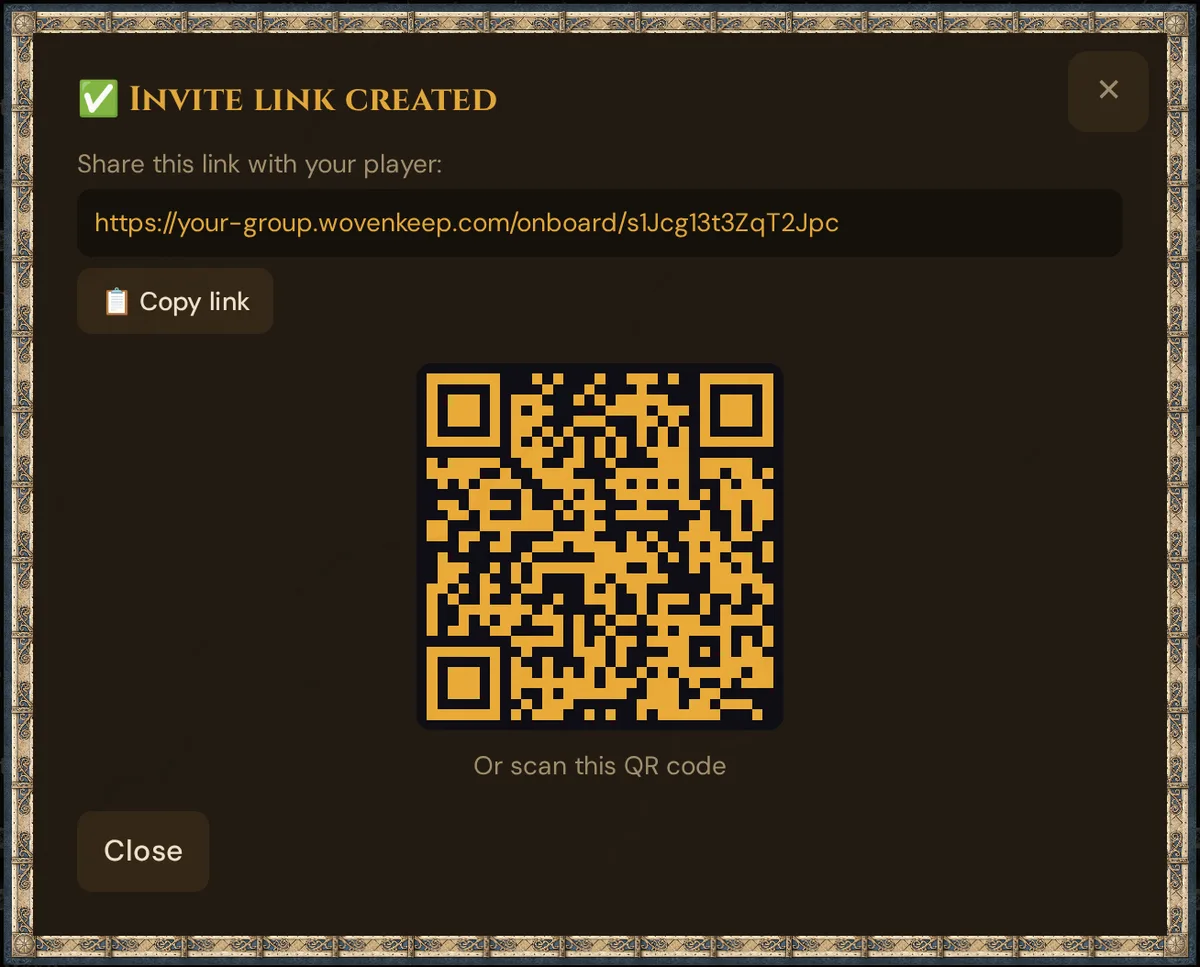
- Copy the link with 📋 Copy link or share the QR code shown on screen.
- Paste the link into Discord, WhatsApp, email, or wherever your group chats.
💡 Tip: For a standard home game, 5 uses / 7 days is the sweet spot — one link in the group chat, everyone has a week.
💡 New player for a planned session? You can also create the invite right from the session: ➕ Invite new players below the answers or on the session's calendar card. → Sessions
Create Link options
| Field | Notes |
|---|---|
| Label | Optional. For your reference only — "For Alex", "Discord group", "Con table". Players never see it. |
| Valid for | How long the link works: 24 hours / 48 hours / 7 days / 30 days. |
| Max uses | How many characters can be created through this link: 1 / 5 / 10 / Unlimited. |
After you click 🔗 Generate link, Wovenkeep shows the invite URL, a 📋 Copy link button and a QR code:
Choosing max uses
| Setting | Use for |
|---|---|
| 1 | One specific player. The link dies after one character is created — most secure. |
| 5 / 10 | The whole group. Drop one link in your group chat; everyone uses it. |
| Unlimited | Open recruitment (convention game, public Discord). Anyone with the link can join — pair with a short expiry. |
What the player sees
When a player opens the invite link, the guided character wizard starts right away (the classic path shows the campaign name at the top).
Mode and language
A bar at the top of the invite page holds the mode button on the left — ⚙️ Expert: Classic Mode, or 🧙 Guided Mode in the classic path — and the language menu on the right (🇬🇧 English, 🇩🇪 Deutsch, 🇫🇷 Français, 🇪🇸 Español). Choosing a language reloads the page in it. The choice is the player's own: it also applies to the player view in this browser, while the GM tool and the TV on the same device keep their language. The mode is remembered on the device; without a saved choice, the guided wizard starts.
Guided wizard
Default path — Guided Wizard (ELI5): Players new to D&D get a step-by-step guided flow with plain-English explanations for every choice. The wizard handles one decision at a time:
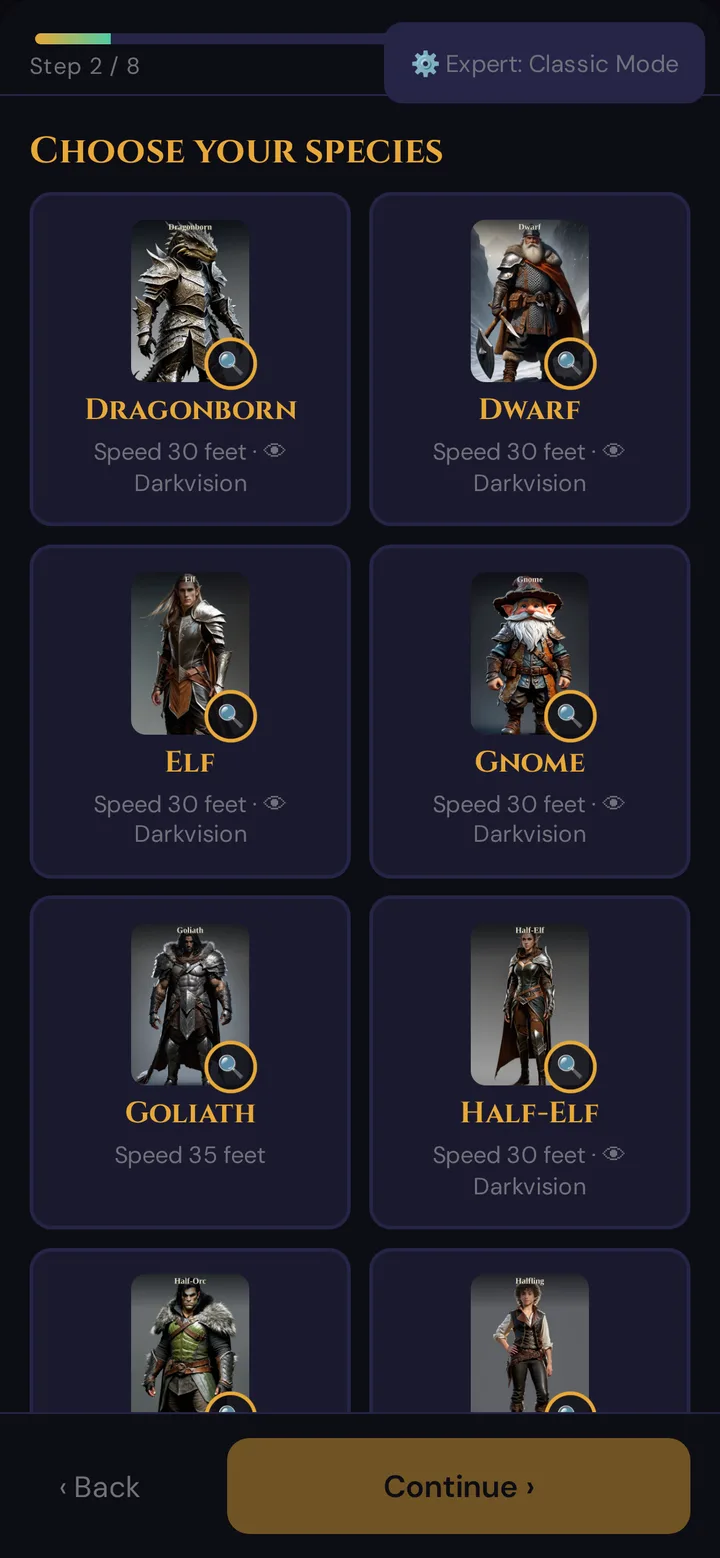
The ELI5 wizard steps (8 for a Fighter with the Soldier background):
- Welcome! (what's coming)
- Choose your species (each card shows speed and darkvision)
- Choose your class (each card shows its hit die)
- Your abilities (standard array, with a ✨ Recommendation for {class} button)
- Your background (Acolyte, Criminal, Sage or Soldier)
- Your skills
- Portrait (optional) (tick to get a portrait suggestion (AI) right after the hero is created — left out if you've hidden the AI features)
- Equipment (the class's standard gear plus the background's, added to the inventory automatically)
Then Almost done!: name the hero — the name is required (Please give your hero a name.) — and tap ⚔️ Create hero! → character created. Spellcasters also get Choose your spells, Acolyte and Sage Your Magic Initiate spells — details in Character creation.
Classic mode
Experienced-player path — Classic Wizard: Players can switch to the faster 4-step classic flow at any time using ⚙️ Expert: Classic Mode on the left of the top bar. The wizard remembers the preference.
The classic flow: Choose your Species → Choose your Class + Subclass (or None; only the SRD 5.2.1 subclass, named in the player's language) → Name & Details → Confirm. Classes that cast spells at level 1 pick their spells before the confirmation.
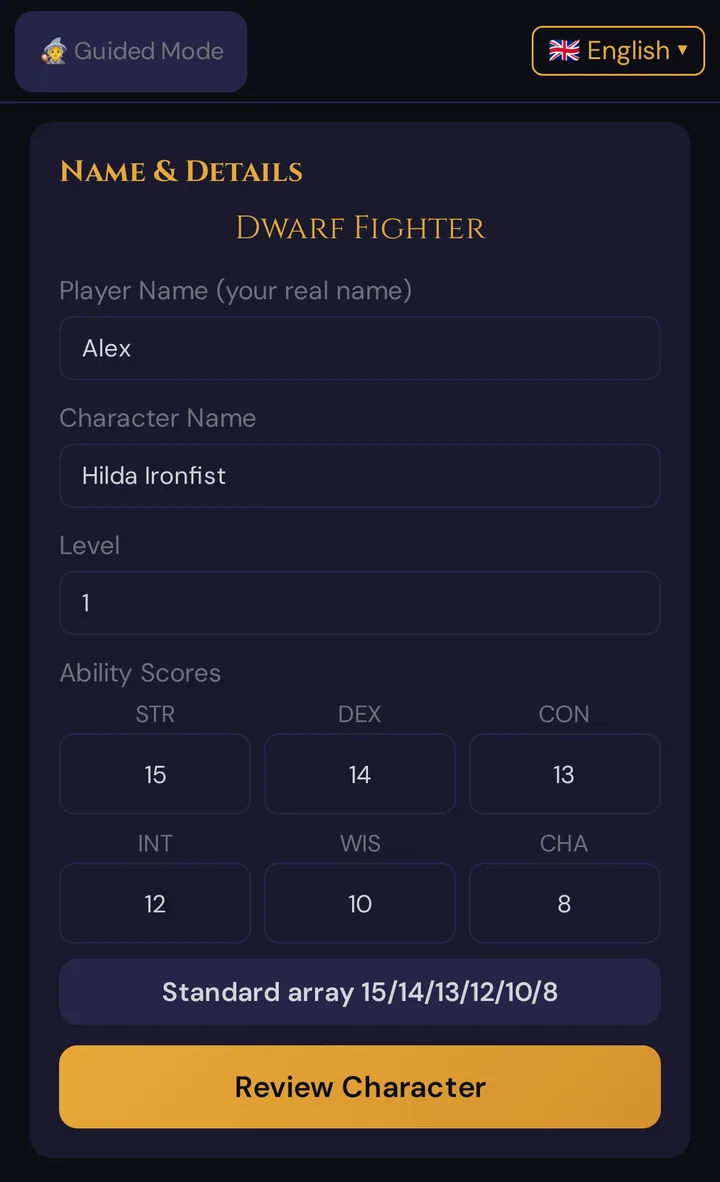
Name & Details asks for the player name (your real name) and the character name — both required — the level (1–20) and the Ability Scores: six fields from 3 to 20, starting at 10. Standard array 15/14/13/12/10/8 fills them in this order (STR 15 … CHA 8), whatever the class; adjust them as you like. There is no point buy and no rolling here. An import from D&D Beyond fills the scores in.
D&D Beyond import: The classic path also offers a shortcut at the top: upload a D&D Beyond character PDF, paste a D&D Beyond character URL, or upload a JSON export to auto-fill the entire character sheet.
Success screen
After the character is created, the player sees a summary — name, species, class and level in their language; the line Player: … only when the player name differs from the character name — and their Player Token, a short code they use to log in to live sessions. They should save or copy it.
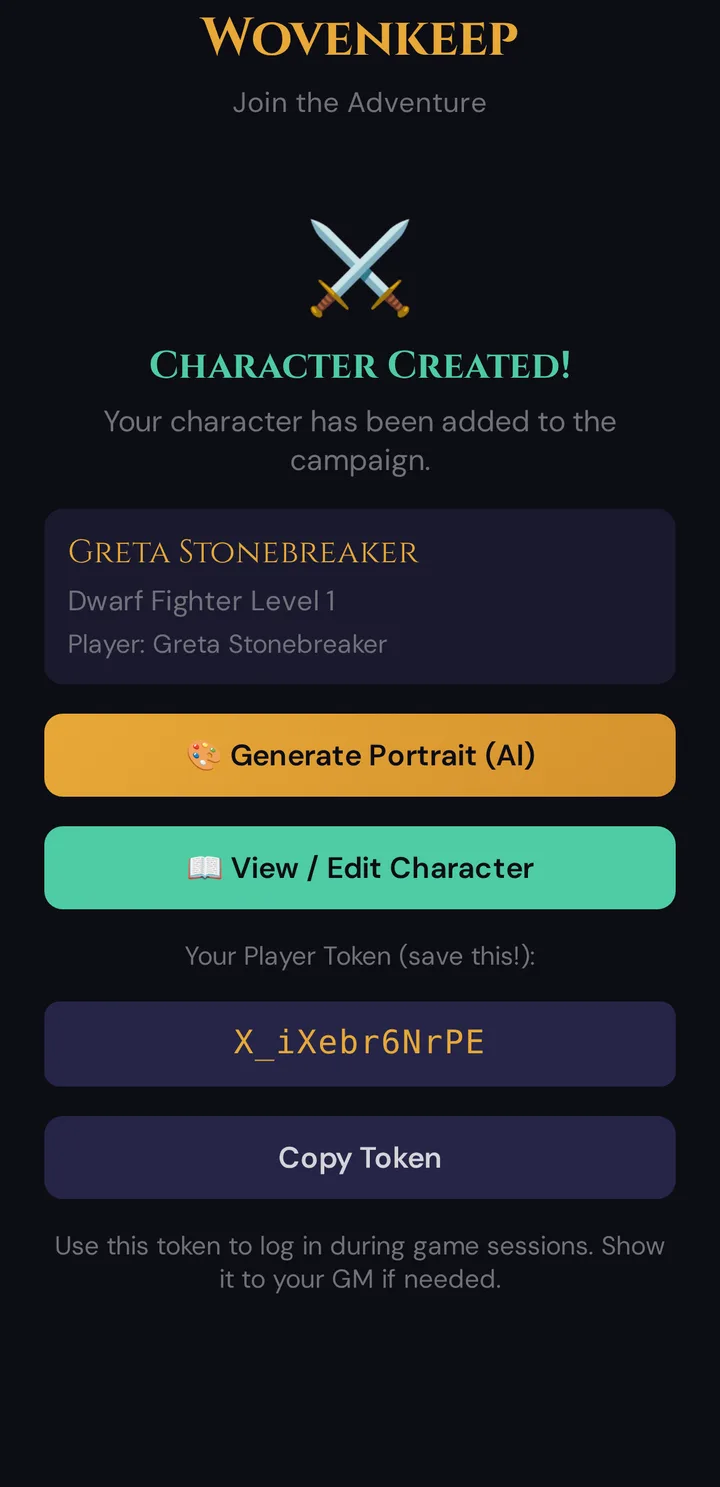
The View / Edit Character button opens the full character sheet directly — the character's name can be changed there with ✏️ (see Changing your character's name). The Generate Portrait (AI) button lets the player get a portrait suggestion right from the success screen — see Plan limits below. If you've hidden the AI features, the button isn't there.
Tracking invites
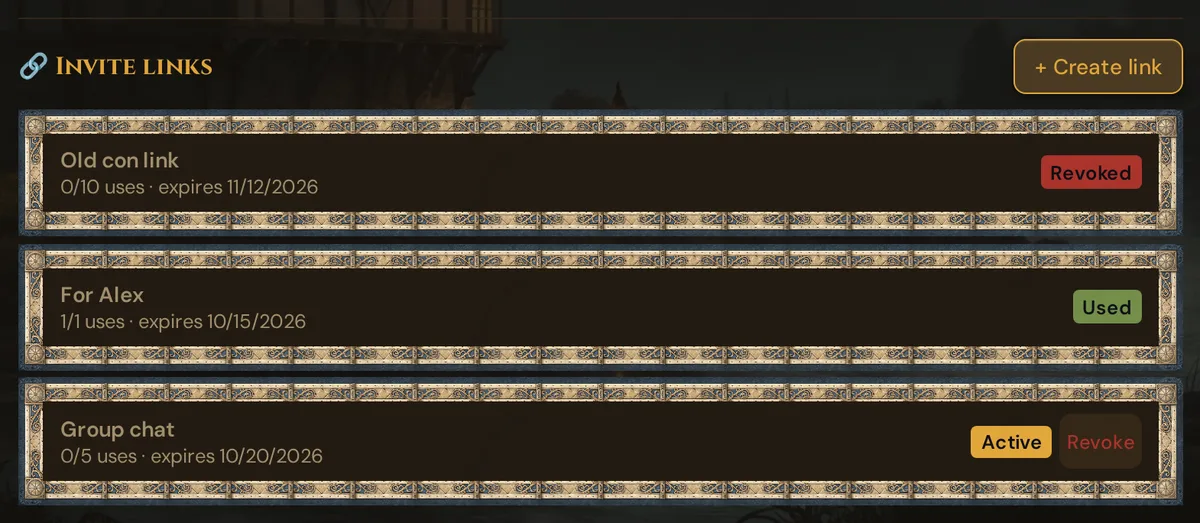
The 🔗 Invite links section at the bottom of the Players page lists every invite and its current status:
| Status | Meaning |
|---|---|
| Active | Link works; uses remaining; not expired yet |
| Used | Max uses reached (status: completed) |
| Expired | Past the validity window |
| Revoked | You manually disabled it |
Each invite card shows the use count and expiry date inline.
Revoking an invite
Click Revoke next to an active invite. The link immediately stops working. Characters already created through it are not deleted — only the link itself is disabled.
Revoke when:
- A link leaked publicly and you want to stop random players joining
- A player left the group before using their link
- The recruitment window is over
After characters come in
Created PCs appear in your Players list just like any GM-created character. Before session 1:
- Review each sheet — check that species, class, and level fit the campaign.
- Add GM notes — players can't see these; use them for your own context ("wants a redemption arc", "prefers social encounters").
- Link to plotlines — connect each PC to a personal plotline (see Plotlines).
- Catch up on portraits if players skipped them — players can upload a portrait or get one suggested on their character sheet at any time; on the PC card, ✍️ Image description gives you a template for your own image.
Onboarding vs. Session Zero
These are two separate, complementary tools:
| Onboarding invite | Session Zero | |
|---|---|---|
| Purpose | Build the character sheet | Collect playstyle preferences |
| Output | A PC in the Players list | A preferences card per player |
| When | 1–2 weeks before session 1 | 1–2 weeks before session 1 |
Send both links at the same time. Players can build their character and complete the preferences survey in one sitting.
Joining a live session vs. onboarding
These are two different links — don't mix them up:
| Link | Purpose | When |
|---|---|---|
Onboarding invite (/onboard/{token}) |
Build a character | Before the campaign starts |
Session join (/player/?s={code}) |
Join tonight's live game | At session time, each session |
A player uses the onboarding link once to create their character. After that, they use the session join QR (which changes every session) to log in to live games using their Player Token.
Plan limits
The onboarding flow itself (creating a character, sharing links, tracking invites) is free.
Portrait suggestion (AI) on the success screen (optional): available on all plans, pay-per-use — each suggestion costs 5 Threads from your balance, provided you allow players to use paid Tantu functions. See Threads & costs for details.
Troubleshooting
| Symptom | Cause | Fix |
|---|---|---|
| Invalid Invite — This invite has expired. or This invite has been revoked. | The link expired or was revoked (an unknown link says This invite link is no longer valid.) | Create a new link in the 🔗 Invite links section |
| Connection Error — Could not reach the server. Please try again. | The Realm couldn't be reached | Check the connection and reload the page |
| "This invitation link has already been used." | Single-use link was already claimed | Create a new link, or use a higher max-uses setting |
| Player can't find the link | Common — they lose it in chat | Share the QR code instead; paste the URL again |
| Character doesn't appear in Players list | Player may not have clicked Confirm on the final step | Ask them to reopen the link and complete the wizard |
| QR code doesn't scan | Low-contrast display or small screen | Copy the URL instead and paste it manually into a browser |
Related articles
- ✨ Character creation — the full character creation flow
- 🎲 Player characters — where created PCs live after onboarding
- 🤝 Session Zero — companion playstyle preferences survey
- 📡 Running a live session — session join is a different link
- 🧵 Threads & costs — what portrait suggestions cost (pay-per-use)