⚔️ Encounters, Items & Monsters
👤 For: Game Masters · 💳 Plan: All plans · 🔄 Updated 2026-10-17
Three homebrew-content tools live under Create in the prep sidebar: the Encounter builder (fights with CR math, plus social, exploration, trap and puzzle encounters), custom Items, and custom Monsters. You build all three by hand — items and monsters optionally from a suggestion from Tantu (AI) — and all three feed directly into live play.
What it does
- Encounter builder — prepare an encounter of one of five types: combat, social, exploration, trap or puzzle. For a fight, assemble a group of monsters (SRD or custom), set party size and level, and get an instant 5e difficulty rating with adjusted XP.
- Custom Items — design homebrew magic items manually or with a suggestion from Tantu (AI); they appear in the 🎒 My Items tab of the standalone rulebook page and in the live "Give Item" flow.
- Custom Monsters — build full statblocks with an optional structured Boss/Lair editor; they drop straight into encounters and the initiative tracker.
When to use it
Use the Encounter builder before a session to sanity-check difficulty — that "few goblins" encounter can turn Deadly once the monster-count multiplier kicks in. Use the Custom Item and Monster editors whenever the SRD doesn't have what you need, or when you want a homebrew BBEG with a proper statblock and portrait.
Encounter builder
Sidebar → ⚔️ Encounters (under Create).
An encounter is a named moment you prepare — a fight, a negotiation, a trap. A fight holds its monsters and a calculated difficulty for your party; the other types are notes with optional participants.
Encounter types
The first field of the calculator, Type, sets what kind of encounter you are preparing:
| Type | Icon | What changes |
|---|---|---|
| Combat (default) | ⚔️ | Everything below: Players, Level, 🧮 Calculate, difficulty and XP, ⚡ Auto-Start, the combat sound and the import into the initiative tracker |
| Social | 🗣️ | A negotiation, an interrogation, a festival |
| Exploration | 🧭 | A ruin to search, a stretch of wilderness |
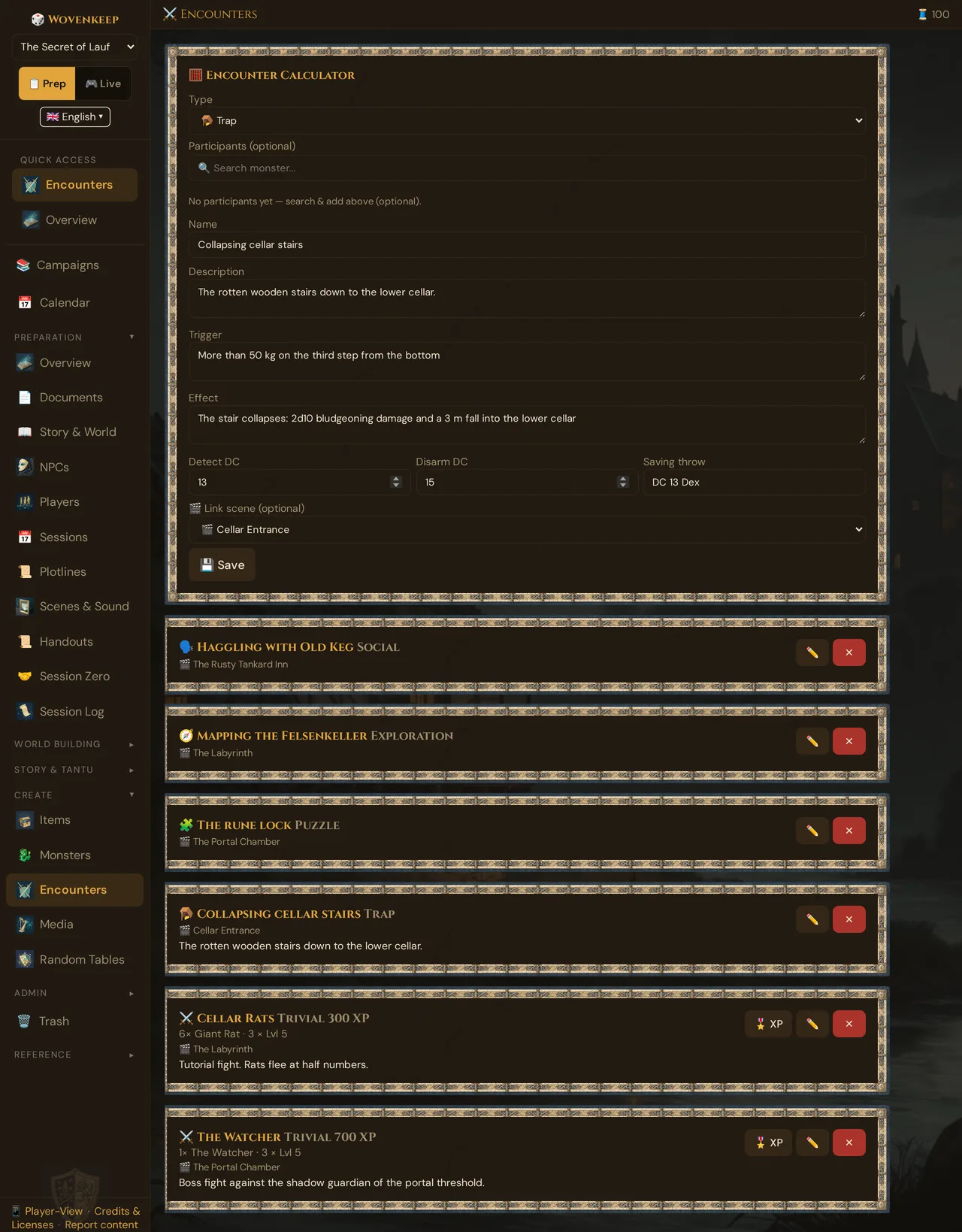
| Trap | 🪤 | A collapsing stair, a poisoned needle — with the fields Trigger, Effect, Detect DC, Disarm DC and Saving throw (see below) |
| Puzzle | 🧩 | A rune lock, a riddle door — with the fields Solution and Hints |
For the four non-combat types, the calculator hides Players, Level, 🧮 Calculate, the result and ⚡ Auto-Start (a tick there is removed), and the monster list is headed Participants (optional) — add creatures or NPC stand-ins only if you want them on record (No participants yet — search & add above (optional).). In the ✏️ dialog, the block ⚔️🔊 Combat sound setting (AI prompt) is hidden as well. These encounters have no difficulty and no XP, and Wovenkeep never starts a fight for them (see Saving & using encounters).
Encounters you saved before the types existed count as Combat. You can change the type at any time: click ✏️ on the encounter, pick another Type and click 💾 Save.
The icon shows wherever the encounter appears: in the encounter list (non-combat encounters show their type instead of a difficulty), on the scene cards in 🎬 Prepare Scenes (with ⚡ after ⚔️ for a fight that starts automatically), in the scene editor's ⚔️ Encounters panel and in the Print Pack.
Trap and puzzle fields
Choose 🪤 Trap or 🧩 Puzzle, and a block of its own appears below Description:
| Type | Fields |
|---|---|
| 🪤 Trap | Trigger and Effect (up to 1,000 characters each), Detect DC and Disarm DC (whole numbers 1–40) and Saving throw (short text, e.g. DC 13 Dex) |
| 🧩 Puzzle | Solution (up to 2,000 characters) and Hints — one hint per line, up to 10 |
- The fields are saved with 💾 Save; a DC outside 1–40 and an 11th hint are dropped without a message.
- To see or change them later, open the encounter with ✏️ — the encounter list shows only the description. In the ✏️ dialog, too, they are saved only with 💾 Save; Close discards changes to them.
- If you switch an encounter to another type and save, the fields of the old type are gone.
- The Print Pack prints them after the description, hints as a numbered list. In Live, pushing the scene only adds a line such as 🪤 Trap: Collapsing stair to your 📋 Log; players never see them.
- Duplicating the campaign copies them.
Building an encounter
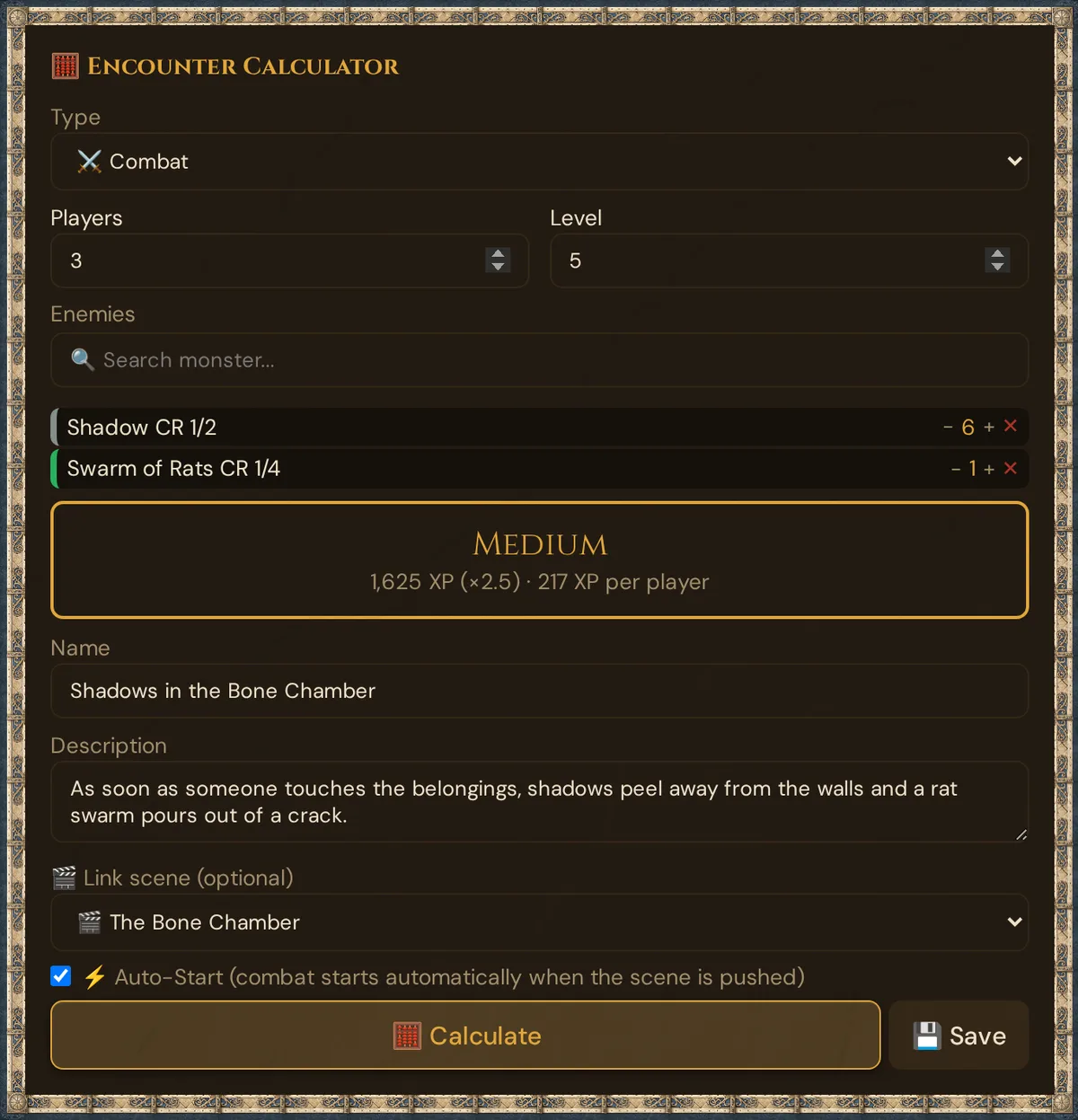
- Choose the Type — keep ⚔️ Combat for a fight (see Encounter types).
- Set Players and Level — the tool infers them from your PCs but you can override both; Wovenkeep remembers them for the campaign.
- Search across the SRD's 471 monsters (plus any custom monsters you've built). Type 2+ characters; results filter live. Hover a result — or long-press on touch devices — for a quick stat preview before adding it.
- Click a result to add it; use - / + to set the count and ✕ to remove it.
- Click 🧮 Calculate.
The result box shows the difficulty (Trivial, Easy, Medium, Hard or Deadly) and one line with the adjusted XP, the multiplier for the number of monsters and the XP per player — in the picture above Medium with 1,625 XP (×2.5) · 217 XP per player.
It uses standard 5e encounter-difficulty math — more monsters raises the effective difficulty even at the same raw XP total. If a saved encounter lacks a monster's CR (older encounters, for example in the demo campaign), Wovenkeep looks it up by the monster's name — in the SRD or among your own monsters of the campaign — so the difficulty and the XP stay right.
Saving & using encounters
Give the encounter a Name (required — left empty, Name is required. appears right below the field) and, if you like, a Description. Optionally link a scene under 🎬 Link scene (optional) and, for a fight, tick ⚡ Auto-Start if it should start as soon as that scene is pushed. Then click 💾 Save — the encounter is stored on the campaign, and the calculator starts afresh: type ⚔️ Combat, empty fields, Players and Level kept.
Saved encounters:
- Appear in the Sessions link picker so you can attach an encounter to the session it belongs to.
- Combat encounters can be pulled into the live Initiative tracker with one click — every monster gets a rolled initiative and CR-appropriate HP automatically. The 🐉 Load Monsters from Encounter window lists only combat encounters.
- Non-combat encounters linked to a scene show up when you push that prepared scene live: the 📋 Log card gets a line such as 🗣️ Social: Haggling with Old Keg as your reminder. Nothing is sent to the players, and no fight starts — these types have no ⚡ Auto-Start.
In the calculator, 💾 Save stores the encounter. In the ✏️ edit dialog, name, description and sound prompt save automatically; type, linked scene, Auto-Start, the monster list and the trap or puzzle fields are saved only with 💾 Save — Close discards those changes. See Autosave → where it works.
Custom Items
Sidebar → 🎒 Items (under Create).
Build homebrew magic items — manually or with a suggestion from Tantu (AI).
Manual item
Click + Manual → type a name → fill in the fields (rarity, type, description, effects, weight, attunement, cursed). The weight field takes pounds in English (Weight (lb)) and kilograms in German, French and Spanish (1 lb = 0.5 kg); the item keeps the same weight in every language. The item is saved to the campaign's custom item list.
Optional: Suggestion from Tantu (AI)
Click ✨ Ask Tantu (it shows its price, 4 🧵) → type a concept ("a sword that whispers battle tactics") → optionally set party level → ✨ Create. The Create button shows the price as a badge, and a confirm dialog with the cost and your balance appears before the generation runs.
Tantu delivers a complete draft: name, rarity, mechanics, charges, curse, lore. The draft is saved automatically so you don't lose it. Review and edit, then Save.
💡 Tip: A suggestion costs 4 Threads (long text) from your balance. With your own AI key configured for your Realm, text suggestions like this cost 0 🧵. See Threads & costs.
Item artwork
Any custom item → ✨ Generate Image → Tantu suggests a portrait for the item (AI). Cost: 5 Threads per image — free only with your own Google Gemini key. The image appears in the item detail and in the live "Give Item" card players see.
Once an item has at least one generated image, its card also shows a 🖼️ Image variants button. It lists every image ever generated for that item — click one to make it the active image again. Switching between existing variants costs no Threads.
Where custom items appear
- In the 🎒 My Items tab of the standalone rulebook page (
/gm/rules.html) — not in the Rulebook in the sidebar - In the live Give Item autocomplete
- In the Encounter builder's monster search (items are not monsters, but the item card is accessible from the session inventory)
Custom Monsters
Sidebar → 🐉 Monsters (under Create).
Build homebrew creatures with full statblocks, including a structured boss/lair editor.
Manual monster
Click + Manual → a form with up to six core sections plus an optional seventh boss section:
| Section | Fields |
|---|---|
| 1. Identity | Name, size, type, alignment, CR, 👑 Boss checkbox |
| 2. Combat stats | AC, HP, speed |
| 3. Ability scores | STR / DEX / CON / INT / WIS / CHA |
| 4. Proficiencies & resistances | Saves, skills, damage resistances/immunities, condition immunities, senses, languages |
| 5. Traits & actions | Traits, actions, bonus actions, reactions, legendary actions (free-text), lair actions (free-text) |
| 6. Description & notes | Flavor, tactics, GM notes |
| 7. 🏰 Lair & Regional (Boss) | Only visible when 👑 Boss is checked — see below |
Sections 4 and 6 are collapsible; open the ones you need.
Boss editor (Section 7 — Lair & Regional)
When you check 👑 Boss, an additional section appears with structured fields for full boss-encounter design:
- Has Lair toggle — enables all lair mechanics.
- Lair edition — choose between Klassisch (2014) (lair action fires on initiative 20, the tested and reliable mode) and 2024 (additional legendary actions inside the lair; flag as working before relying on it in a live session).
- Lair Action Initiative — the initiative count on which lair actions trigger (default: 20).
- Lair Actions (structured) — add named options, each with a description, optional Save (e.g. DC 15 Dex), and optional damage (e.g. 10 (3d6)). Click + Option to add rows.
- Regional Effects — radius and the "fades X days after death" rule.
- Legendary Actions (structured) — slots per round plus individual options with cost and description. Click + Option to add rows.
- Legendary Resistance — number of uses per day.
💡 Tip: Use the free-text fields in Section 5 for quick notes during prep and the structured Section 7 for bosses where the live tracker will need to fire lair actions automatically. The 2014 classic path is the verified working mode.
Optional: Suggestion from Tantu (AI)
Click ✨ Ask Tantu (4 🧵) → the window 🐉 Create Monster with Tantu asks for the Monster concept, the CR and Boss? (Normal or Boss (legendary)) → ✨ Create. As with items, the button shows the price and a confirm dialog appears before the generation runs.
Tantu returns a complete statblock for the CR you chose; a boss gets legendary actions. The draft is already saved under Custom Monsters, so nothing gets lost. Review it, then click 💾 Save to campaign — this keeps the draft instead of adding a second monster. Afterwards you edit it like any other monster with ✏️.
A suggestion costs 4 Threads from your balance. With your own AI key, text suggestions like this cost 0 🧵.
Monster artwork
Any custom monster → the ✨ button on its card (it shows 5 🧵; tooltip ✨ Generate Image) → Tantu suggests a full-body creature portrait (AI). Cost: 5 Threads per image — free only with your own Google Gemini key.
Push the image as a scene reveal or a cut-in for maximum table impact.
Where custom monsters appear
- In the Encounter builder's monster search
- In the live Initiative tracker's encounter import
How the three connect
- Custom Monster or SRD Monster → Encounter (group + CR math) → Live Initiative tracker
- Custom Item → Live "Give Item" → Player inventory
Build a monster, drop it into an encounter, the encounter flows into live combat. Build an item, hand it out during the session. The Create tools are the prep layer that feeds everything in the live session.
Best practices
Don't over-stat monsters. For mooks, a name + AC + HP + one attack is enough. Save the six-section detail for bosses.
Always calculate before you commit. The monster-count multiplier is easy to underestimate. A "quick fight" with seven goblins against a level-3 party is Deadly.
Use the structured boss editor for your BBEG. Free-text lair actions in Section 5 work fine for notes; the Section 7 structured fields let you track legendary action slots and lair options at the table without flipping through PDF pages.
Give your BBEG a picture. Upload your own artwork, or optionally get an image suggestion (AI). On the big entrance, push it as a cut-in.
Costs
The encounter builder, manual item editor, and manual monster form are free on all plans with no Thread cost.
Suggestions from Tantu spend Threads, your credit for optional extras:
- Text suggestions (item and monster stat blocks) cost 4 Threads each (long text). With your own AI key they cost 0 🧵 on any plan.
- Image suggestions cost 5 Threads per image on any plan — free only with your own Google Gemini key.
Every button that spends Threads shows its price as a 🧵 badge, and a confirm dialog with the cost, your current balance, and the balance after appears before each paid generation.
See Threads & costs for how to check your balance and configure your own key.
Troubleshooting
| Symptom | Cause | Fix |
|---|---|---|
| Monster doesn't appear in encounter search | Just created and not yet saved, or filter is active | Save the monster first; check that the encounter search box is empty / showing custom results |
| A suggestion returns a parse error | Tantu's answer wasn't valid JSON (can happen with unusual concepts) | Retry with a simpler concept; the output is also shown as raw text so you can copy the useful parts manually |
| Section 7 (Boss / Lair) is not visible | The 👑 Boss checkbox in Section 1 is unchecked | Tick 👑 Boss — the section appears immediately below Section 6 |
| Image generation fails with "not enough Threads" | Threads balance is zero | Buy or earn more Threads; see Pricing — or add your own Google Gemini key: then images cost no Threads |
| Encounter difficulty seems wrong | Party size or level not matching your actual party | Check the Players and Level fields at the top of the calculator — override if needed |
| No Players, Level or 🧮 Calculate in the calculator | Type is not ⚔️ Combat | Choose ⚔️ Combat — only fights have a difficulty |
| Saved encounter doesn't appear in the Initiative tracker import | Encounter was not explicitly saved with 💾 Save, or its type is not Combat | Open the encounter with ✏️, check the Type, and click 💾 Save |
| No ⚡ Auto-Start checkbox | Type is not ⚔️ Combat — only fights start automatically | Choose ⚔️ Combat; the other types leave a line in the 📋 Log when you push their scene |
| A DC is empty after saving | The value was outside 1–40 | Enter a whole number from 1 to 40 and click 💾 Save |
| Hints are missing | More than 10 hints, or empty lines | Keep it to 10 hints, one per line |
| Trap or puzzle fields are gone after Close | In the ✏️ dialog these fields are saved only with 💾 Save | Fill them in again and click 💾 Save |
Related articles
- ⚔️ Initiative & combat — encounters flow into the live initiative tracker
- ⚒️ Suggestions: items, monsters, images, sound — more on item and monster suggestions
- 📕 SRD Rulebook — 3,761 openly licensed entries (SRD 5.2 and 5.1 plus open content from other publishers) + your custom items in the My Items tab of the standalone page
- 🎁 Items & inventory (live) — handing items to players during a session
- 🔊 Scenes & Sound — push monster artwork to player screens