🖨️ Print Pack
👤 For: Game Masters · 💳 Plan: All plans · 🔄 Updated 2026-10-17
Wovenkeep is built for digital play — but plenty of tables are analog or hybrid. The Print Pack generates a ready-to-print session packet from your campaign data: NPC cards, scene read-aloud text, stat blocks, PC references, and more — all in one browser print job.
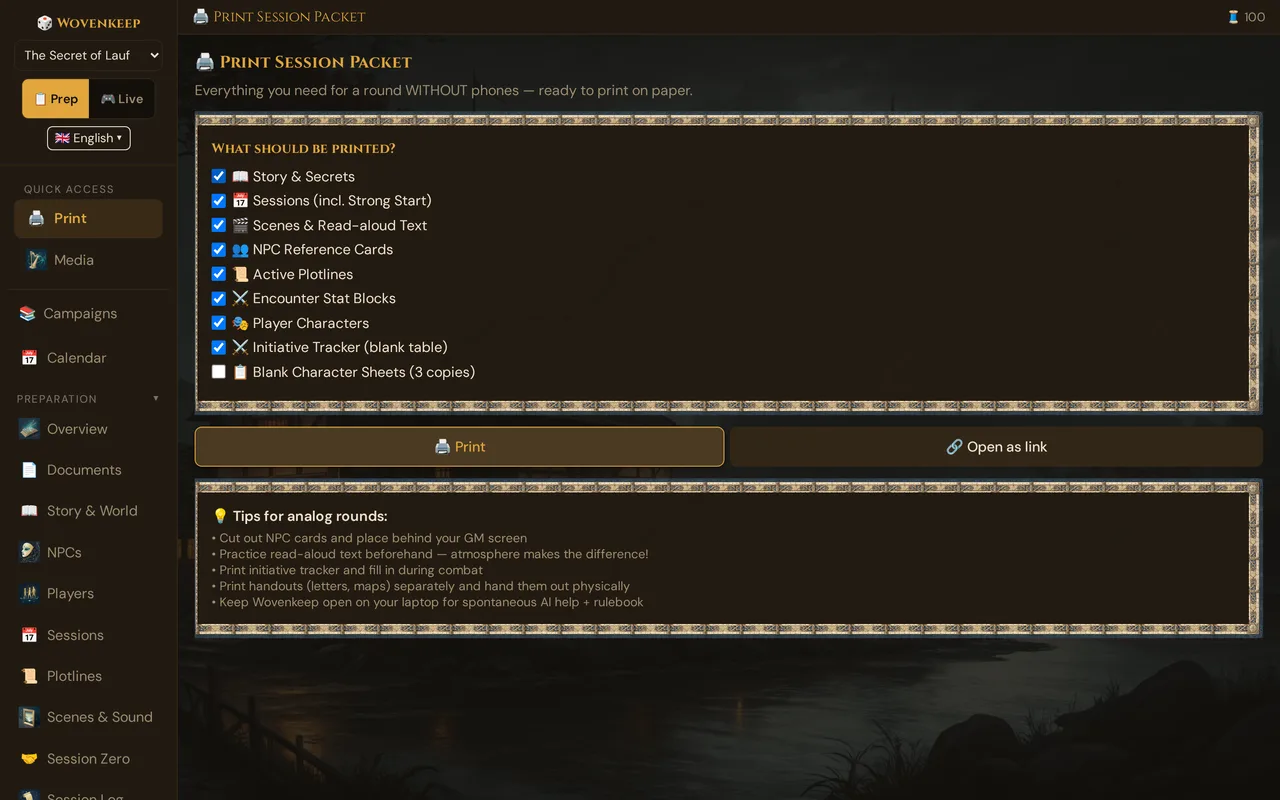
What it does
From the Print panel you tick which of the nine sections to include, then open the packet as a printable page (or direct link). The page is laid out for A4 / Letter, black-on-white (printer-friendly — no dark theme bleeding ink); NPC cards come with a frame to cut along. The browser's native print dialog handles the actual PDF export.
The packet is in the language of your GM tool — headings, labels such as NPC importance and plotline priority, the GM: prefix of your secrets, Level, AC and HP. A language menu at the top right of the print tab switches it and reloads the page. Your own texts print as you wrote them.
When to use it
- Before each session: generate a fresh snapshot — NPC cards behind your screen, read-aloud text for practice, stat blocks for quick combat reference.
- Hybrid tables: run digital on your laptop for lookups and pushes, paper for the things you reference constantly without clicking.
- Walk-in players: print blank 5e character sheets (three copies per run).
Step by step
- Open 🖨️ Print in the sidebar (in the Admin group). The 🖨️ Print Session Packet panel opens.
- Tick the sections you want. All nine are checked by default except Blank Character Sheets, which is off by default.
- Click 🖨️ Print to open the packet in a new browser tab, or 🔗 Open as link to get a shareable URL.
- In the new tab, use your browser's Print (Ctrl/Cmd + P) to save as PDF or send to a printer.
💡 Tip: Regenerate before every session — the packet is a live snapshot of your campaign data at that moment. NPCs you edited, scenes you added, or PCs that levelled up since last time are only in the new run.
The nine sections
| # | Section | Contents |
|---|---|---|
| 1 | Story & Secrets | Campaign narrative + GM-only secrets |
| 2 | Sessions (incl. Strong Start) | Planned sessions, strong starts, recaps |
| 3 | Scenes & Read-aloud Text | Scene descriptions formatted for reading aloud, plus per-scene GM secrets |
| 4 | NPC Reference Cards | Cut-out cards for behind the GM screen |
| 5 | Active Plotlines | Active story threads with priority |
| 6 | Encounter Stat Blocks | Every encounter with its type, difficulty and XP for combat, trap and puzzle fields, and a compact stat block per monster |
| 7 | Player Characters | PC summary cards (AC, HP, class, personal quest, GM notes) |
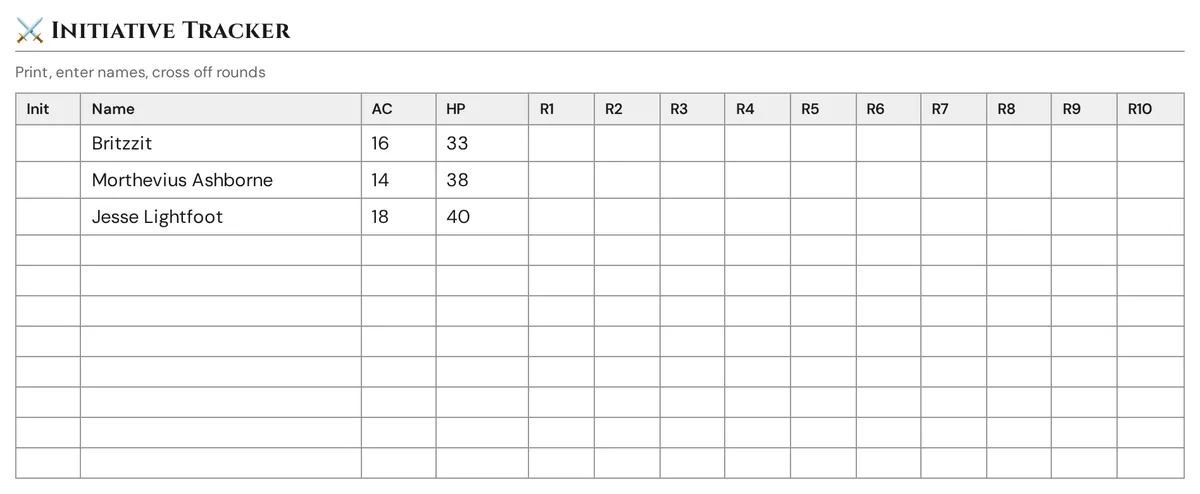
| 8 | Initiative Tracker | Pre-filled with PC names / AC / HP, 8 blank monster rows, 10 round columns |
| 9 | Blank Character Sheets (3 copies) | Full 5e sheet layout, ready to fill in |
All nine sections are included on every plan — nothing to unlock, and printing costs no Threads.
Section detail
NPC Reference Cards
Every NPC — major and supporting — becomes a cut-out card with role, short description, personality, voice, goal (green) and secret (red):
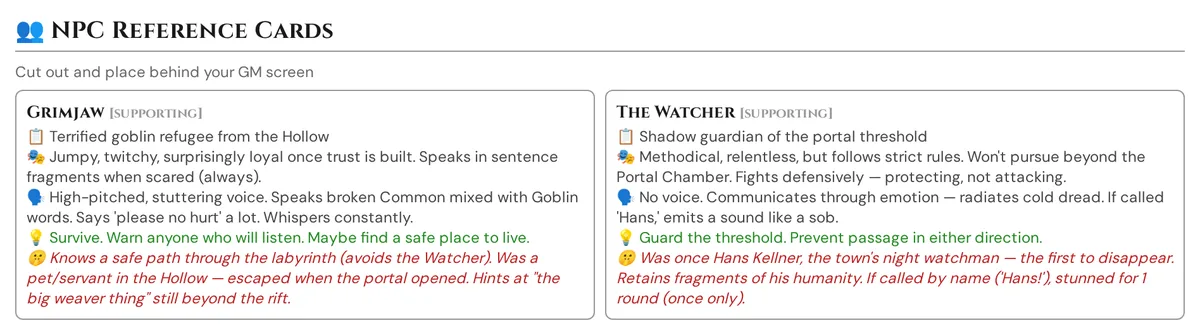
Cut them out, stack them behind your GM screen, flip to the one you need. The single most useful print output for analog GMs. Print on cardstock (200 gsm) and use a paper cutter — flimsy paper curls.
Read-aloud text — Scenes
Every prepared scene's description, formatted for reading aloud: large type, generous line spacing, scene title as a header. Per-scene GM secrets print in a red-bordered box immediately below, so you never have to switch screens to check them. Practice the read-aloud before the session; atmosphere is delivery.
Encounter stat blocks
Every encounter of the campaign, headed by its type icon, name and type — ⚔️ Combat, 🗣️ Social, 🧭 Exploration, 🪤 Trap or 🧩 Puzzle. Combat encounters add their difficulty and XP. Below follow:
- the description;
- for a trap, Trigger, Effect, Detect DC, Disarm DC and Saving throw; for a puzzle, Solution and the Hints as a numbered list (see Trap and puzzle fields);
- each monster or participant: count, name and CR, then a compact stat block — AC (armour type) · HP (formula) · speed, the six abilities with their modifiers, and the actions.
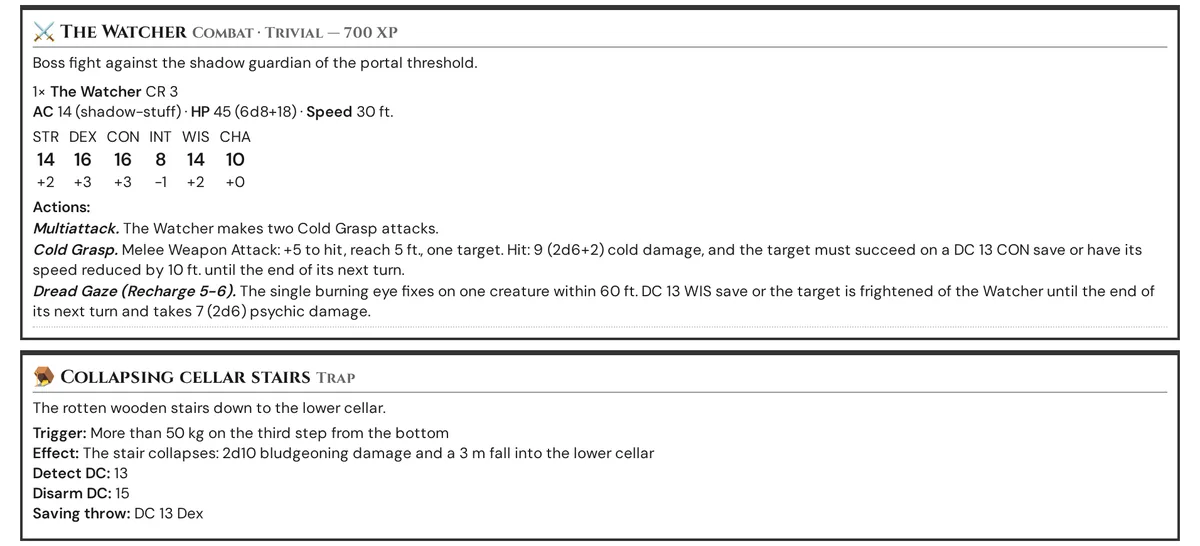
Wovenkeep takes the values from your own monster of that name in the campaign first, otherwise from the SRD. SRD monster names, speed and actions follow your language; only the armour type of SRD monsters is printed in English. A monster that is neither your own nor in the SRD shows only its name and CR.
Player Characters
A summary card per PC: name, species, class, level, AC, max HP, personal quest, and your GM notes. Useful as a quick reference — and as a backup if the digital tool is unavailable.
Initiative Tracker
Not a blank grid — the tracker pre-fills your PC names, AC, and max HP from the current campaign data. Eight empty rows follow for monsters. Ten round columns. Print it, write in initiative rolls at the table, cross off rounds as they pass.
Blank Character Sheets — 3 copies
Full 5e layout: ability scores and modifiers, saving throws, skills, proficiency bonus, AC, initiative, speed, HP, hit dice, attacks, equipment, traits, features. Three copies per run — for walk-in players, backups, or a fresh start.
Hybrid play
The recommended setup for many tables: print + a screen.
- Printed: NPC cards (behind the screen), read-aloud text, stat blocks — the things you reference constantly and don't want to click for.
- Screen / laptop: Compendium lookups, the session log (auto-records events even at an analog table when you log them), pushing the occasional image or handout to player phones, and optionally the AI help.
You don't have to choose all-digital or all-analog. The Print Pack exists specifically so you can mix.
What it costs
Nothing. The full Print Pack — all nine sections — is included on every plan, including free. Printing is not an AI action and costs no Threads.
Troubleshooting
| Symptom | Cause | Fix |
|---|---|---|
| Packet opens but shows no data in a section | No data exists for that section in the current campaign | Add NPCs, scenes, or encounters in prep, then re-open |
| PDF looks wrong / dark background printing | Browser "Background graphics" option is on | In the browser print dialog, turn off Background graphics |
| Initiative Tracker shows no pre-filled PCs | No Player Characters added to the campaign | Add PCs via the Characters section, then regenerate |
| "Open as link" URL doesn't work for someone else | The link requires a logged-in session on your Realm | Share your screen or the printed PDF instead |
| Print button does nothing | Pop-up blocker prevented the new tab | Allow pop-ups from your Realm's address (yourname.wovenkeep.com) in your browser |
Related articles
- 📄 Handouts — create physical handouts to distribute at the table
- 🎭 NPCs — build the NPC data that populates reference cards
- 🎬 Scenes — prepare read-aloud text and scene secrets
- ⚔️ Initiative & combat — digital alternative to the printed tracker
- 💳 Pricing — plan comparison