📺 TV view
👤 For: Game Masters · 💳 Plan: All plans · 🔄 Updated 2026-10-17
Put the scene on the big screen. The TV view turns a TV, projector or spare laptop at the table into a shared display: it shows what everyone at the table should see — no GM notes, no player seat, no player name.
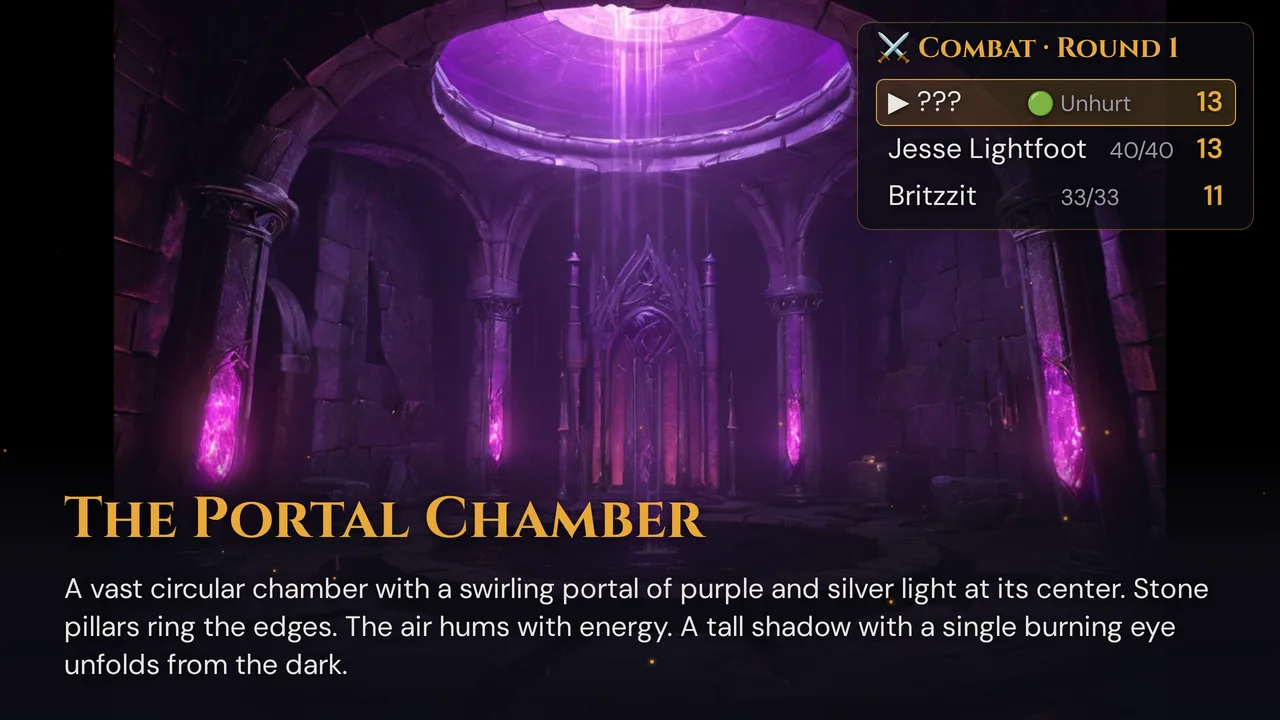
What the TV shows
The TV is a watch-only screen that follows your running session:
- Scenes you push — the image fills the screen, with the title at the bottom. The TV shows the read-aloud text only if you tick Also show text on the TV before pushing (say, for a letter or an inscription). Otherwise you read aloud and everyone looks at the picture.
- Overlays — the particle effects from the scene push (rain, snow, fog, embers, fireflies).
- Cut-ins — including the automatic critical hit / critical fail cut-ins from player dice.
- Combat order (top right) — round, whose turn it is and the initiative values. Each entry has two lines: the name with its initiative value, and below it the hit points or health band and the conditions. Unrevealed monsters stay
???, and monsters only show a health band (🟢 🟡 🔴 💀) — never their hit points. Player characters show their hit points. Active conditions follow the hit points or the health band, for example 33/33 · Prone — the 15 SRD conditions, in the TV's language. From 9 entries on, the list uses a smaller font so that up to 14 fit. While the combat order shows, the scene title and description leave room for it on the right. When you end the fight, the block disappears. - Clocks you have revealed to players (top left), as filled and empty dots — bound and free ones.
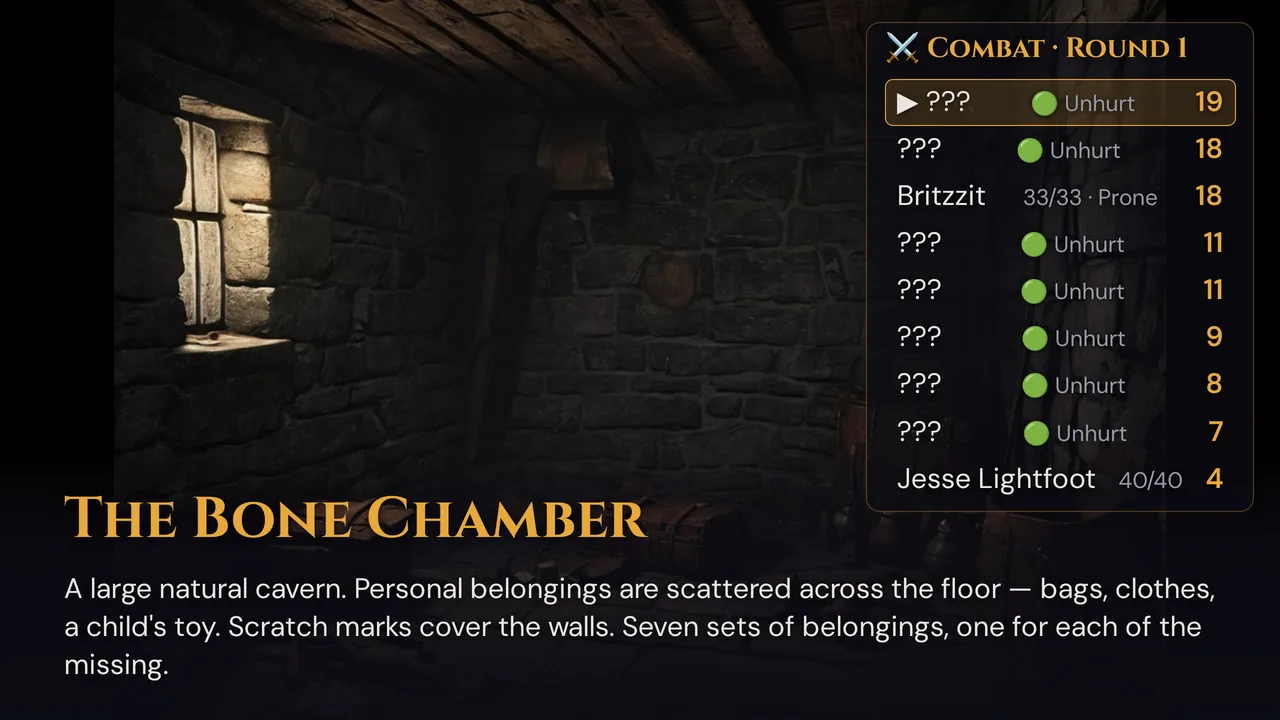
It does not show handouts, whispers, items or your GM notes. Sound plays on the players' phones — unless you switch it to the TV (see Sound on the TV).
Where to find it
In 🎮 Live, while a session is running:
- the 📺 TV button in the top bar, or
- the 📺 Connect TV button in the 📱 Invite Players card (visible while no player has joined yet).
Both open the 📺 Connect TV dialog: at the top the short TV address and the field for the TV's 4-digit code, then the list Remembered TVs (once you have paired a TV), and under Or with a link or QR code: the QR code, the TV link and a smart-TV hint with your session code. Below that come the connection status and 📺 Sound via:.
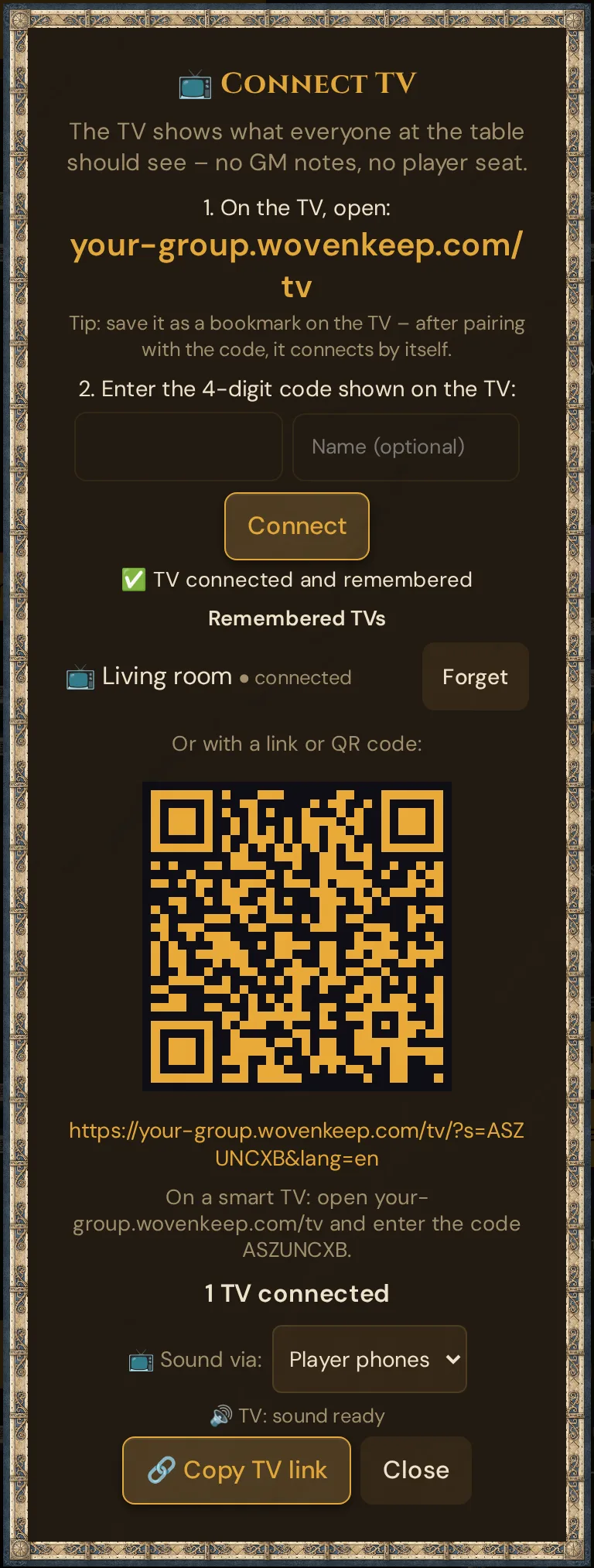
Step by step
- Start your session in 🎮 Live and click 📺 TV in the top bar.
- On the TV, open the address shown under 1. On the TV, open: (
<your address>/tv). The TV shows a 4-digit code. - In the dialog, type that code under 2. Enter the 4-digit code shown on the TV:, add a name in Name (optional) if you like, and press Connect. The dialog confirms "✅ TV connected and remembered", and the TV joins your session.
- On the TV, tap, click or press a key once — the page switches to full screen and asks the screen to stay awake.
- The TV shows your GM name (⚔️ …) — or Game Master in the TV's language if the campaign has none — and "Waiting for the first scene…" until you push one. If a scene is already active, it appears right away.
- Check the dialog: it says 1 TV connected, and a green ● appears next to 📺 TV in the top bar. The 📋 Log card also notes "TV connected" / "TV disconnected".
Save the address as a bookmark on the TV — from then on, it connects by itself (see Pair a TV with a code).
Other ways: QR code, link or session code
Under Or with a link or QR code: the dialog still offers the earlier ways:
- scan the QR code with the tablet or phone that feeds the screen, or
- click 🔗 Copy TV link and open the link in the TV's browser, or
- on a smart TV: open
<your address>/tv, type the session code into the field below the 4-digit code and press Show on TV. The dialog shows the exact address and code.
The QR code and link carry your interface language, so the TV texts match yours. A TV connected this way is not remembered: it stays with this one session.
Pair a TV with a code
Pairing needs neither a link nor the session code — and the TV is remembered for your next sessions.
On the TV, open <your address>/tv without a link. It shows "In the GM's Live mode, open “Connect TV” and enter this code:" and a large 4-digit code; the field for the session code stays below it.
- A code is valid for 10 minutes and works only once. Shortly before it runs out, the TV shows a new one by itself.
- Reloading the page on the TV also brings a new code; the old one no longer works.
- The short address carries no language: the TV uses its browser's language (or that of a TV link opened on it before).
In the dialog, type the code, optionally a name of up to 40 characters (without one, the TV gets a numbered name such as TV 1), and press Connect. The TV joins your running session right away and is listed under Remembered TVs.
Remembered TVs
A paired TV keeps its pairing in its browser. Whenever you open the short address on it again — easiest from a bookmark — it connects by itself:
- A session is running: the TV joins it straight away.
- No session is running: the TV shows "Waiting for the next session…" and joins as soon as you start a session in 🎮 Live.
- You end the session: the TV clears the screen, shows "Waiting for the next session…" and stays ready for the next one.
Bookmark the short address, not a TV link: a link always belongs to one session, even on a paired TV.
During a session, the 📺 Connect TV dialog shows all paired TVs under Remembered TVs — each with its name, ● connected or last seen … with date and time, and a Forget button:
- Forget removes the TV, and the dialog confirms "TV forgotten". If the TV page is open, the TV leaves the session at once and shows a new code. To use it again, pair it again.
- Forget TVs you no longer use: a remembered TV joins every session you start in your Realm while its page is open.
- If the TV's browser data is cleared, the TV loses its pairing and shows a code again. Pair it again; the old entry stays in the list until you forget it.
Sound on the TV
By default, sound plays on the players' phones. To hear it from the TV instead, set 📺 Sound via: to TV — in the 📺 Connect TV dialog, or in Live in the 🔊 Sound effects card (shown there while a TV is connected).
- The TV then plays the ambient loops and sound effects meant for the whole table; the phones stay quiet for those sounds.
- Sounds you send to individual players (All players unticked under 🎯 Target players) still play on their phones.
- Cut-in sounds follow your choice, too: the TV plays them — for example the sound of an automatic critical hit or critical fail cut-in. The phones still show the cut-in and vibrate, but stay silent.
- The TV needs one key press or tap first. While 📺 Sound via: is set to TV, it shows "🔊 Press any key for sound" until then; with Player phones, the hint stays hidden. The same press that switches the TV to full screen also enables the sound — if you have already tapped the TV, no hint appears.
- As soon as a TV has enabled sound, the dialog shows 🔊 TV: sound ready, and the 📋 Log notes "TV sound ready". Before that it says "Sound not yet enabled on the TV – press any key on the TV".
- Without a TV that has sound — not enabled yet, or disconnected — everything plays on the players' phones again; a running ambient loop moves along.
- Your choice applies to the running session and is remembered in this browser, so a reload keeps it.
Good to know
- Not a player. The TV takes no player seat and does not appear in the Players list.
- Several screens work — the status counts every connected TV, and each paired TV has its own entry under Remembered TVs.
- A link lasts one session. A TV connected by QR code, link or session code shows "The session has ended." when you end the session; for the next session, connect it again. A paired TV waits for the next session instead (see Remembered TVs).
- Drops reconnect on their own. The TV shows "Connection lost – reconnecting…" and rejoins. A TV connected by link retries every 10 seconds for up to 10 minutes if the session can't be reached; a paired TV rejoins the running session or waits for the next one.
Troubleshooting
| Symptom | Cause | Fix |
|---|---|---|
| TV stays on "Waiting for the first scene…" | No scene pushed yet, or the scene has neither a title nor an image | Push a scene with an image or a title |
| "Code not valid. Check the 4 digits on the TV." | A typo, or the code has run out (after 10 minutes), was already used or was replaced because the TV page was reloaded | Enter the code the TV shows right now |
| "Too many attempts. Please wait a minute." | More than 10 codes were entered within a minute | Wait a minute, then enter the current code |
| "The TV is no longer connected. Reload the page on the TV." | The TV lost its connection after showing the code | Reload the page on the TV and enter its new code |
| TV shows "Waiting for the next session…" | It is paired, but no session is running | Start the session in 🎮 Live — the TV joins by itself |
| A paired TV shows a 4-digit code again | It was forgotten in the dialog, or its browser data was cleared | Pair it again with the new code |
| "No session found. Open a new TV link in the GM's Live mode." | The session has ended or the link belongs to an old session | Open 📺 TV again and use the new QR code / link — or pair the TV with the code, then it finds new sessions by itself |
| No full screen | Some TV browsers don't allow full screen | Use the browser's own full-screen or zoom mode |
| No sound on the TV | 📺 Sound via: is set to Player phones, or the TV hasn't enabled sound yet | Choose TV, then press a key or tap on the TV once — wait for 🔊 TV: sound ready |
| The players' phones are silent | 📺 Sound via: is set to TV — sounds for the whole table play on the TV | Expected. To move the sound back to the phones, choose Player phones |
| 📺 TV button missing | You are in 📋 Prep, or no session is running | Switch to 🎮 Live and start the session |
Related articles
- 📡 Running a live session — start a session and share the join QR
- 📱 Multi-device players — extra player screens under their own name
- 🖼️ Scene push — what the TV shows full screen
- 🎬 Cut-in system — dramatic flashes, also on the TV
- ⚔️ Initiative & combat — the combat order the TV mirrors
- ⏱️ Place & scene clocks — reveal a clock to put it on the TV
- 🎵 Sound & ambient — the sounds the TV can play