🖼️ Scene push
👤 For: Game Masters · 💳 Plan: All plans · 🔄 Updated 2026-10-17
The scene push is the single most-used action in a Wovenkeep live session. It paints a full-bleed image with a title and read-aloud description onto every connected player phone in under a second — no apps, no sharing links, no fuss.
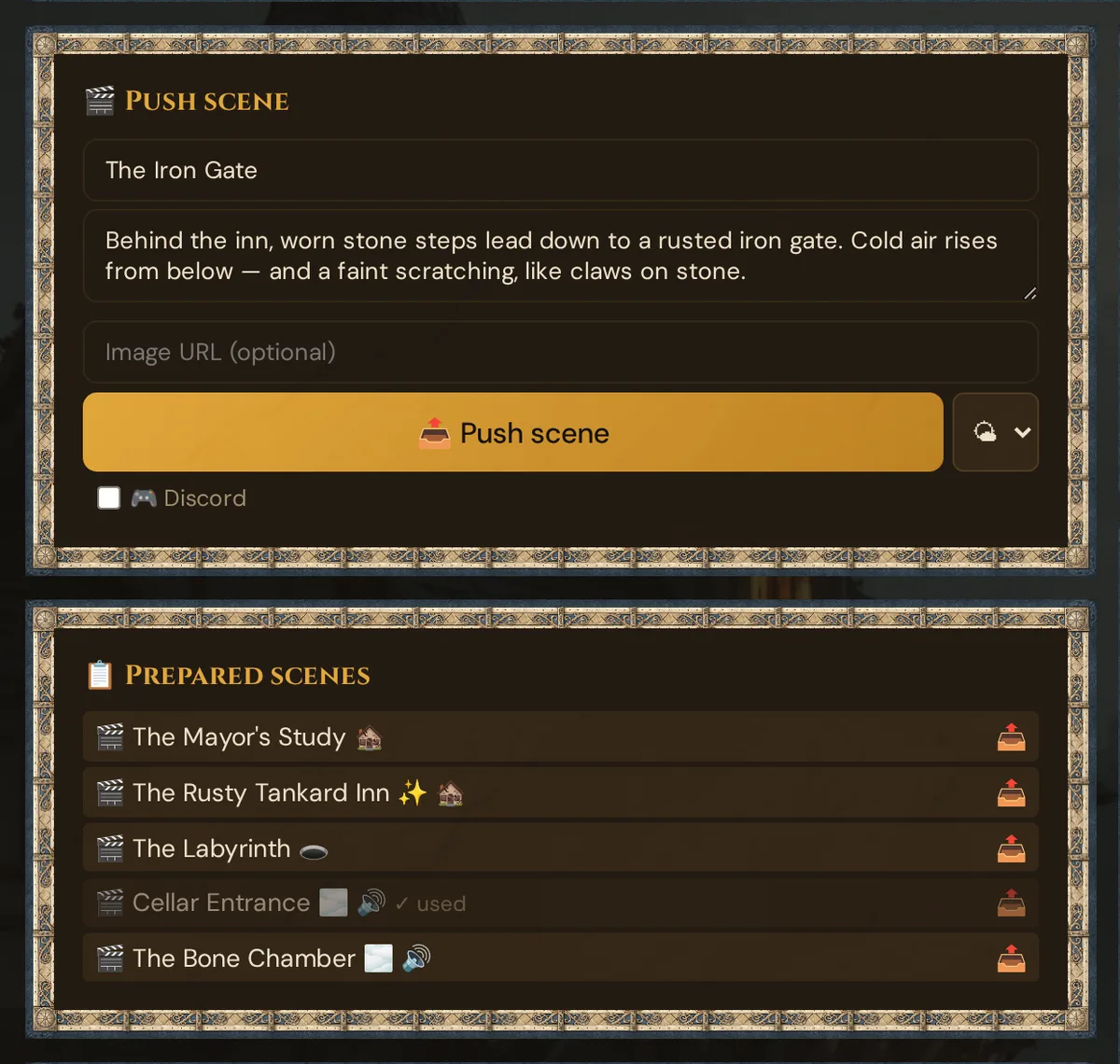
What it does
Every time you push a scene, every player's phone immediately shows a card with your chosen image, title, and description. Players can tap the image to expand it fullscreen. Pushing text-only scenes (no image) works just as well — useful for travel montages, narration, or internal monologue.
When to use it
Use a scene push any time you want to anchor the players' imagination: walking into a new location, a dramatic reveal, a weather change, the start of a tense encounter. Prepared scenes push in one click if you prepped them in advance; on-the-fly scenes let you write directly during the session.
Anatomy of a scene push
A pushed scene has four parts:
| Field | Required | What it does |
|---|---|---|
| Title | recommended | Bold Cinzel heading at the top of the scene card on phones |
| Description | yes | Read-aloud body text. Markdown supported (*italic*, **bold**, line breaks). On phones it starts collapsed; on the TV it appears only with Also show text on the TV. |
| Image | optional | Background image. Renders full-bleed up to 45vh; tap to expand fullscreen. |
| Overlay | optional | Particle effect layered over the whole screen — rain / snow / fog / embers / fireflies / none |
If you omit the image, the scene becomes a pure text card. Text-only pushes are always free.
Step by step — pushing a scene on the fly
This is the path for scenes you write during the session rather than prep.
- In the GM tool, switch to 🎮 Live mode (if not already active).
- Open the Scenes & Sound section (first item in the live sidebar).
- Locate the Push Scene card. Fields are arranged top-to-bottom:
- Title input
- Description text box (3 rows visible, expands as you type)
- Image URL (optional) with the button 🗂️ Choose from media
- Overlay dropdown (defaults to None)
- Checkbox Also show text on the TV (off by default)
- Fill in the fields. For the image you have two options:
- Paste a URL — any secure image link
- 🗂️ Choose from media — pick one of your pictures or portraits; the dialog can also upload a new picture, and you can drag a file straight onto it. The address lands in the field. See Choose from media.
- Click 📤 Push Scene.
The GM log on the right edge of the screen confirms with an entry like 🎬 The Shattered Gate. Every connected phone shows the scene almost instantly — a fraction of a second on Wi-Fi, up to about a second on mobile data.
💡 Tip: Open 🗂️ Choose from media and drag an image file from your desktop onto the dialog — Wovenkeep uploads it and fills the image field.
What the player sees
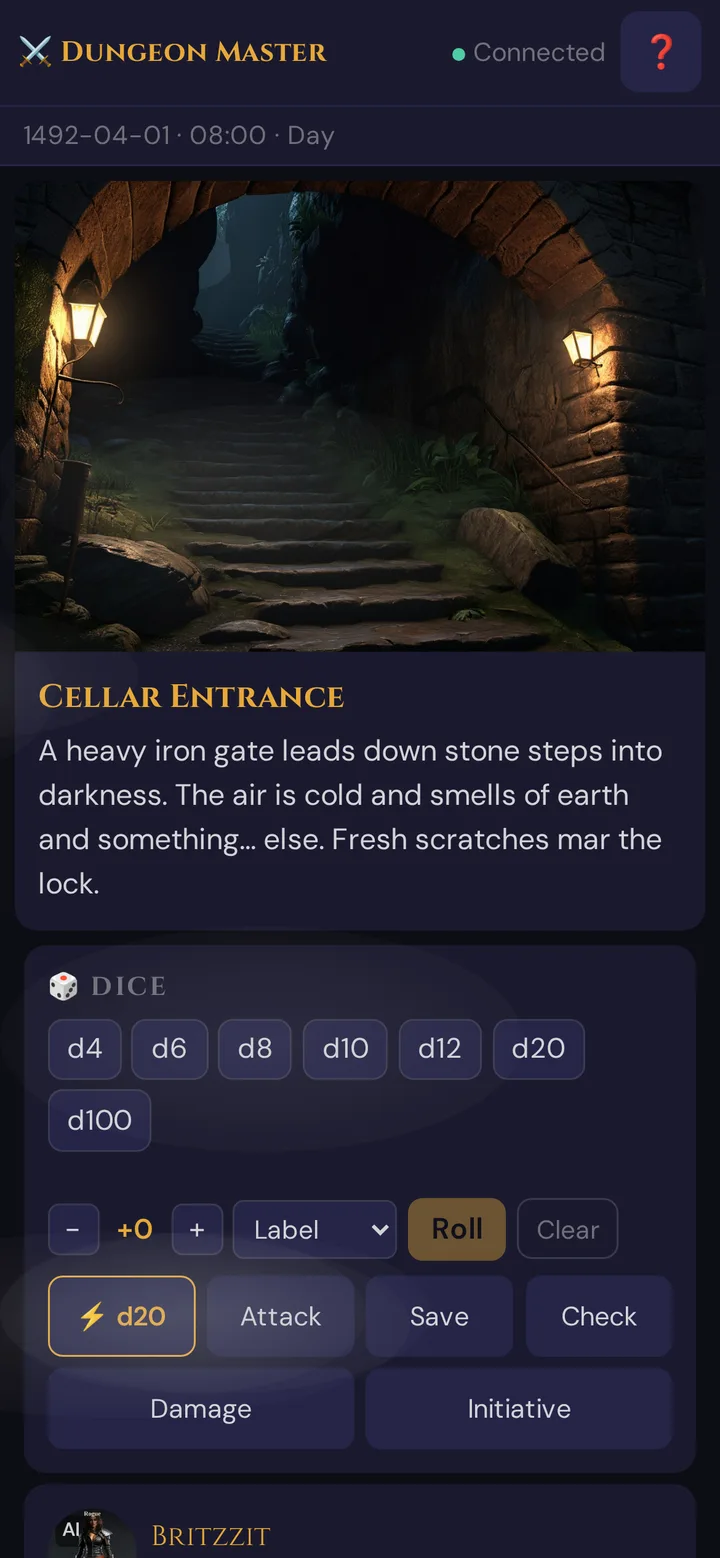
The scene fades up gently — subtle enough not to steal attention, clear enough that latecomers notice.
- On phones the read-aloud text starts collapsed behind 📖 Read the text, so everyone looks at the picture and listens to you; anyone who wants to reread it taps the button.
- On the TV only the image and title appear by default. For letters, inscriptions or riddle text, tick Also show text on the TV before you push: the text then appears on the TV too and opens straight away on phones. The checkbox applies to the current live session and is off again after a reload.
Pushing a prepared scene
If you prepped scenes during the planning phase (recommended for set-piece moments), pushing them takes one click and automatically triggers several things at once.
- In Scenes & Sound, find the card 📋 Prepared scenes below the 🎬 Push scene card.
- It lists every prepared scene of the campaign as a button — with icons for overlay and sound, and ✓ used once you pushed it. If you grouped your scenes into acts and chapters, small headings Act · Chapter sort them; scenes without a chapter come last under No chapter.
- Click a scene. It is pushed right away — with the title, description, image and overlay from prep.
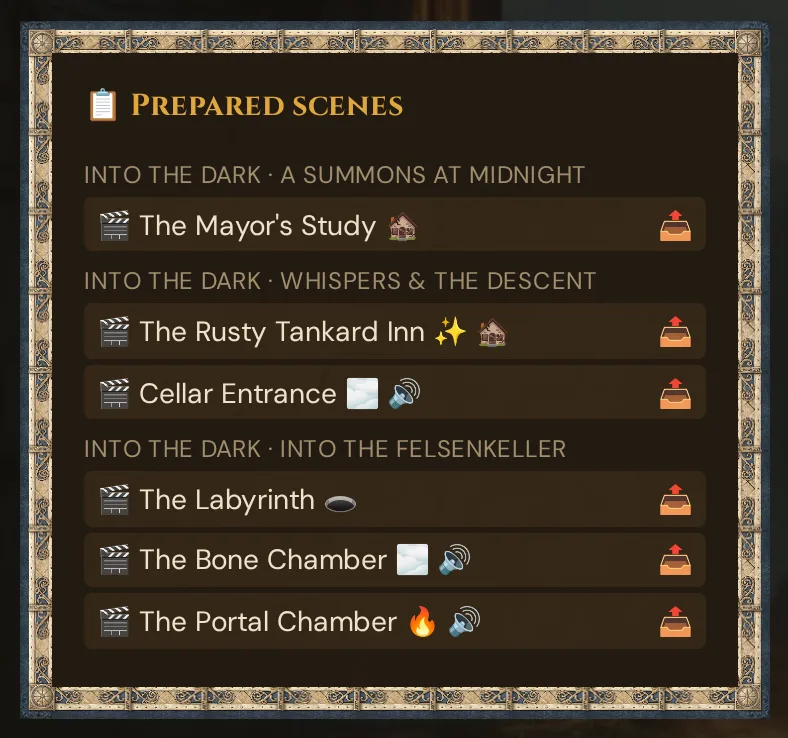
The card is small and scrolls once you have many scenes. Players never see acts or chapters.
What fires automatically on a prepared scene push
Beyond showing the scene on player phones, Wovenkeep chains these side effects immediately — no extra clicks:
- Background sound — the sound chosen for the scene starts automatically and loops: a soundscape (e.g. tavern, forest, dungeon, battle), one of your own uploads or an AI sound. It plays on all phones — or on the TV, if 📺 Sound via: is set to TV (see Sound on the TV).
- Encounter auto-start — any combat encounters linked to the scene with auto-start enabled launch as a single combined combat (all auto-start encounters merge into one initiative tracker). Combat encounters without auto-start appear as a floating offer button you can trigger manually at any point during the scene. Social, exploration, trap and puzzle encounters never start a fight — each leaves a line such as 🪤 Trap: Collapsing cellar stairs in the 📋 Log (see Encounter types).
- Clues for this scene — if clues are linked to the scene, the card 🔍 Clues for this scene appears with each clue's saved state: ✓ Found as a button for planted clues, ✓ Found or 🌾 Harvested as text for the others, and 🔍 As handout for every clue.
- Lair-Actions panel — if the scene has a lair defined, the Lair-Action button panel loads in the initiative tracker automatically.
- Scene clocks — the card ⏳ Clocks switches to This scene: … and shows the scene's clocks; all other clocks stay below under Other clocks (see Clocks in the live session).
- Scene marked as used — the scene is flagged as used in your prep tracker so you can see which set pieces you've visited.
- Secrets badge — if the scene has a secrets field, it appears in the GM log entry (players never see it).
Own and AI sounds: A sound file chosen for the scene — uploaded or made with AI — plays on push just like a soundscape and takes its place. You choose it in the scene's 🔊 Sound list, see Scenes (prep).
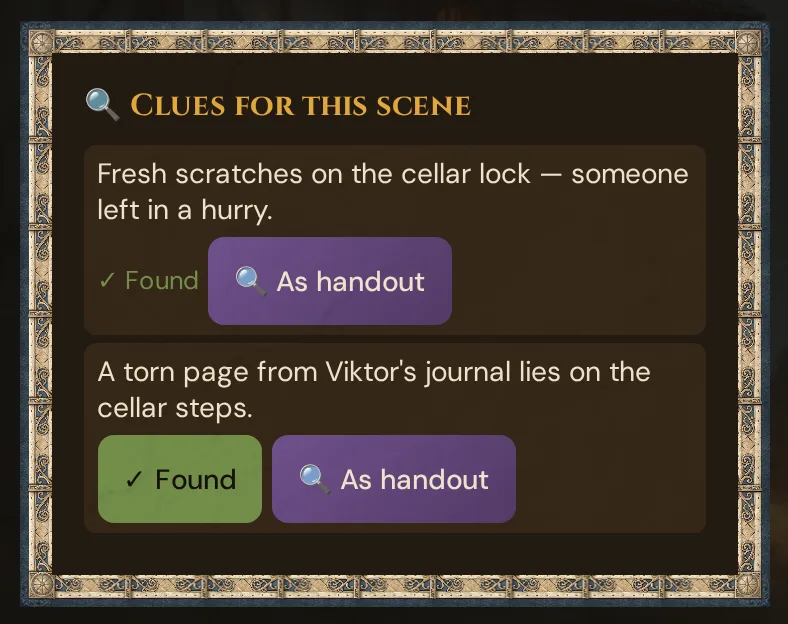
Where prepared scenes come from — 📋 Prep → Preparation → 🎬 Scenes & Sound. Acts and chapters are optional; see Scenes (prep).
Overlays — particle effects
The overlay dropdown adds an environmental layer on top of the scene image. It works with or without an image.
| Overlay | What it looks like | Best for |
|---|---|---|
| None | Nothing | Default — most scenes |
| rain | Falling drops, slight angle | Rainy weather, melancholy |
| snow | Slow downward flakes | Cold biomes, winter |
| fog | Drifting white haze | Mystery, undead, swamps |
| embers | Slow-rising orange particles | Fires, hot caves, forges |
| fireflies | Drifting yellow sparkles | Forests at night, fey realms |
Overlays are layered over the scene image (so they're visible even on a full-bleed background) and persist until you push a new scene with a different overlay or set it to none.
You can also trigger an overlay independently of a scene push — use the quick-tap row in Scenes & Sound:
🌧️ ❄️ 🌫️ 🔥 ✨ ⏹
One tap per icon — same overlay set, applied without changing the active scene.
Pushing an image from an NPC or item
Want to show a player "what the wizard looks like" mid-session? Push the portrait as a scene: click 🗂️ Choose from media in the Push Scene card and pick the portrait (or paste its image URL), add the name as the title, and hit 📤 Push Scene.
Discord push (optional)
If you've connected Discord (Discord settings), there's a 🎮 Discord switch below the Push Scene button (tooltip "Also send to Discord"). When on, every scene push also posts to your configured Discord channel as an embed:
- Image as the embed image
- Title as the embed title
- Description as the embed body
Useful for hybrid games (some players in person, some on Discord) or for sharing a recap with players who couldn't attend.
Plan limits
Scene pushes are free and unlimited on every plan — with or without an image, including the free Adventurer plan.
| What | Adventurer (free) | Game Master / Storyteller / Guild Master |
|---|---|---|
| Text-only scene pushes | Unlimited | Unlimited |
| Image pushes | Unlimited | Unlimited |
| Image suggestion (AI) per image | 5 Threads | 5 Threads |
Once Tantu suggests an image (AI), subsequent pushes of that same image are free — the Thread cost is for the suggestion, not the push.
See Threads & costs and Pricing.
What gets recorded
Every scene you push is recorded in the session event log. After the game, Session Log shows you the full scene order — handy for writing the recap or just reconstructing what happened.
Troubleshooting
| Symptom | Cause | Fix |
|---|---|---|
| Image doesn't appear on phones, text does | Linked from an insecure or broken source | Upload it into your Media Library and use it from there |
| One phone is stuck on the old scene | That phone briefly lost connection | Have the player rescan the QR code |
| Image is rotated 90° on iPhone | The photo's built-in orientation tag | Re-save the image (or upload it as PNG/WebP instead of the original photo) |
| Push check shows one phone as slow | Player is on weak mobile data | Suggest Wi-Fi; the slow phone still receives everything, just with a short delay |
| Sound doesn't start on prepared scene push | No sound is chosen for the scene (— No Sound —) | Pick a sound in the scene's 🔊 Sound list, see Scenes (prep) |
| Encounter didn't auto-start | Encounter is not linked to the scene, auto-start is off, or its type is not ⚔️ Combat | In 📋 Prep → ⚔️ Encounters, open it with ✏️: choose ⚔️ Combat, link the scene and tick ⚡ Auto-Start, then 💾 Save |
| No 🔍 Clues for this scene card | No clue is linked to the scene, or you pushed it from 🎬 Push scene | Link the clue to the scene in Foreshadowing and push it from 📋 Prepared scenes |
| Lair panel didn't appear | Scene has no lair defined | In Prep → Scenes → cast, add a lair to the scene |
Related articles
- 🎵 Sound & ambient — pair scenes with audio and auto-playing presets
- 🎬 Cut-in system — short dramatic flashes, not full scenes
- ⚔️ Encounters & combat — encounter auto-start and lair actions
- 🎬 Scenes in prep — building reusable prepared scenes, acts and chapters
- 🎨 Media Library — image management and uploads
- ⚒️ AI Generators — generate scene images on the fly