📅 Sessions
👤 For: Game Masters · 💳 Plan: All plans · 🔄 Updated 2026-10-17
A session in Wovenkeep is one game night — past, present, or planned. The Sessions section is where you draft what happens tonight (Strong Start, recap, GM notes), link the relevant NPCs and scenes, and afterward look back at what actually did.
This is the prep side. For the live side — what you push to player phones during the game — see Running a live session.
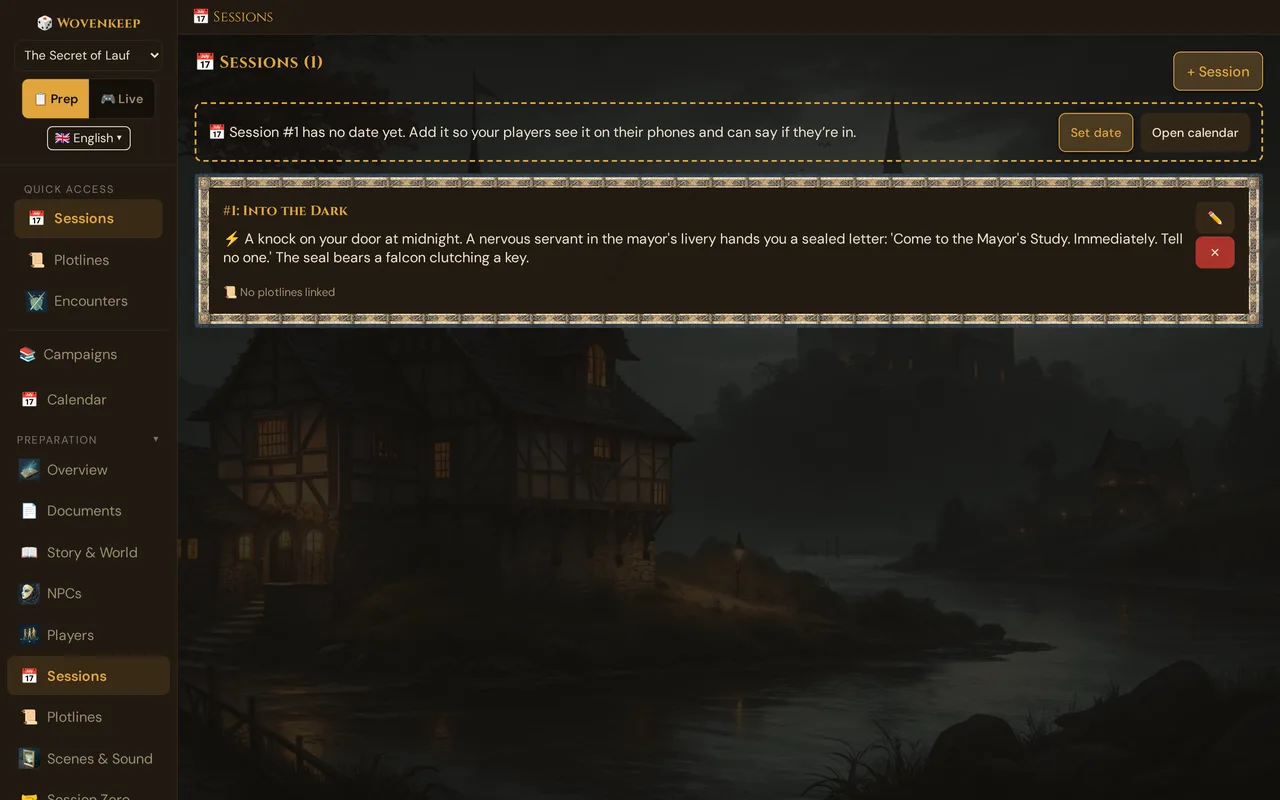
What it does
Sessions are the backbone of your campaign timeline. Each session card stores your prep text, links to the NPCs and scenes you plan to use, and an auto-loaded panel showing which plotlines and quests are in play. After the session, the same card holds the recap and links out to the full event log.
When to use it
Use Sessions to:
- Draft your Strong Start before game night
- Keep a running recap for the next session
- Connect the scenes, NPCs, and encounters you plan to use — they appear as connections of the session in the Story Web
- Track and carry forward open plotlines from one session to the next
- Look back at what happened in past sessions
Step by step
- Open the sidebar → 📅 Sessions (in the Preparation group).
- Click + Session. A dialog opens:
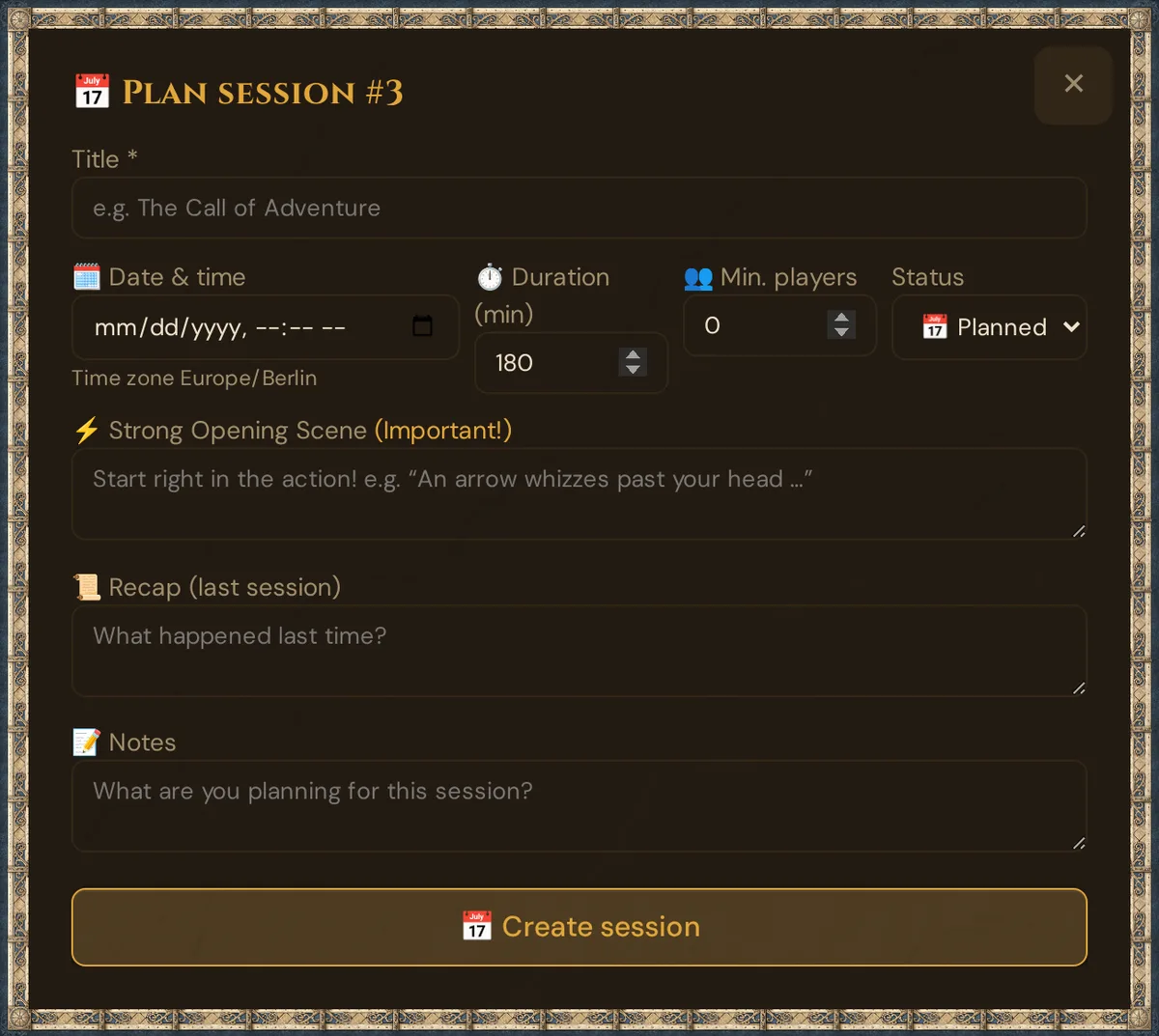
| Field | Required | What it's for |
|---|---|---|
| Session # | Auto | Assigned automatically and shown in the heading, e.g. 📅 Plan session #2 |
| Title | Yes | The session's name (e.g. "The Ambush at the Crossroads") |
| ⚡ Strong Opening Scene | Recommended | The opening scene — drop players into action immediately |
| 📜 Recap (last session) | Optional | What happened last session (used for the recap push) |
| 📝 Notes | Optional | Your prep notes, things to remember, scenes to push |
| 🗓️ Date & time, ⏱️ Duration (min), 👥 Min. players, Status | Optional | See Scheduling below |
- Click 📅 Create session. The session is saved and appears at the top of the list.
💡 Tip: Write the strong start as an action already in progress — "An arrow whizzes past Lena's ear and embeds itself in the table" beats "The party is in the tavern deciding what to do."
The session list
Every session appears as a card, newest at the top:
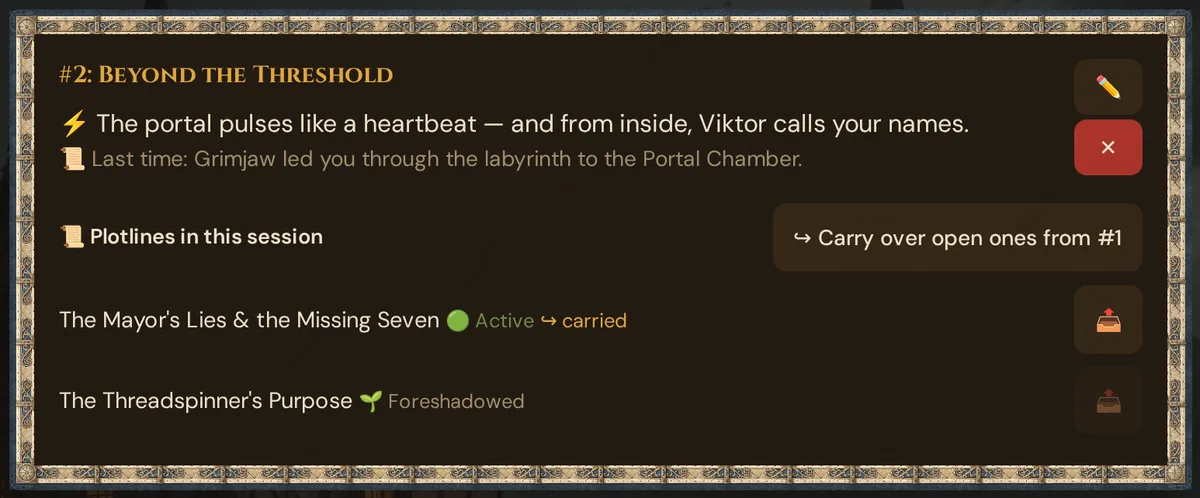
Each card shows the number and title, the date and the answers (once the session has a date), for a played session ✅ Played on … · N min, the strong start and the recap, and the 📜 Plotlines in this session panel with the plotlines linked to this session.
Editing a session
Click ✏️ on a session card to open the inline editor:
- All text fields (Title, Strong Start, Recap, Notes) are editable and autosave after you stop typing.
- The Links section lets you connect NPCs, scenes, and encounters to this session.
- 🗓️ Date & time, ⏱️ Duration (min), 👥 Min. players and Status can be changed here too — see Scheduling below.
- ✅ Played on and ⏱️ Played duration (min) hold the day and the minutes actually played. The session wrap-up fills them in when you end the live session; you can correct them here.
- Below 📜 Recap (last session), ✨ Suggest recap (AI) has Tantu suggest a recap of what was played (see The recap field).
- Saved values show up in the list and the editor right away. Close, ✕, Esc or a click next to the window close it; the answers and the date poll refresh every 20 seconds while it is open.
Linking NPCs, scenes, and encounters
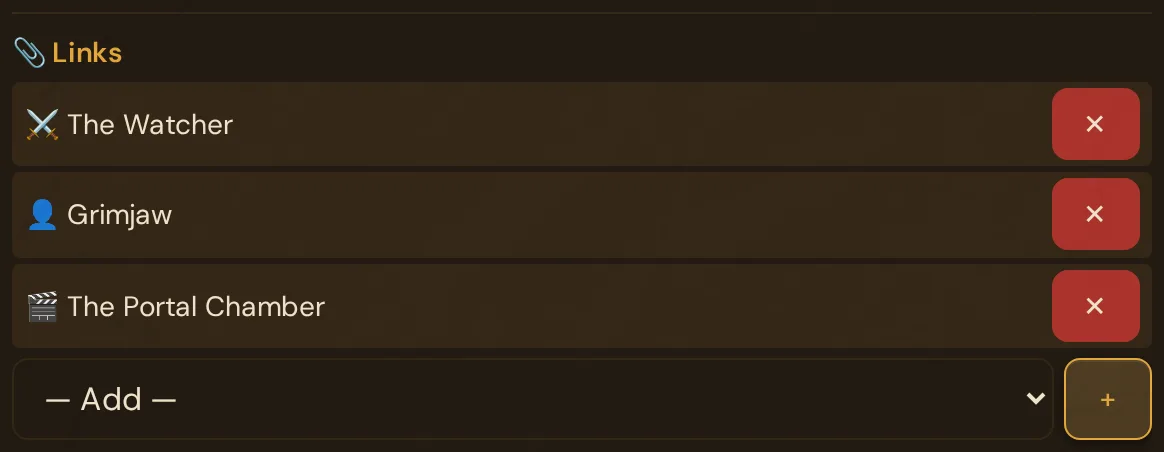
The — Add — list offers 👤 NPCs, 🎬 Scenes and ⚔️ Encounters.
Pick an entity in the — Add — list and click + — it appears in the list above. ✕ removes the link (the entity stays in the campaign, just disconnected from this session).
Why link? Linked NPCs, scenes and encounters appear as connections of the session in the Story Web, so you see at a glance what the evening is about.
Scheduling — date, answers, minimum players
Give a session a date and Wovenkeep handles the organising: players see the next session on their phone, add it to their calendar and say whether they're coming. You see at a glance who's in — and whether enough players are coming.
Set the date
- Open 📅 Sessions and click + Session — or ✏️ on an existing session.
- Fill in 🗓️ Date & time. The time is in your own time zone (shown underneath, e.g. Time zone Europe/Berlin).
- Optional: ⏱️ Duration (min) (default 180) and 👥 Min. players (0 = no minimum, up to 20).
- Click Create session. In the editor, changes save automatically.
The session card now shows the date and, below it, the answers so far, e.g. 2 in · 1 maybe · 0 out · 1 no answer. The Overview also shows the next date in its welcome card (📅 Next: title · date) — see GM Dashboard.
The "next session" is the earliest session that has a date, whose Status is not ✅ Played, and that hasn't ended yet (start + duration). After the game night, the session becomes ✅ Played when you end the live session and keep Mark as played ticked in the ✅ Wrap up session window (see End the session) — or set Status yourself. Then the following session moves up.
What players see
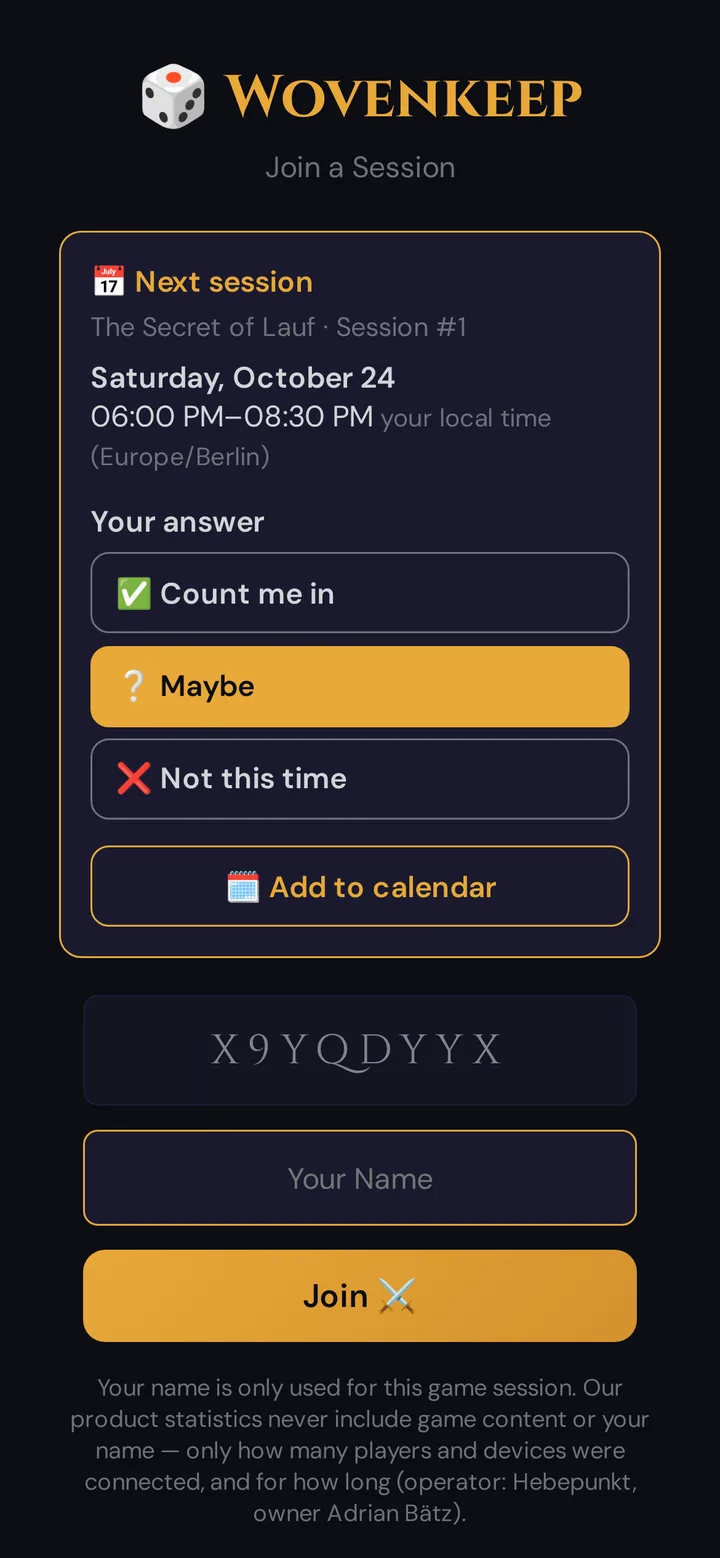
On their phone, at yourname.wovenkeep.com/player/, players see the card 📅 Next session on the join screen, above the code field: campaign, session number, date and time in their local time. Your prep (title, Strong Start, notes) is never shown there.
- 🗓️ Add to calendar downloads a calendar file (
.ics) for this session, with a reminder one day before. It's a one-off file, not a subscription: if you move the date, players download it again. - Your answer: ✅ Count me in, ❔ Maybe or ❌ Not this time. Players can change their answer until the session is over.
The card only appears on a phone where the player's character is saved — after they've created it in a live session or through an invite link.
💡 Tip: Click 📤 Share date below the answers. Wovenkeep writes a short text with date, time zone and the link to the player view — for WhatsApp, Signal or Discord. If your device has a share menu, it opens; otherwise the text is copied (Copied. Paste it into your group chat., and the button shows ✓ Copied for a moment). No names are included.
Entering answers for players
Not everyone answers in the app — some say "I'm in" at the table or in the group chat. In the editor (✏️), every player character has a dropdown: No answer yet, Count me in, Maybe, Not this time. Answers you entered are marked entered by you.
If you move the date by more than two hours, earlier answers count as open again. Players see The date has changed. Please answer again., and in your list old answers are marked answered for the old date.
Minimum players
If 👥 Min. players is above 0, the session shows a badge — on the session card, in the editor and next to 📅 Next: in the Overview:
| Badge | Meaning |
|---|---|
| ✅ Session is on (3/3) | At least as many "Count me in" answers as your minimum |
| ⚠️ Session is shaky (2/3) | Not enough yet |
| · Minimum can no longer be reached | Even if everyone without an answer or with "Maybe" said yes, it wouldn't be enough |
| 👥 No players yet – minimum 3 | The campaign has no player characters yet — a neutral note, not a warning |
Players see the result without names: ✅ The session is on. or how many more players need to say yes. If the minimum can no longer be reached, their phone only says ⏳ Minimum of 3 players can no longer be reached. The badge is information only — Wovenkeep doesn't cancel or move the session by itself.
Discord reminder (optional)
If the Announcements slot is connected under 🎮 Discord, Wovenkeep also posts there: a reminder about 24 hours before the session and — with a minimum set — a message as soon as the session is on, and again if it turns shaky. While the campaign has no player characters, the on/shaky messages stay away; the reminder still comes. Only numbers are posted, never names.
Not sure when? Let your players vote
If a session has no date yet, suggest a few and let your players vote on their phones — no back and forth in the group chat.
- Open the session with ✏️ — or, on the 📅 Calendar page, click 🗳️ Suggest dates.
- Under 🗳️ Date poll, click Let players vote on dates.
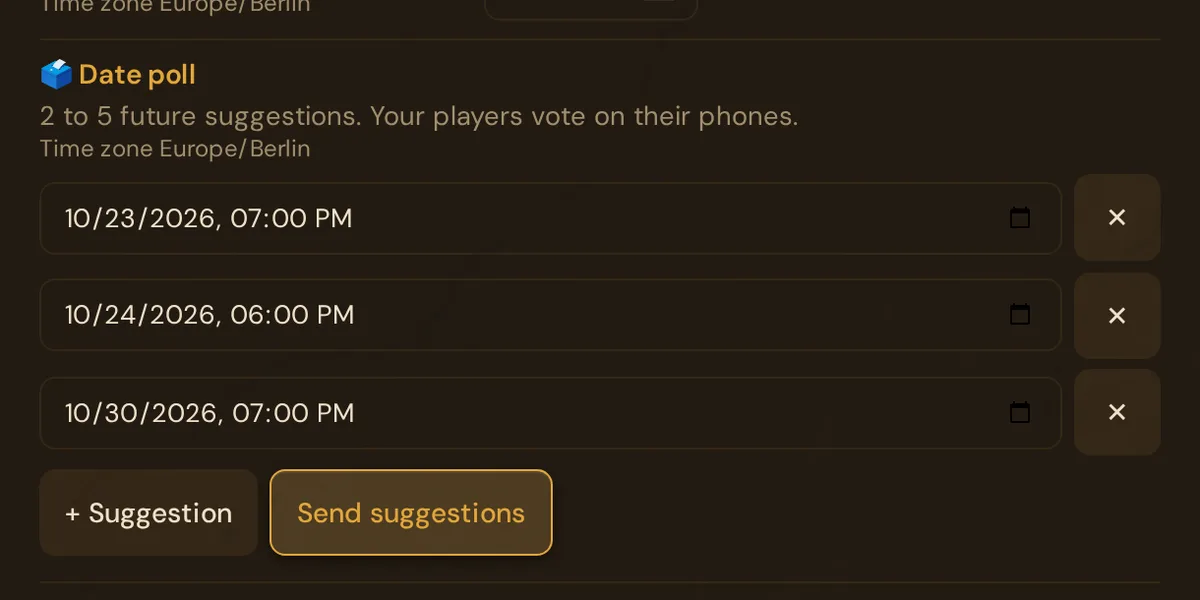
- Enter 2 to 5 dates in the future. + Suggestion adds a row, ✕ removes one. Times are in your time zone.
- Click Send suggestions.
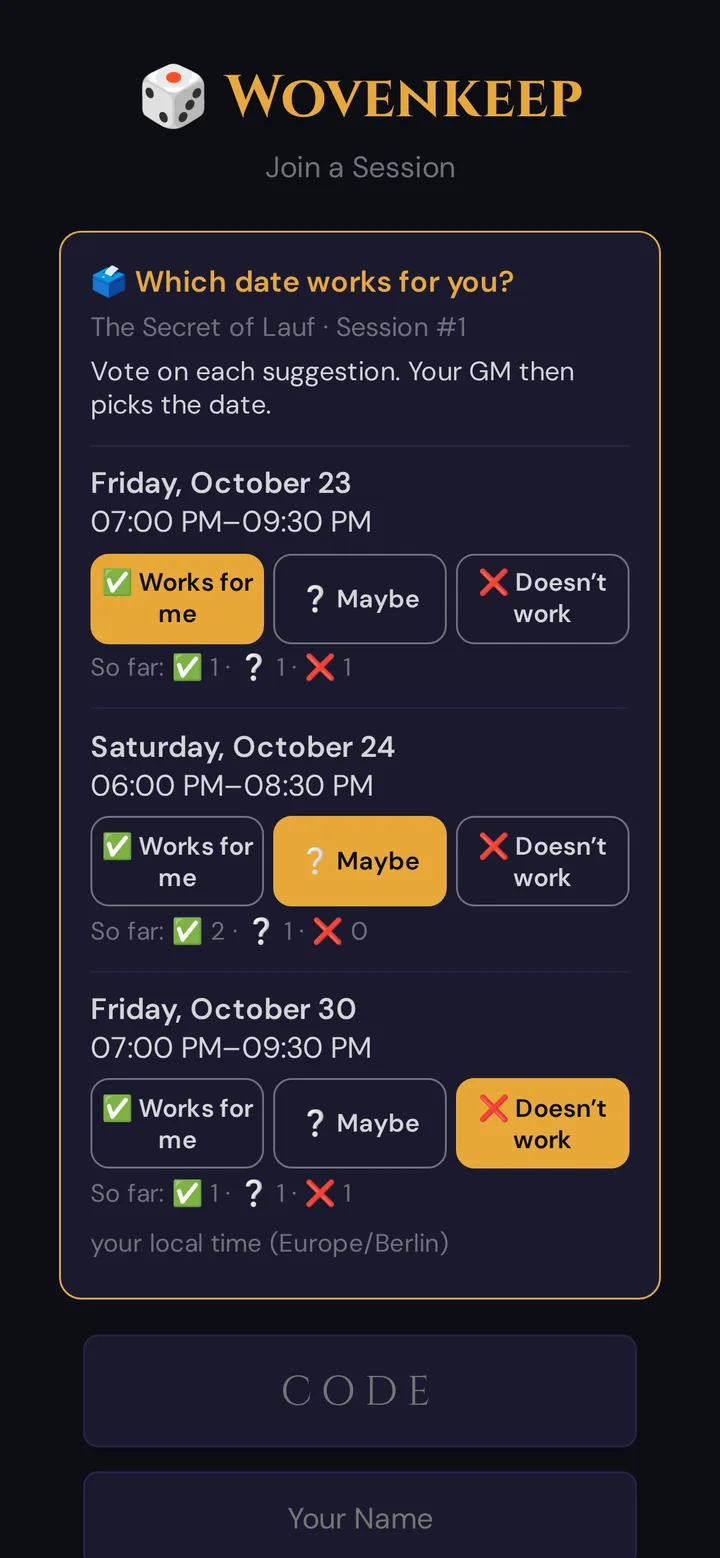
Players find the card 🗳️ Which date works for you? on the join screen of their player view and answer every date with ✅ Works for me, ❔ Maybe or ❌ Doesn’t work. Below each date they see how the group has voted so far — without names.
In the editor you see the votes per date, e.g. 2 yes · 1 maybe · 0 no · 0 no answer. Expand a date (▸) to see who voted what.
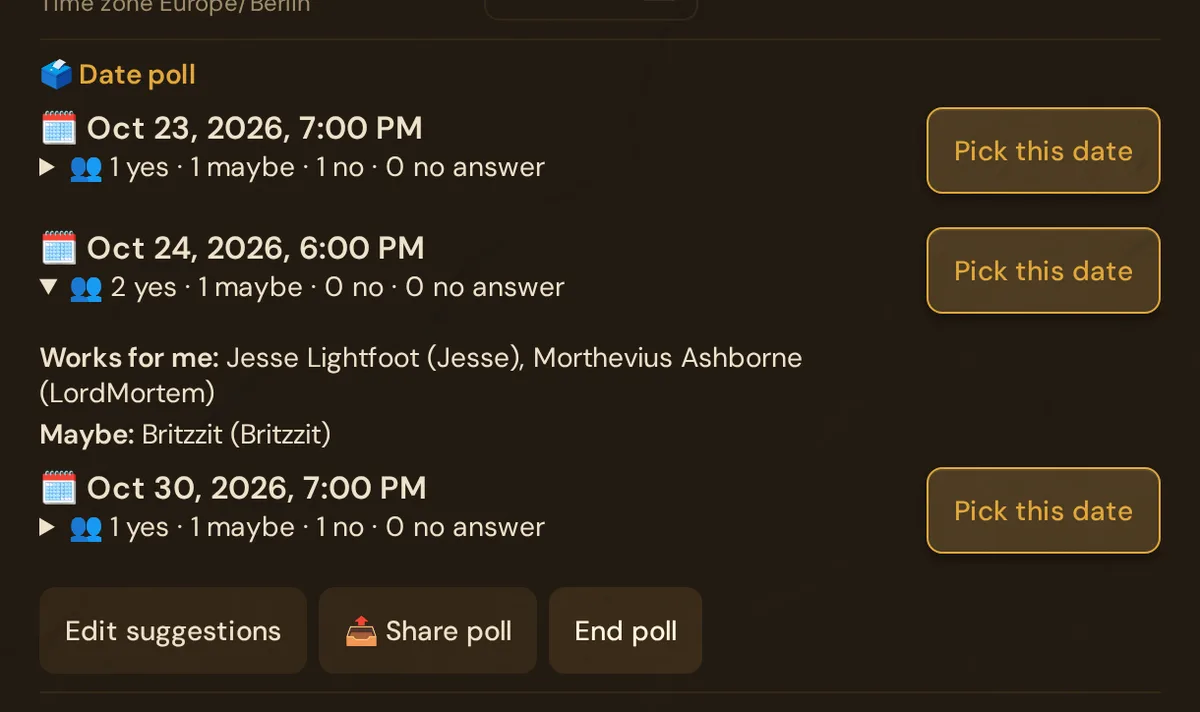
- Pick this date sets the date of the session. The votes then count as answers (Works for me becomes Count me in), and players see the normal 📅 Next session card.
- Edit suggestions changes the list. Dates you keep keep their votes.
- 📤 Share poll writes a short text with all dates and the link to the player view — for WhatsApp, Signal or Discord.
- End poll deletes all suggestions and votes.
Good to know:
- A poll only works for a session that has no date yet and isn't over. Dates in the past can no longer be voted on.
- As with the 📅 Next session card, players need their character saved on the phone.
- If the Discord Announcements slot is connected, Wovenkeep posts a short note there when you open the poll.
Invite new players to a session
Someone new is joining the group? Upcoming sessions with a date have the button ➕ Invite new players — below the answers in the session editor and on the session's card in the 📅 Calendar.
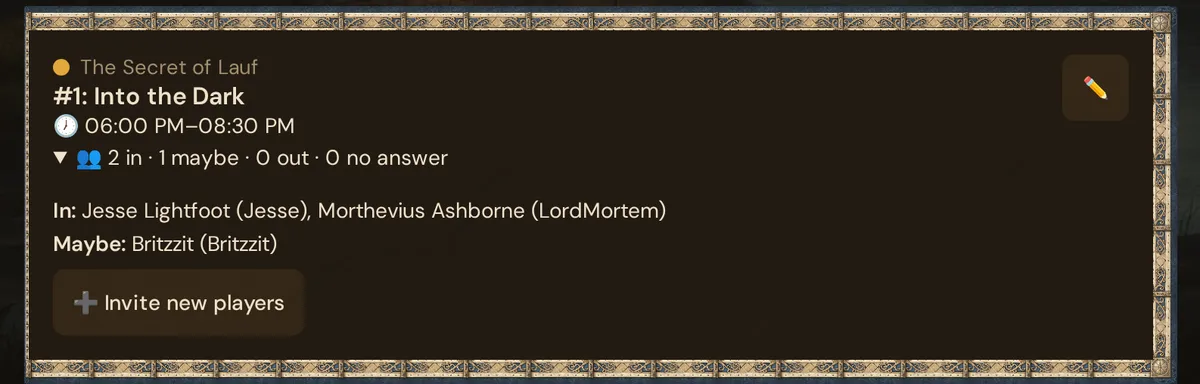
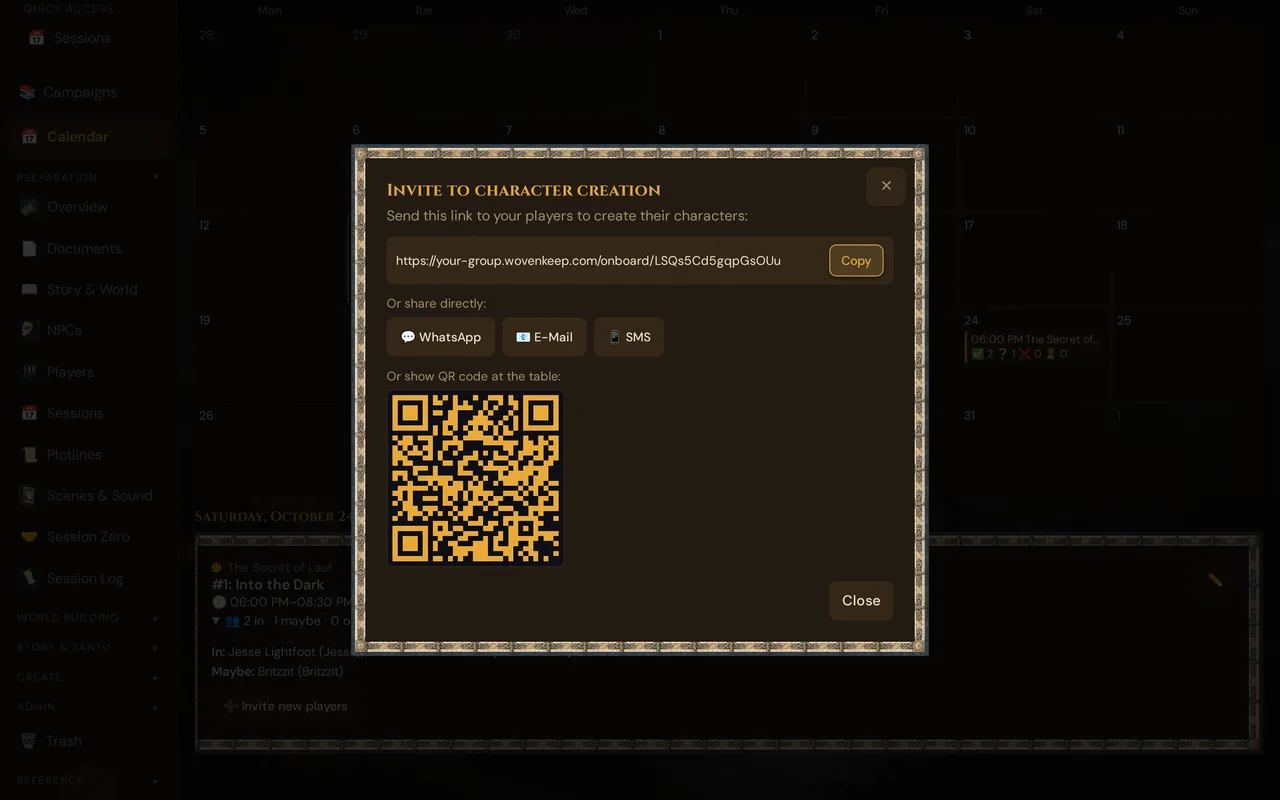
It opens the invite for character creation: copy the link, send it via WhatsApp, e-mail or SMS, or show the QR code at the table. The new player creates their character before game night and then shows up in the answers of the session.
When you share the date with 📤 Share date, you can also tick Attach an invite for new players and choose How many new players?. The shared text then ends with New here? Create your character here: …
More about invite links: Player onboarding invites.
Calendar — month view across all campaigns
The sidebar's 📅 Calendar page shows every session of every campaign in your Realm in one place.
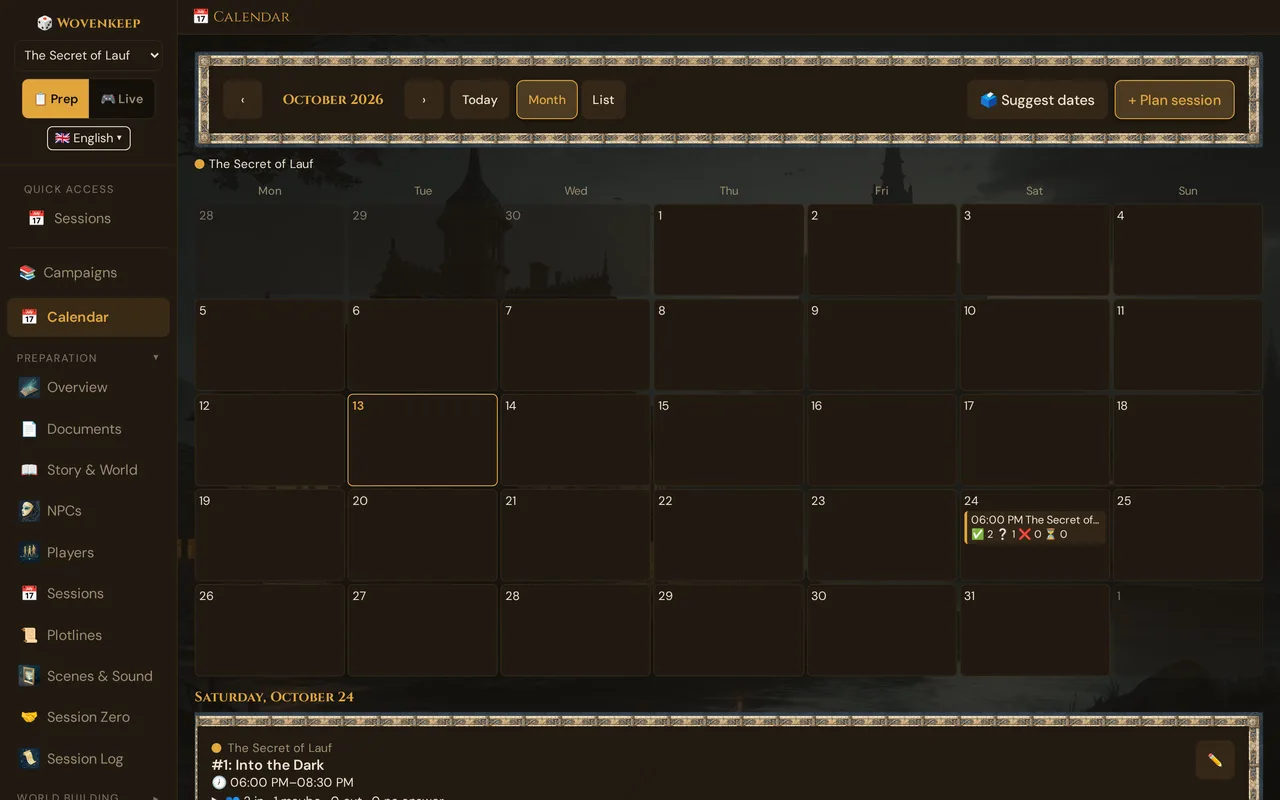
- Month view on desktop; a scrollable list view, grouped by day, on phones.
- Upcoming sessions show the RSVP counts (who's in, maybe, out) and, if a minimum is set, the same quorum badge as the session editor.
- Click a day to open a new session pre-filled with that date, or use + Plan session.
- 🗳️ Suggest dates starts a date poll for the first session without a date — or, if there is none, for a new session Session #n. If you close that new session without sending suggestions or changing anything, it is removed again; once you changed something, it stays (Session kept (no date yet)).
- If no session is coming up, a dashed hint box points out the next session without a date.
The Lazy DM strong-start pattern
The Strong Start field is named after Mike Shea's Lazy DM method. The idea: every session should open in motion, not in exposition.
Bad strong start:
The party is in the tavern, deciding what to do next.
Good strong start:
An arrow whizzes past Lena's ear and embeds itself in the table inches from her hand. The tavern goes silent. The hooded figure at the door drops the second arrow and walks out.
A strong start gives players an immediate decision. No backstory, no "how was your week" — just an event they must react to.
A pattern many GMs use:
- Prep the session: write the strong start, link the relevant NPCs and scenes
- Build a single prepared scene named "Session N Strong Start" with an image and ambient sound
- At session time, click the scene in 📋 Prepared scenes (Live → Scenes & Sound) to deliver the strong start
- From there, improvise
This means session-night prep is just "do I have a strong-start scene ready?" — everything else can be improvised.
The recap field
Write the recap yourself, or optionally have one suggested (AI).
Manual — write 2–4 sentences summarizing what happened last session. Push it to player phones at the start of the next session via the Session recap button.
Suggested by Tantu — ✨ Suggest recap (AI) below this field (and next to the recap push in Live) summarizes what was actually played: the session log and your live notes of the last evening played. If that was another session, the status line names it, for example Recap of session #1. An empty field takes the suggestion and saves it; otherwise the suggestion waits in the version list. If nothing has been played and there are no live notes, nothing is suggested and nothing is charged. It costs 1 Thread (0 with your own AI key).
After the session — when you end the live session, the window ✅ Wrap up session shows the recap from this field; Use the last recap sent copies the recap you sent with 📜 Send into it, and Save stores your changes here. An empty field there never deletes the recap (see End the session).
Plotlines in sessions (per-session status panel)
Every session card automatically loads a plotline panel showing the quests and plotlines connected to that session. This is the per-session snapshot of your campaign's narrative threads.
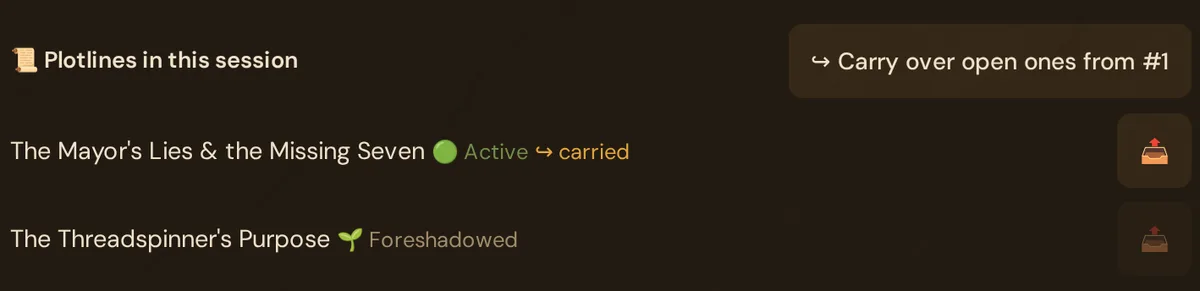
Each row shows the plotline title and its status in this session — the status it had at the end of the session if one was recorded, otherwise its current status (🟢 Active, ⏸️ On Hold, ✅ Resolved, ❌ Abandoned, 🤝 Completed by Other or 🌱 Foreshadowed). A plotline carried over from the previous session is marked ↪ carried (see below).
Carry forward: bring open plotlines from last session
Click ↪ Carry over open ones from #N at the top of the plotline panel to pull all active and on_hold plotlines from the previous session (#N) into the current one. A confirmation dialog lists the plotlines it will carry over. Each carried plotline gets the ↪ carried badge so you know which threads are ongoing vs. newly introduced.
Use this at the start of session prep to instantly see which unresolved story threads you left hanging.
Push a quest to players
Plotlines marked 👁️ Visible to players have an active 📤 button (for the others it is greyed out). Click it to push the plotline to every player's phone during a live session — they'll see it as a quest update. The push requires an active live session to be running.
💡 Tip: Mark a plotline visible and push it at session start to remind players of the active quests for tonight without reading a wall of text.
Session states
Sessions have a status field with two meaningful values you'll encounter:
| Status | What it means |
|---|---|
| 📅 Planned | Default. The session is upcoming or in draft. |
| ✅ Played | The session has been played — set by Mark as played when you wrap up the live session (a session saved with Save as new session #n is played right away), or manually via Status in the editor. It then no longer counts as the next session. |
There is no "cancelled" state — if you created a session you didn't run, simply leave it as planned or delete it.
Past-session retrospection
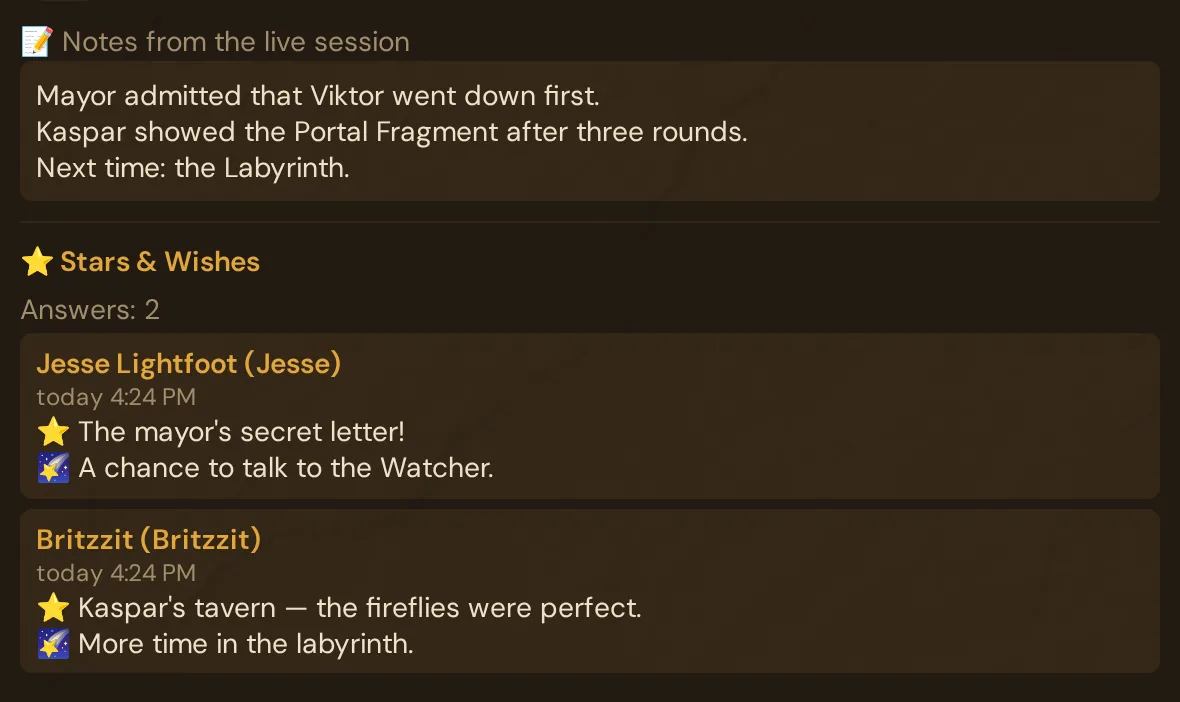
Click ✏️ on a played session: below your prep the editor shows 📝 Notes from the live session and your players' ⭐ Stars & Wishes (see Session recap):
Numbers such as scenes pushed or dice rolled are on the Session Log & Analytics page — pick the session there by its code.
Deleting a session
Click ✕ on a session card → confirm the prompt. The session row and any event log attached to it are deleted. This cannot be undone — export the session log first if you need to keep it.
Linked entities (NPCs, scenes, encounters) are not deleted — only the session row and its links.
Troubleshooting
| Symptom | Cause | Fix |
|---|---|---|
| Plotline panel shows "⏳ Plotlines…" and never updates | Network error loading /api/sessions/:id/plotlines |
Reload the page; check your connection |
| 📤 push button is greyed out or shows an alert | No active live session running | Go to the Live tab and start a session first |
| ↪ carry-forward dialog says "No open plotlines in previous session" | The previous session has no plotlines with status active or on_hold |
Link plotlines to the previous session manually via Plotlines in the sidebar |
| Linking an entity via + does not appear immediately | Autosave is async | Wait a moment or click Close and reopen the session to refresh |
| Session number is not what you expected | Numbers are assigned automatically (highest existing number + 1) | The number can't be changed in the editor — use the title to name the session the way you need |
| A player doesn't see the 📅 Next session card | No upcoming session has a date, or the player's character isn't saved on that phone | Set 🗓️ Date & time on the session; have the player open the player view on the phone they created their character on |
| Answers suddenly show as open again | You moved the date by more than two hours | Players answer again — or you enter their answers in the editor (✏️) |
Related articles
- 📜 Plotlines — create and manage main, side, and personal plotlines
- 🎬 Scenes (prep) — pre-build scenes for one-click live push
- 📡 Running a live session — what happens when you click ▶ Start Session
- 📊 Session Log & Analytics — event timeline and stats for past sessions
- 📜 Session recap — push a recap at the start of the next session