📄 Handouts
👤 For: Game Masters · 💳 Plan: All plans · 🔄 Updated 2026-10-16
A handout is an in-fiction document — a letter, a map, a torn journal page — that you send to your players' phones during a session. Players keep it in their Documents tab and can re-read it any time. Prepare your handouts in the 📜 Handouts library before the session and send each one live with two taps.
What it does
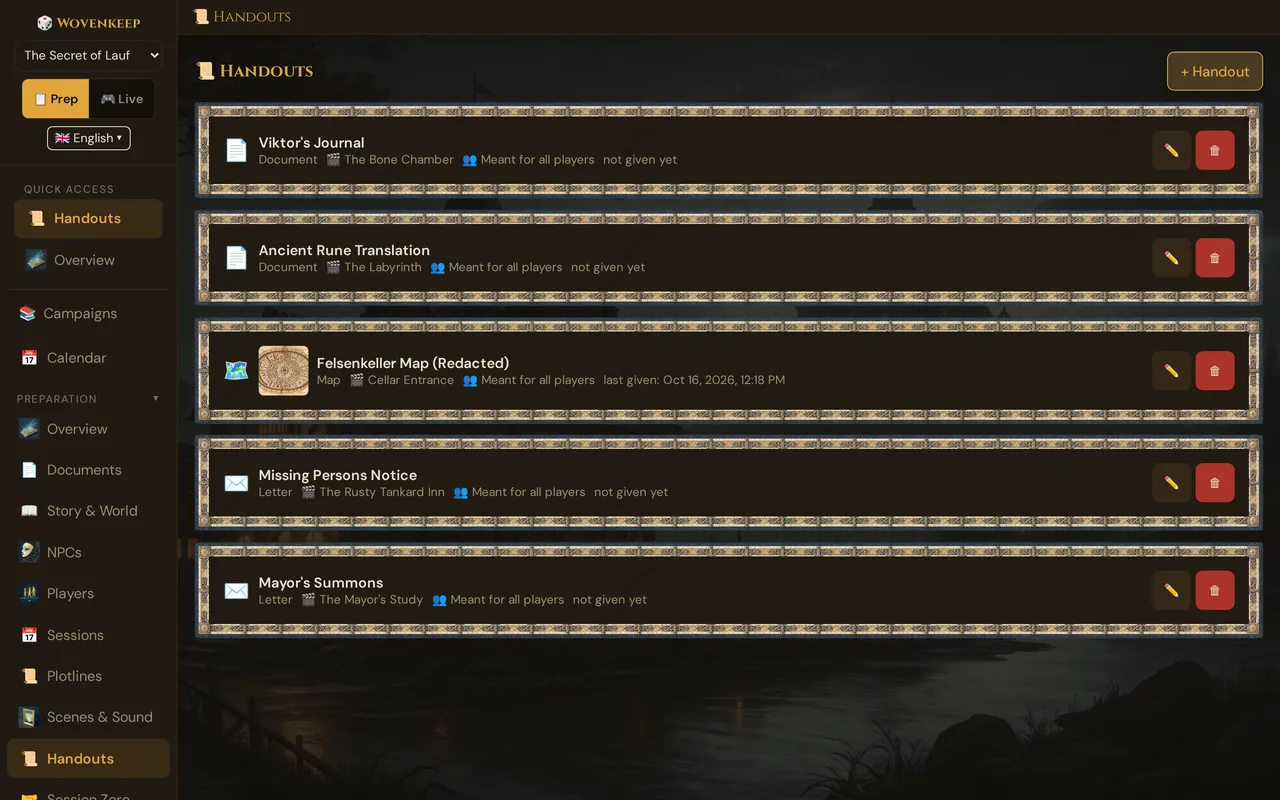
- 📜 Handouts is the handout library of your campaign: title, type, text, an optional image, the scene it belongs to and a visibility.
- During a session, the card 📚 From the library sends a prepared handout to all players or to the players you pick — see Sending a handout live.
- The list shows when each handout was last given — or not given yet.
- Deleted handouts go to the trash, where you can restore them for 30 days.
You can still write a handout on the spot in the live card 📜 Give handout — see Handouts (live).
When to use it
Whenever the fiction hands the party a physical document: the NPC slides a letter across the table, the players find a map in a dead courier's satchel, a wanted poster is nailed to the tavern door. Write it during the week, link it to the scene where it turns up, and send the real thing to their phones when the moment comes.
Step by step
- In the sidebar, open 📜 Handouts (group Preparation).
- Click + Handout. The dialog 📜 New handout opens.
- Type a Title — this is the heading players see. It is required.
- Choose a Type (see The types) and, if you like, a Scene (optional).
- Write the Text — the body of the document. Line breaks are preserved exactly as you type them.
- Optionally add an Image: paste an image URL or click 🗂️ Choose from media (see Adding an image).
- Choose the Visibility.
- Click Save. The handout appears at the top of the list.
To change a handout later, click ✏️ on its card — the dialog is now called 📜 Edit handout.
The fields
| Field | What it's for |
|---|---|
| Title * | The heading on the player's phone. Without a title, saving stops with Please enter a title. |
| Type | The icon players see next to the document — see The types |
| Scene (optional) | — No scene — or a scene of the campaign. It is shown as 🎬 in the library and in the live card, so you find the handout when the scene comes up. Pushing the scene does not send the handout by itself |
| Text | The body of the document, as plain text |
| Image | An image URL or a picture from 🗂️ Choose from media; Remove clears the field. A preview appears below |
| Visibility | Secret — only when sent (the default) or Meant for all players. With Meant for all players, the live card preselects All when you send it. Players never see a library handout before you send it — whatever the visibility |
The library list
Each handout is a card with its type icon, a thumbnail if it has an image, the title, the type, 🎬 scene, the visibility (👥 Meant for all players or 🔒 Secret — only when sent) and either last given: … with date and time or not given yet. ✏️ opens the handout, 🗑 moves it to the trash. The newest handout is on top.
last given counts every time you sent this handout from the library — in any session, to anyone. Handouts written in 📜 Give handout or sent from a clue are not library handouts and don't count.
Sending a handout live
In a running session, open 🎮 Live → 🎁 Items & Handouts. Below 📜 Give handout you find the card 📚 From the library with all handouts of the campaign — icon, title, 🎬 scene, ✓ given once you sent it, and 📤 Send:
- Click 📤 Send next to the handout. The list Recipients opens.
- Tick All, or tick one or more players. Only players who are present are listed; All and single players exclude each other.
- Click 📜 Send now.
The handout arrives on the chosen phones right away — with the title, text, image and type it has in the library at that moment. Each send creates a new copy on the phone, so sending it again later delivers it again. More on what players see: Handouts (live).
The types
The type is purely cosmetic — it sets the little icon shown next to the document on the player's phone. It does not change how the handout works or who can see it.
| Type | Icon | Use for |
|---|---|---|
| Note | 📜 | Quick notes, plain in-character text (the default) |
| Letter | ✉️ | In-character correspondence |
| Map | 🗺️ | Maps, floor plans, regional charts — usually with an image |
| Clue | 🔍 | A discovered hint or piece of evidence |
| Riddle | 🧩 | A puzzle or cipher for the players to solve |
Handouts of the demo campaign may also use the older type Document (📄 in the library, 📜 on the phone). The dialog offers it only for handouts that already have it.
What the player sees
A handout you send lands in the player's Documents tab (the 📜 Documents button in the bottom bar). The newest handout is on top:
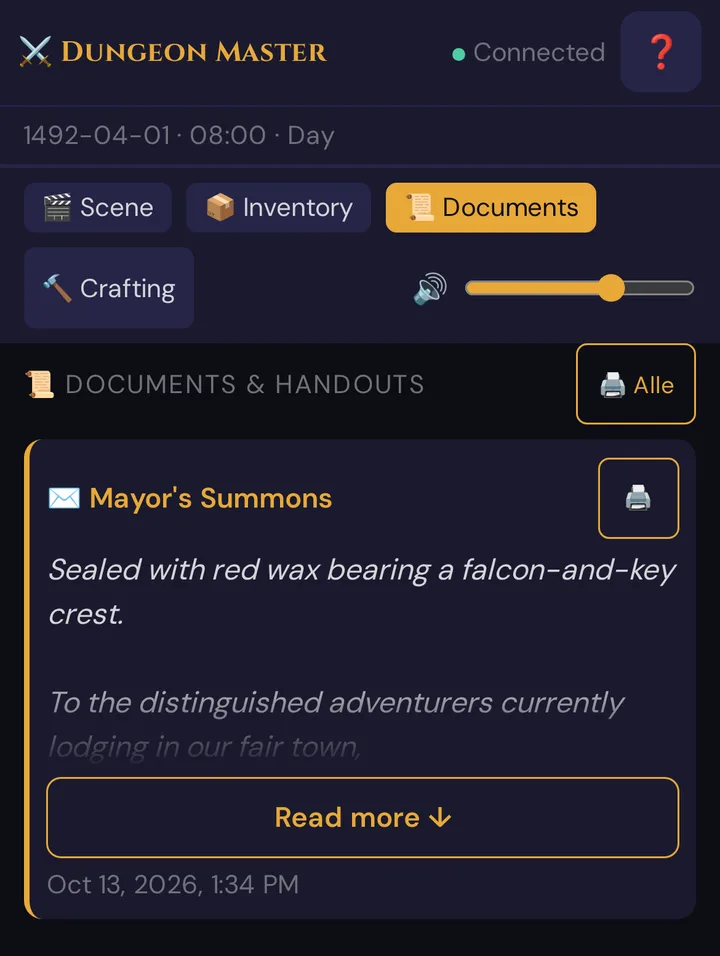
- The icon matches the type you chose.
- The title is shown in amber, the content in italic below it.
- Long documents show only the first lines and Read more ↓ — tapping it (or the title) opens the full text in a reading view.
- The 🖨️ print button lets the player print that one handout (handy for in-person/hybrid groups who want a physical copy); the 🖨️ button next to the heading prints all of them.
- The timestamp shows when it was received.
When the handout arrives, the phone vibrates and a notice "📜 New Document: … – tap to read" appears in the scene view for a few seconds — tapping it opens the document. Until the player opens the tab, the 📜 Documents button shows a counter.
Text formatting
The content is shown as plain text with your line breaks preserved — what you type is what players read. Markdown is not rendered into headings or bold/italic, so write the document as you want it to appear. Use blank lines for paragraph breaks.
For anything richer than text — a map, a seal, a hand-drawn page — attach an image (see below).
Adding an image
A handout can carry a single hero image that renders full-width at the top of the player's card.
- 🗂️ Choose from media opens the media dialog: pick one of your pictures, or upload a new one right there (also by dragging it onto the dialog). See Choose from media.
- You can also paste an image address. Pictures you uploaded to Wovenkeep always work; an external address must be a public
http(s)://URL — local and private addresses are rejected. - Uploaded files count against your Realm's storage quota.
For maps especially, use a high-resolution image — players will pinch-to-zoom to read the details.
Deleting and restoring
🗑 asks Move “…” to the trash? and moves the handout to the 🗑️ Trash. There you can bring it back with ↩️ Restore for 30 days — it returns with everything, including when it was last given; if its scene is gone by then, the scene link is empty. After 30 days, the handout is deleted for good.
Copies you already sent stay on the players' phones. The picture of a deleted handout stays in your media.
Pushing to Discord
If you've linked a Discord server (Discord lives under the Scenes & NPCs webhook slot), tick the 🎮 Discord toggle in the 📜 Give handout card. Handouts you then send to All — from 📜 Give handout or from 📚 From the library — are also posted to your Discord channel: useful for remote or hybrid groups, and it leaves a permanent copy in the channel history.
Handouts for single players are never posted to Discord.
The toggle remembers its last state in this browser.
Costs
Preparing, storing and sending handouts is free and unlimited on every plan — the push itself never costs Threads.
Attaching images costs nothing either: uploads and external image URLs work on every plan (uploaded files count against your Realm's storage quota). Only an optional image suggestion (AI) costs 5 Threads — see Threads & costs.
Troubleshooting
| Symptom | Cause | Fix |
|---|---|---|
| Please enter a title. | The Title field is empty | Type a title, then save |
| Saving failed. when you save | The image address isn't a public http(s):// URL, or the scene no longer exists |
Choose the picture with 🗂️ Choose from media or fix the address; pick another scene |
| A handout is missing in 📚 From the library | It belongs to another campaign, or no session is running | Open the right campaign and start the session in 🎮 Live |
| 📜 Send now does nothing | No recipient is ticked | Tick All or at least one player |
| A player is missing under Recipients | The player isn't connected or is marked absent | Wait until they have joined, or send to All |
| The handout didn't appear on a phone | That player wasn't connected when you sent it | They'll see it when they next open the 📜 Documents tab — past handouts are loaded on open |
Markdown shows as literal **stars** |
Content is plain text, not rendered Markdown | Write the document as plain text; use line breaks for layout |
| Discord didn't get the handout | The 🎮 Discord toggle was off, no Discord webhook is linked, or the handout went to single players | Tick the toggle, send to All, and confirm the Scenes & NPCs webhook is set up in settings |
| Deleted a handout by mistake | 🗑 moves it to the trash | 🗑️ Trash → ↩️ Restore (within 30 days) |
Related articles
- 📜 Handouts (live) — sending handouts and writing them on the spot during a session
- 🎨 Media Library — upload and pick images for handouts
- 🎬 Scenes (prep) — the scenes a handout can belong to
- 🌱 Foreshadowing — send a clue as a handout from the live clue card
- 📜 Story & World — keep GM-only secrets here, not in handouts