🔧 Instance Settings
👤 For: Game Masters · 💳 Plan: All plans · 🔄 Updated 2026-10-17
Instance Settings is the personalisation and integration hub for your Realm: visual theme, custom theme editor, notifications, privacy toggles, your own AI keys, hiding the AI help, and Discord webhooks. Several sidebar entries (Theme, Settings, Tantu Settings, Discord) all live here logically — this page covers them all.
What it does
Every option here is scoped to your Realm only — changes affect your GM view (and where noted, the player view) but nothing outside your instance. Most fields autosave instantly; the AI key and Discord slot fields save on an explicit Save button.
When to use it
- Your first session: pick a theme, optionally upload a favicon, connect Discord.
- Before going live with players: verify privacy preferences.
- Heavy on AI help? With your own API key, text suggestions cost no Threads.
- No AI at your table? Hide the AI help for the whole Realm with one checkbox.
- Hybrid or remote games: wire up Discord webhooks so absent players follow along.
Theme
Sidebar → 🎨 Theme.
Four built-in visual themes for the GM interface:
| Theme | Look |
|---|---|
| Wovenkeep Classic (default) | Dark background, amber accents — the signature look |
| Dark Forest | Earthy dark greens, warm natural tones |
| Royal Gold | Deep navy with rich gold accents |
| Secret of Lauf | Sandstone cellars and heraldry — inspired by the demo campaign |
Click a theme card — it applies instantly across the whole GM tool (CSS swap, no reload). The theme is per-Realm and affects only your GM view; the player view has its own fixed dark theme.
Custom themes
Below the built-in grid, click + New theme (duplicate current) to open the theme editor. You can:
- Give your theme a name
- Adjust background, text, and accent colours with a colour picker
- See a live preview as you change values
- Check the inline WCAG AA contrast indicator (green = pass, red = fail)
- Save and apply your theme; it appears alongside the built-ins
Custom themes are saved per instance via POST /api/instance/themes/custom and can be deleted from the same grid.
The theme dropdown autosaves (instant select). Custom theme creation saves on the explicit Save button inside the editor. See Autosave.
Favicon & branding
Sidebar → ⚙ Settings.
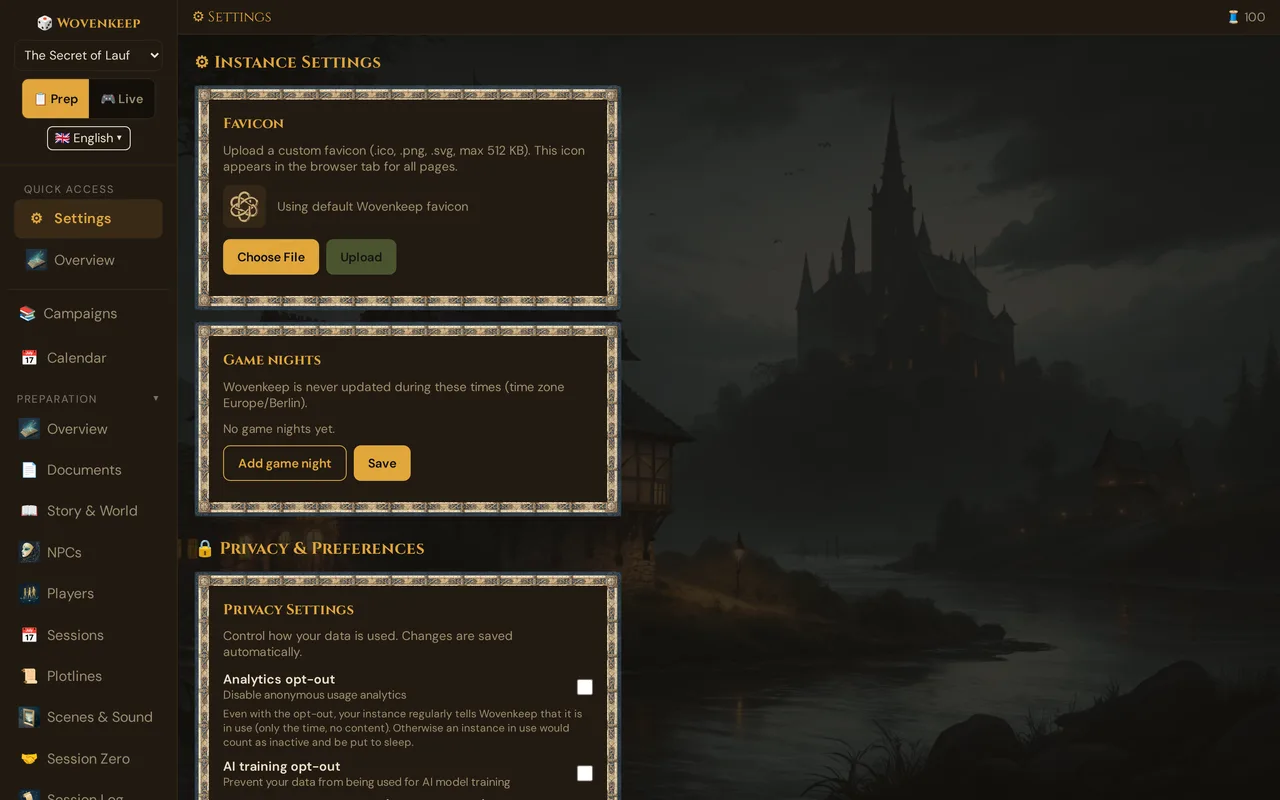
Custom icon — upload a small image (max ~512 KB). It replaces the Wovenkeep die icon in the browser tab for both your GM view and your players' phone view. Useful if you want your campaign to feel branded ("The Whispering Ruins" with its own icon on players' phones).
Upload → the tab icon updates immediately (no reload). It's kept in your Realm and takes up almost no storage.
Updates and game nights
Sidebar → ⚙ Settings → Game nights card.
Wovenkeep regularly gets new versions. Your Realm decides by itself when to install one — and never while you're playing. Installing means a short pause of about a minute.
When an update waits
An update waits as long as at least one of these applies:
- a player phone is connected to a running live session,
- you or your players used Wovenkeep in the last 15 minutes (for example changed something, pushed a scene or rolled dice) — just having it open in a tab doesn't count,
- it's currently one of your Game nights (see below).
As soon as none of these applies, the update is installed.
The update bar
While a new version is waiting, a bar appears at the top of your GM view. Players don't see it.
- New version ready – it will be installed automatically as soon as no session is running.
- Install now (about 1 minute pause) — installs within the next few minutes, even if a session is running. Only use it when nobody is playing.
- Postpone → 1 day, 3 days or 7 days. A normal update can be pushed back by at most 7 days after it was announced; after that it's installed at the next break — still never during a session.
- What's new — shows the release notes, if there are any.
After the update the bar shows Wovenkeep has been updated. once — click OK.
Security updates
The bar marks them: Security update – it will be installed after [date] at the latest, never during a session. They can be postponed by 1 day at most. Once that deadline has passed, only player phones connected to a running live session hold the update back — game nights and recent activity no longer do.
Entering game nights
If your group plays on fixed evenings, enter them: during those times no update is installed, even before anyone has joined.
- Sidebar → ⚙ Settings.
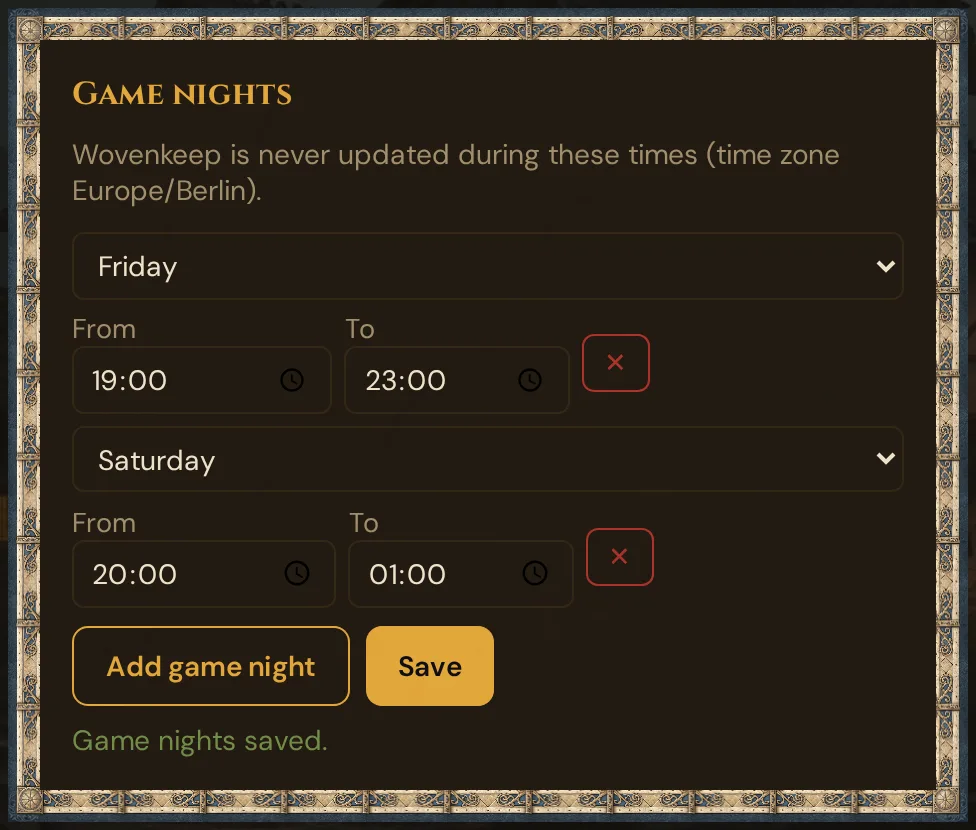
- In the Game nights card, click Add game night. A new row appears (Friday, 19:00–23:00).
- Pick the weekday and set From and To. If the end is earlier than the start, the evening runs past midnight (e.g. 20:00–01:00).
- Click Save → Game nights saved.
Remove a row with ✕. The times always use the Europe/Berlin time zone, wherever you are. You can enter up to 21 game nights.
Sign-in
Sidebar → ⚙ Settings → Sign-in card.
You stay signed in to the GM tool on each device for up to 30 days (after 14 days without use, the login ends earlier).
- Sign out — removes the login from this device and shows the GM password prompt again.
- Sign out all devices — after a confirmation, signs out every other device that is signed in to the GM tool. You stay signed in here, and players are not affected.
Lost a device, or does someone else know your GM password? Change the GM password on your account dashboard — a new GM password signs out every device by itself (see GM password).
Notification preferences
Sidebar → ⚙ Settings → Notifications.
Two controls:
| Setting | Options |
|---|---|
| Email notifications | Toggle on/off — receive campaign digest emails at your account address |
| Email frequency | Daily · Weekly (default) · Monthly |
There is one email switch (not per-category toggles). The digest covers activity across your Realm. These autosave when you change the checkbox or the frequency dropdown.
Privacy toggles
Sidebar → ⚙ Settings → Privacy.
Three toggles, all GDPR-relevant and all autosaving on change:
| Toggle | Effect |
|---|---|
| Analytics opt-out | Disables anonymous usage analytics for your Realm. Wovenkeep stops collecting which features you use, page views, etc. |
| AI training opt-out | Sends a no-training header with every AI request. Your prompts and content are not used to train models. |
| Extended beta telemetry (click statistics) | Opt-in, default off. Share anonymous click paths to help improve the beta. Nothing extra is collected unless you turn it on. |
The two opt-outs default off (analytics on, training-contribution on) but are one click to enable. What Wovenkeep measures — and what it never measures — is documented openly on What we measure.
These are separate from account deletion and data export — see GDPR & Data Export.
Tantu Settings (AI Keys)
Sidebar → ⚙️ Tantu Settings (Admin group). Available on all plans.
By default, AI help uses Wovenkeep's bundled AI and costs Threads. If you have your own API credits, configure your own keys here — then AI text actions use your key directly and cost 0 Threads (images are free only with your own Google Gemini key; sound always costs Threads).
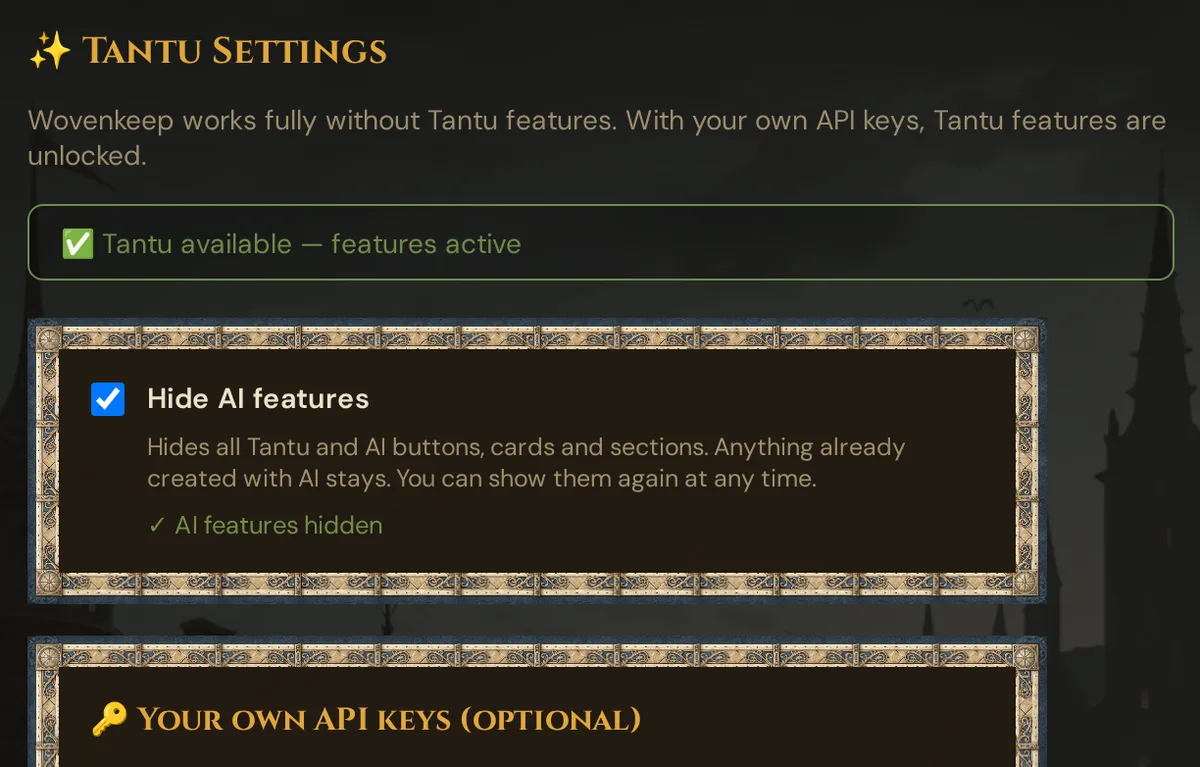
- The status line at the top shows whether Tantu is available (✅ Tantu available — features active).
- Right below it, the card Hide AI features — see below.
- Enter a key for Anthropic, OpenAI, or Gemini, with an optional model name for Anthropic and Gemini. Afterwards it is only shown partly masked (like
***AbCd), so it can't be read back in the interface. - OpenAI-compatible is a fourth option for any endpoint speaking the OpenAI API — Mistral, DeepSeek, OpenRouter, IONOS, or something you host yourself. Enter the endpoint address and the model name; the API key is optional. Only
https://addresses are accepted — internal/private network addresses are rejected. - Test connection (one per provider) checks your key or endpoint immediately, without spending Threads or waiting for a real request to fail.
- Provider preference —
Autotries OpenAI-compatible, then Anthropic, then OpenAI, then Gemini; or force a specific provider. - × (remove button) wipes the stored key immediately.
When your own provider is configured, it takes priority over Wovenkeep's bundled AI:
- Text requests go to your provider first, billed by the provider, 0 Threads
- If your provider is unreachable, Wovenkeep's built-in AI answers instead (spending Threads as usual), and you see a one-time notice that your own provider was unreachable and Wovenkeep's AI was used. Your own provider is then skipped for 5 minutes before Wovenkeep tries it again
- If your own provider rejects a request, that reply is not retried against Wovenkeep's AI
Portrait generation specifically uses your Gemini key if set (it's a Gemini-only feature). Text features use your configured providers per the preference order above.
Most GMs leave this empty and use bundled Threads — simpler, and cheaper at typical usage. Custom keys win for heavy users with existing provider credits. See Threads overview → bring your own key.
Hide AI features
The first card on the page has one checkbox: Hide AI features. Below it: Hides all Tantu and AI buttons, cards and sections. Anything already created with AI stays. You can show them again at any time.
- Ticking or unticking saves at once; the card confirms ✓ AI features hidden or ✓ AI features shown. If saving fails, the box flips back and you see Error saving or Network error.
- The setting is off by default and applies to your whole Realm — every campaign and every GM sign-in. Other open GM windows, player phones and invite pages pick it up when they reload.
- It only hides: your keys, the Player Tantu access setting and everything already created stay as they are.
What disappears and what stays: Optional AI help → Hide AI features.
Allow players to use Tantu on your Threads
Further down the page, the 🎮 Player Tantu access card:
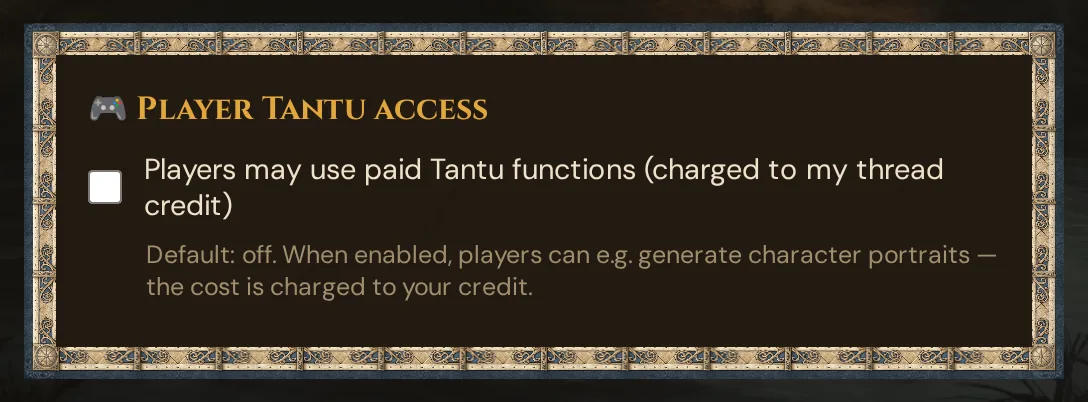
Toggle Players may use paid Tantu functions (charged to my Thread credit) to let your players access paid features (such as portrait generation) within your Realm. Thread costs are deducted from your balance, not theirs. Default: off.
Discord webhooks
Sidebar → 🎮 Discord.
Push session content to a Discord server in parallel with player phones. Useful for hybrid games (some players remote on Discord) or sharing the play-by-play with absent players.
Three webhook slots
| Slot | Sends |
|---|---|
| Scenes & NPCs | Scene pushes (image + title + description), handouts sent to everyone, NPC dialogue |
| Dice & Initiative | Your rolls as Game Master and the initiative order: one new message per fight, updated every turn; monsters appear like in the player view, without hit points. Player rolls only if you switch on Also post player rolls to Discord (see Options). |
| Announcements | The date of your next session, as soon as you set or change it in session planning |
Each slot is an independent Discord webhook URL. Configure the ones you want; leave others empty.
Configuring a slot
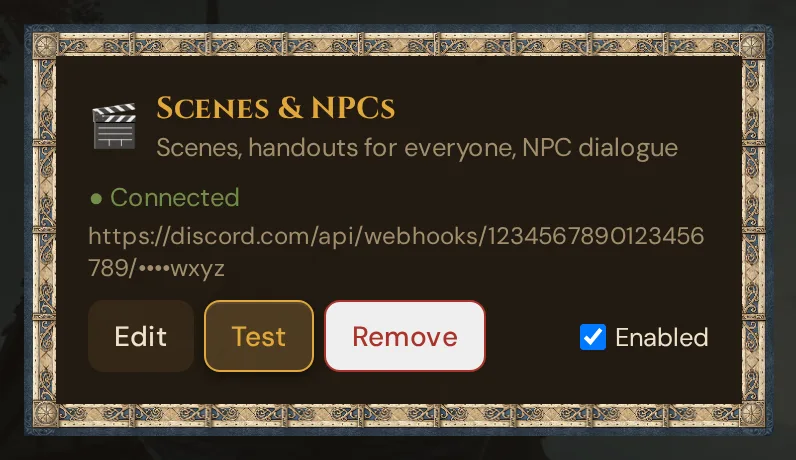
- In Discord: Server Settings → Integrations → Webhooks → New Webhook → copy URL
- In Wovenkeep: click + Configure on the slot, paste the URL, click Save
- Optionally set a Display name + Avatar URL. Discord does not allow names containing "Discord" or "Clyde"; Wovenkeep then leaves the name out.
- Click Test to send a sample message
- Enabled switches the slot off and on immediately
After saving, Wovenkeep only shows a shortened version of the webhook URL. Treat it like a password: anyone who has it can post into your channel. If it leaks, delete the webhook in Discord and create a new one.
Options
- Also post player rolls to Discord — off by default. In Wovenkeep only you see the rolls of your players; switch this on if your group rolls openly.
- Language of Discord messages — scenes, rolls and announcements are posted in this language. When you connect your first webhook, it starts with your interface language.
Using Discord push during a session
Scenes, handouts and NPC dialogue each have a 🎮 Discord switch next to their send button. Each switch remembers its last state on the device you use. Handouts for a single player are never posted to Discord.
If Discord reports too many requests, Wovenkeep waits as long as Discord asks and tries up to three times. If Discord is unreachable or the webhook was deleted, the push is not repeated: the slot card shows the error and the session log notes it.
See Scene push → Discord and Handouts → Discord.
What autosaves here
| Setting | Save behaviour |
|---|---|
| Theme selection | Instant (select click) |
| Privacy checkboxes | Instant (checkbox change) |
| Hide AI features | Instant (checkbox change) |
| Notification toggle + frequency | Instant (checkbox / select change) |
| AI key fields | Explicit Save button (keys are sensitive) |
| Discord slots | Save in the slot dialog; Enabled and the options apply instantly |
| Custom theme editor | Explicit Save button inside the editor |
| Game nights | Explicit Save button in the Game nights card |
Troubleshooting
| Symptom | Cause | Fix |
|---|---|---|
| Theme change doesn't persist after reload | Custom theme CSS not loaded | Clear browser cache; re-select the theme |
| AI key shows "invalid" after saving | Key pasted with leading/trailing spaces | Remove the key, paste again carefully |
| "Insufficient Threads" when using BYO key | Provider key is valid but quota exhausted at the provider | Top up your provider account or let Wovenkeep fall back to bundled Threads |
| Discord Test returns an error | Webhook URL deleted or regenerated in Discord | Re-create the webhook in Discord Server Settings and paste the new URL |
| Discord messages stop arriving mid-session | Discord outage, rate limit, or the webhook was deleted in Discord | Check the error on the slot card. Wovenkeep only retries on rate limits; if the webhook was deleted, create a new one and paste the new URL. |
| Player rolls don't show up in Discord | Also post player rolls to Discord is off (the default) | Switch it on under 🎮 Discord → Options |
| Player Tantu access toggle is on but players see "feature locked" | Player's device didn't refresh after the toggle change | Ask the player to reload the player view |
| Players still see AI buttons after you ticked Hide AI features | The player view reads the setting when it loads | Ask the players to reload the player view |
| The update bar has been showing for days | The update was postponed, or every time Wovenkeep tried, someone was playing, had used it in the last 15 minutes, or it was a game night | Wait for a break, or click Install now (about 1 minute pause) when nobody is playing |
| Please check the times: start and end must differ. when saving game nights | A row has the same start and end time, or there are more than 21 rows | Correct the times and click Save again |
Related articles
- 💾 Storage & files — quota management and the storage top-up
- 🔒 GDPR & Data Export — full data export and account deletion
- 🧵 Threads & costs — AI keys vs. bundled Threads explained
- 🖼️ Scene push — Discord push in action during live sessions
- 🎨 Themes — autosave behaviour across the tool