📍 Locations
👤 For: Game Masters · 💳 Plan: All plans · 🔄 Updated 2026-10-17
Locations are a first-class entity in Wovenkeep — the cities, dungeons, taverns, and landmarks of your world get their own record with a description, private GM notes, hidden secrets, and an image. Once a place exists as a Location, you can link it to anyone and anything and watch it appear in the Story Web automatically.
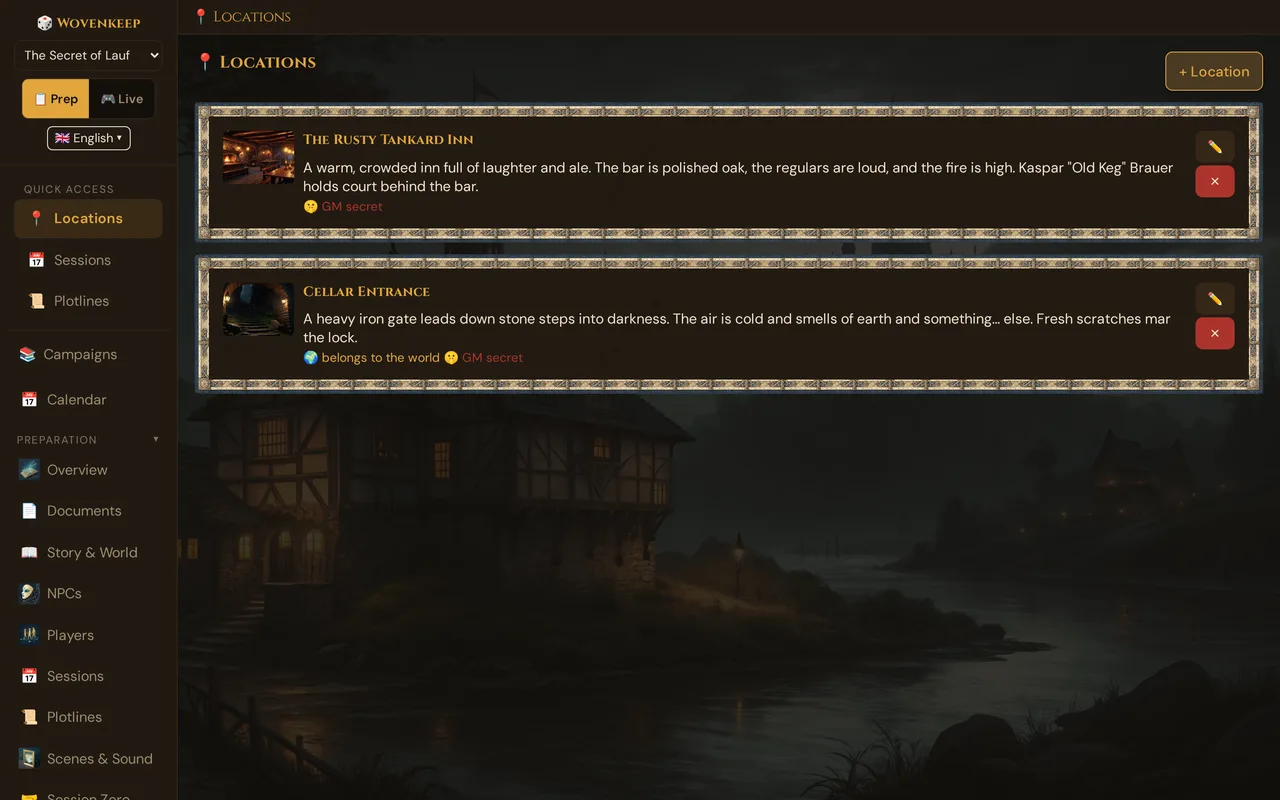
What it does
A Location is a reusable record that belongs to one campaign — or, if you tick For all campaigns of this world, to the whole world, so every campaign in that world can use it. Each one holds a Name, a Description your players can hear, free-form Notes for yourself, a GM secret (never shown to players), and an Image. Locations are not buried inside a scene — they live in their own list, so the same place can show up across many scenes, plotlines, and sessions without being re-typed. They also become nodes in the Story Web and can be connected to other entities with Links.
When to use it
- You have a recurring place — a home base, a city, a villain's lair — that several scenes refer to
- You want a private GM secret attached to a place (a hidden door, who really owns the inn) that never leaks to players
- You are mapping your world and want every important place to show up in the Story Web
- You want to push an illustration of a location (your own, or a suggestion with AI) to players during a session
Step by step
- Open 📍 Locations from the left navigation bar in the GM tool.
- Click + Location.
- Start typing into Name — the location is saved the moment you type your first character (see Autosave). There is no separate "Create" button.
- Fill in Description, Notes, and the GM secret field. Every field autosaves as you go.
- Click ✓ Done (or just click outside the dialog) to close. Empty drafts are discarded automatically.
- To change a location later, click the ✏️ button on its card. To remove one, click ✕.
💡 Tip: If you close the dialog without giving the location a name, Wovenkeep deletes the empty draft for you — so you never end up with a list of "Neuer Ort" leftovers from a mis-click.
Locations for the whole world
A capital city, a famous tavern or the villain's fortress often matters in more than one campaign. You don't have to create such a place twice:
- In the location dialog (new or ✏️ edit), tick 🌍 For all campaigns of this world. All campaigns of this world see this location. Untick it to make the location belong to the current campaign only again.
- In the Worlds section, open a world: the section 📍 Locations of this world lists all world locations, and + Location there creates one directly for the world — no campaign needed.
In a campaign's location list, world locations carry the badge 🌍 belongs to the world. If you move a campaign to another world (🌍 Change world), the locations of the old world stay there, and the locations of the new world appear in this campaign. Locations that belong only to the campaign move with it.
The fields
| Field | Who sees it | Use it for |
|---|---|---|
| Name | Players (if pushed) | The place's name |
| Description | Players (if pushed) | What the place looks and feels like |
| Notes | GM only | Loose prep, reminders, things still in flux |
| GM secret | GM only — never shown to players | The twist: a hidden passage, the true owner, a trap |
| Image | Players (if pushed) | A paste-in image URL, a picture from 🗂️ Choose from media, or a suggestion (AI) — see below |
The GM secret is marked with 🤫 on the location card so you can see at a glance which places are still hiding something.
🗂️ Choose from media (in the edit dialog, below the image field) picks one of your pictures, uploads a new one or — with ✨ Create with Tantu — starts the image suggestion; ✕ Remove clears the image. The new image is saved at once. See Choose from media.
Place state from world events
When a world event changes a place, the location list shows a badge behind its name: ⚠️ threatened, 🚩 occupied, 🕯️ cursed, 🕸️ abandoned or 🔥 destroyed — the places a deicide destroys get 🔥 destroyed too. An event with restored (normal), or reverting the event, removes the badge.
- The badge is for you only — players don't see it.
- It belongs to the campaign in which the event happened: a location shared by the whole world shows it only in that campaign, and never in the world's own location view.
- Your location entry itself stays unchanged — name, description and image remain as they are.
Linking locations to everything else
Open a location's edit dialog and you will find a 🔗 Links panel. This is the generic relationship tool: a location can be linked to any other entity in your campaign, in any direction, with an optional relationship label.
To add a link:
- In the 🔗 Links panel, click + Link.
- Pick the target type from the dropdown.
- Pick the specific entity from the second dropdown.
- Optionally type a relationship in the label field (e.g. owns, guards, birthplace of).
- Click + Link to save.
You can link a location to any of these:
| Link to | Example relationship |
|---|---|
| NPC | "lives in", "owns" |
| Scene | "takes place at" |
| Location | "is inside", "borders" |
| Plotline | "central to" |
| Player character | "hometown of" |
| Item (custom / SRD) | "hidden here" |
| Monster (custom / SRD) | "lairs here" |
| Deity | "shrine of" |
| World Event | "destroyed in" |
Links are de-duplicated — adding the same connection twice does nothing. To remove a link, click the ✕ beside it. Both outgoing (→) and incoming (←) links are listed, with the related entity's name resolved automatically.
Locations in the Story Web
Every location becomes a Location node in the Story Web (teal, 📍). The links you create in the panel above show up as edges there immediately — no re-import.
From the 🔗 Links panel, the 🕸 Show in web button opens the Story Web in a new browser tab with that location already in focus, so you can see its whole neighbourhood at a glance.
What the player sees
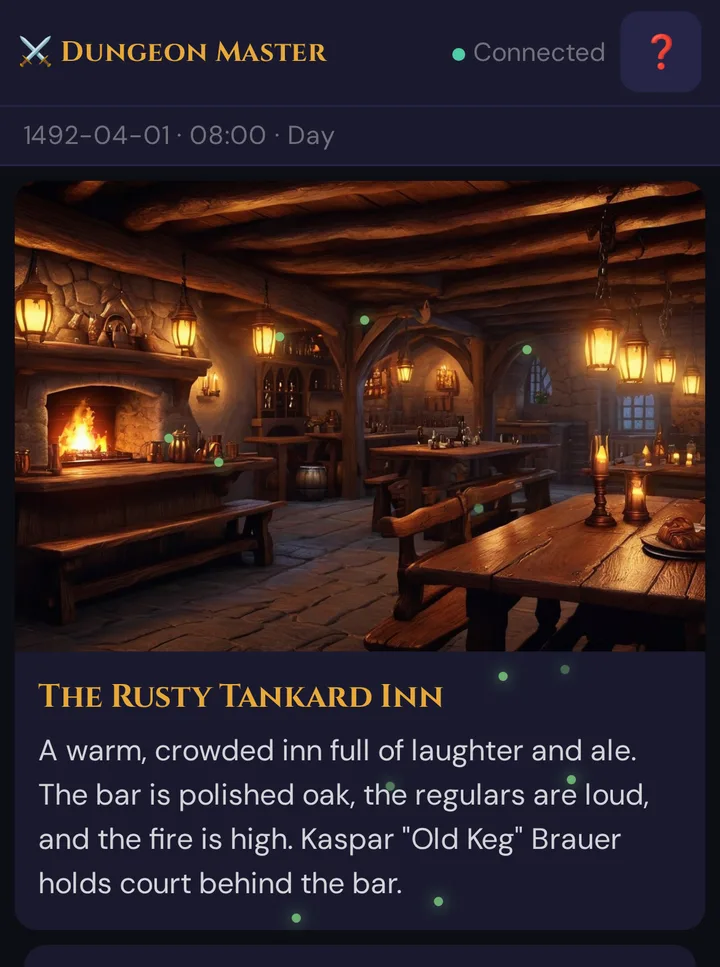
Players never see a location's record, Notes, or GM secret. A location isn't pushed on its own: to show the place, push a scene in the live session — with 🎬 Push scene (title, description, image URL, e.g. the location's image) or a scene from 📋 Prepared scenes. The phone shows only that — here the demo scene of the inn:
Optional: Image suggestion (AI)
In the edit dialog, next to the Image field, there is a 🖼️ Image by Tantu button with a 5 🧵 cost badge. Click it and — after a confirm dialog showing the cost, your current balance, and the balance after — Tantu suggests a wide establishing shot of the place. It uses the location's name, description, and your GM notes/secrets to shape the scene, and deliberately leaves out text, watermarks, and foreground characters so the result reads as a backdrop.
The generated image is saved to the location automatically; the Image field updates to show it. From there you can push it to players' phones the same way as any other Scene push.
If something goes wrong mid-generation, the Threads you spent are refunded automatically.
💡 Tip: Fill in the Description before generating. An empty location falls back to a generic "fantasy location" prompt — a sentence or two of detail produces a far more fitting image.
Costs
- Creating, editing, and linking locations is free on every plan, with no cap.
- Image suggestions (AI) cost 5 Threads per image — free only with your own Google Gemini key. Pasting your own image URL or choosing one from your media is free. Generated images then push to players for free. See Threads & costs.
- Stored images count against your Realm's storage quota. If you are near the limit, image generation is blocked until you free space or add a storage pack. See Storage & files.
Troubleshooting
| Symptom | Cause | Fix |
|---|---|---|
| New location shows as a blank "Neuer Ort" entry | A draft was created but never named | Open it, give it a name; or delete it with ✕ |
| 🖼️ Image by Tantu does nothing / errors | No AI image provider is configured for this Realm | Add an AI key in instance settings, or bring your own key |
| Image generation says "insufficient balance" | You are out of Threads | Buy or earn more Threads — or add your own Google Gemini key, then images cost no Threads; see Threads & costs |
| Image generation blocked with a storage message | Your Realm storage is full | Free space or add a +500 MB pack — see Storage & files |
| Deleted a location by mistake | Delete archives to Trash first, then removes | Check the Trash to restore it |
| A link I added isn't in the Story Web | Graph wasn't reloaded | Re-select the campaign in the Story Web to reload |
Related articles
- 🕸️ Story Web — locations appear here as nodes automatically
- 🎬 Scenes (prep) — set a scene at a location and push it
- 👤 NPCs — link the people who live in your places
- 🖼️ Scene push — send a location image to player phones
- 🧵 Threads & costs — what image suggestions cost
- 💾 Storage & files — what counts against your quota